Integrations
Connect your LinkedIn and email accounts
Link the accounts Kuration sends from — LinkedIn, Gmail, Outlook — so your sequences go out under a real, trusted identity.
About 2 minutes
Done once per account
Everything starts in Settings. From there you authorise each provider and Kuration keeps the connection available to every sequence in your workspace.
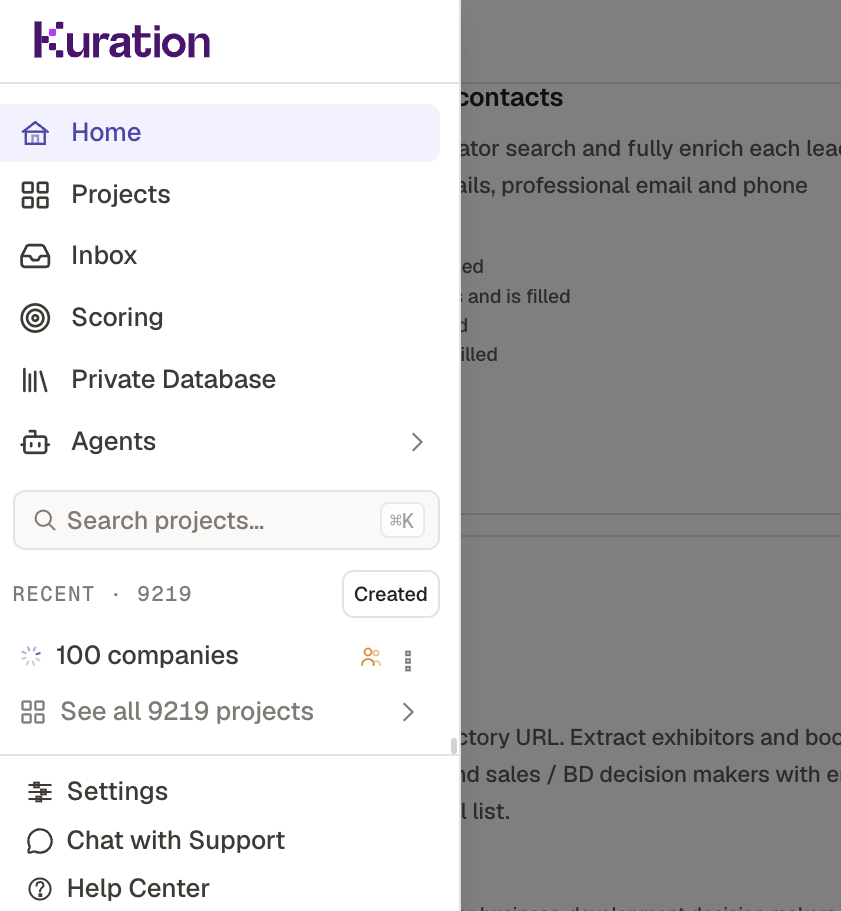
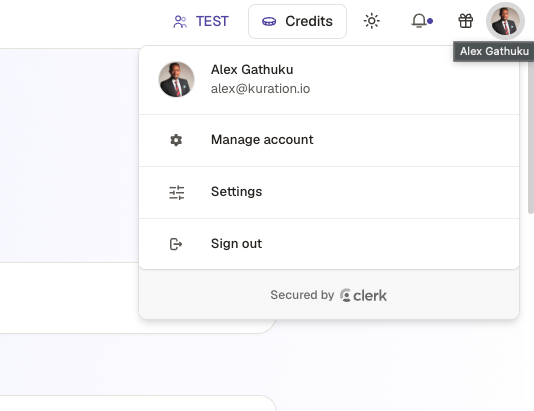
Open Settings
There are two ways in: the settings icon at the bottom of the left sidebar, or your avatar in the top-right corner, then Settings.
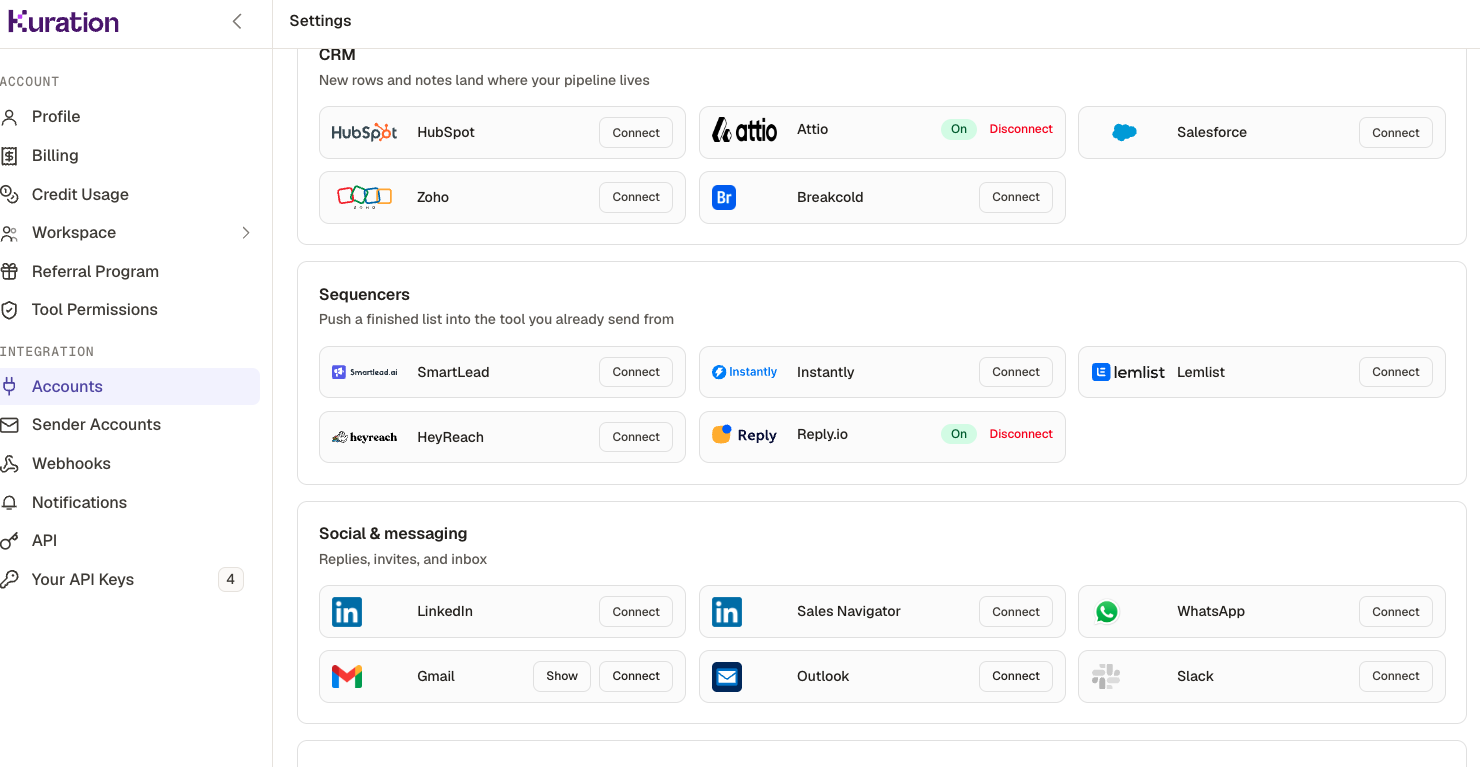
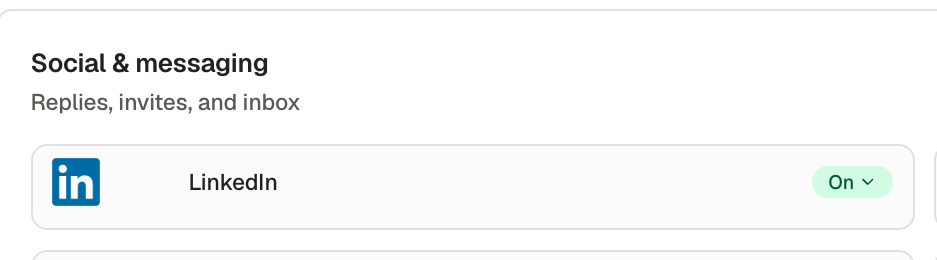
Open Accounts, then scroll to Social & messaging.
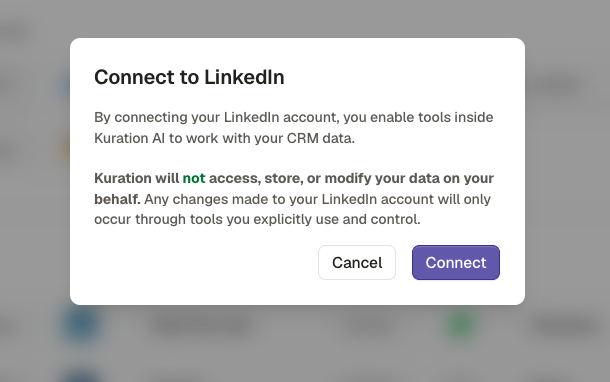
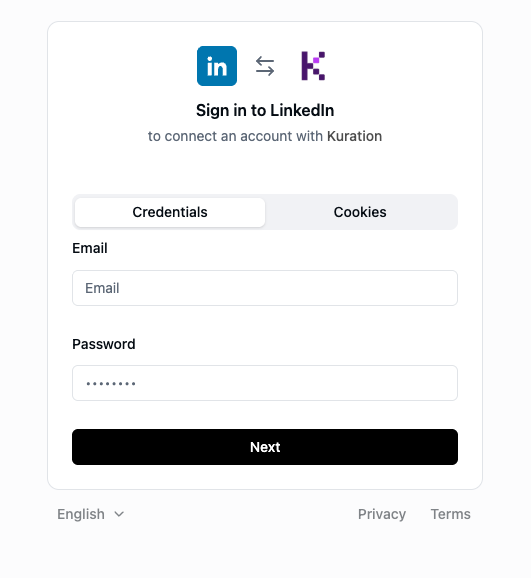
Click Connect on the provider — LinkedIn here — confirm in the dialog, then sign in on the auth page that opens.
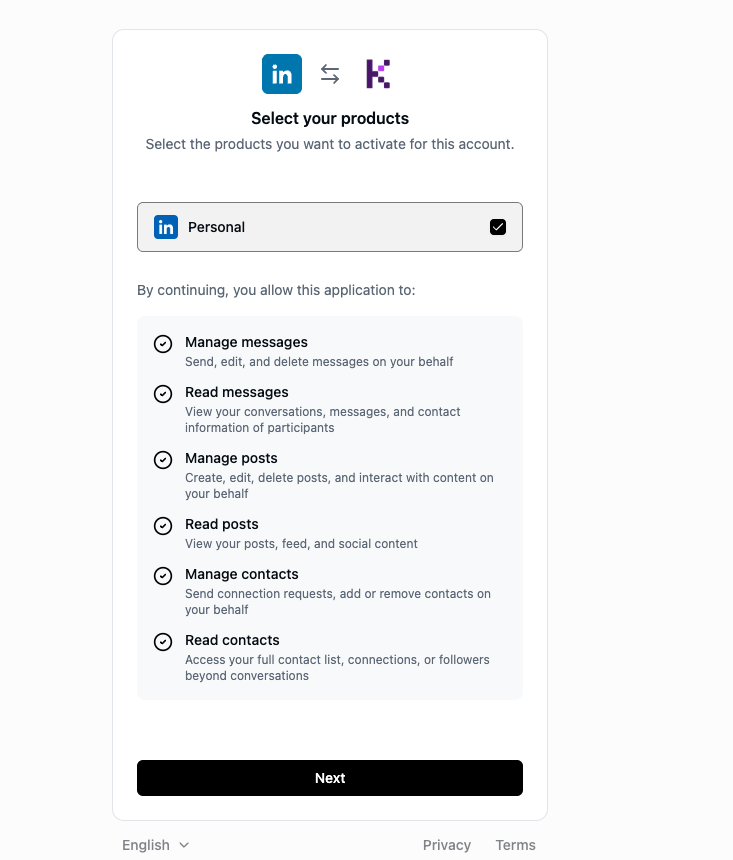
Select the products to activate, review the permissions you're granting, then click Next.
Back in Accounts, the status updates to On.
The same flow connects your Gmail, Outlook and SMTP mailboxes from the Accounts page.