


Create a custom research tool
A custom research tool lets you create unique data points that aren't available from standard filters or databases. You say what sources to use, provide a prompt with context, and set the exact output format. This guide builds one that checks each email tool's free trial, lowest plan price, and card requirement.
Open the Toolbox.
Under Custom research, select Custom Research Tool.
Enter the required fields.
Save and reuse it as many times as needed.
Your tool is ready to run
Once created, the custom tool appears as a new column on your list, ready to run across every row and fill in the results you defined.
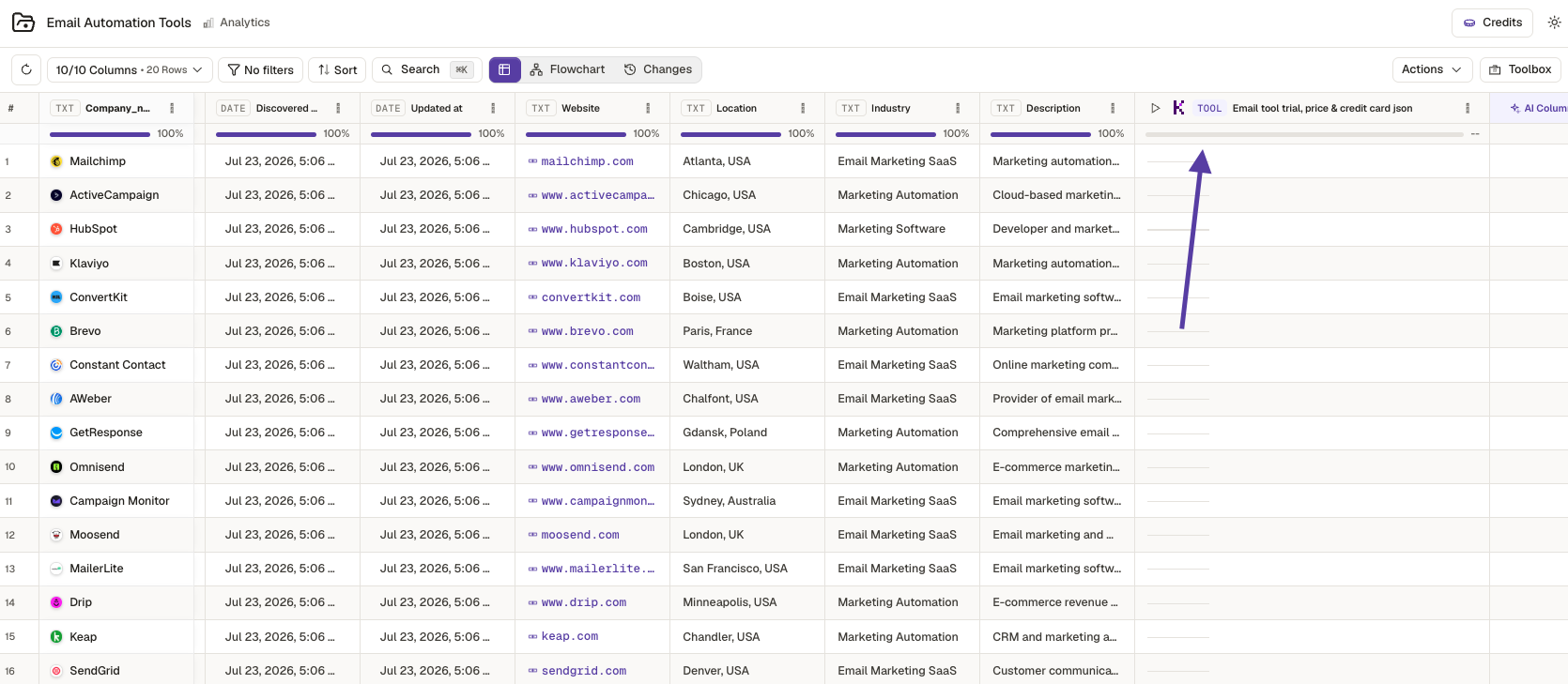
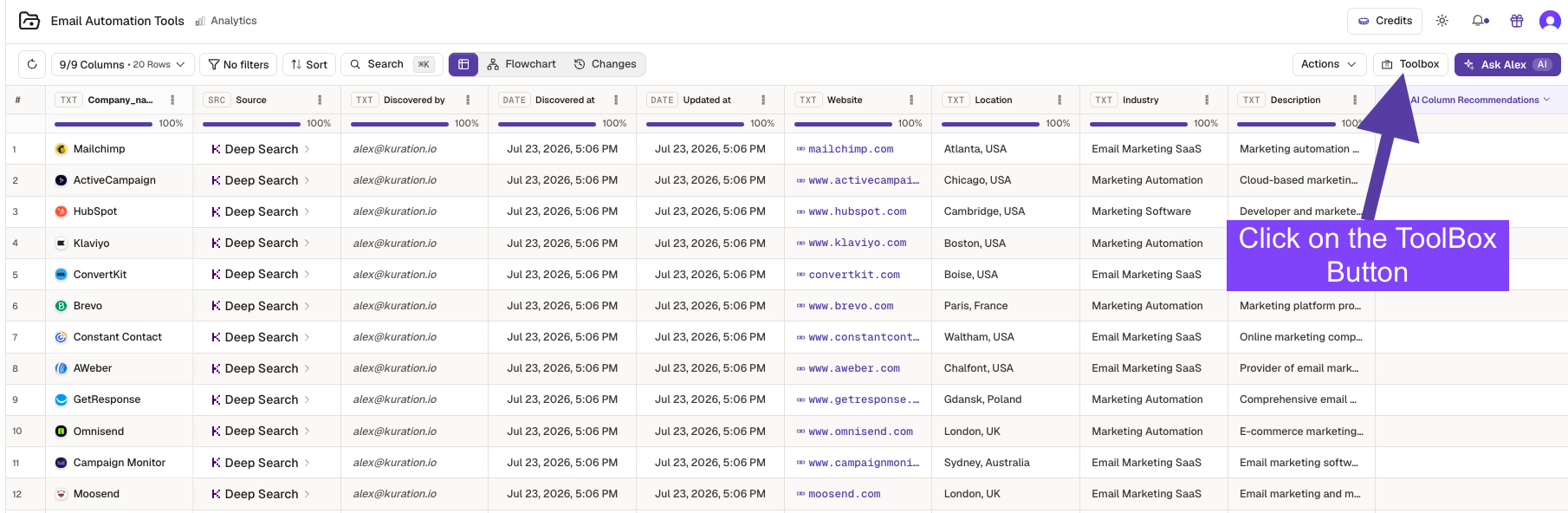
Open the Toolbox
On your list, click the Toolbox button in the top-right corner to browse every research and enrichment tool Kuration offers.
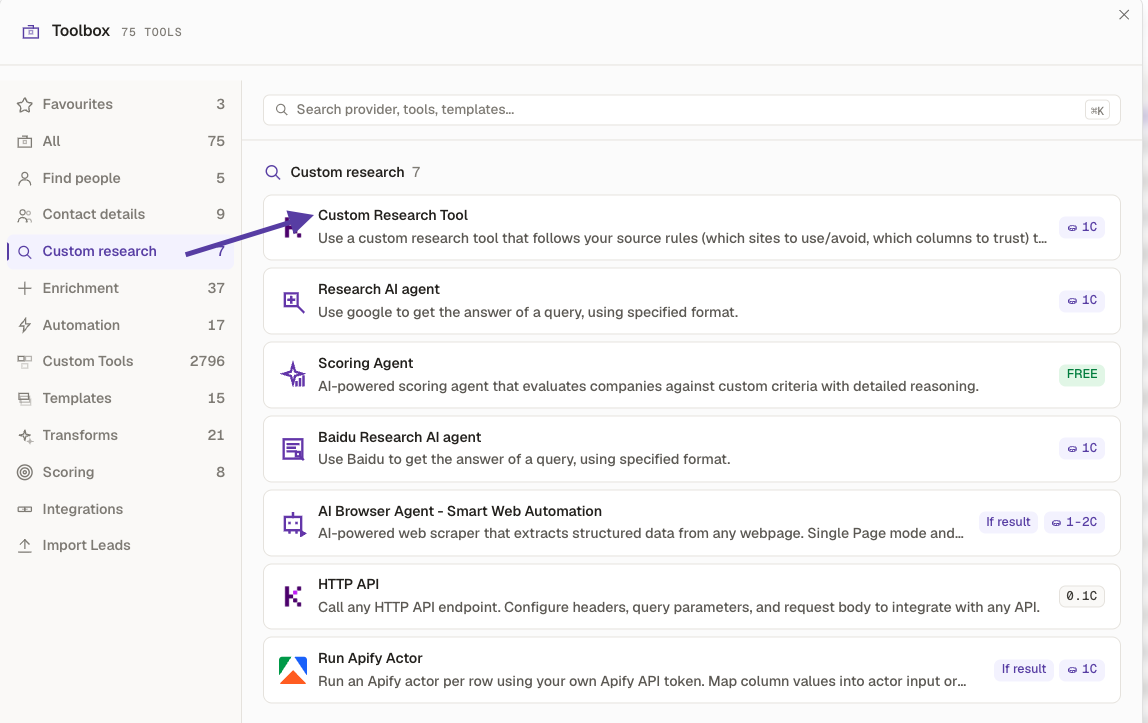
Choose Custom Research Tool
Under the Custom research category, select Custom Research Tool. It follows your own source rules to answer a query in the exact format you specify. Each run costs 1 credit per row.
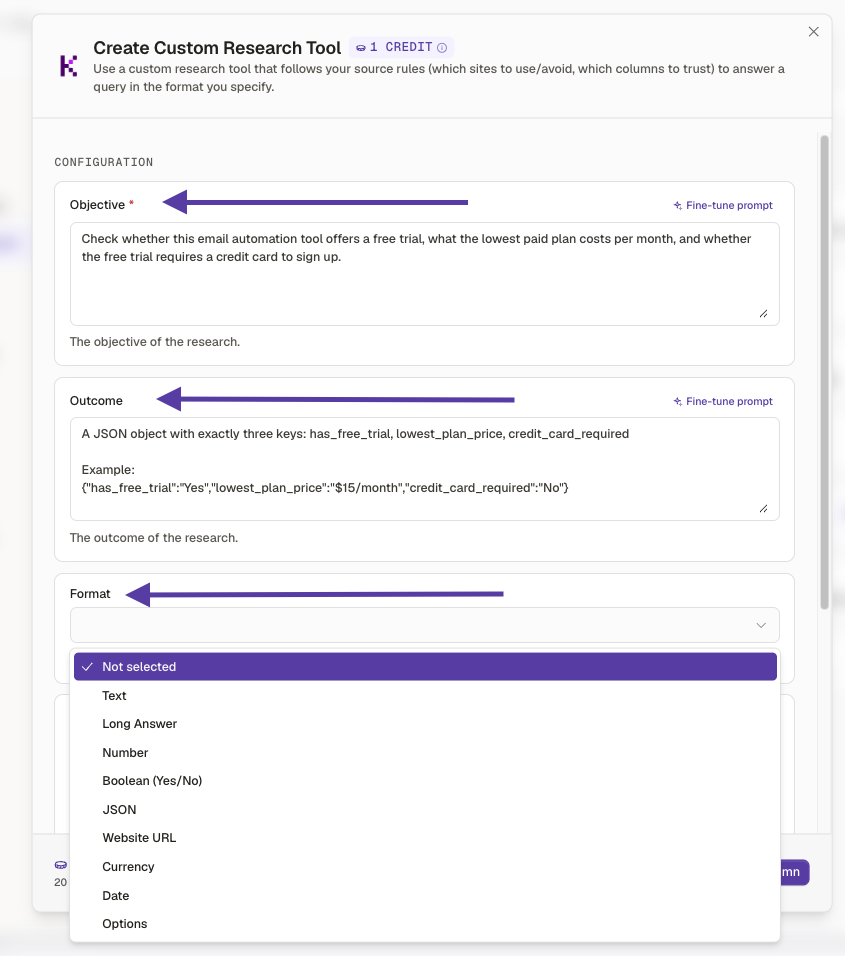
Set the objective, outcome & format
Write the Objective (what to research), the Outcome (the shape of the answer, with an example), then pick a Format such as JSON, Number, or Boolean so results come back consistently.
Add source rules and create the column
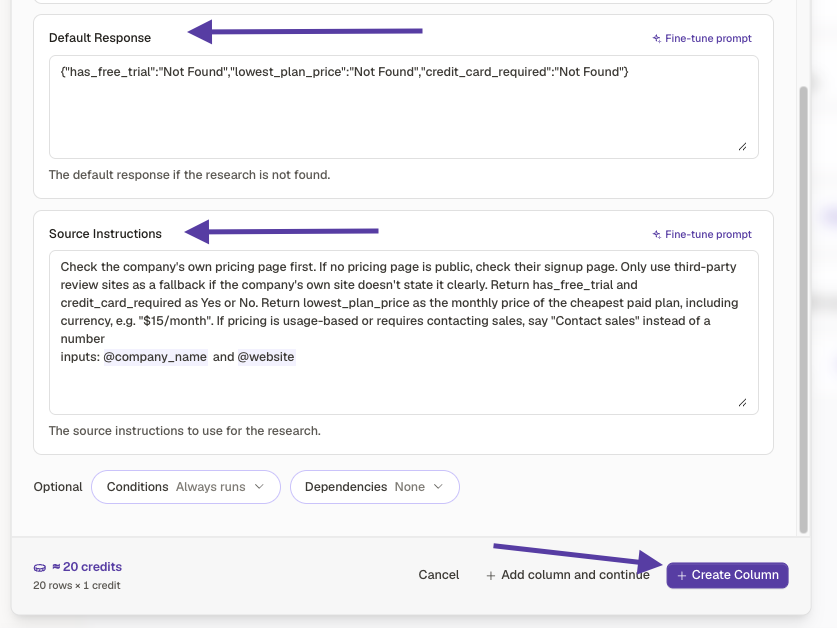
Set a Default Response for rows where nothing is found, and Source Instructions telling the tool what sources to use and how to interpret them. Reference inputs like @company_name and @website, then click Create Column.
Saved to your Toolbox for reuse
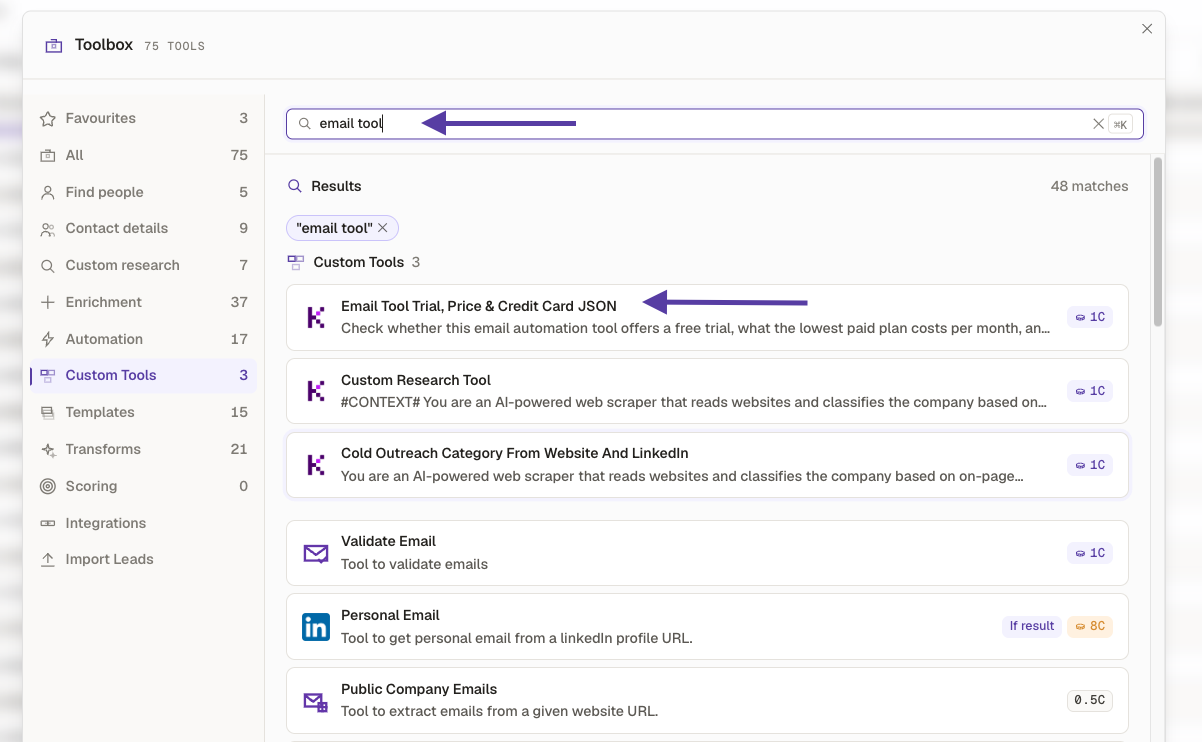
Your tool is now saved under Custom Tools in the Toolbox. Search for it and reuse it on any list anytime. Star it to mark it as a favourite for quick, one-click access.
Kept on this device