Connect and integrate SmartLead API key on Kuration AI
Connect SmartLead to Kuration AI by copying your Admin API key from SmartLead and authenticating the integration from your Kuration settings.
You will open Settings → Integration in Kuration, copy your Admin API key from SmartLead's API Key Management page, then paste it back into Kuration to complete the connection.
- In KurationAccess to Settings → Integration for your account.
- In SmartLeadPermission to view API Key Management.
- Your API keyThe Admin API Key from your SmartLead account.
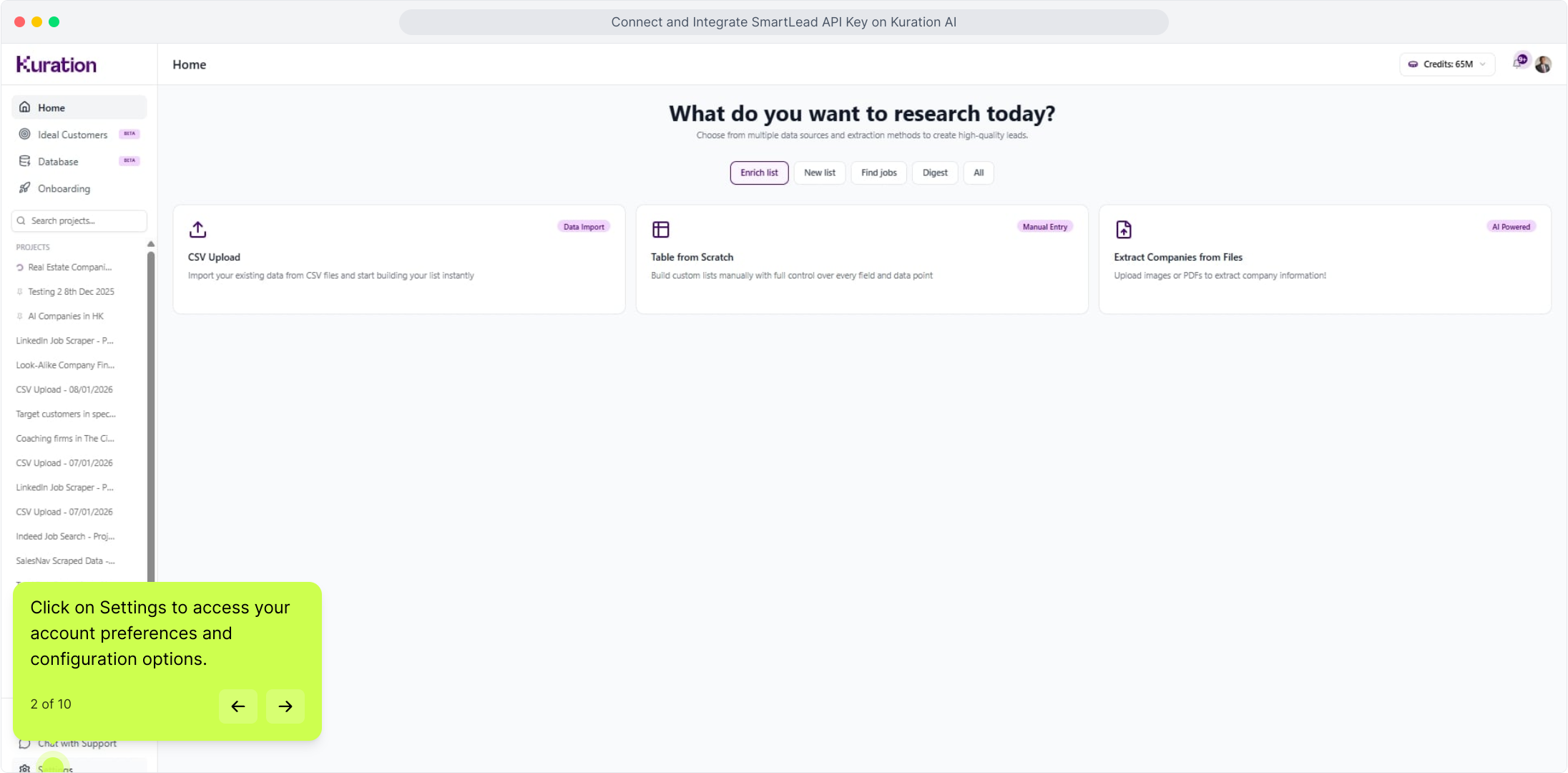
Open Settings
Click on Settings to access your account preferences and configuration options.

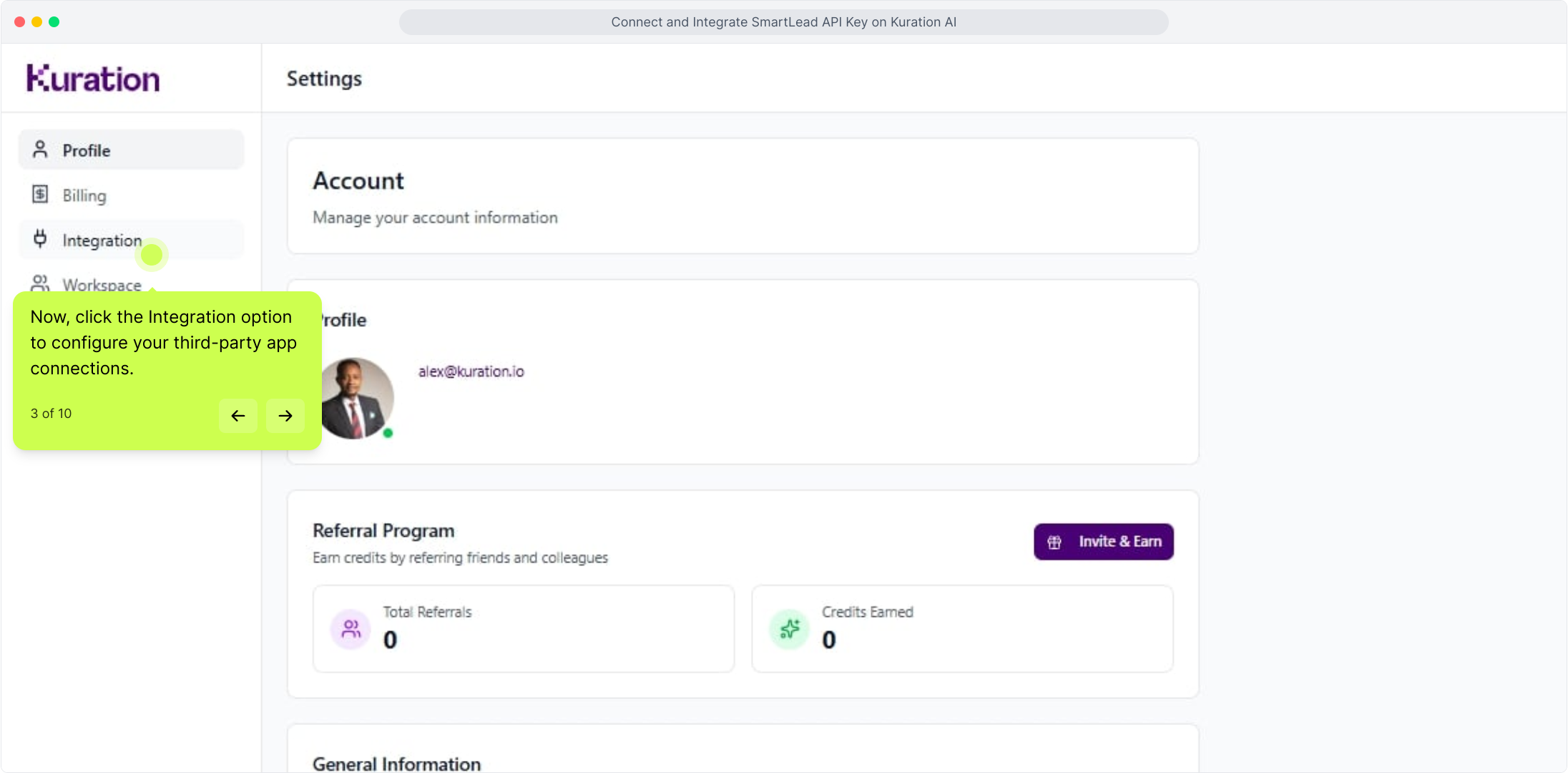
Open Integration
Now, click the Integration option to configure your third-party app connections.

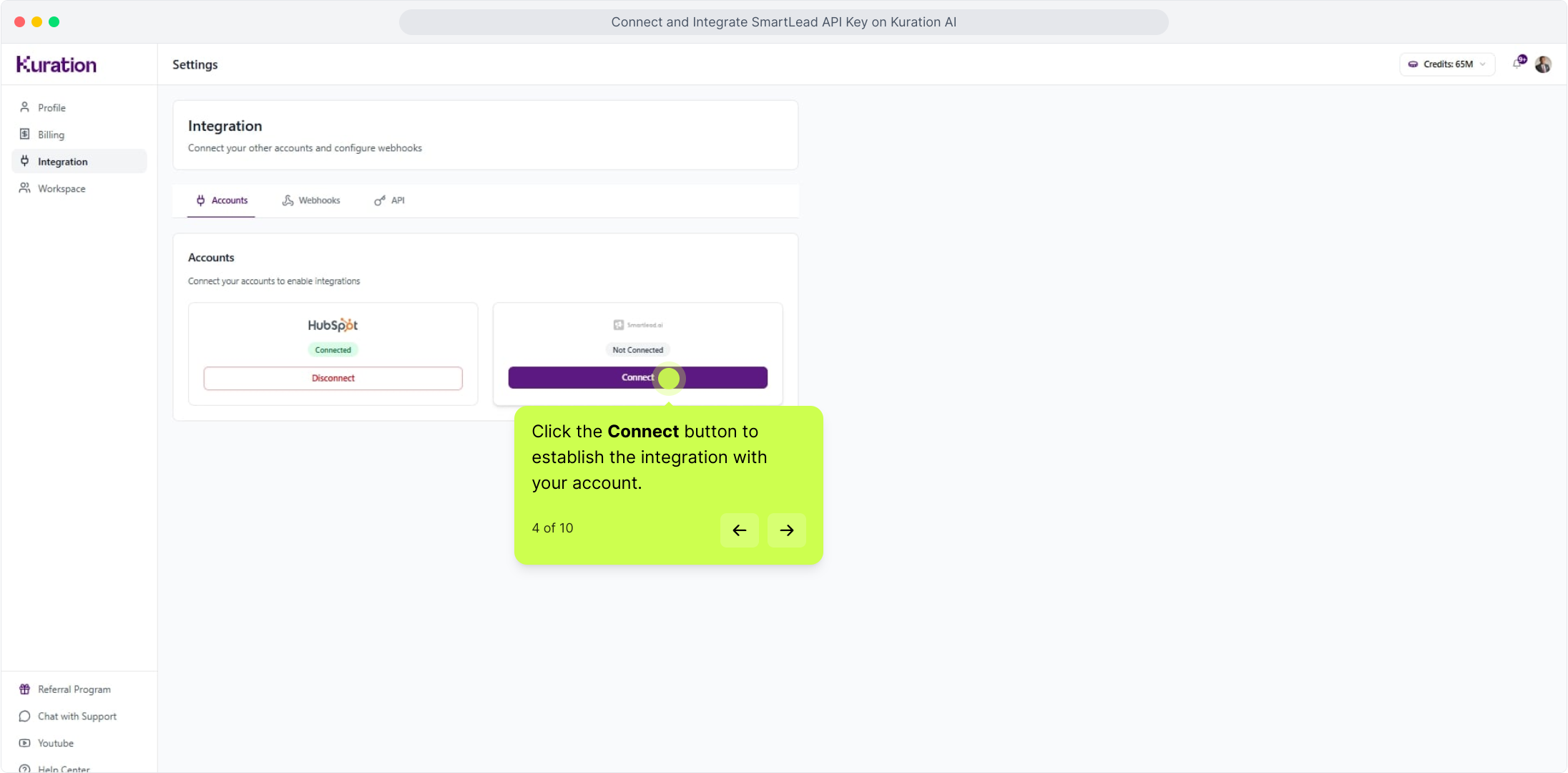
Click Connect on the Smartlead card
Click the Connect button to establish the integration with your account.

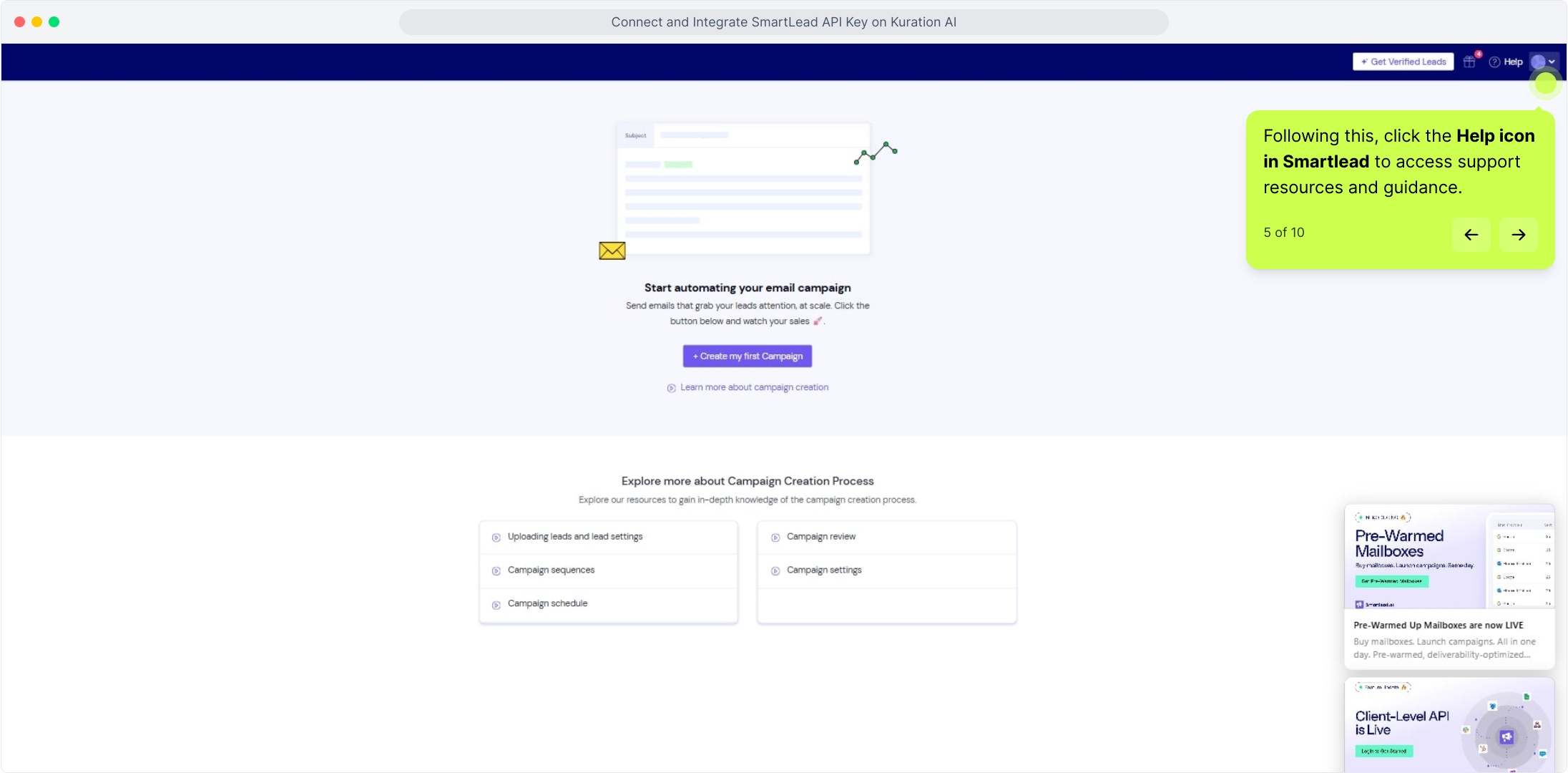
Open the Help menu in Smartlead
Following this, click the Help icon in Smartlead to access support resources and guidance.

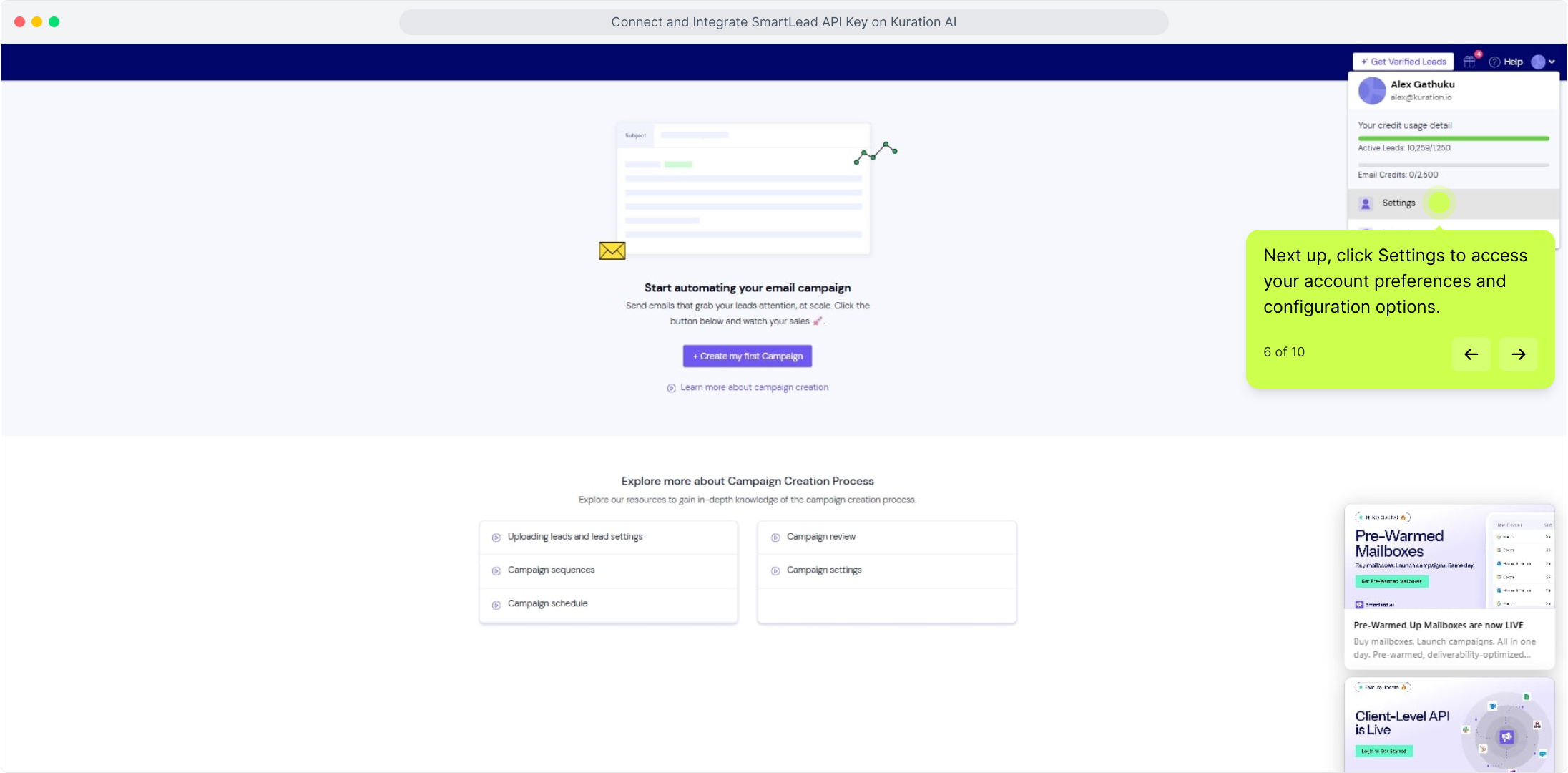
Click Settings
Next up, click Settings to access your account preferences and configuration options.

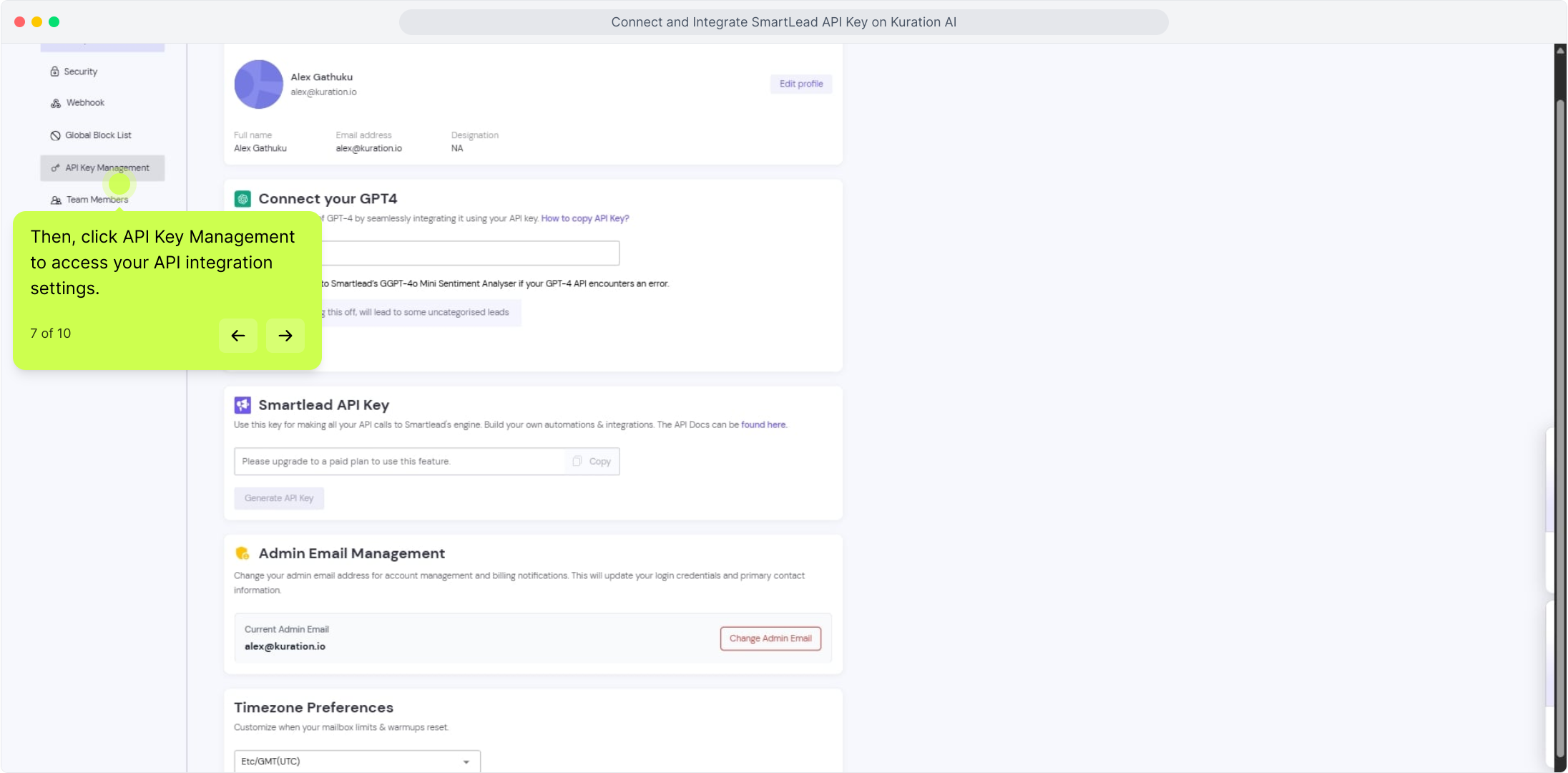
Open API Key Management
Then, click API Key Management to access your API integration settings.

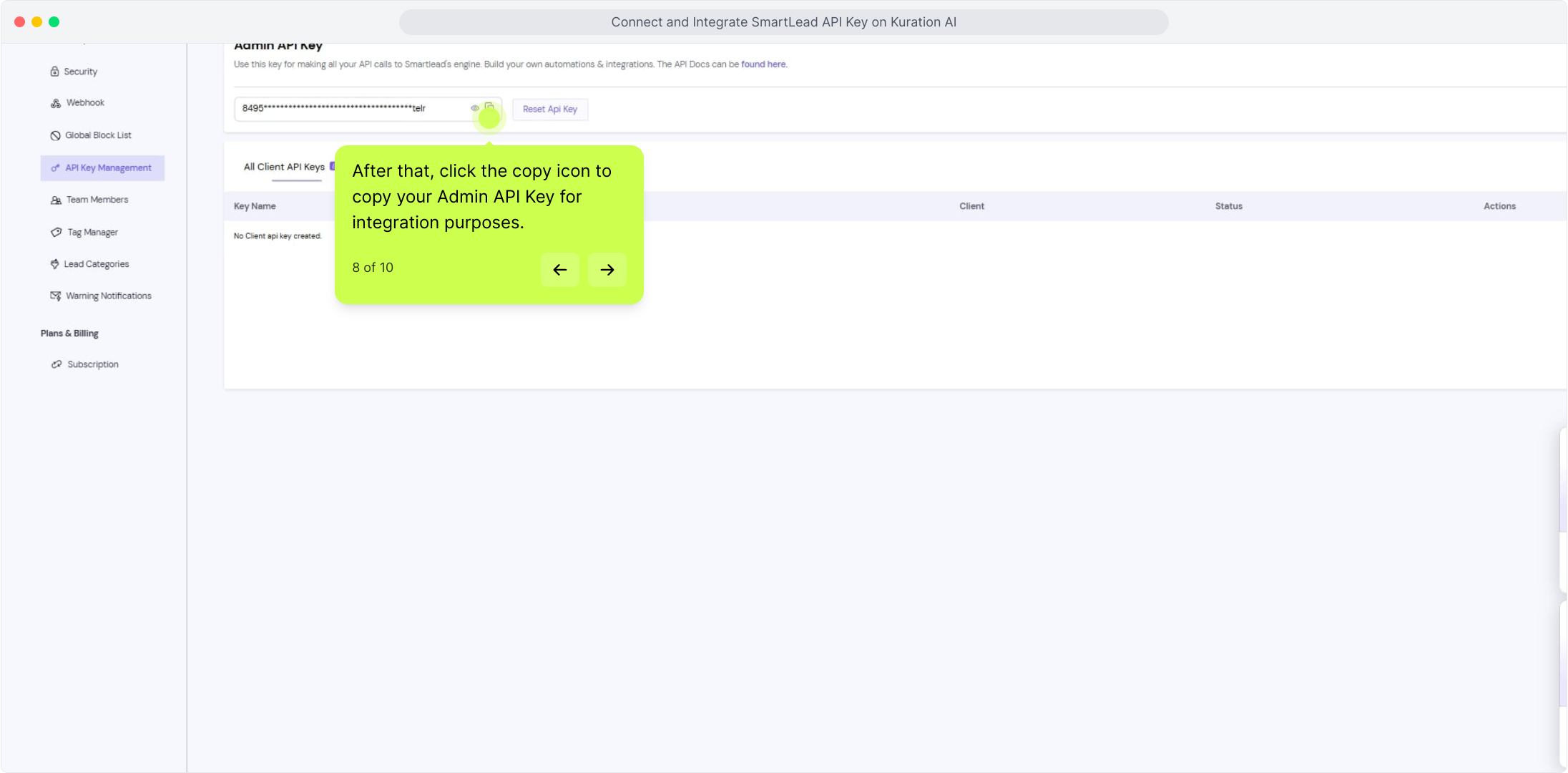
Copy the Admin API Key
After that, click the copy icon to copy your Admin API Key for integration purposes.

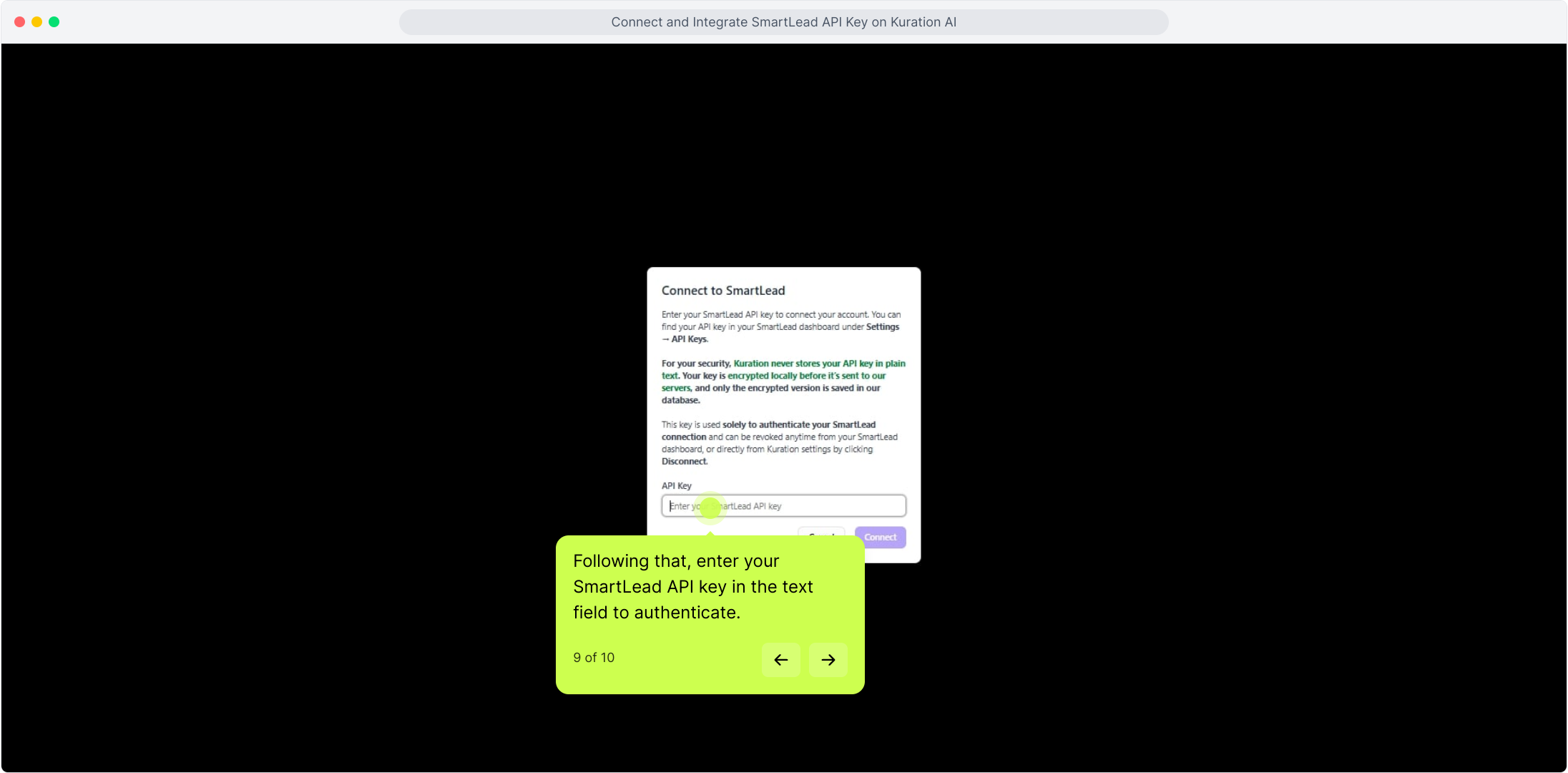
Paste your API key
Following that, enter your SmartLead API key in the text field to authenticate.

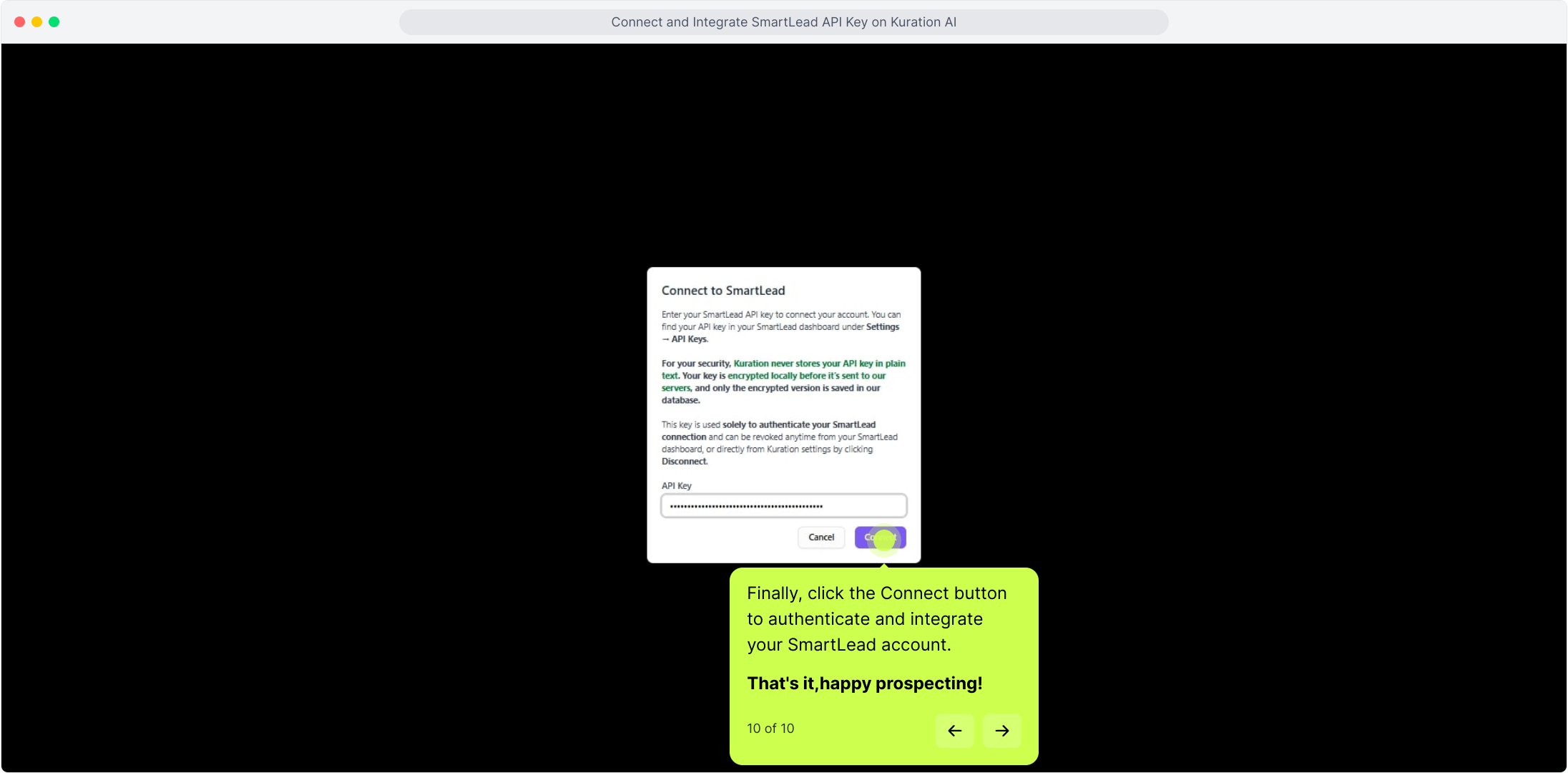
SmartLead is connected
Finally, click the Connect button to authenticate and integrate your SmartLead account. That's it, happy prospecting!