Connect and Manage HubSpot Integration in Kuration
Connect HubSpot to Kuration AI from your Integration settings, authorize the app in HubSpot, and start sending contacts to your CRM.
You will open Settings → Integration in Kuration, click Connect on the HubSpot card, then choose the HubSpot account to authorize.
- In KurationAccess to Settings → Integration for your account.
- In HubSpotPermission to install apps on your account.
- Your accountThe HubSpot portal you want contacts sent to.
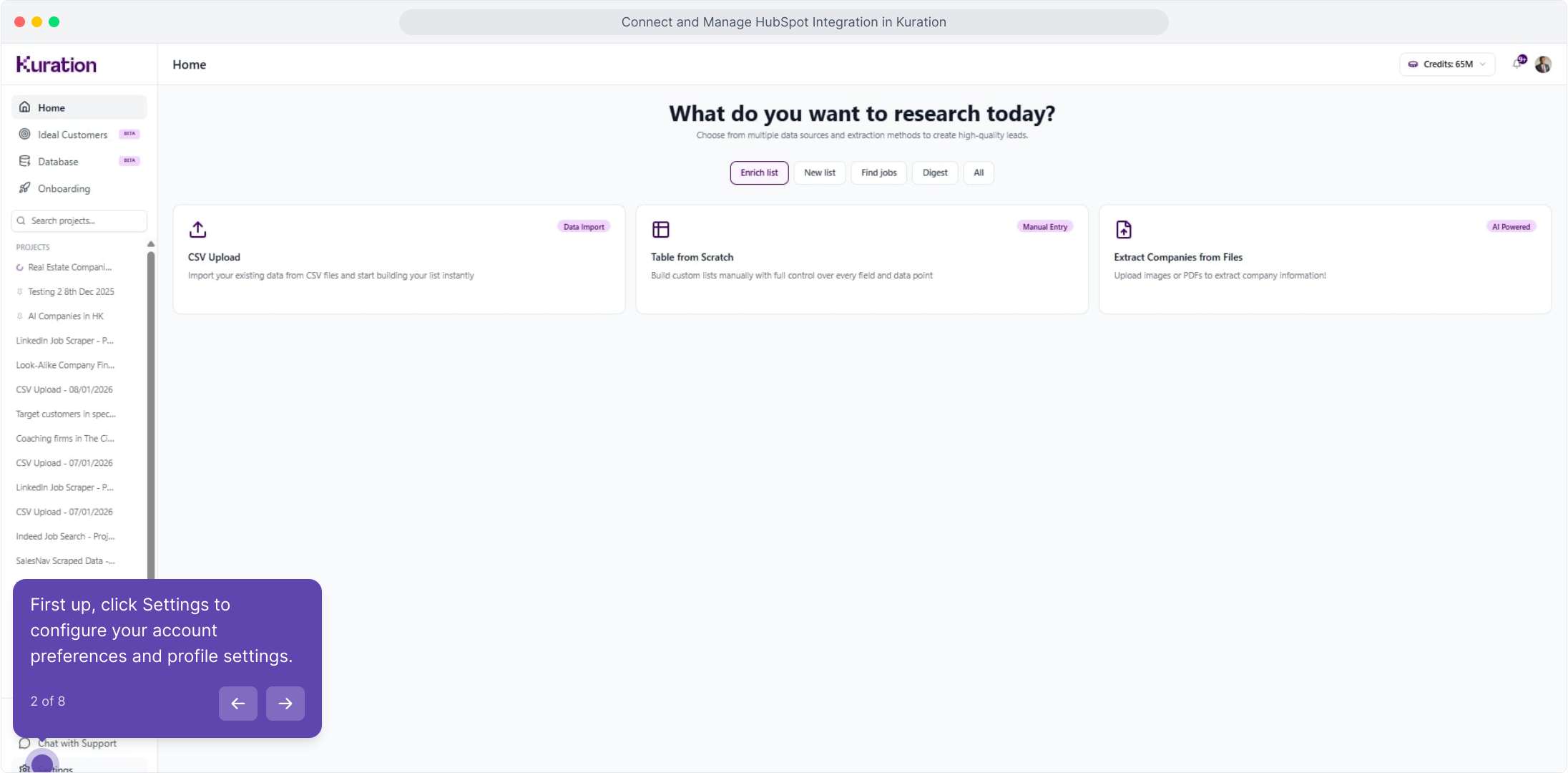
Open Settings
First up, click Settings to configure your account preferences and profile settings.

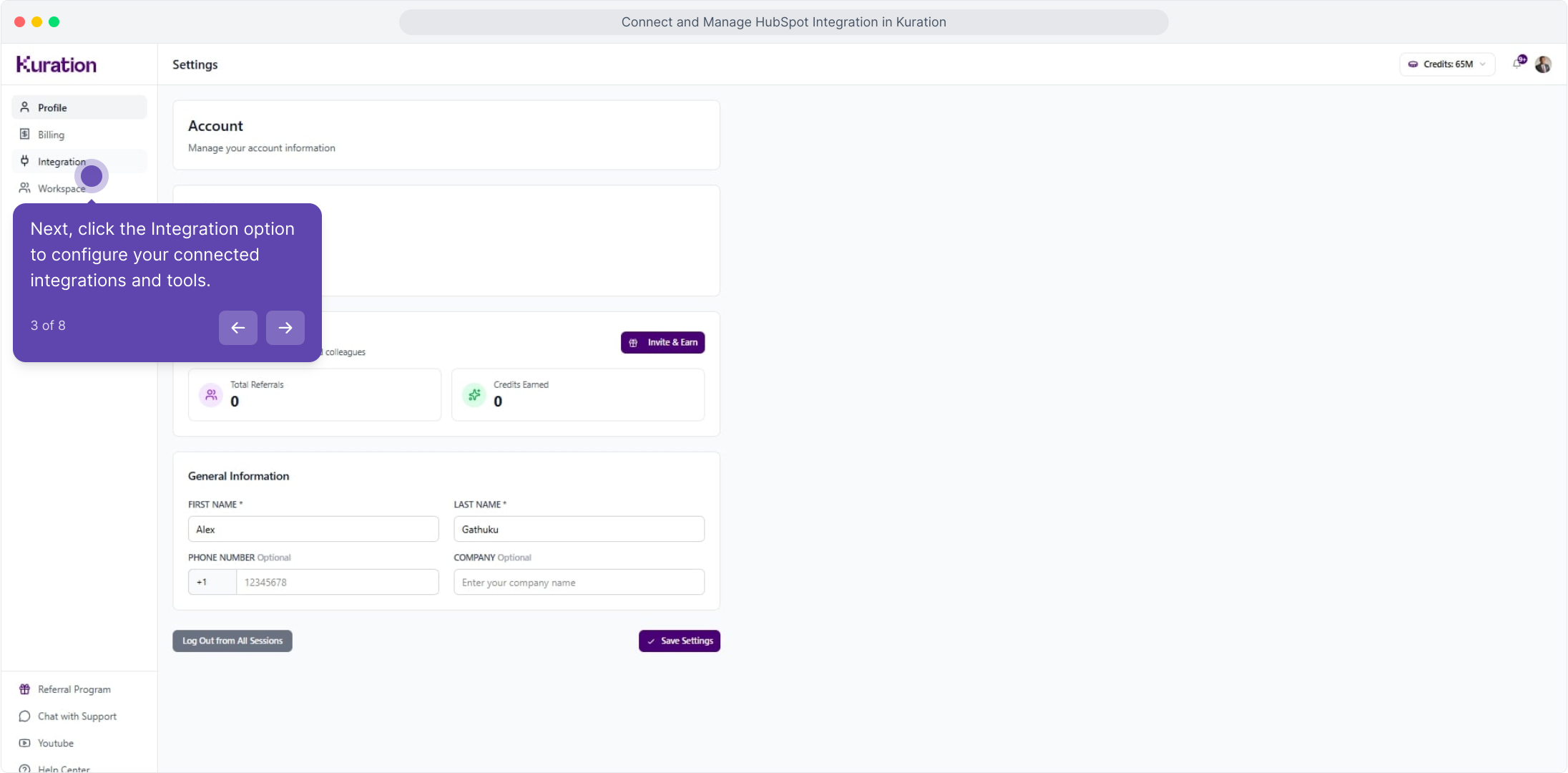
Open Integration
Next, click the Integration option to configure your connected integrations and tools.

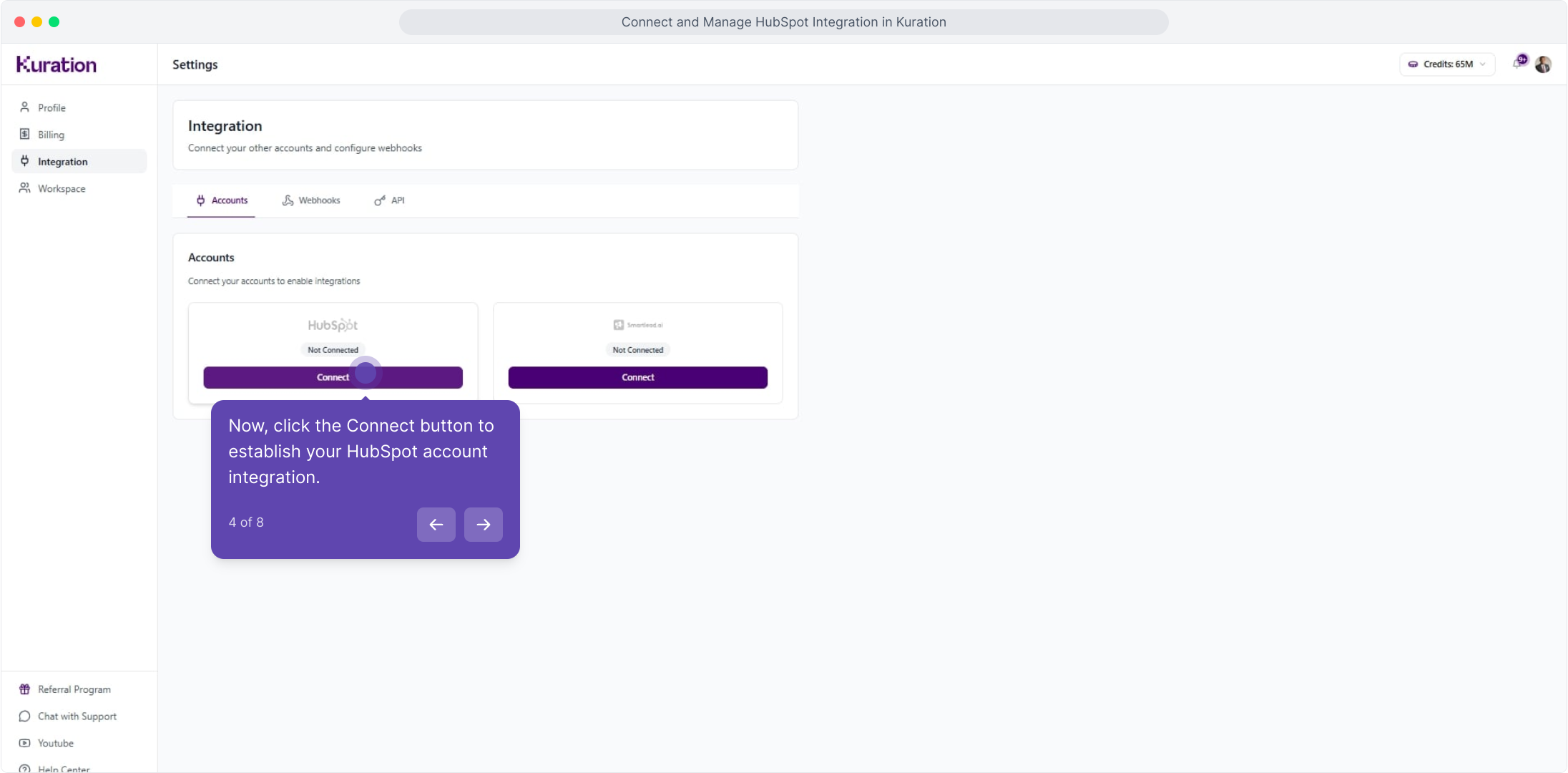
Click Connect on the HubSpot card
Now, click the Connect button to establish your HubSpot account integration.

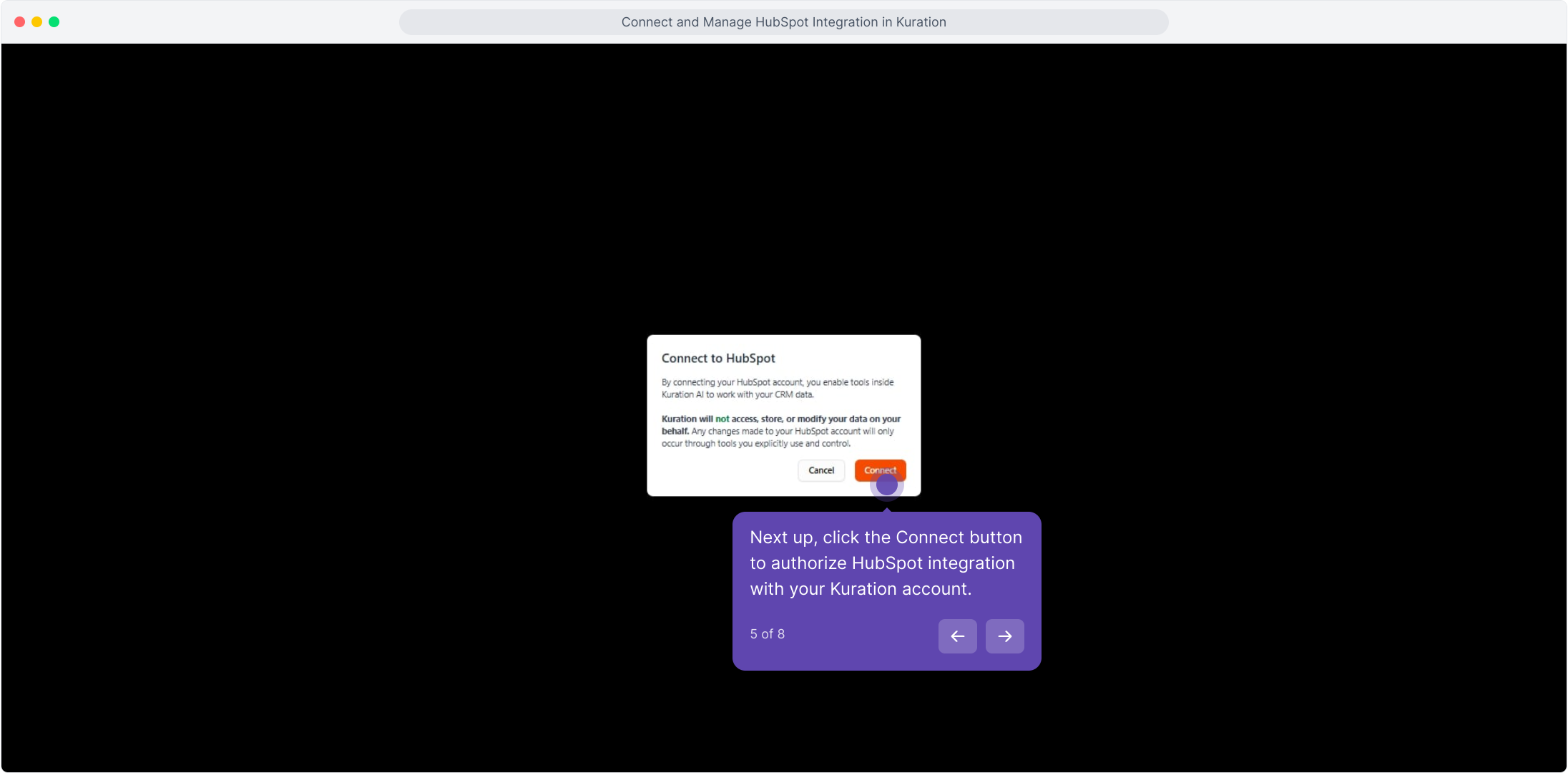
Confirm the connection
Next up, click the Connect button to authorize HubSpot integration with your Kuration account.

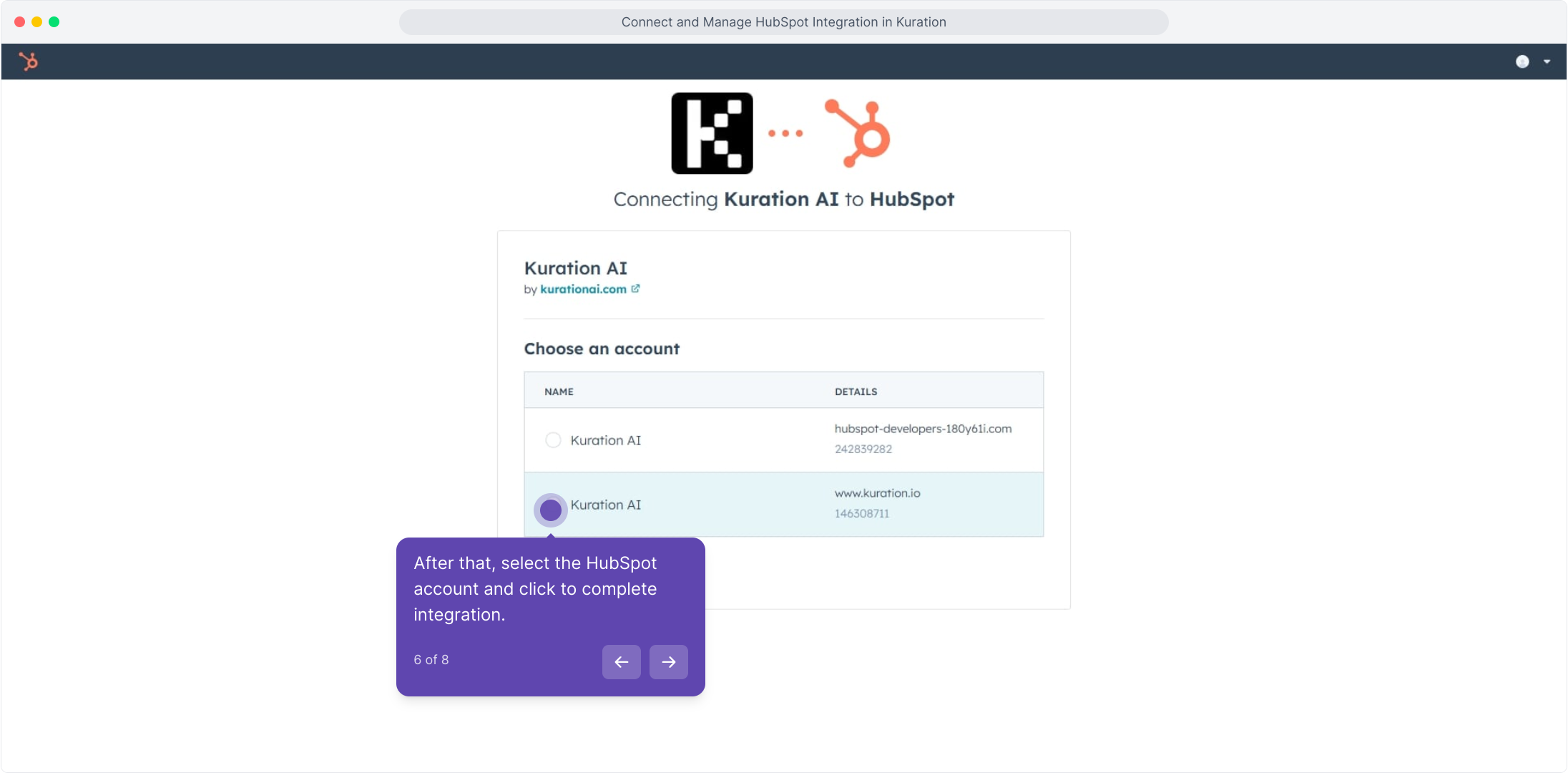
Select your HubSpot account
After that, select the HubSpot account and click to complete integration.

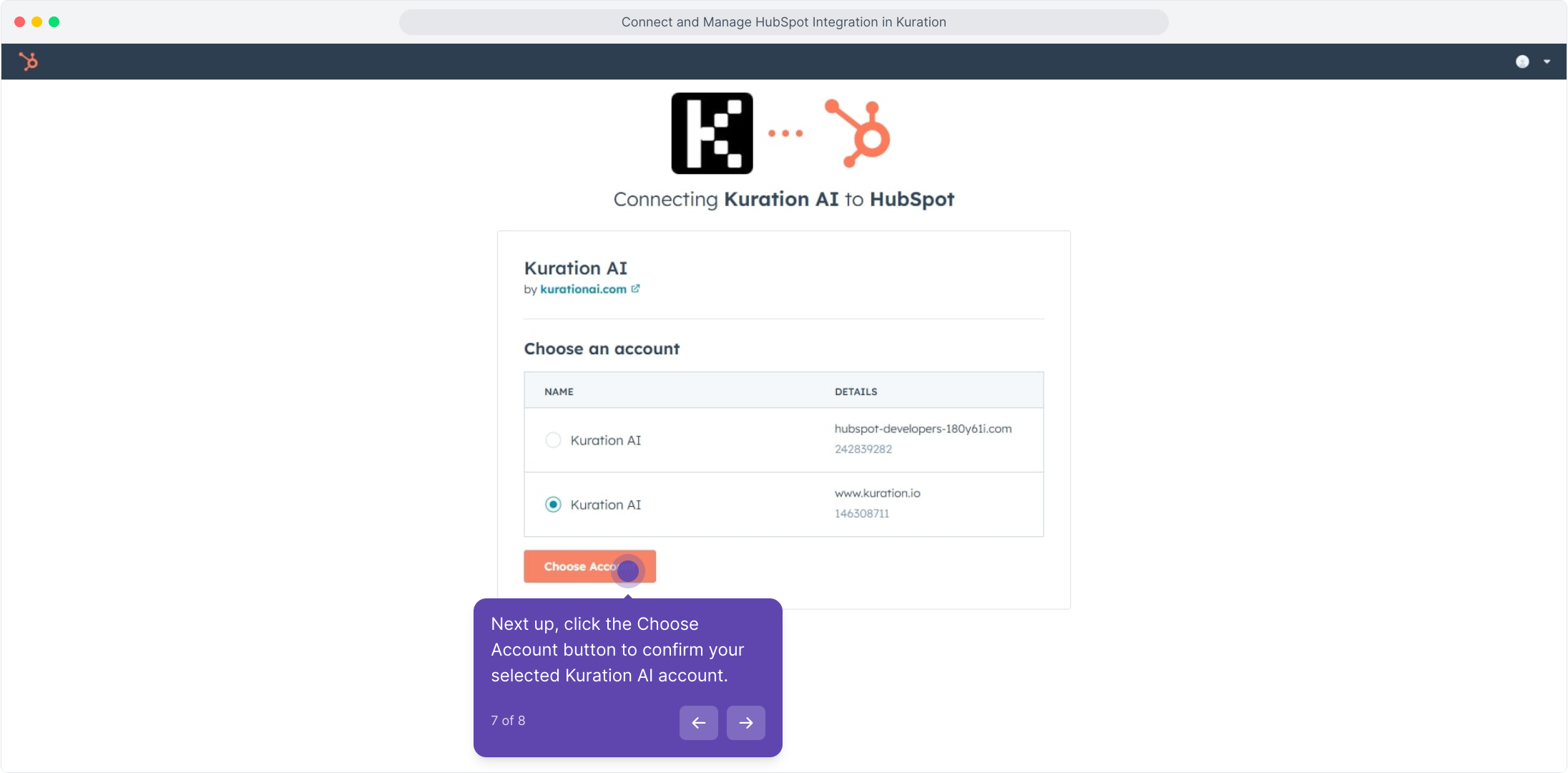
Click Choose Account
Next up, click the Choose Account button to confirm your selected Kuration AI account.

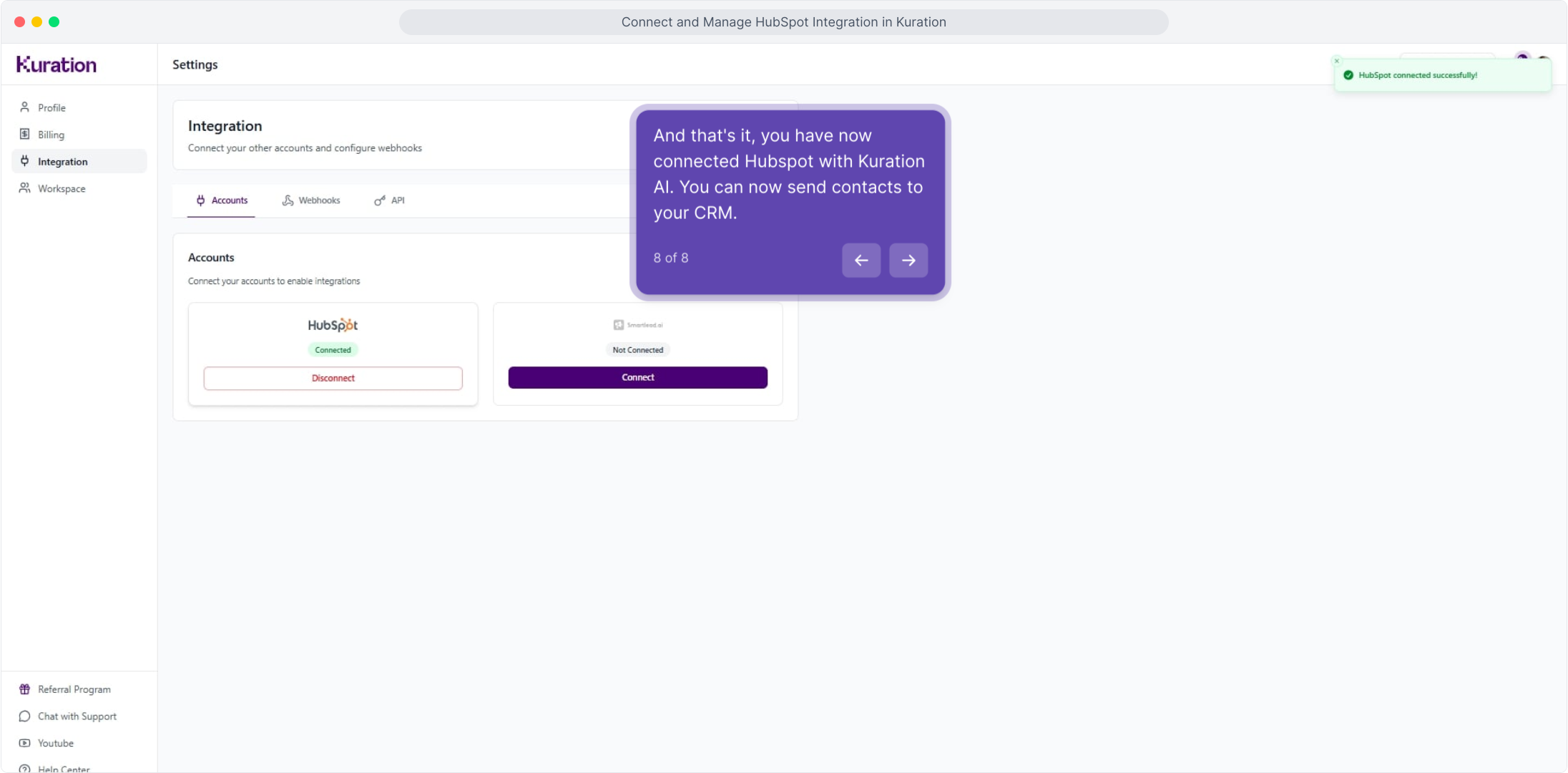
HubSpot is connected
And that's it, you have now connected Hubspot with Kuration AI. You can now send contacts to your CRM.