


Slack alerts for every list Kuration finishes
You will create a small Slack app, activate an Incoming Webhook for one channel, then paste that webhook URL into Kuration under Settings → Integration → Notifications. Once connected, Kuration posts a message to the channel whenever a List Builder finishes extracting, an import completes, or a scheduled run delivers new rows.
- In KurationAccess to Settings → Integration for your account.
- In SlackPermission to create an app and install it into your workspace.
- A channelA channel for the alerts, for example
kuration_demo_webhooks.
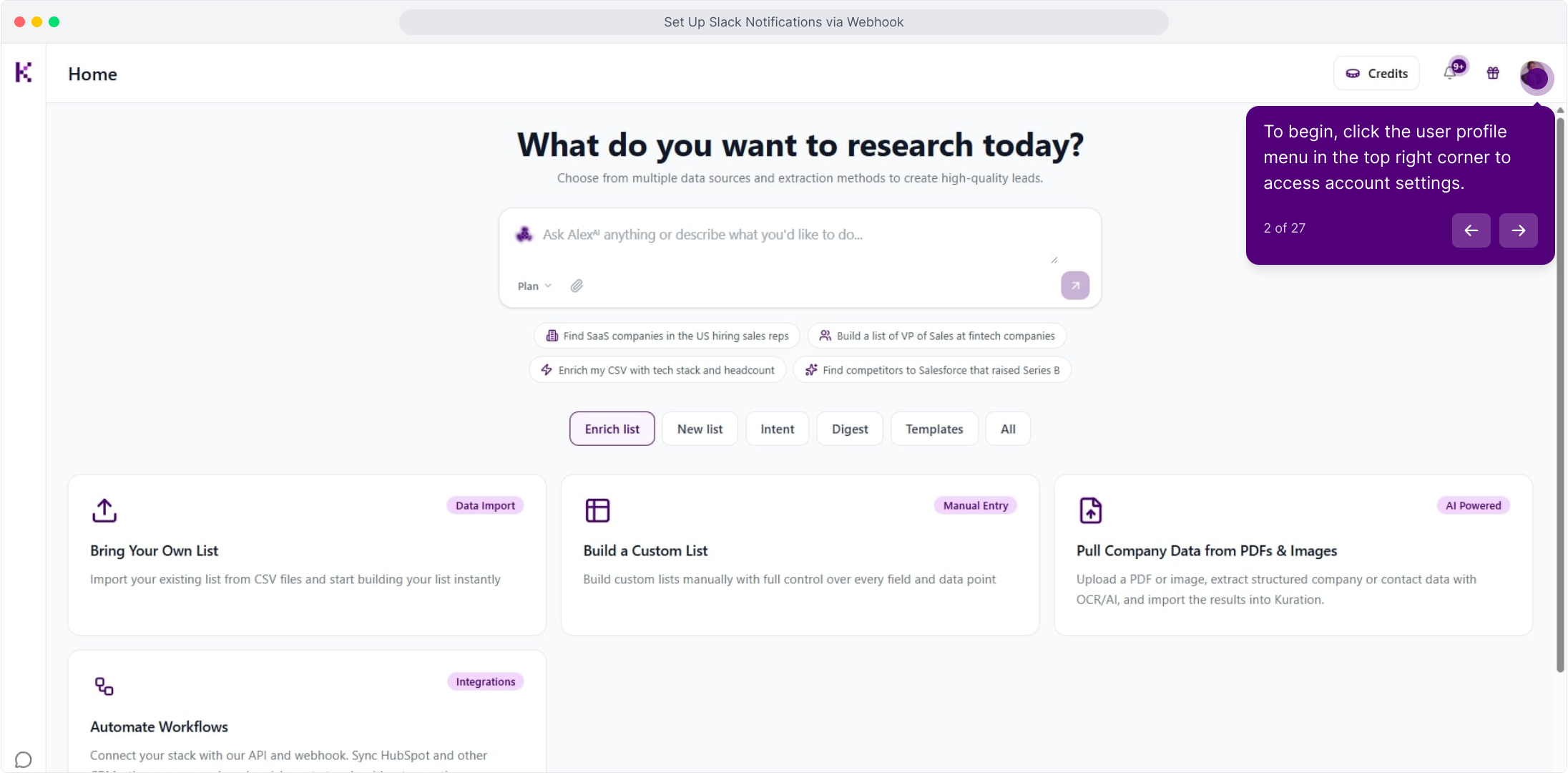
Open the profile menu
From the Kuration home screen, click your profile picture in the top right corner to reach your account menu.
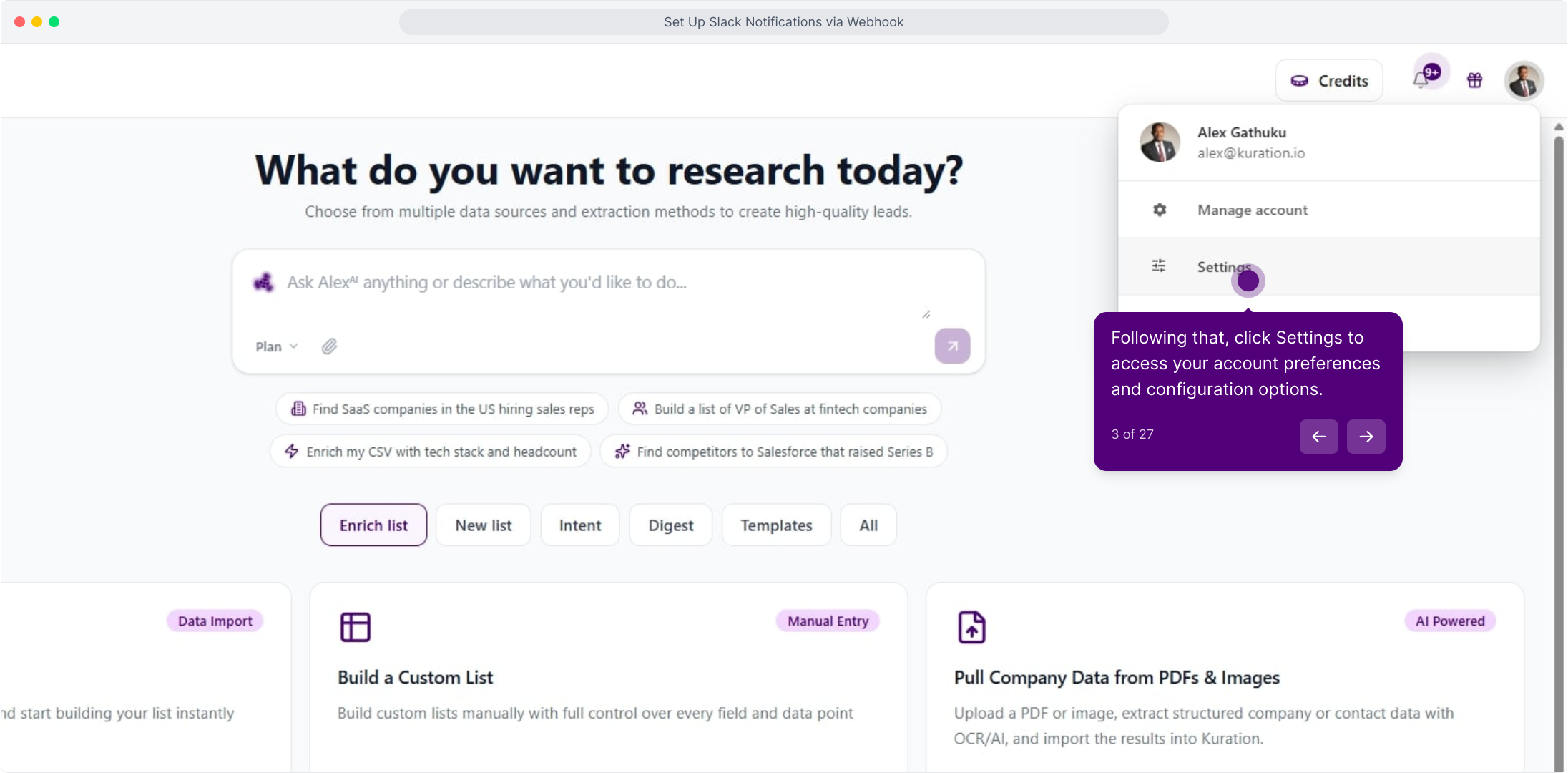
Choose Settings
Click Settings to open your account preferences and configuration options.
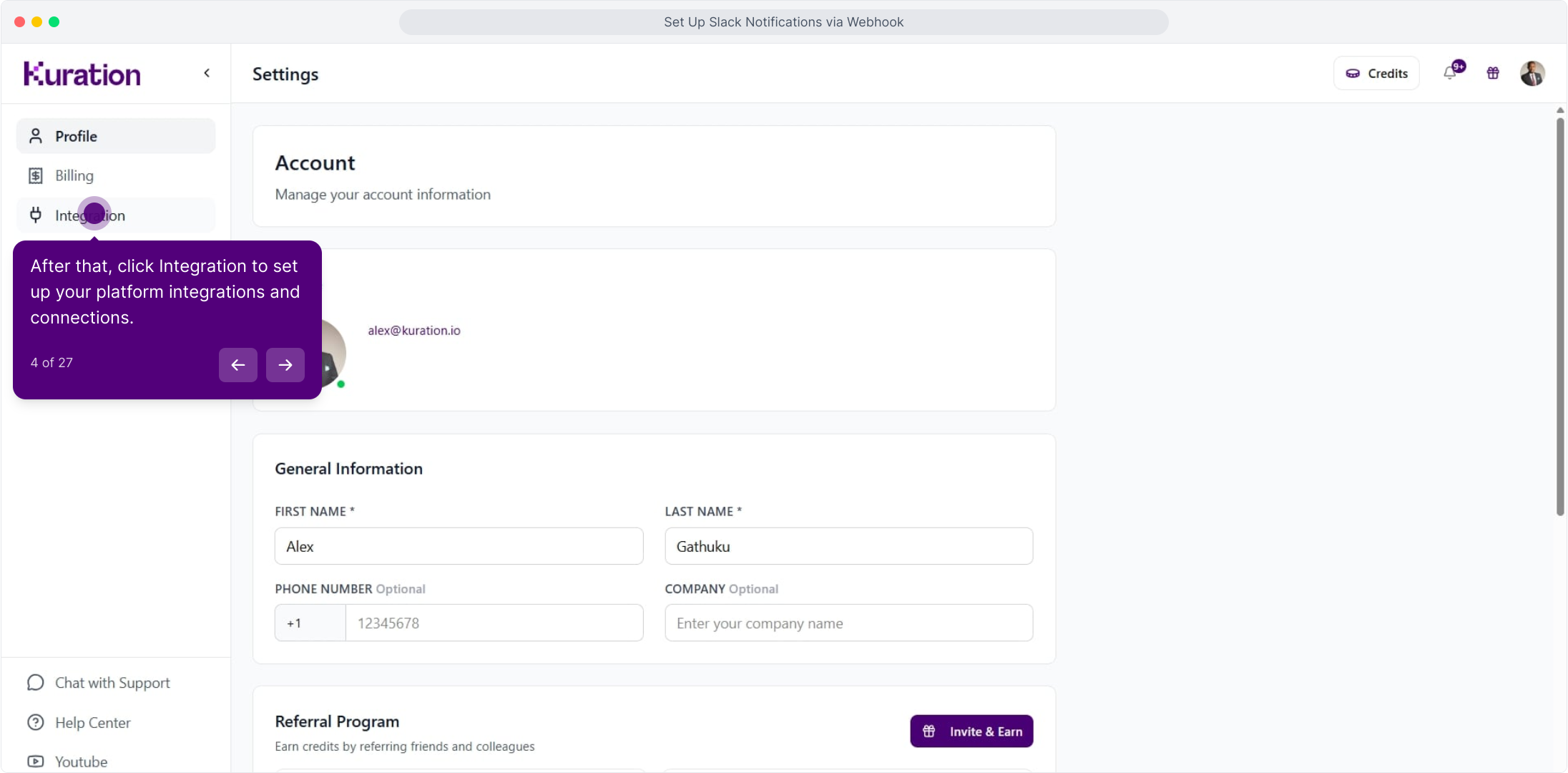
Go to Integration
In the settings sidebar, click Integration. This is where connected accounts and webhooks live.
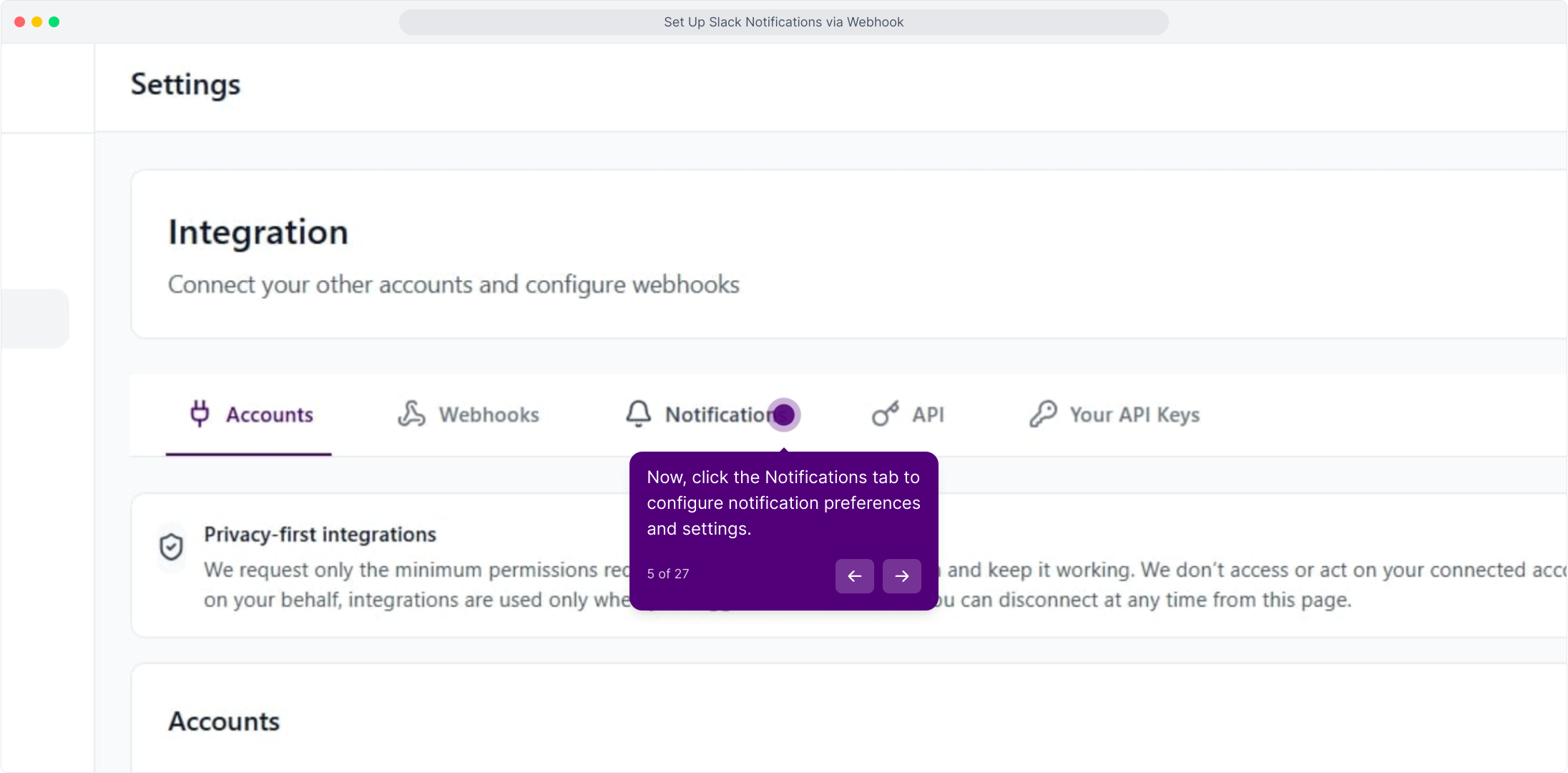
Open the Notifications tab
Click the Notifications tab to configure where Kuration sends updates.
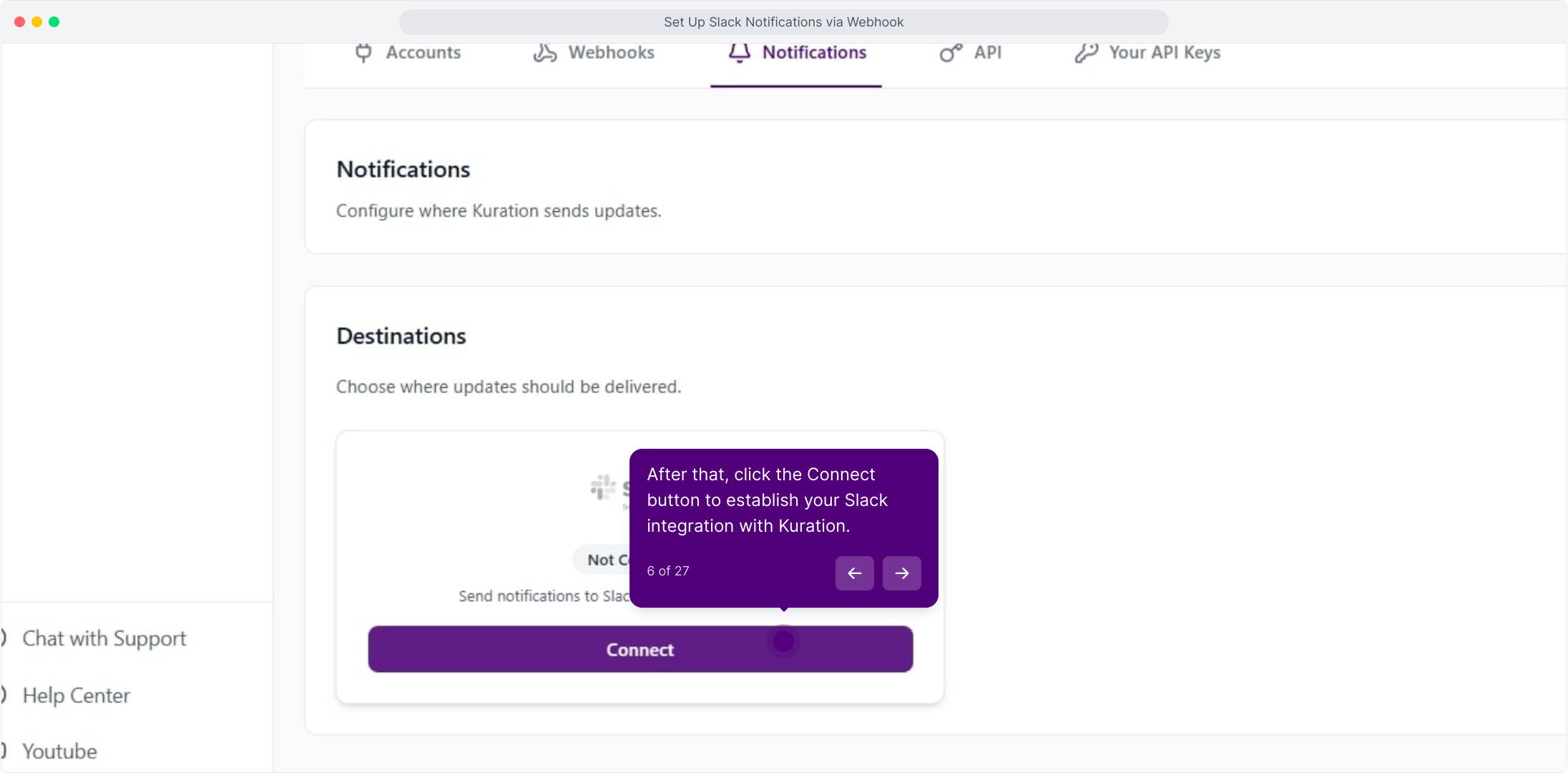
Click Connect on the Slack destination
Under Destinations, the Slack card shows as Not Connected. Click Connect to start the setup.
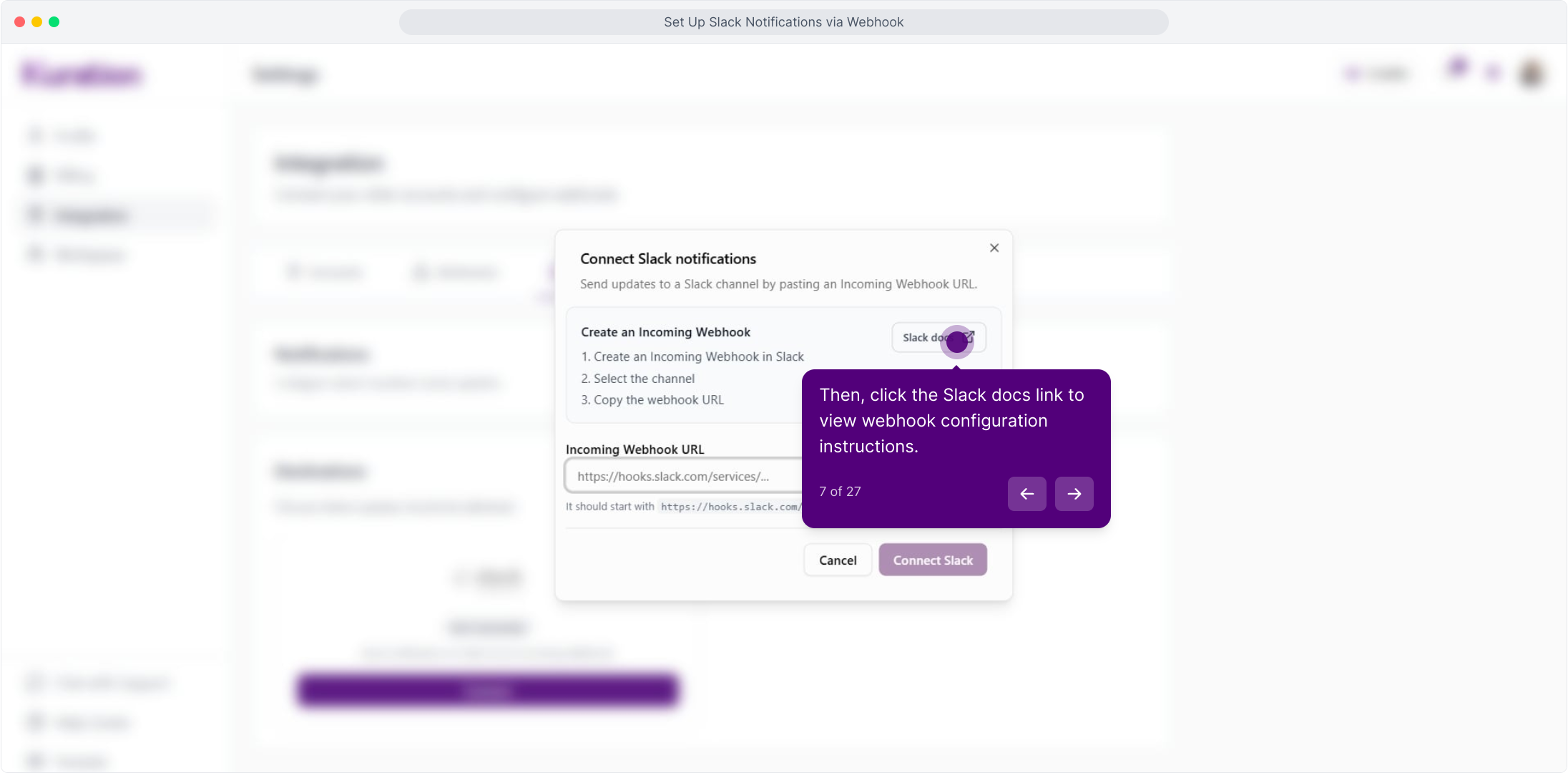
Open the Slack docs link
The dialog asks for an Incoming Webhook URL. Click Slack docs to open Slack's webhook instructions in a new tab, then leave this dialog open — you will come back to it.
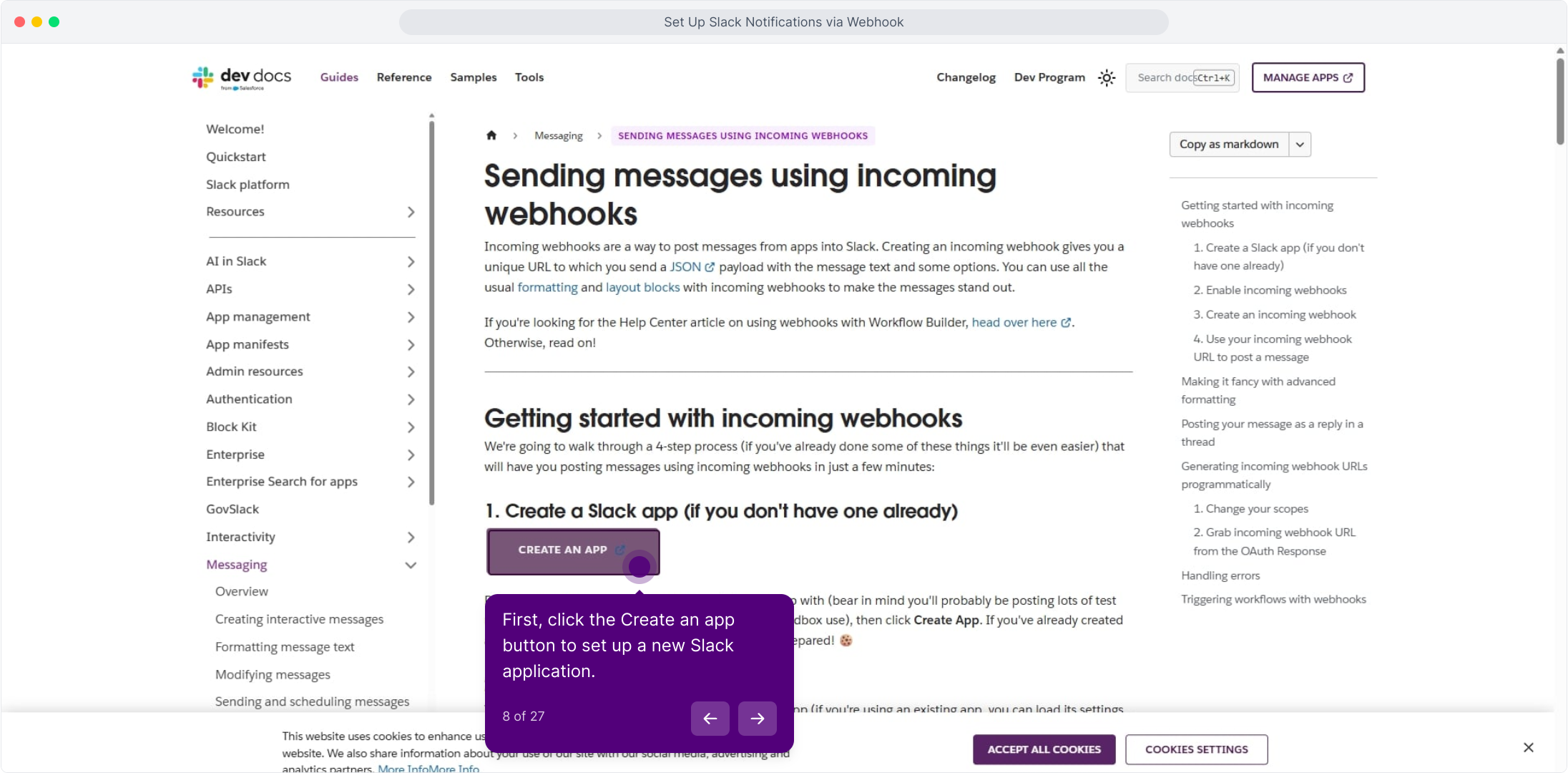
Click Create an app
On Slack's Sending messages using incoming webhooks page, click Create an app.
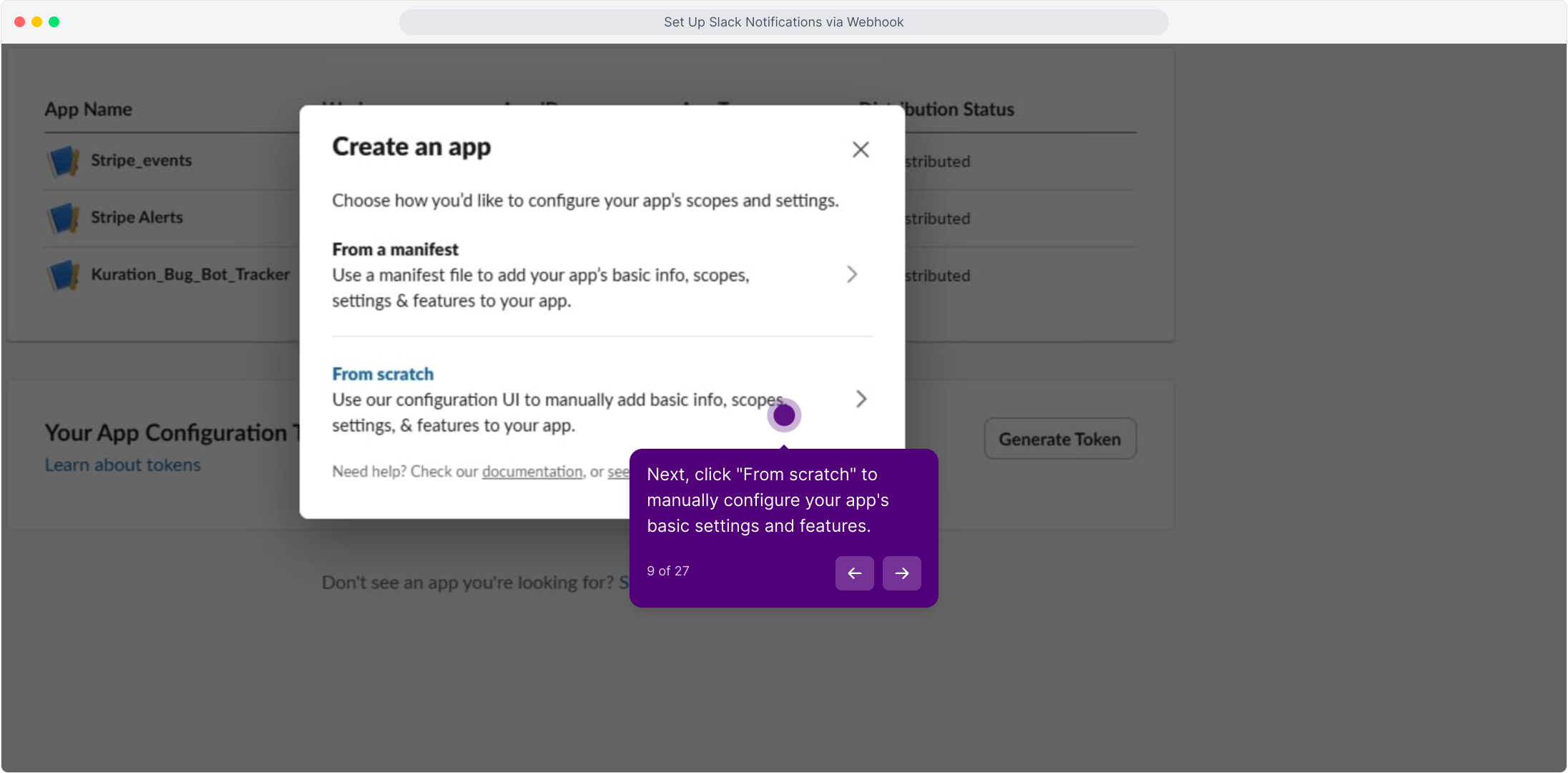
Choose From scratch
Pick From scratch to configure the app's basic info and scopes manually.
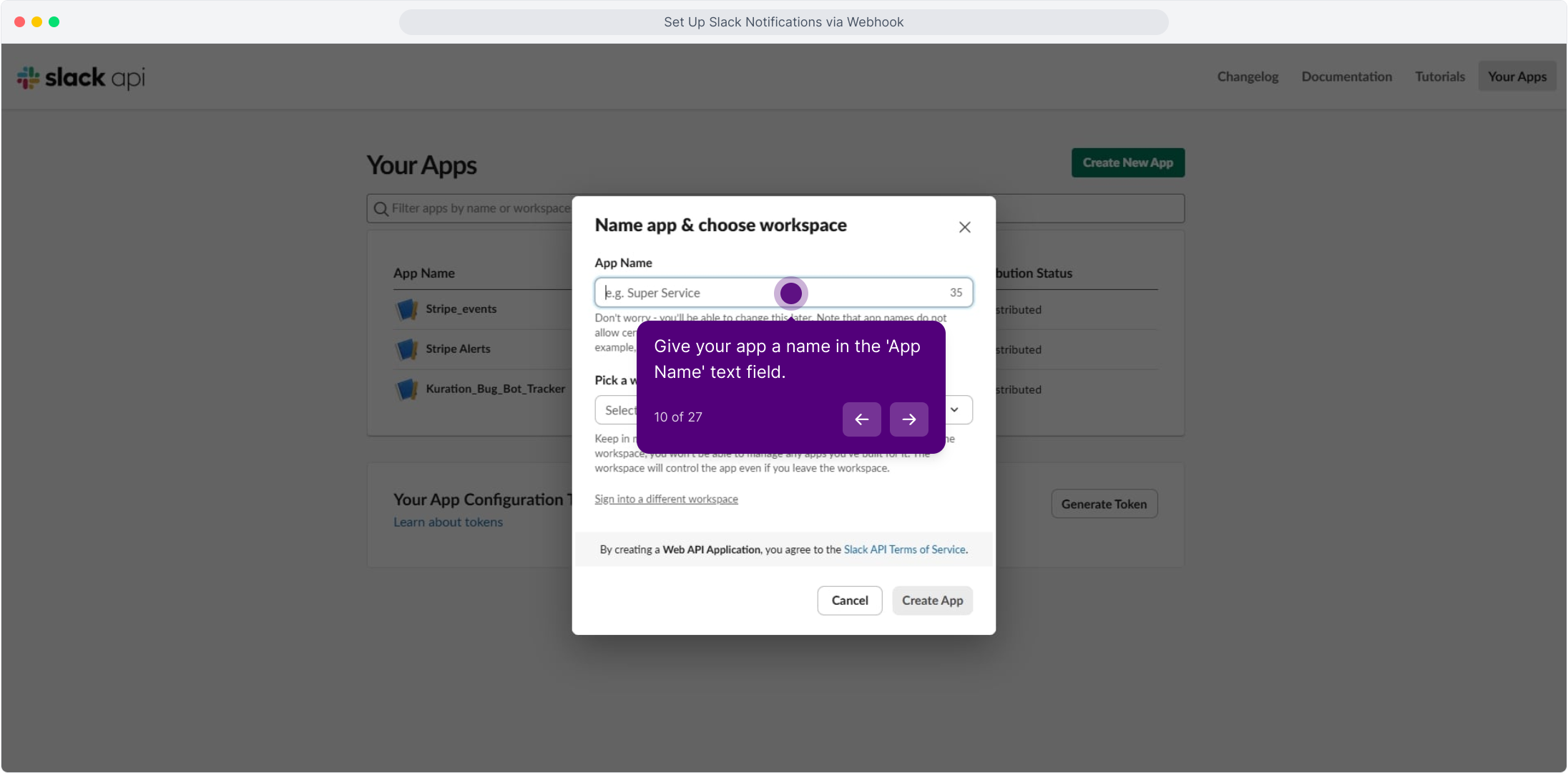
Name the app
Give the app a name in the App Name field, for example Slack_Kuration_Demo. You can change it later.
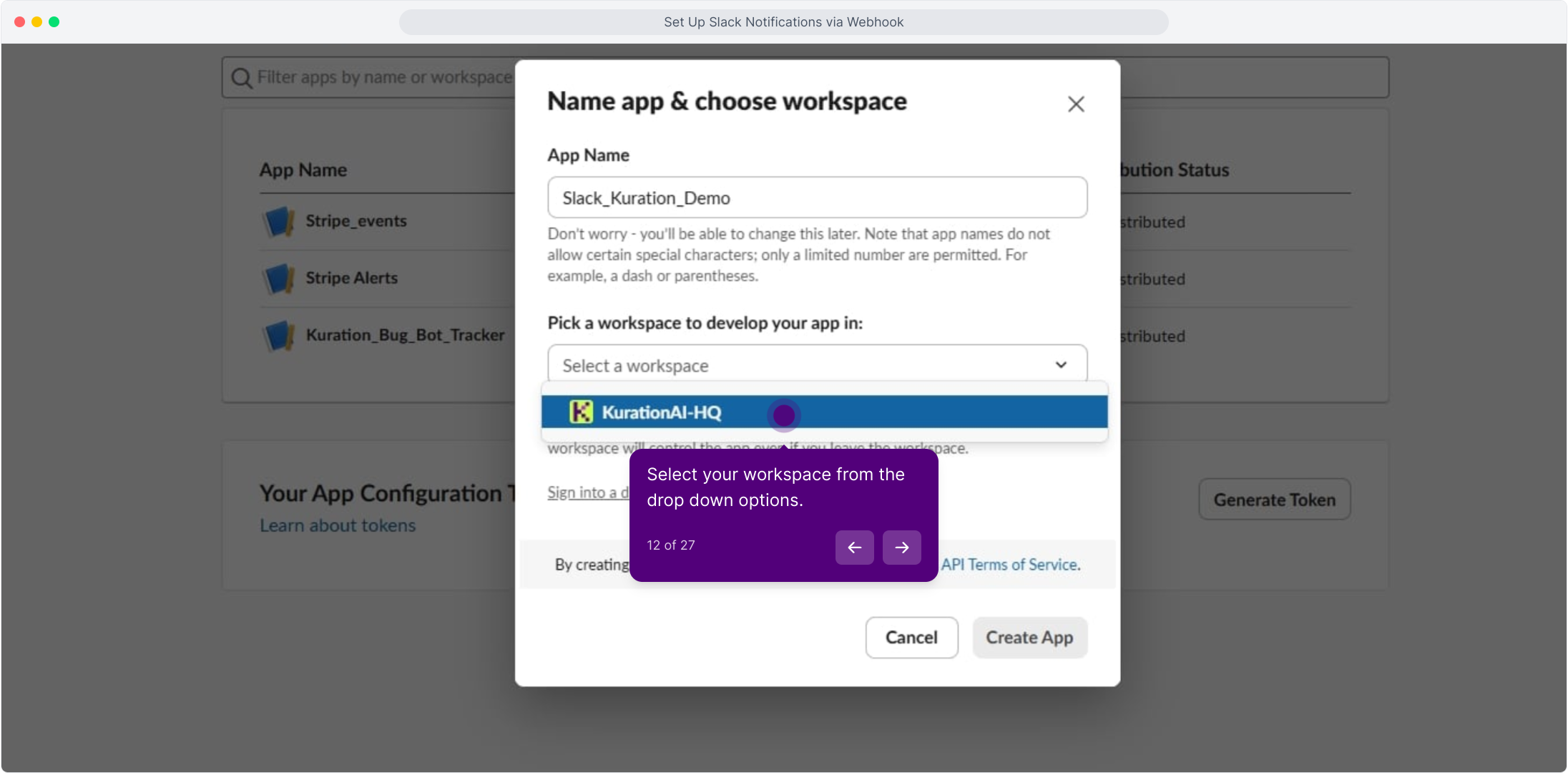
Pick your workspace
Open the workspace dropdown and select the workspace the app should operate in.
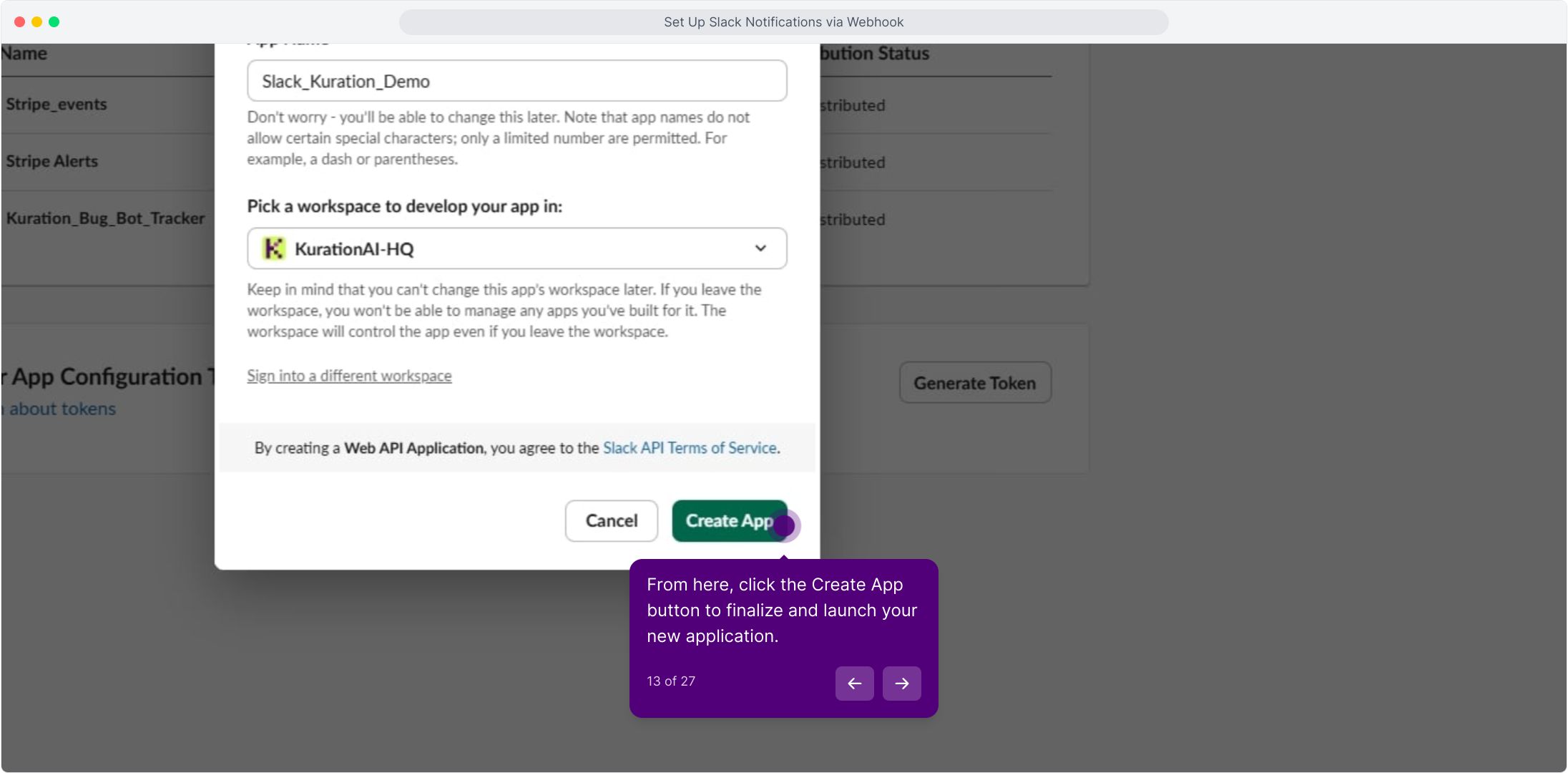
Click Create App
With the name and workspace set, click Create App to finalise and launch the app.
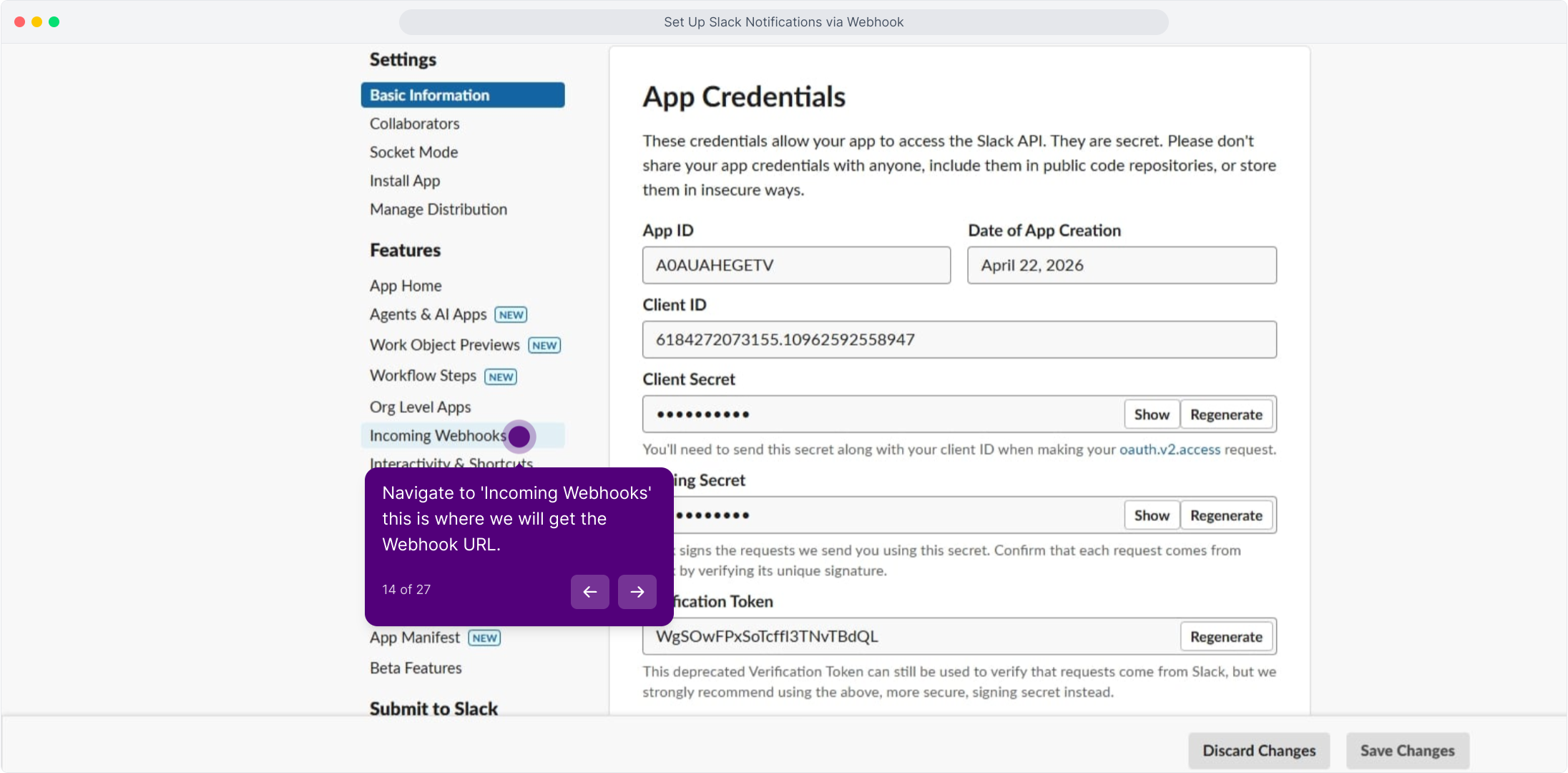
Go to Incoming Webhooks
In the app's left sidebar under Features, open Incoming Webhooks. This is where the webhook URL is generated.
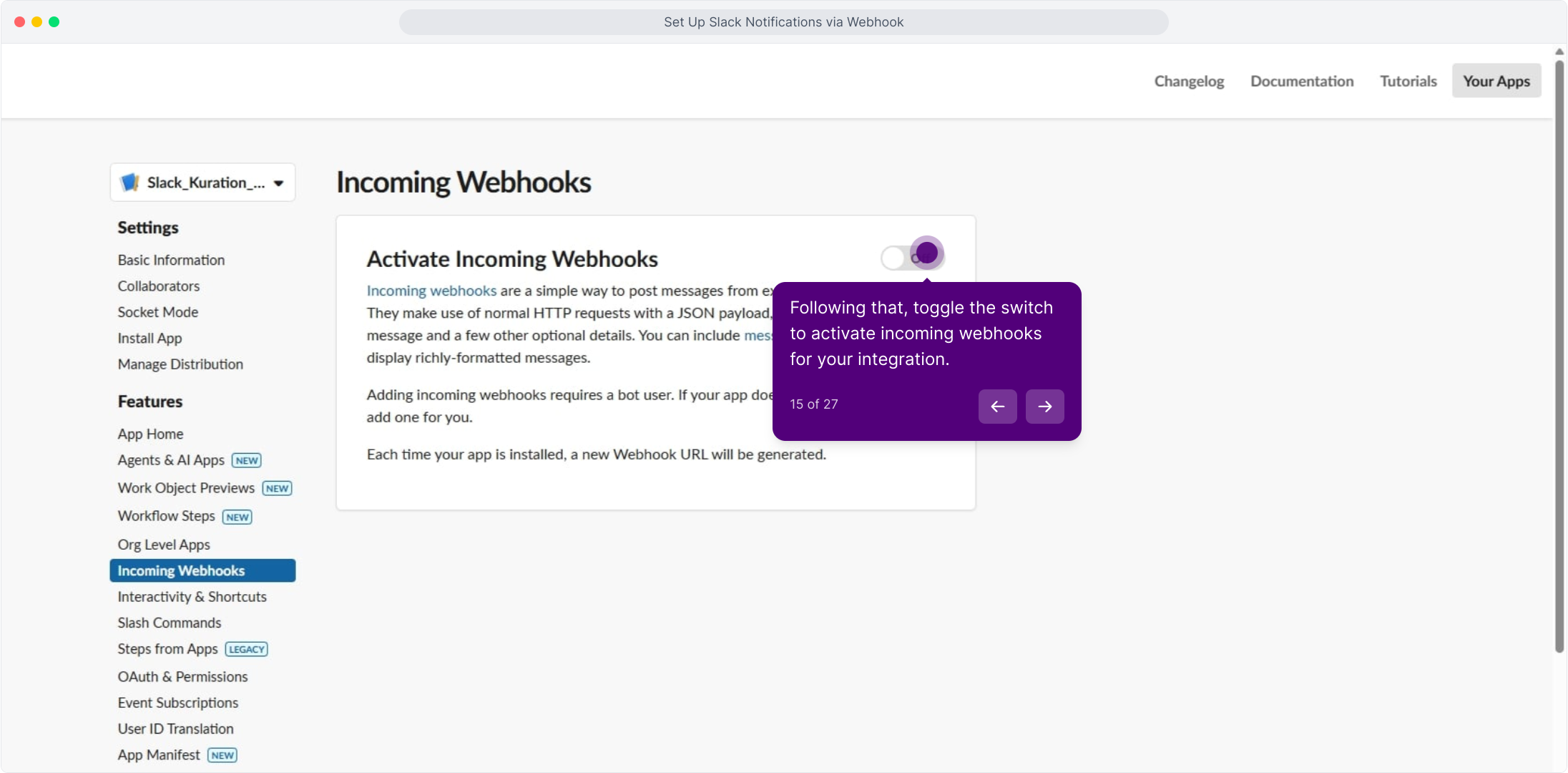
Turn on Activate Incoming Webhooks
Toggle Activate Incoming Webhooks on. Slack adds a bot user for the app if it does not have one.
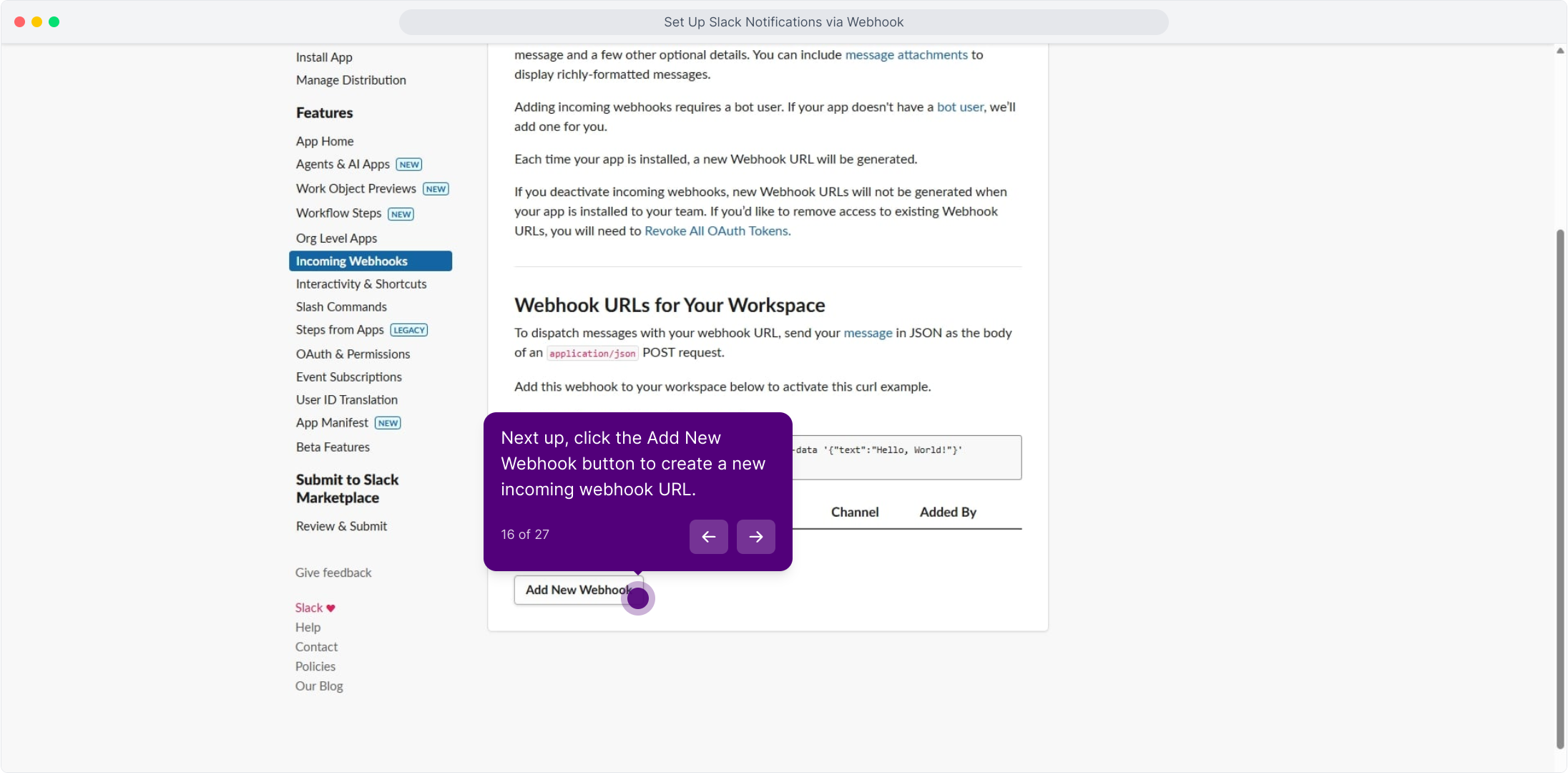
Click Add New Webhook
Scroll to Webhook URLs for Your Workspace and click Add New Webhook to create a URL.
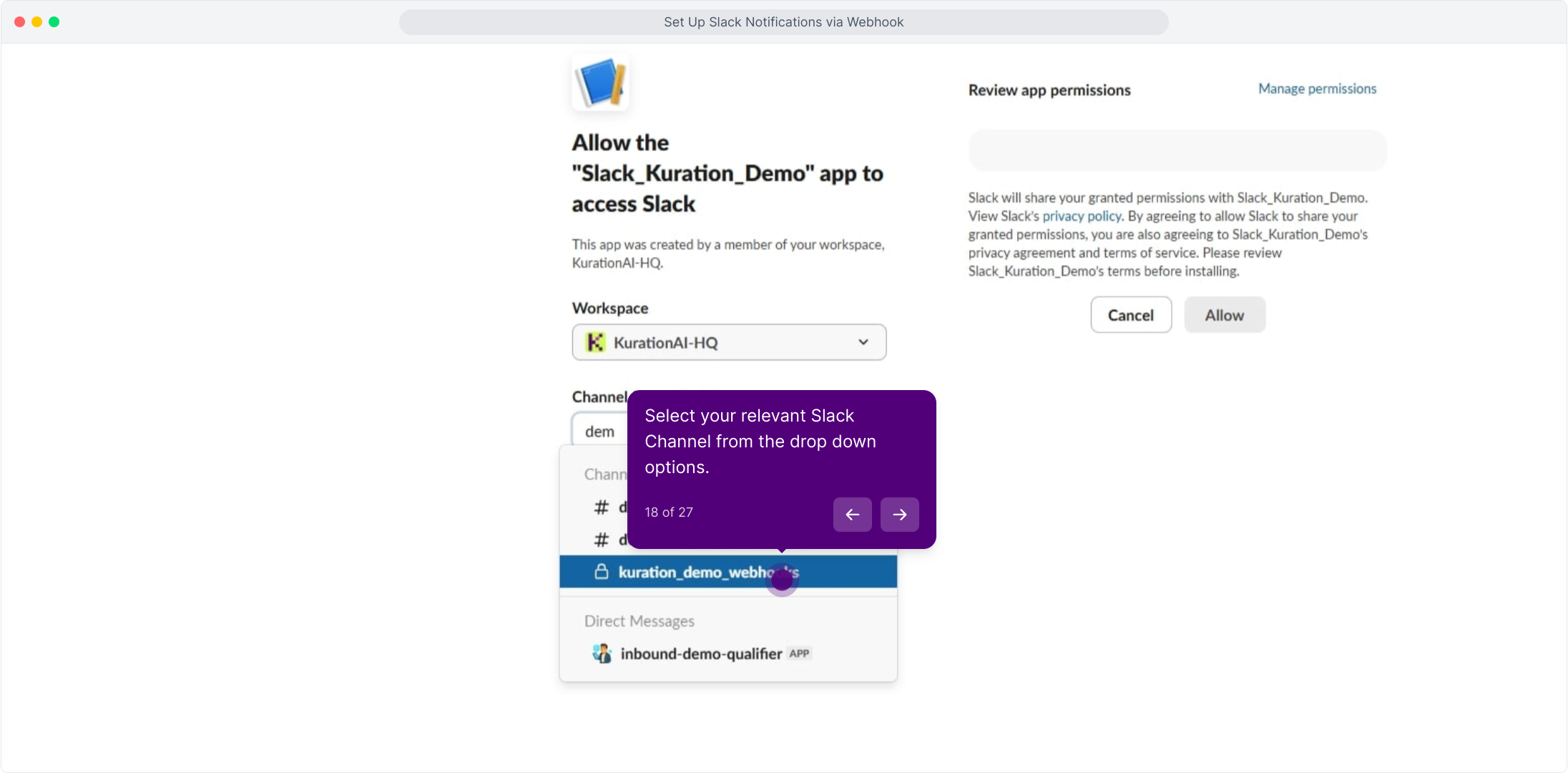
Select the channel for the alerts
Search for the channel where notifications should be posted and select it, for example kuration_demo_webhooks.
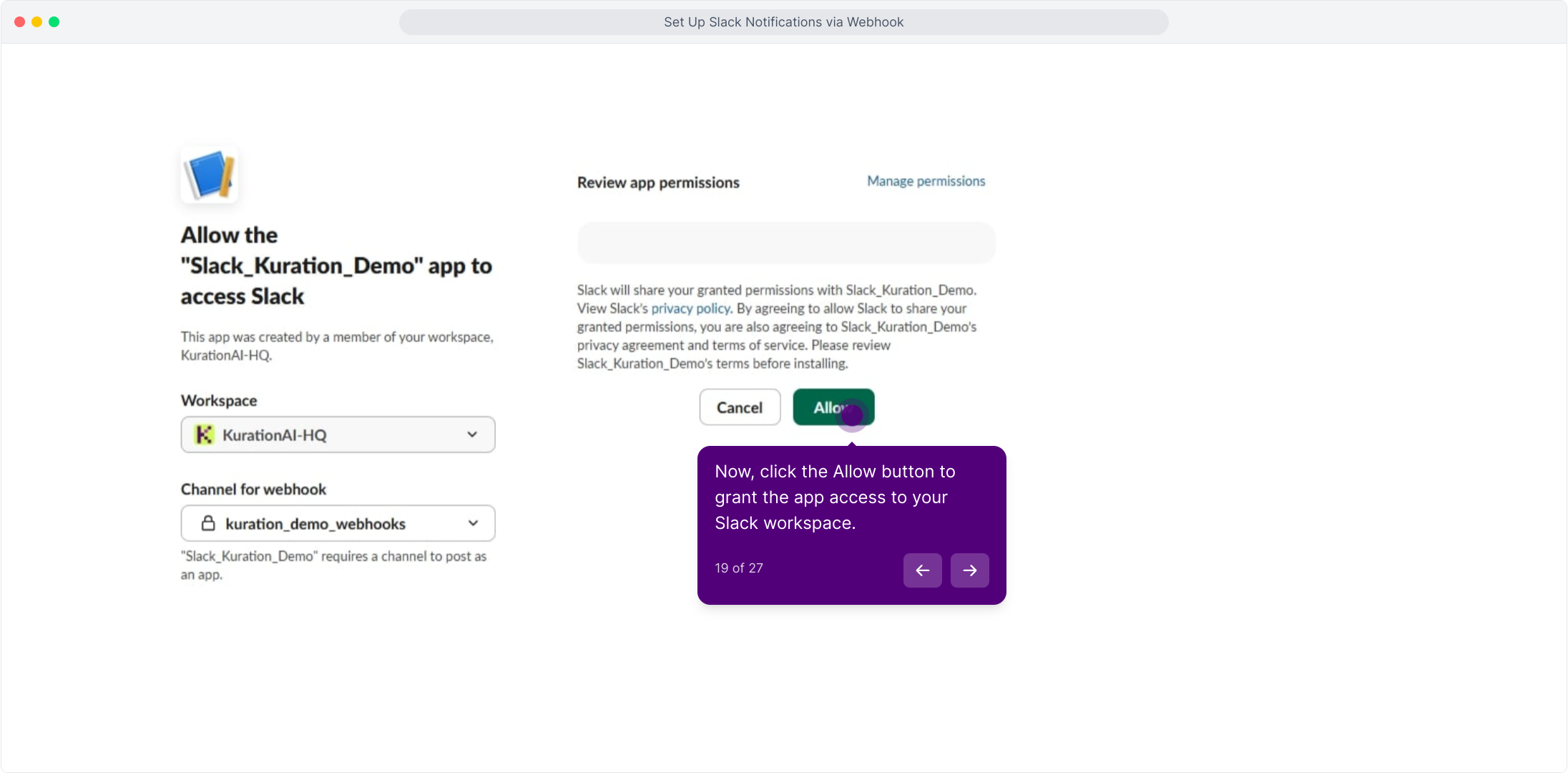
Allow access
Review the permissions, then click Allow to grant the app access to your Slack workspace.
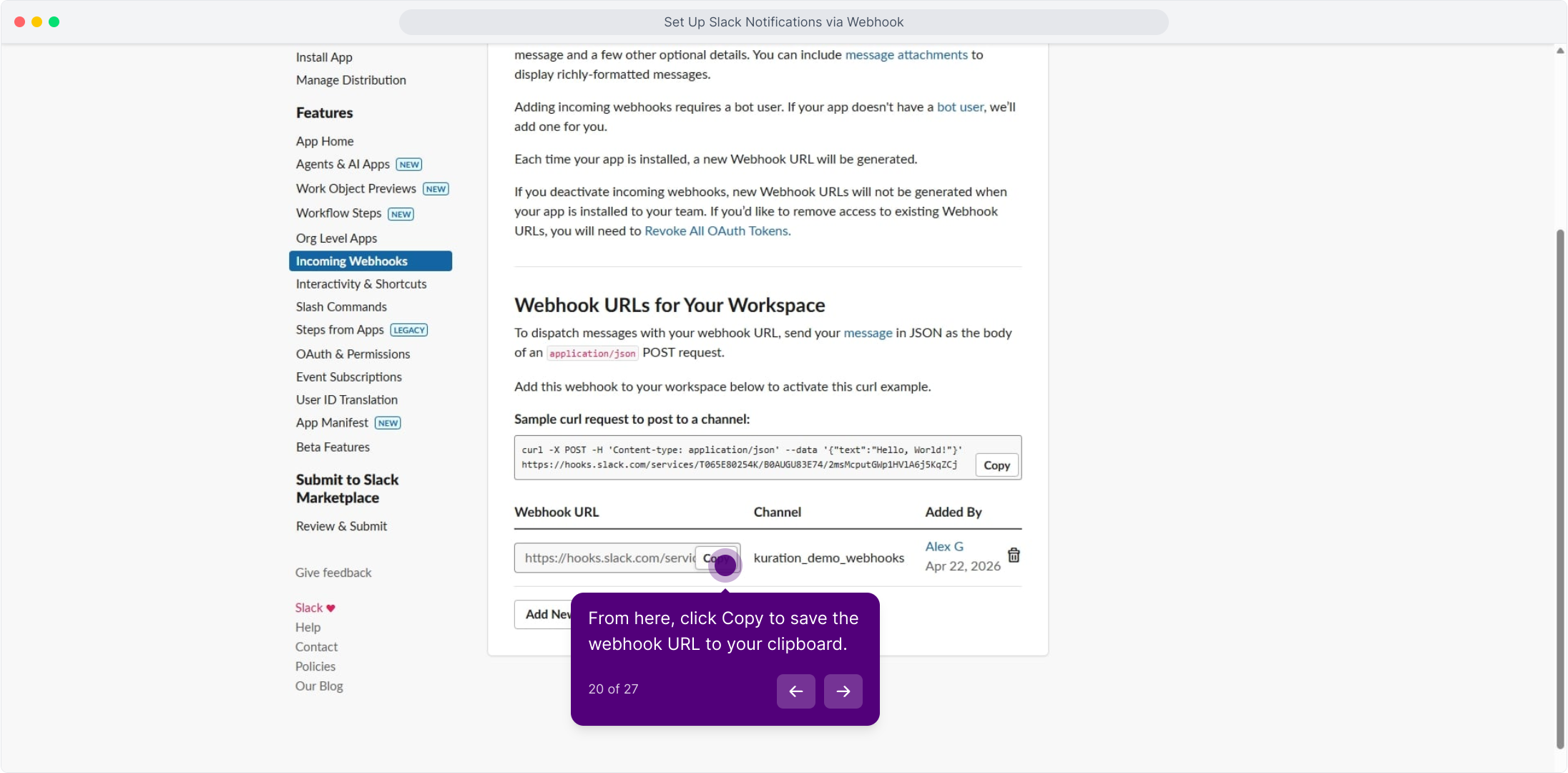
Copy the webhook URL
Back on the Incoming Webhooks page, click Copy next to the new URL. It starts with https://hooks.slack.com/services/.
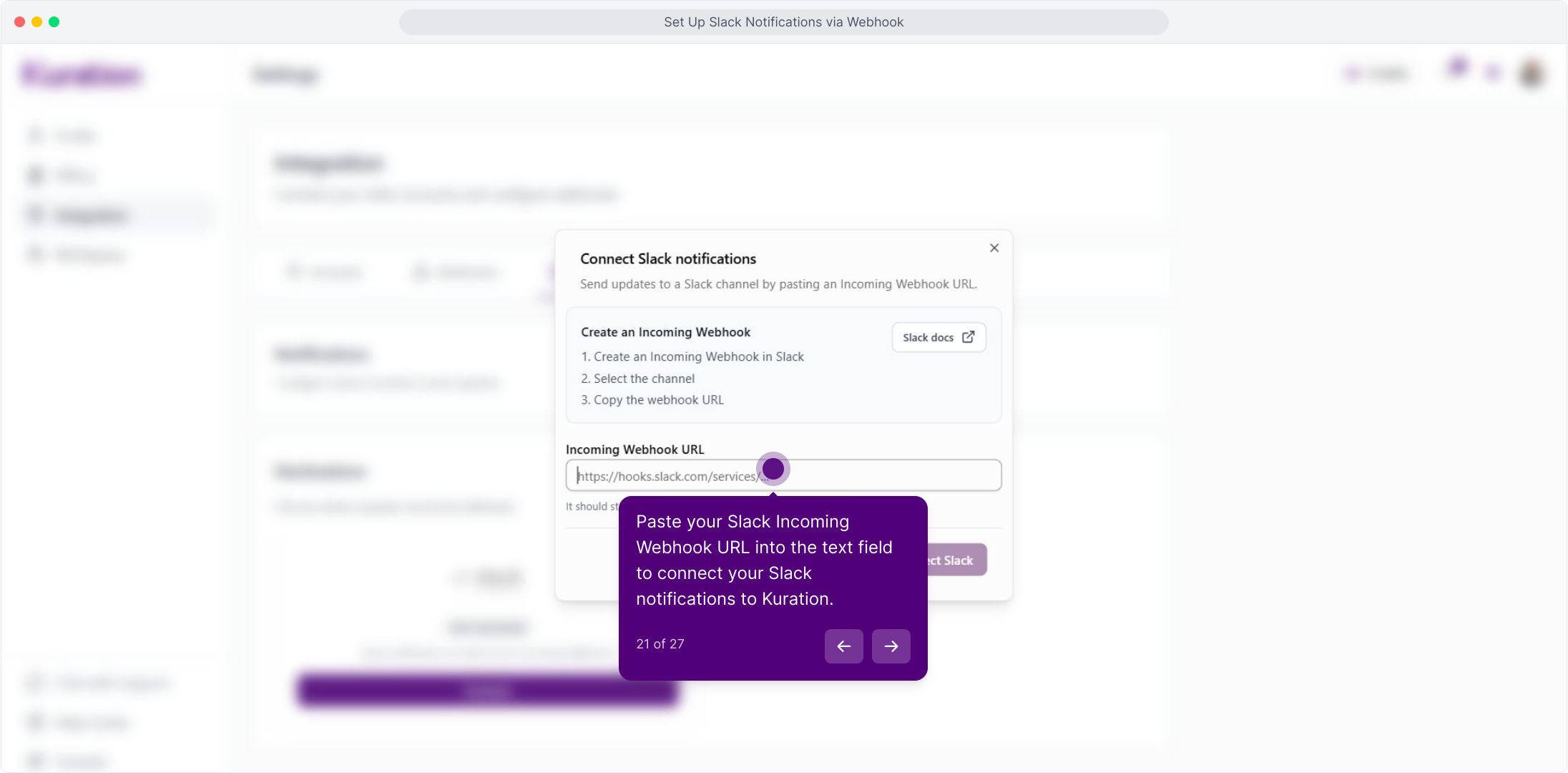
Paste the URL into Kuration
Return to the Connect Slack notifications dialog in Kuration and paste the webhook URL into the Incoming Webhook URL field.
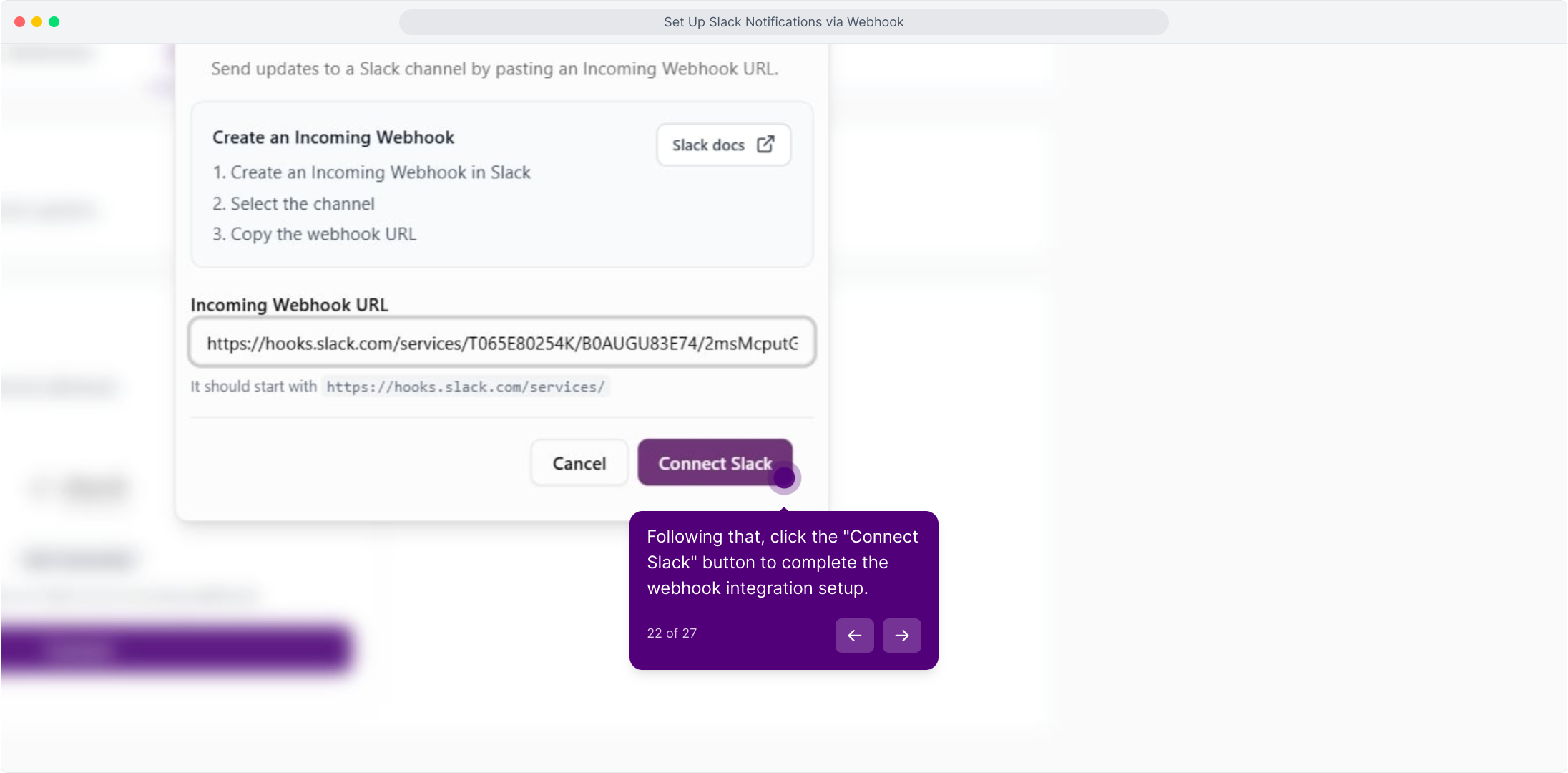
Click Connect Slack
Click Connect Slack to complete the webhook integration.
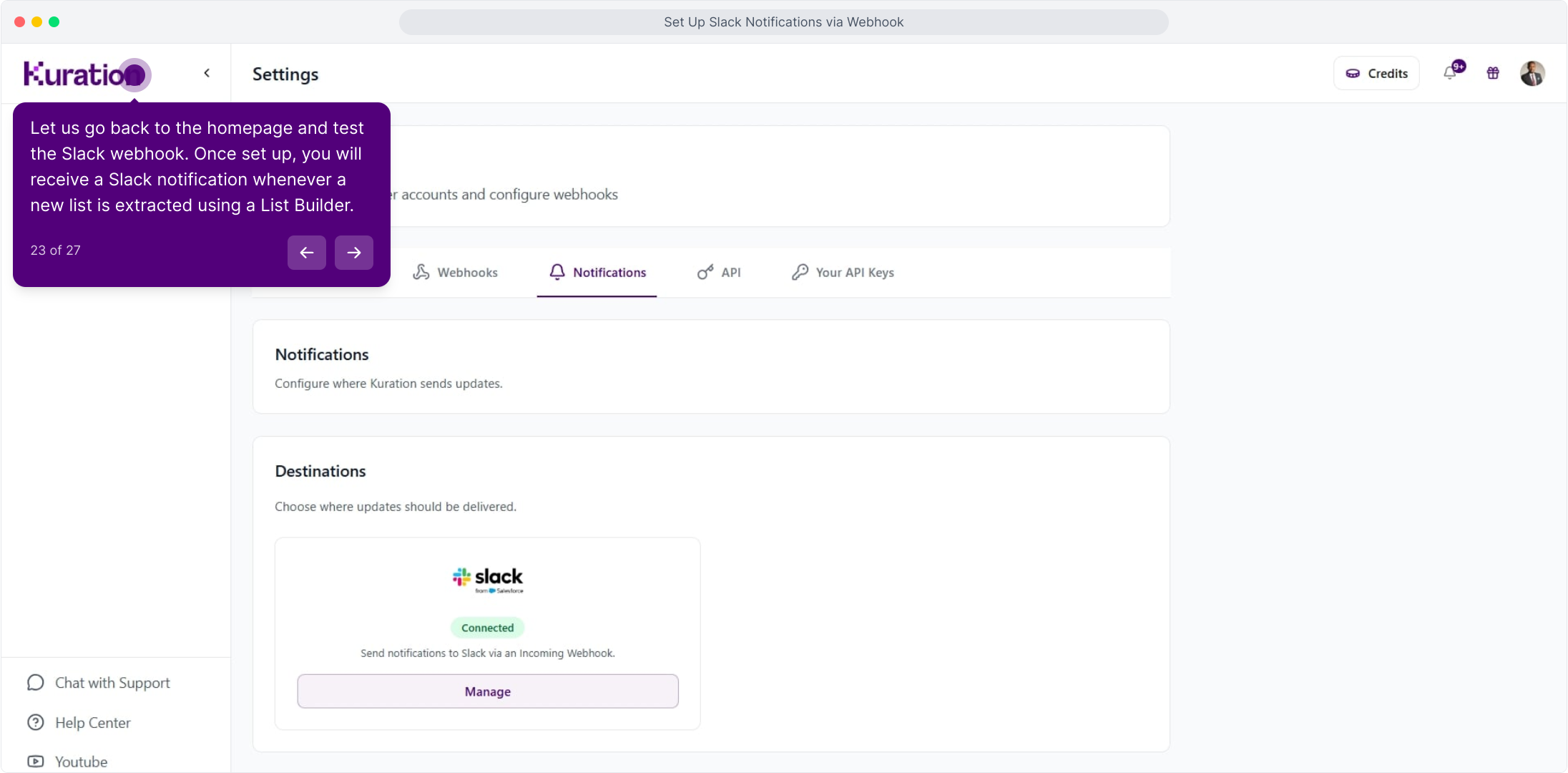
Slack now shows as Connected
The Slack destination shows a green Connected badge, with Manage to update or remove the webhook later. From now on, every list extracted by a List Builder triggers a Slack notification.
Run a list to test the webhook
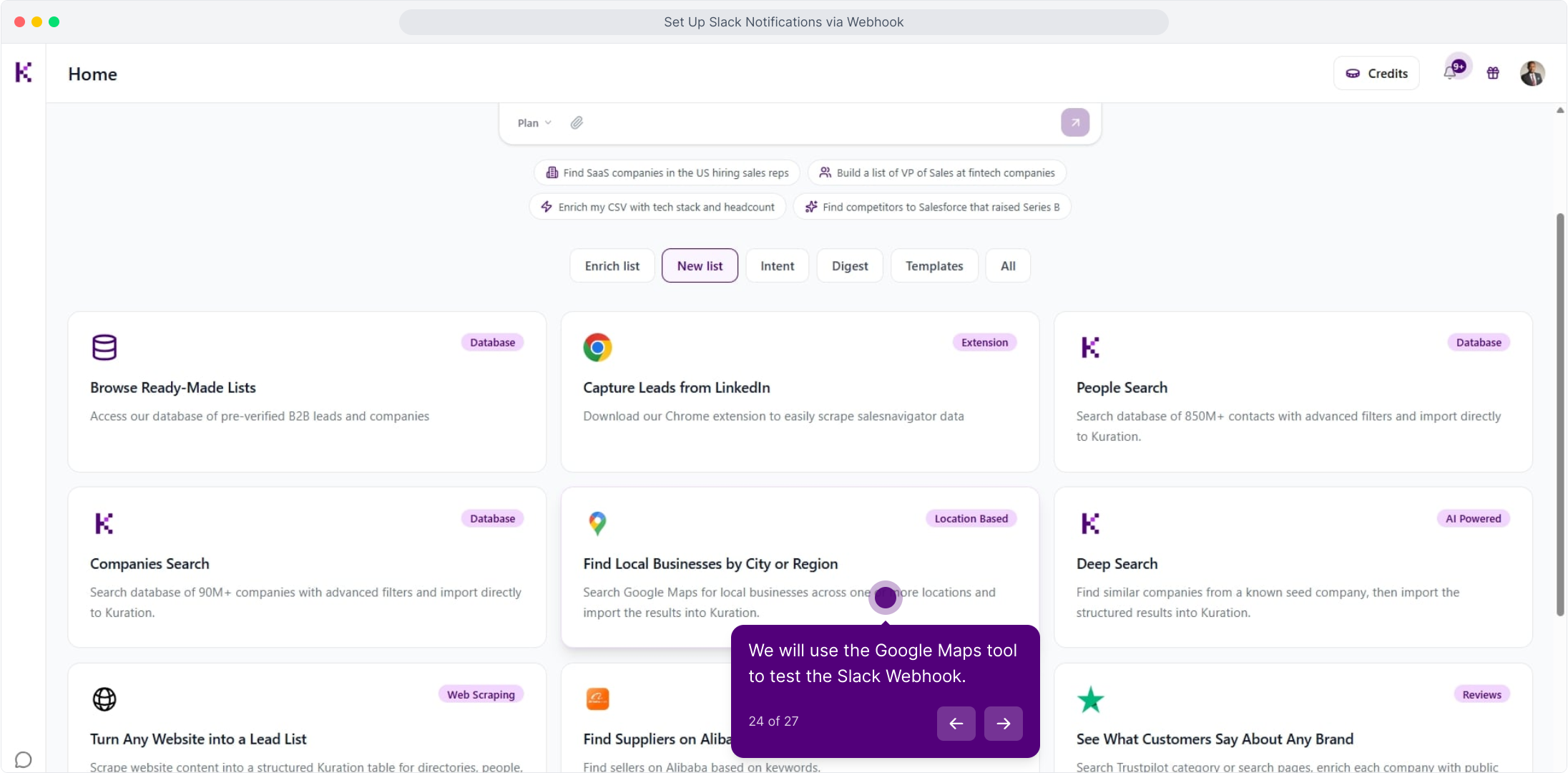
Go back to the homepage, open New list and pick a builder — here Find Local Businesses by City or Region, which pulls from Google Maps.
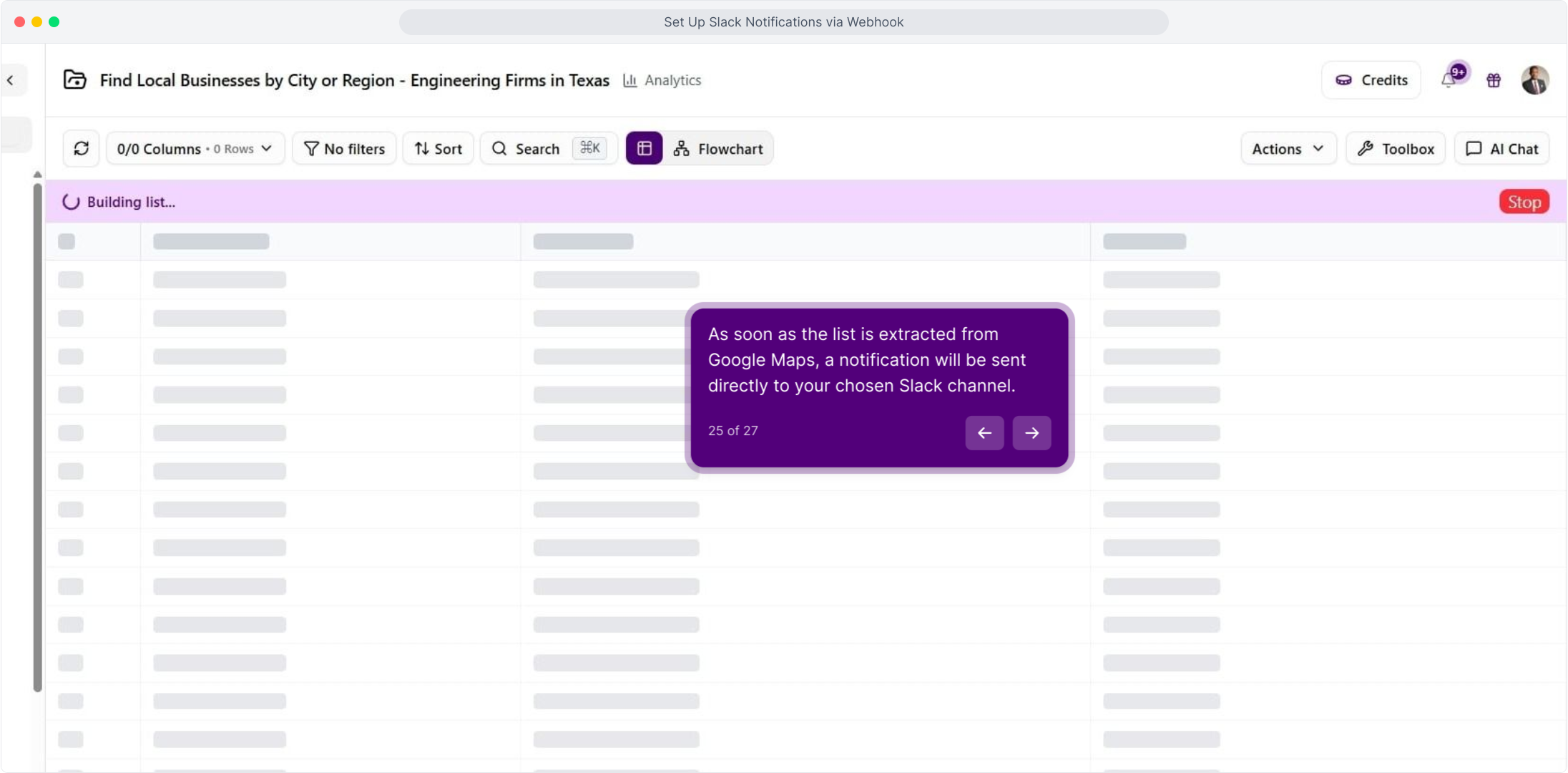
Let the list build
Kuration starts building the list. As soon as the extraction finishes, the notification is sent to your chosen Slack channel.
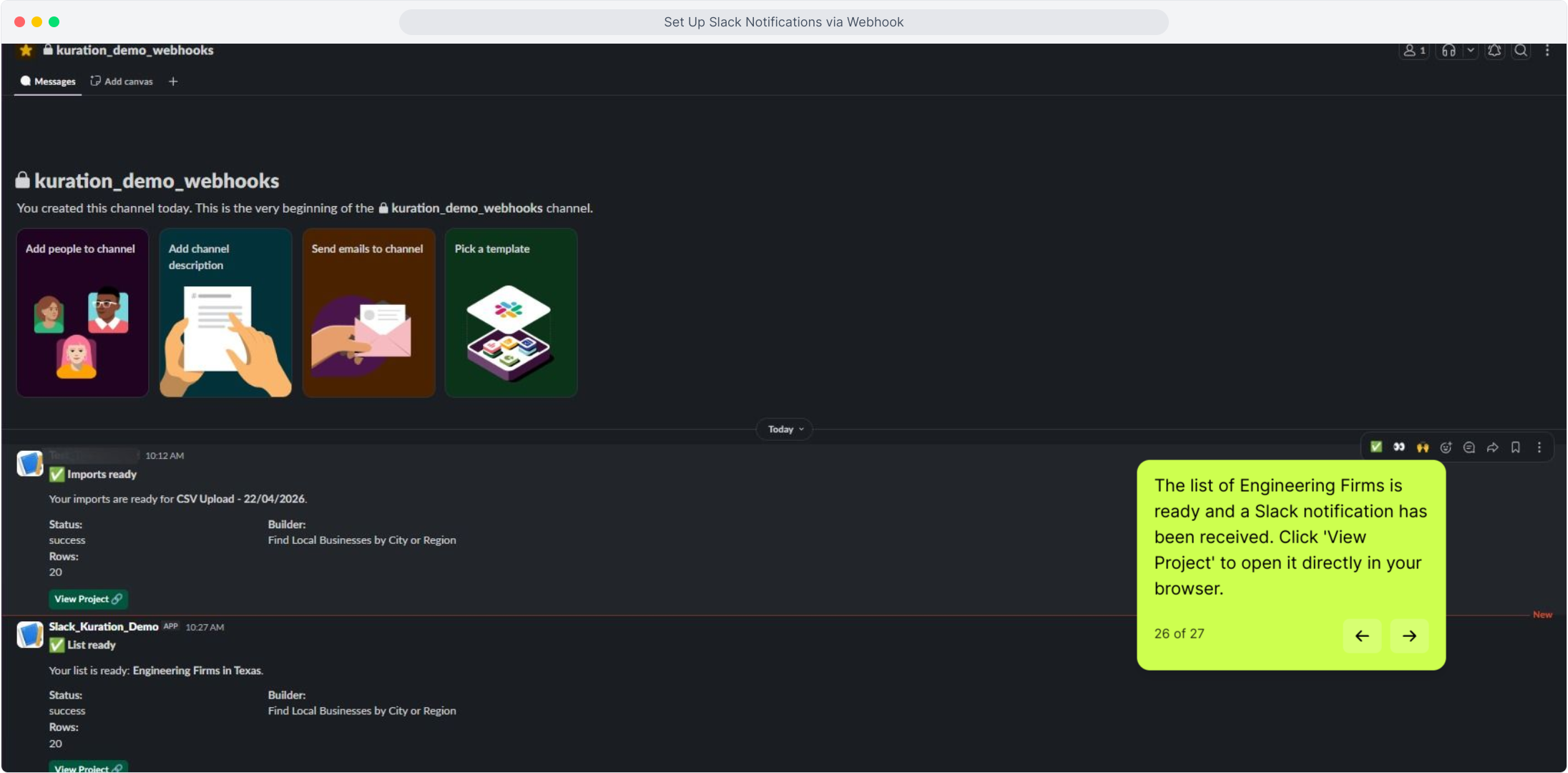
The alert arrives in Slack
The channel receives a List ready message with the builder used, the status and the row count. Click View Project to open the list in your browser.
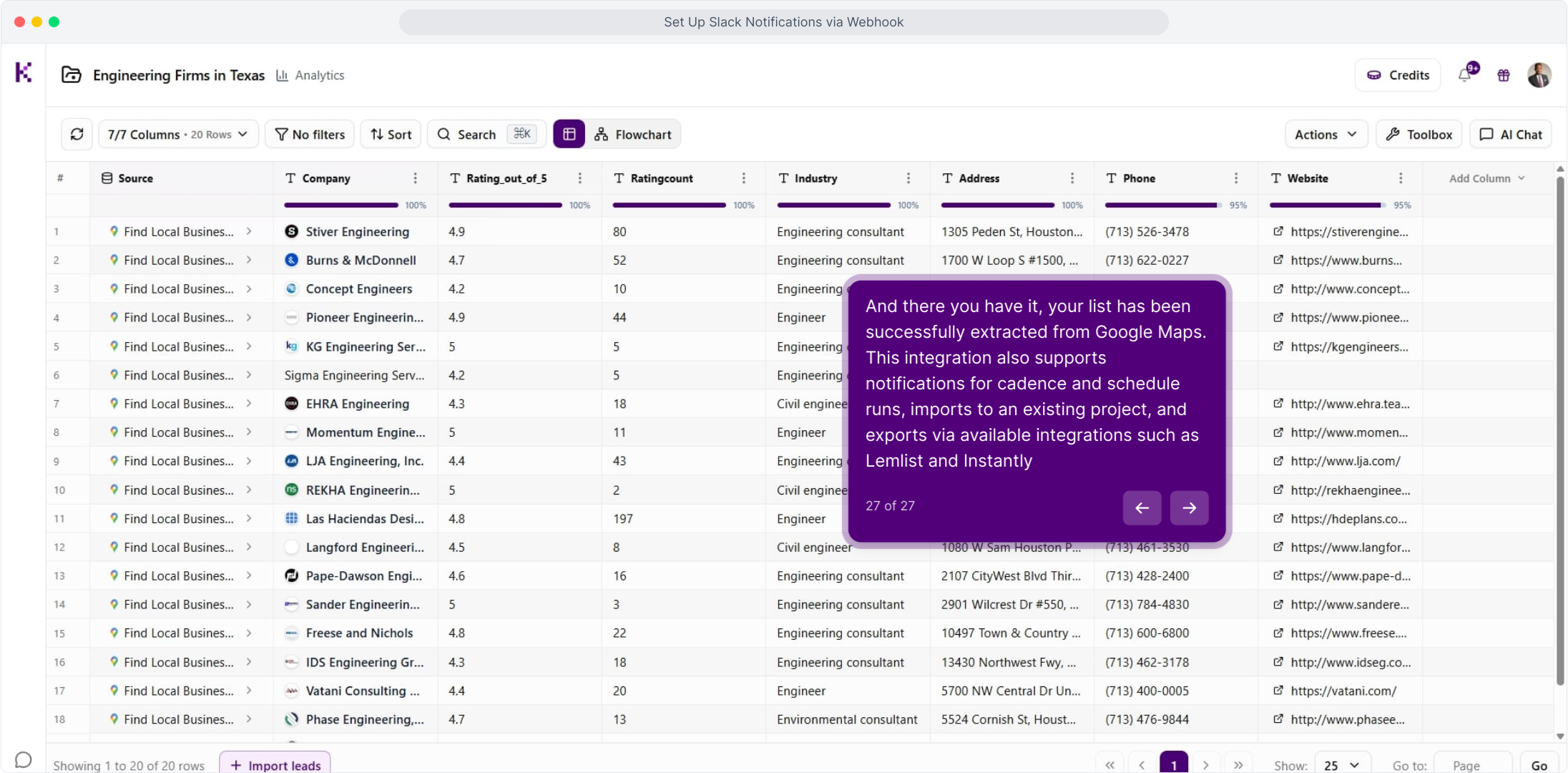
The list is ready in Kuration
The extracted list opens with its columns and rows filled in. The same integration also covers cadence and scheduled runs, imports into an existing project, and exports through integrations such as Lemlist and Instantly.
Slack is connected
Your workspace now receives an alert for every completed list, import and scheduled run. To change the channel, create a new Incoming Webhook in Slack and paste it under Manage in the Slack destination.
Open KurationKept on this device