Connect Kuration AI to HeyReach

A four-step setup that takes about five minutes. Once connected, push any enriched list straight into a HeyReach campaign — no CSVs, no copy-paste.

Kuration Team5 min readUpdated May 19, 2026

A four-step setup that takes about five minutes. Once connected, push any enriched list straight into a HeyReach campaign — no CSVs, no copy-paste.

How to Connect Kuration AI to HeyReach

Overview

Connect Kuration AI with HeyReach once via API, then push any enriched list straight into a HeyReach campaign — no CSVs, no copy-paste. The full setup takes about five minutes.

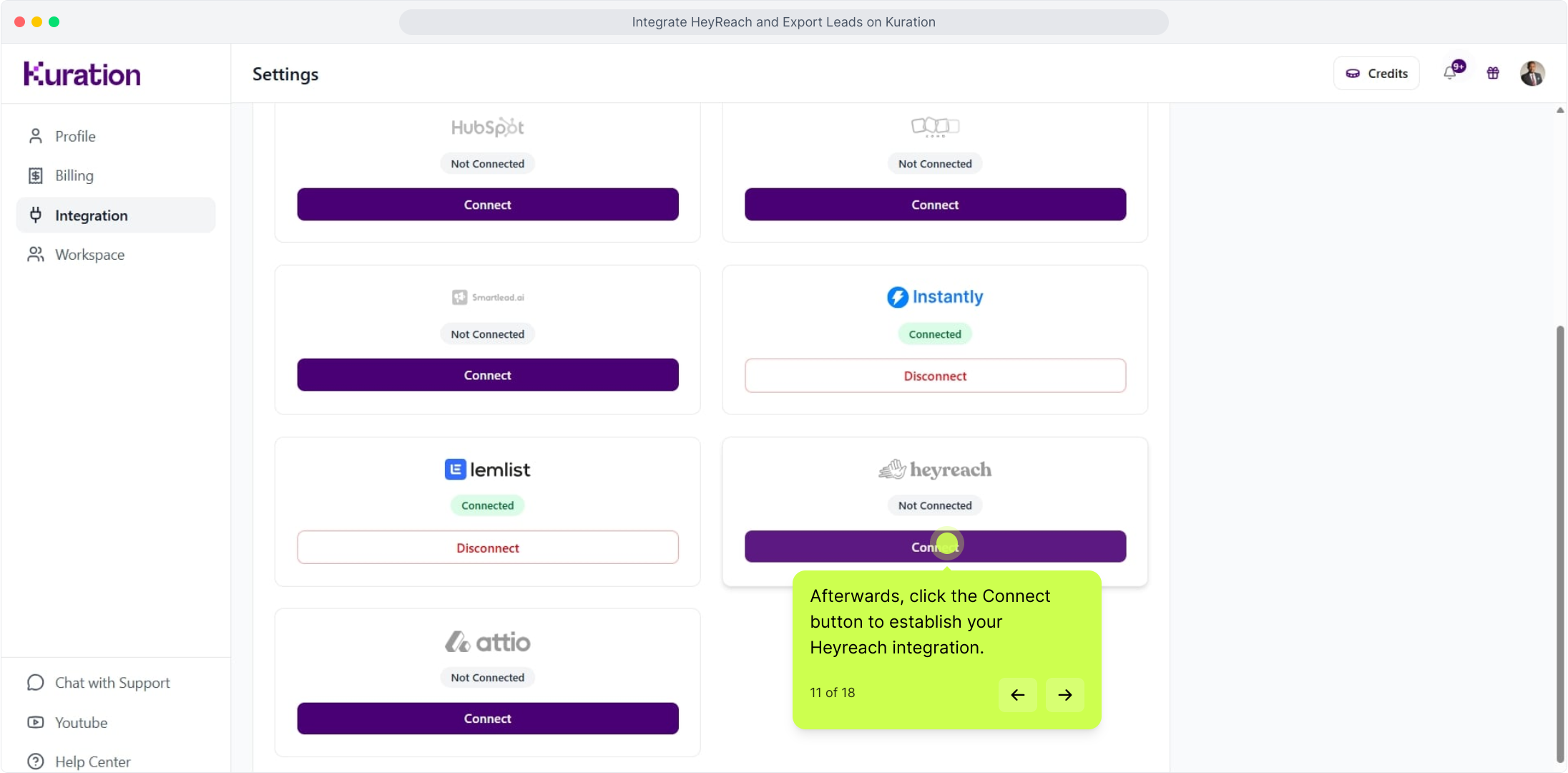
Step 1: Open the Integrations page in Kuration

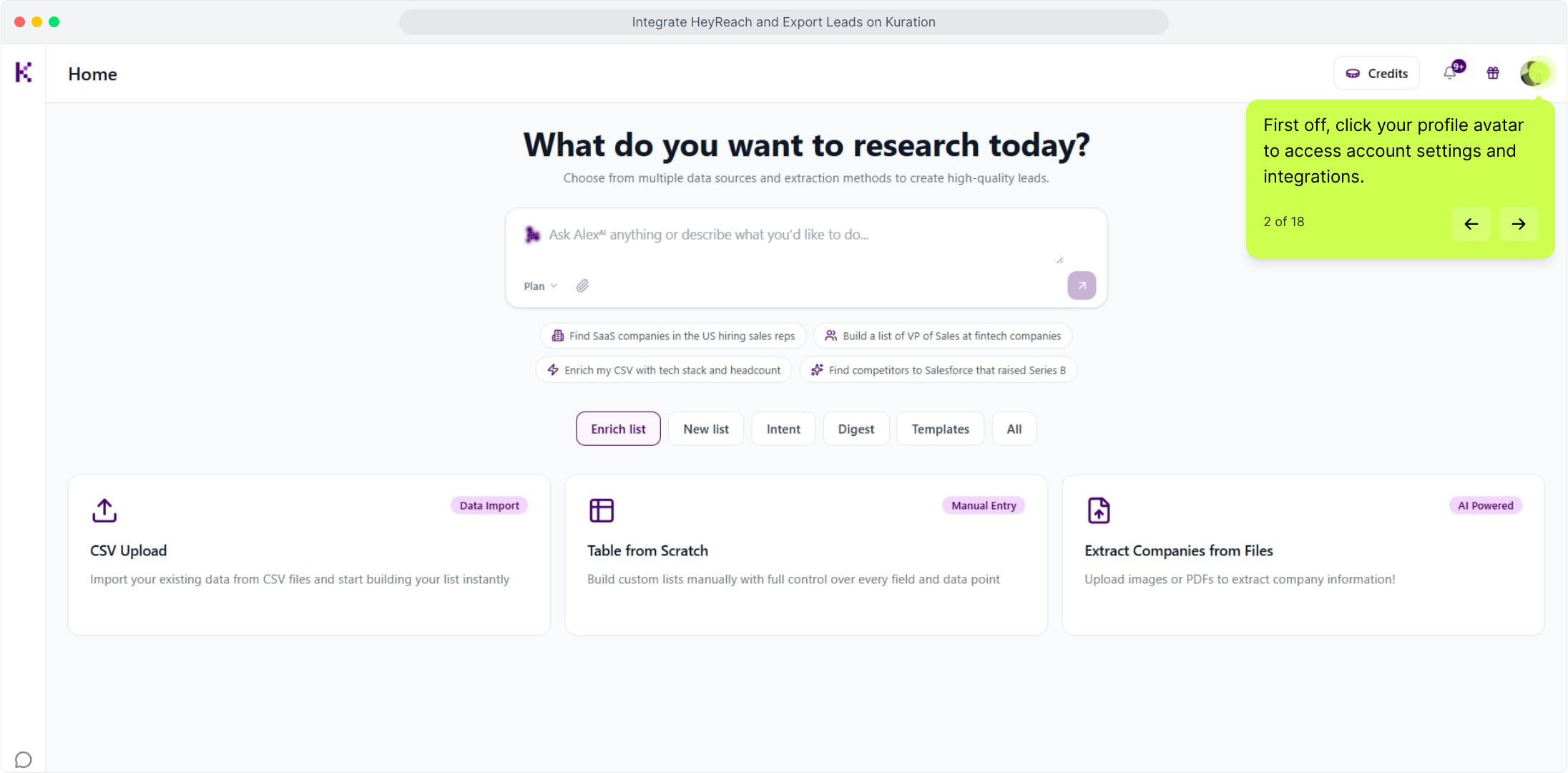
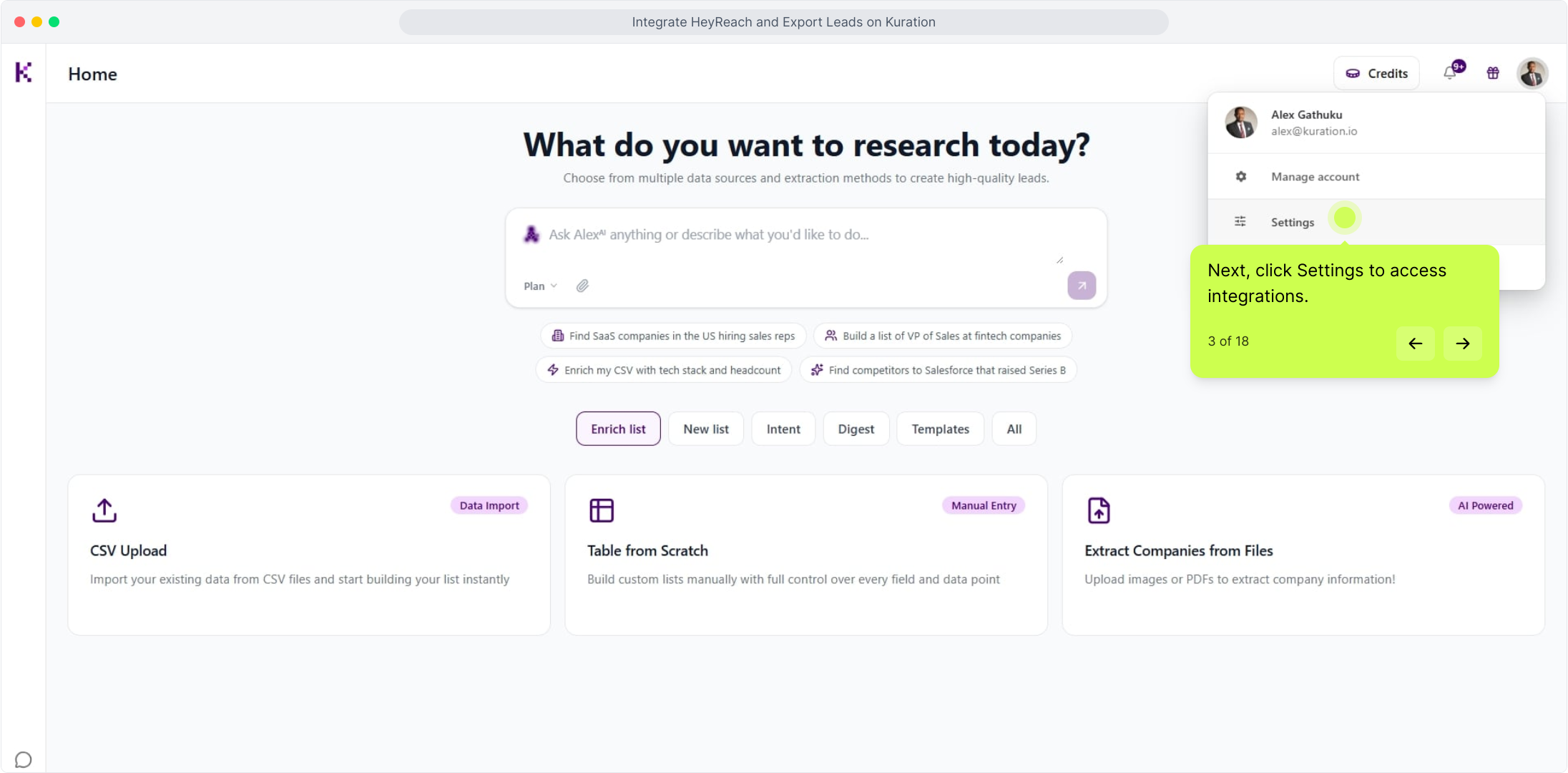
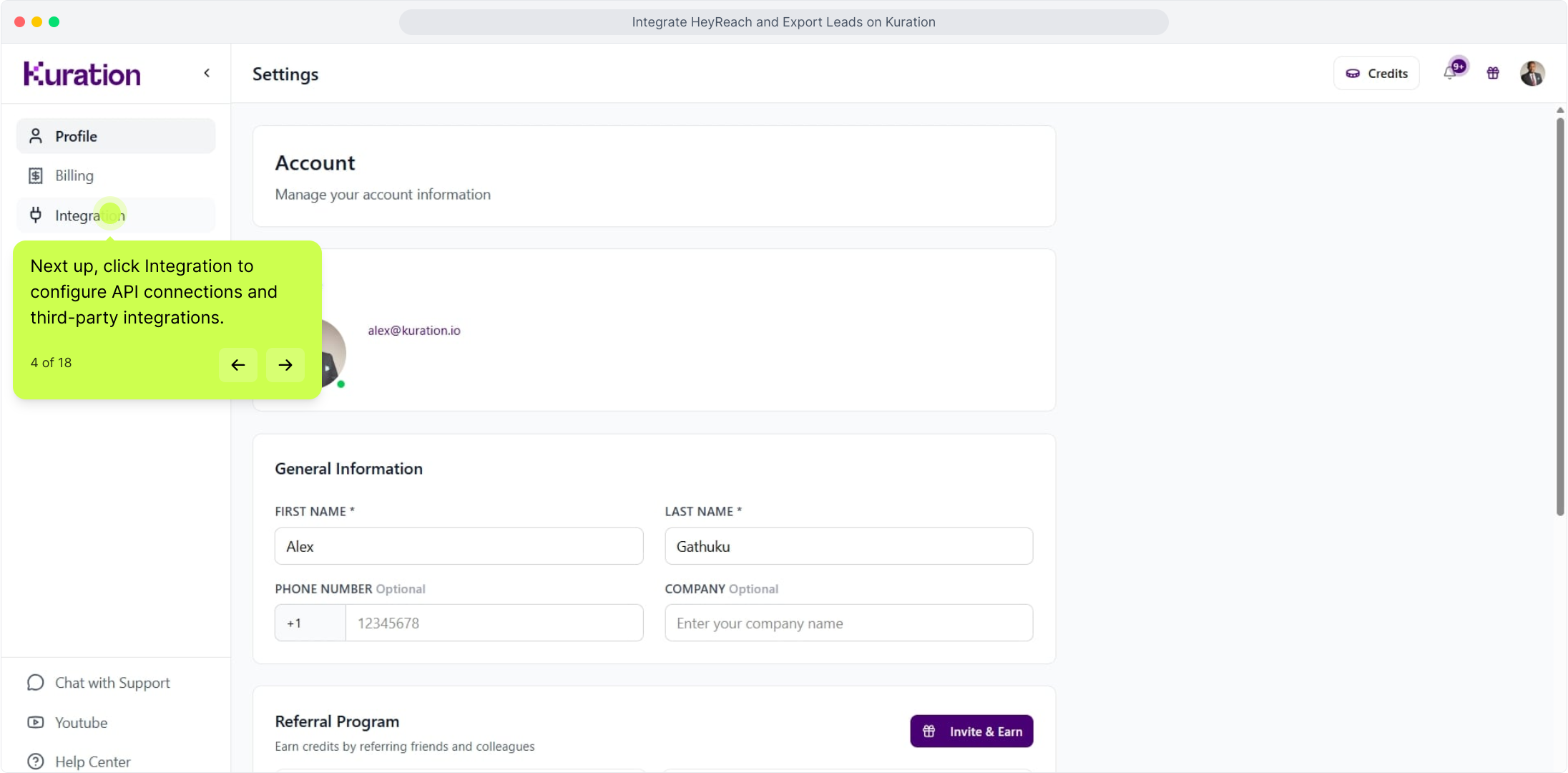
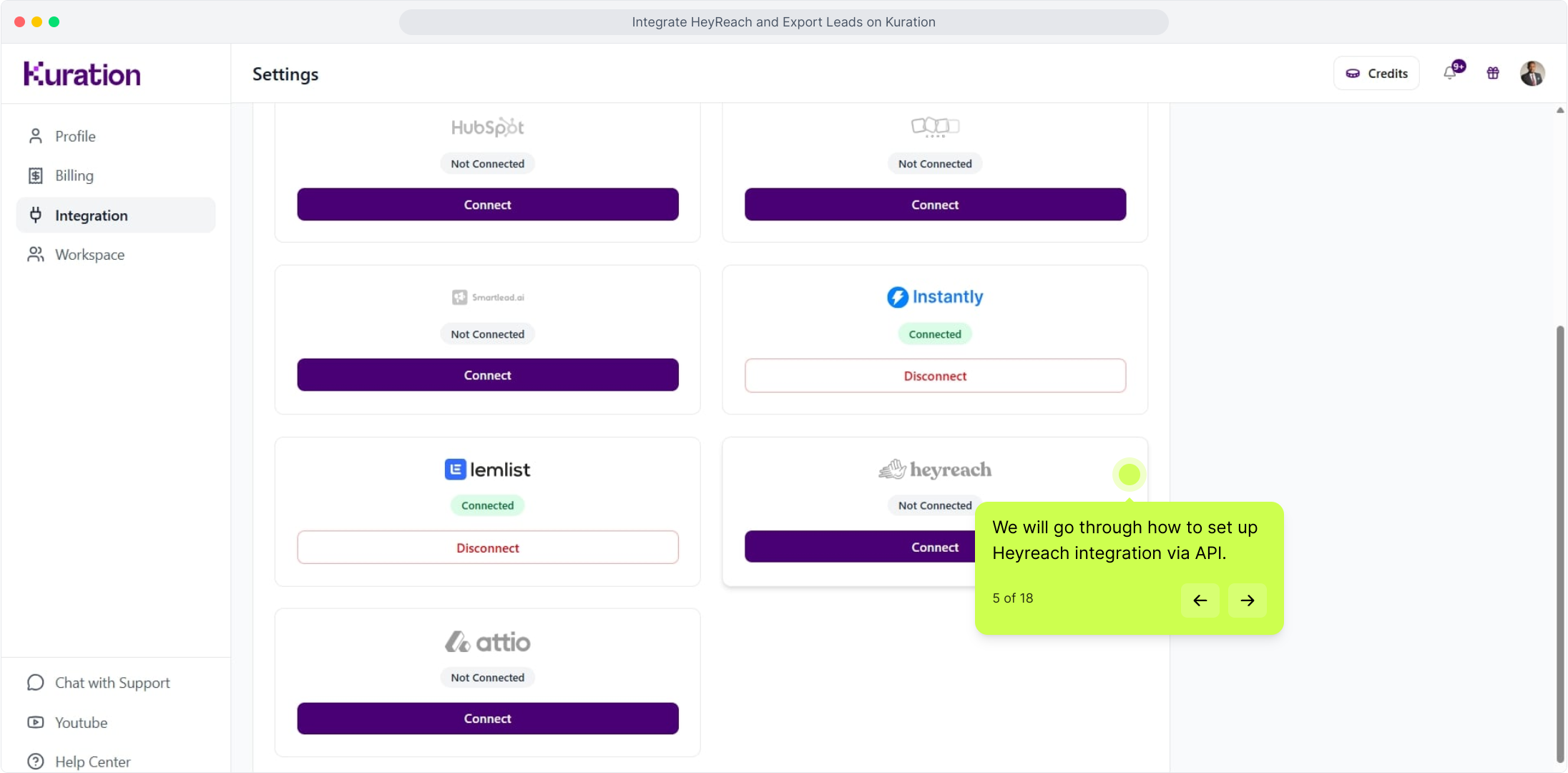
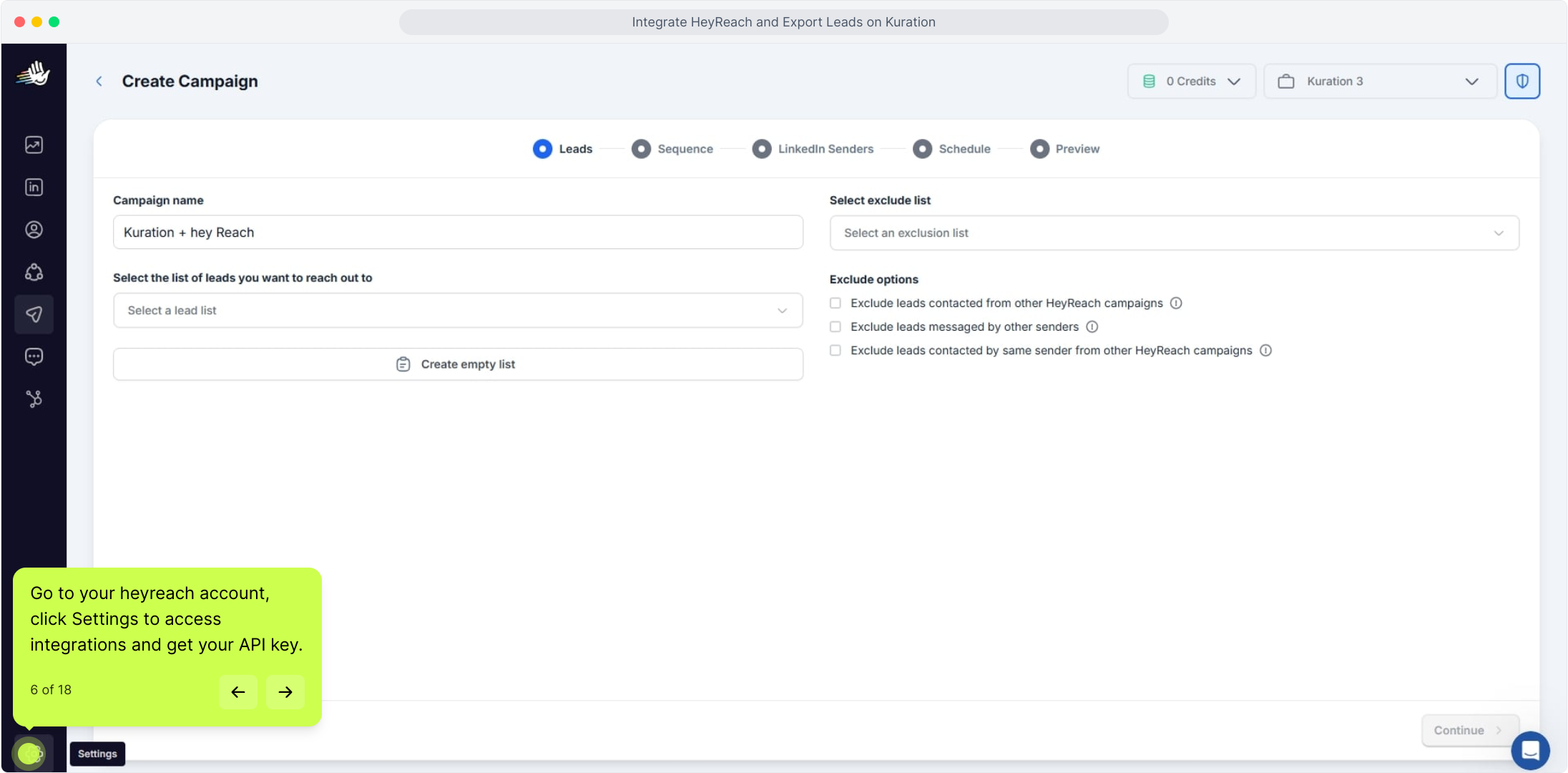
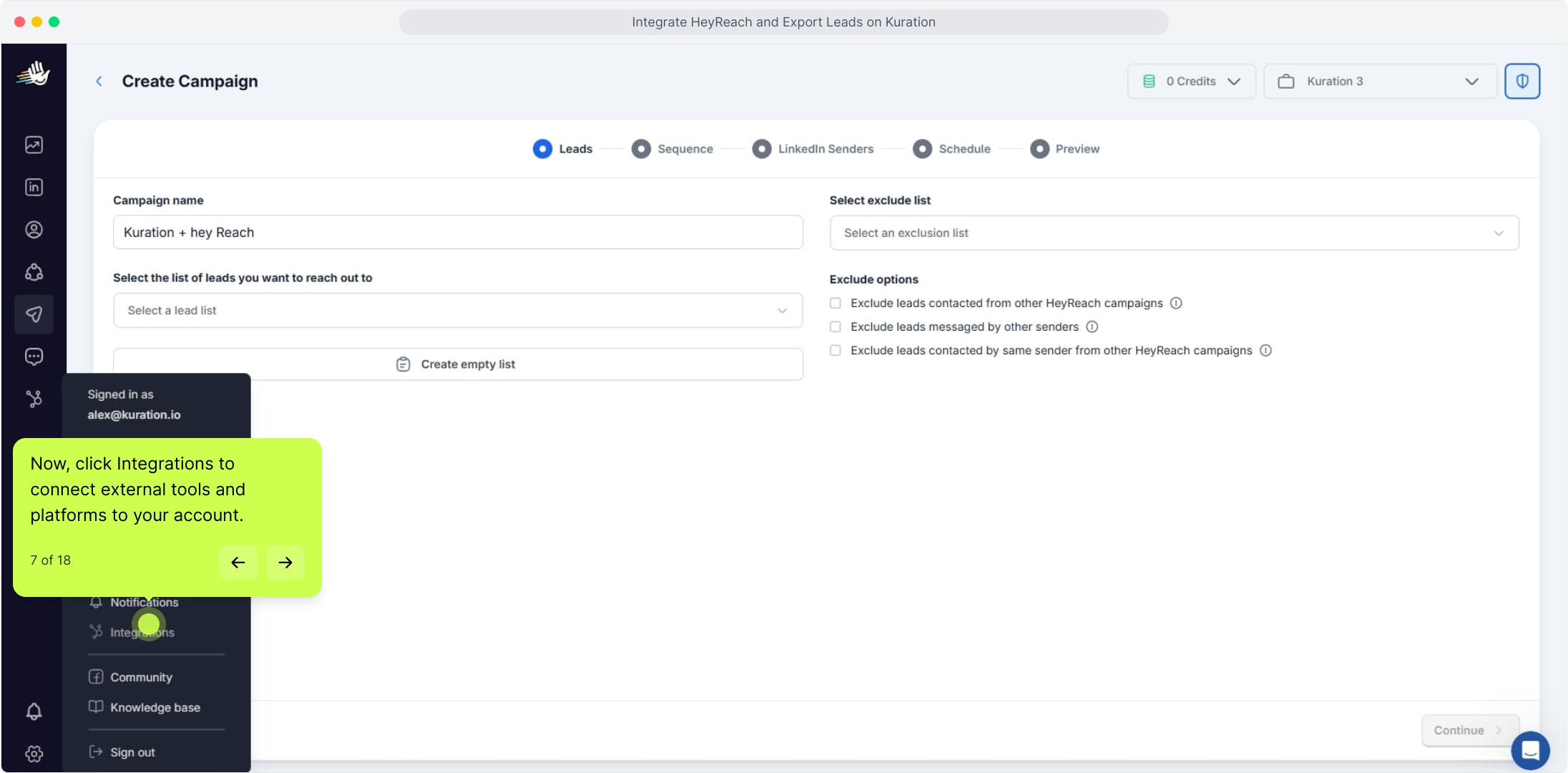
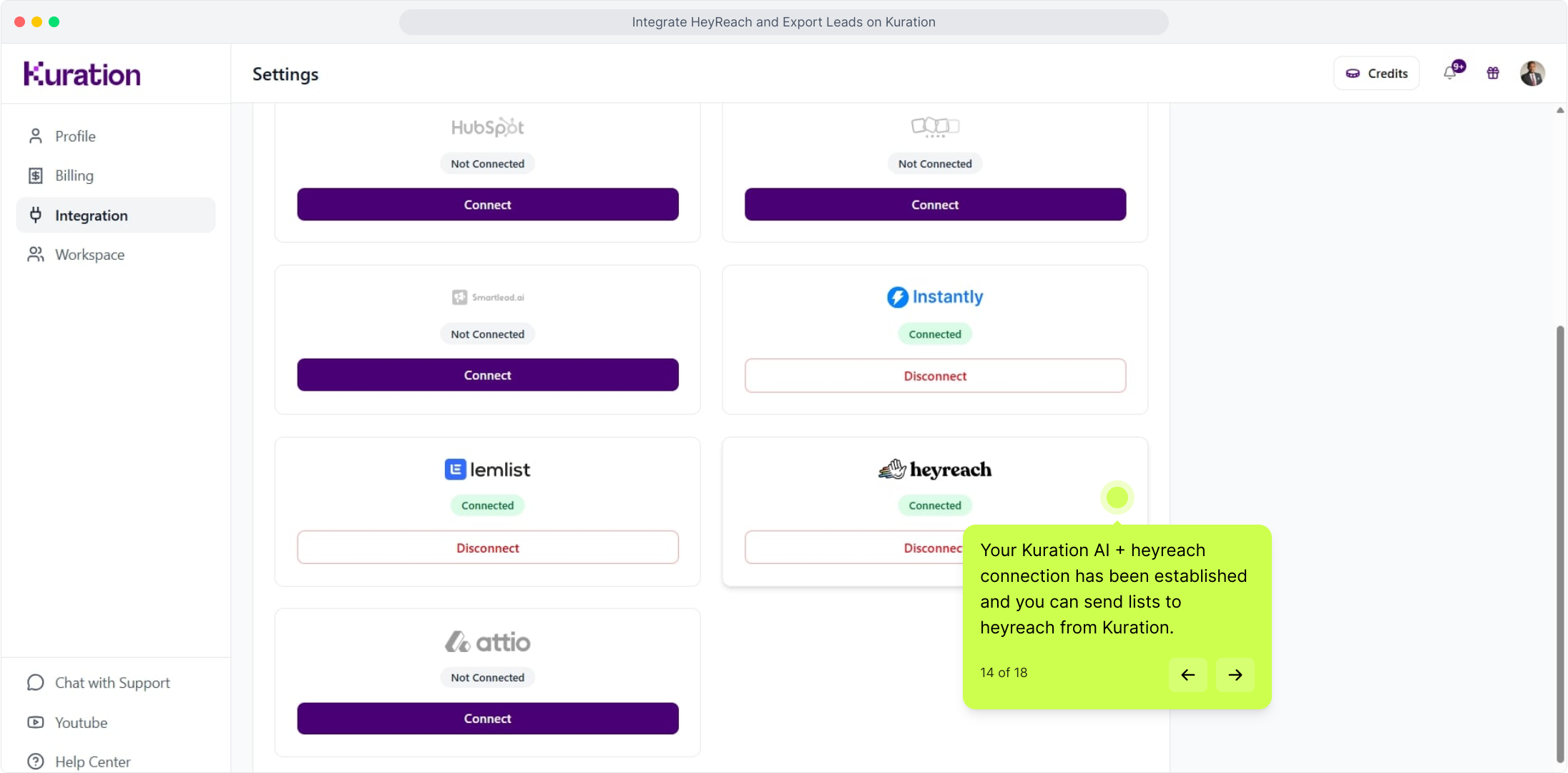
In Kuration AI, head into your account settings to find every third-party tool you can connect to — including HeyReach. Click your profile avatar (top-right), open Settings from the dropdown, then select the Integrations tab.

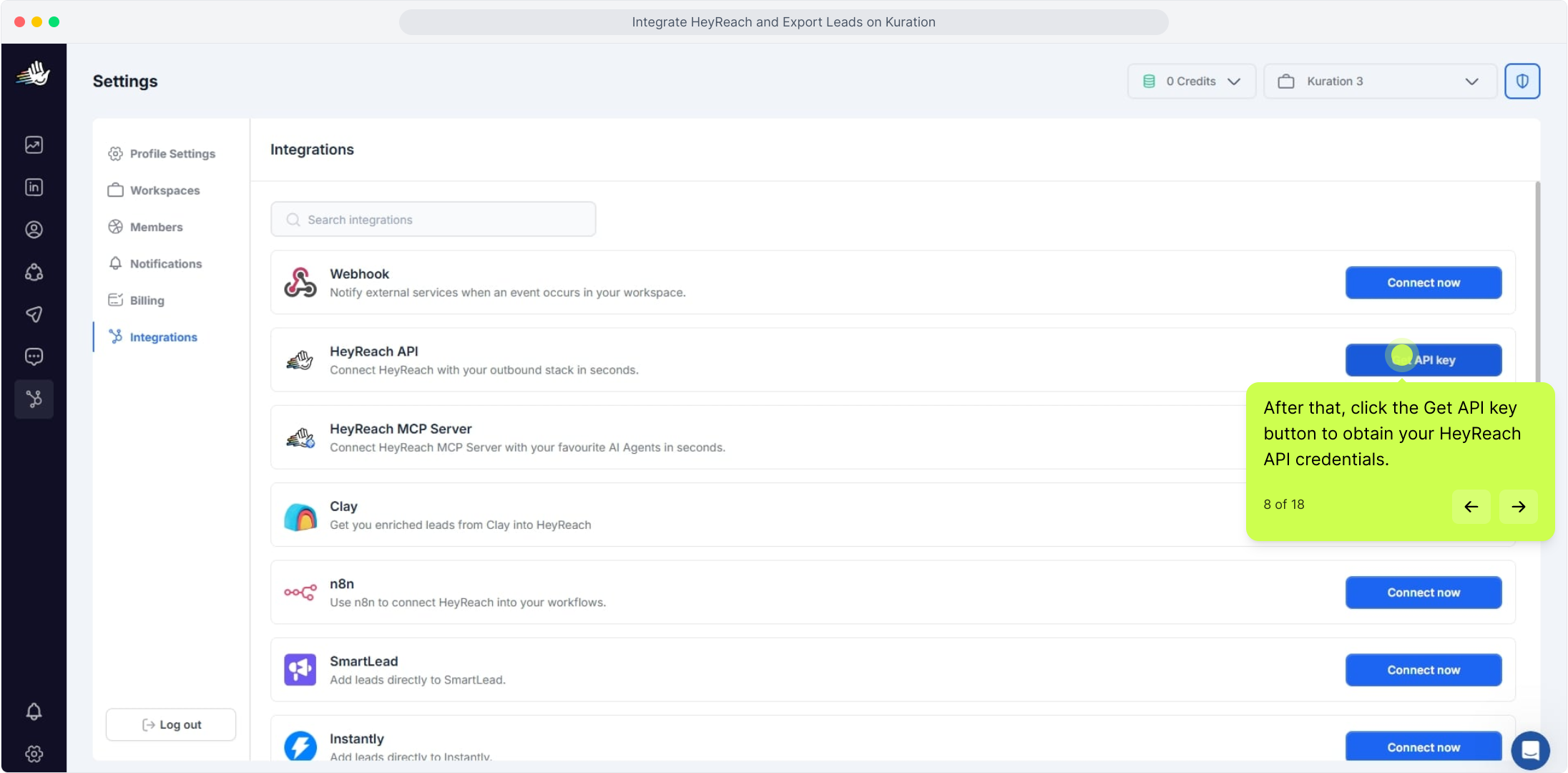
Kuration Integrations page with HeyReach card

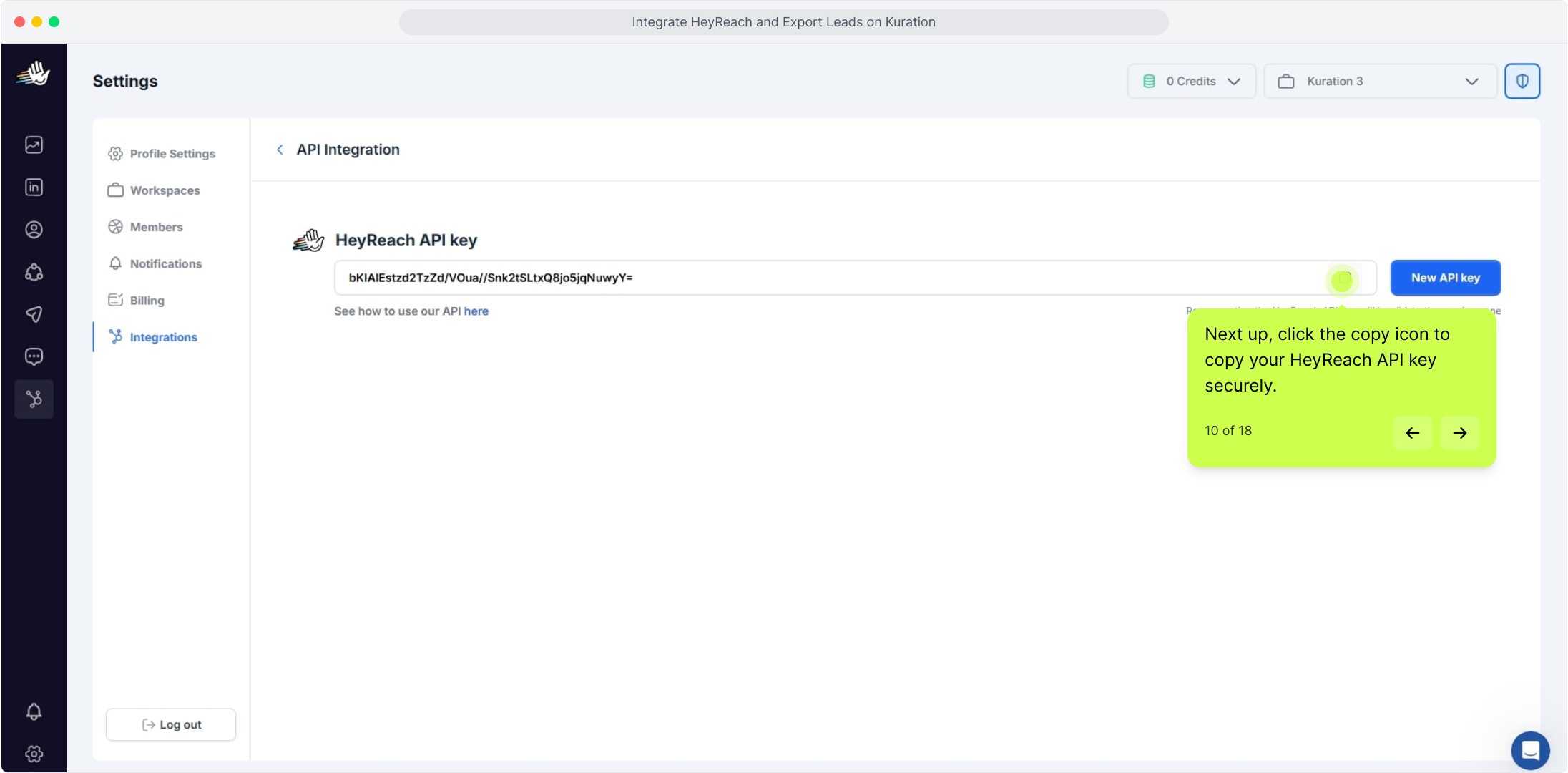
Step 2: Generate a HeyReach API key

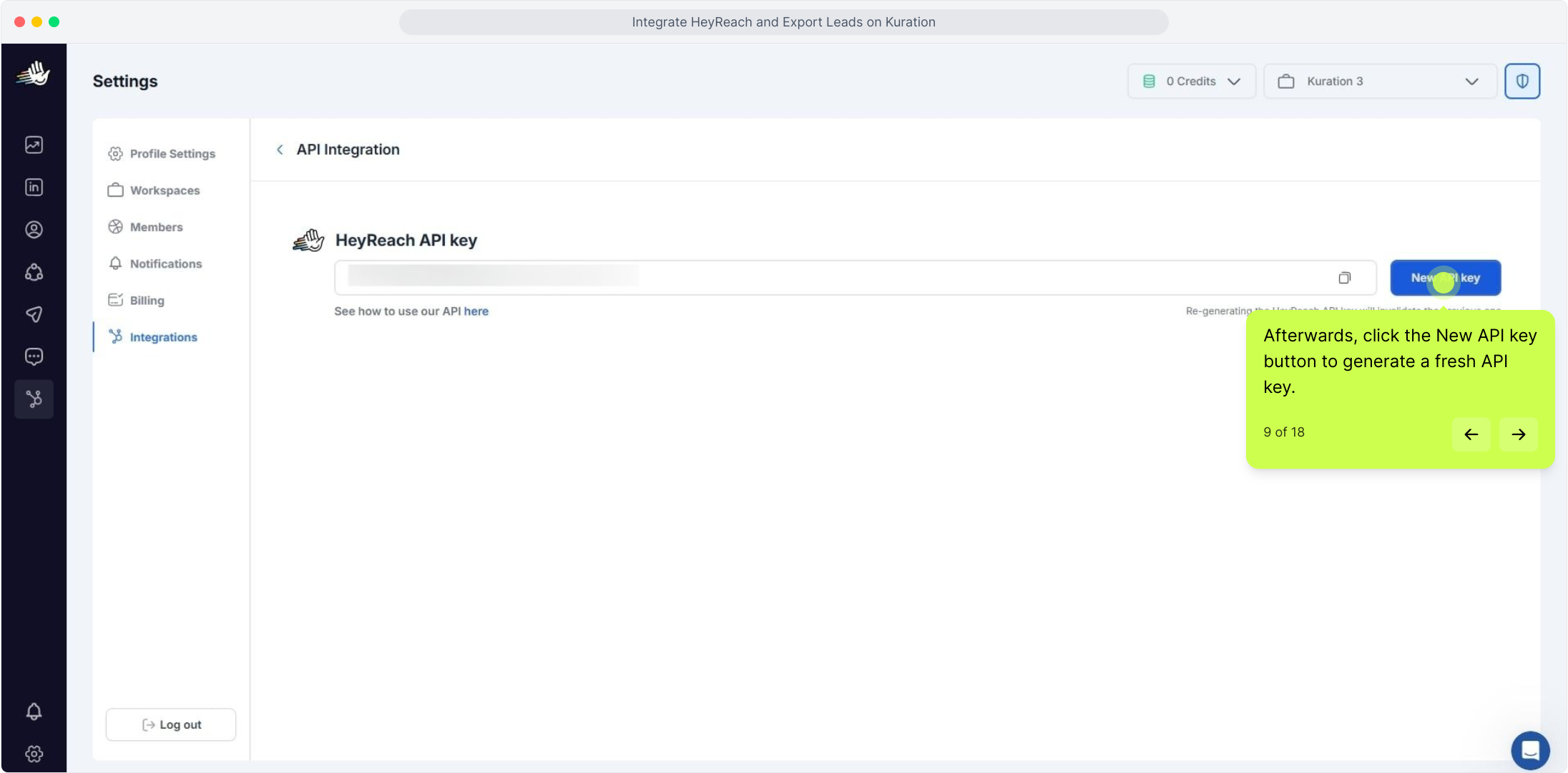
Open HeyReach in a new tab, navigate into API settings, and create a key. Go to Settings → Integrations in HeyReach, click Get API key → New API key, then hit the copy icon to save it securely. Name it something recognisable so you can revoke it later if needed.

HeyReach API key with copy button highlighted

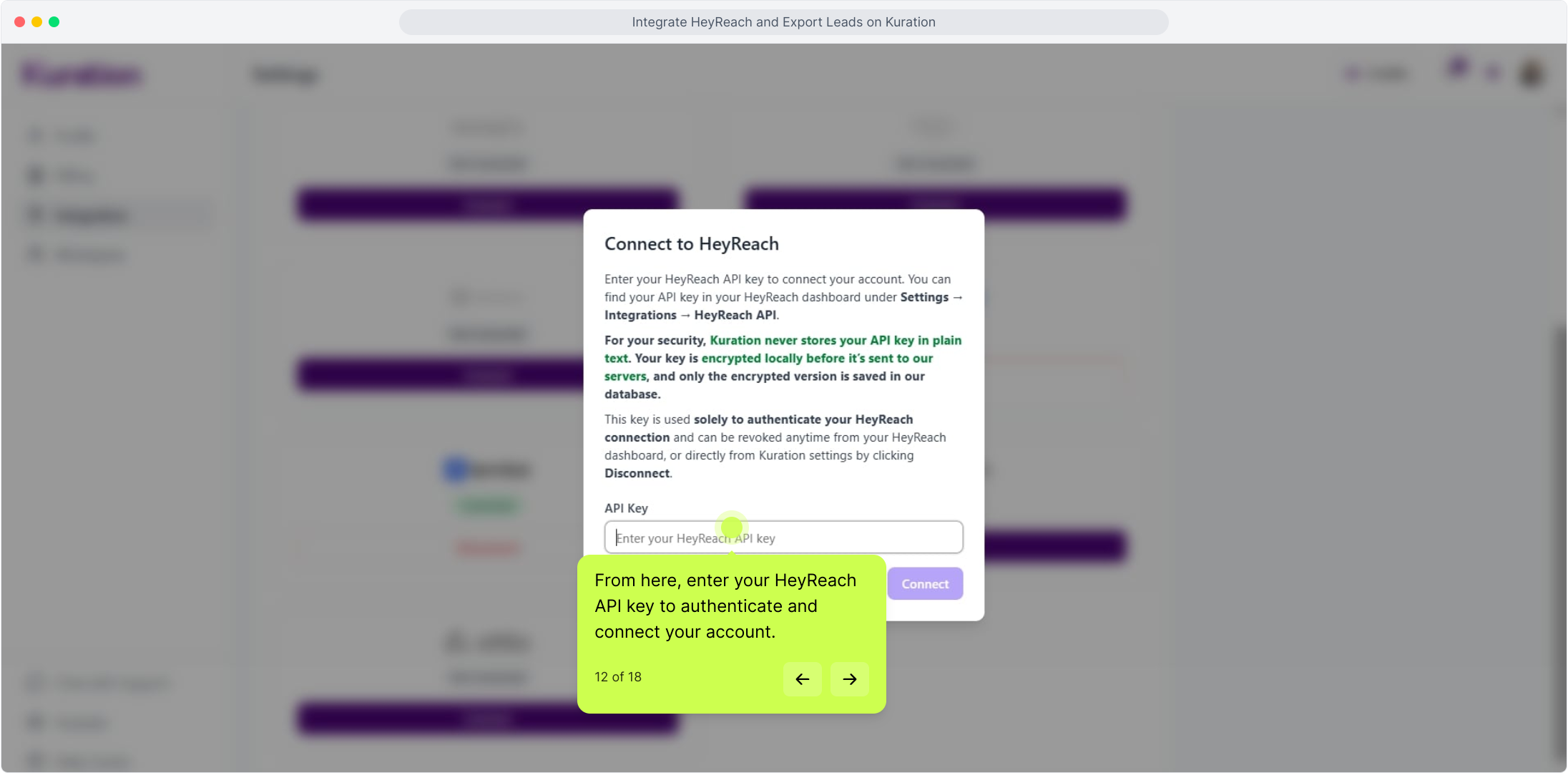
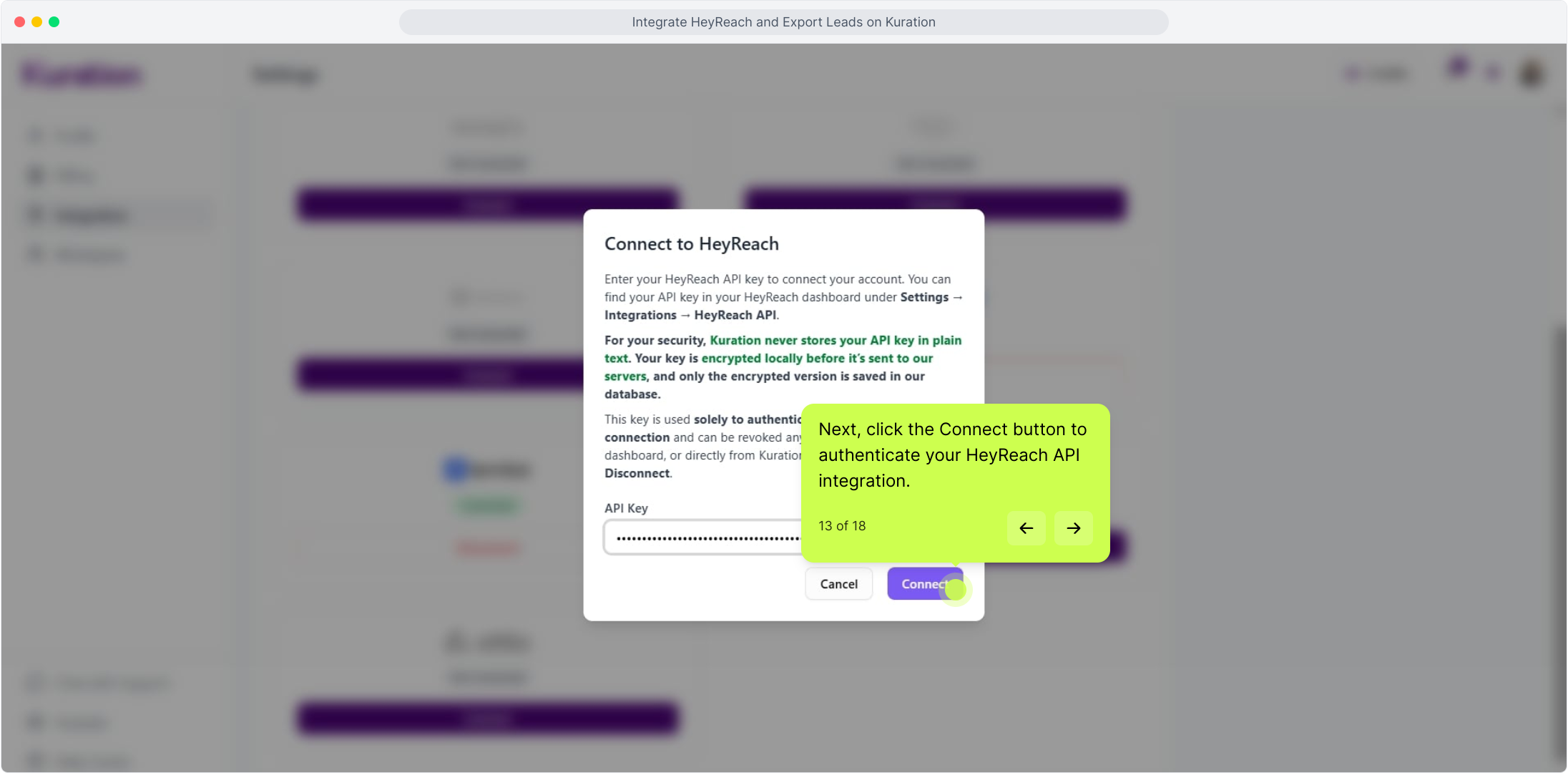
Step 3: Connect the key in Kuration

Back on the Kuration Integrations page, click Connect on the HeyReach tile, paste your API key into the field, and click Connect to authenticate. Kuration validates the key on the spot — once it's green, you're wired up.

Kuration Connect HeyReach dialog with API key field

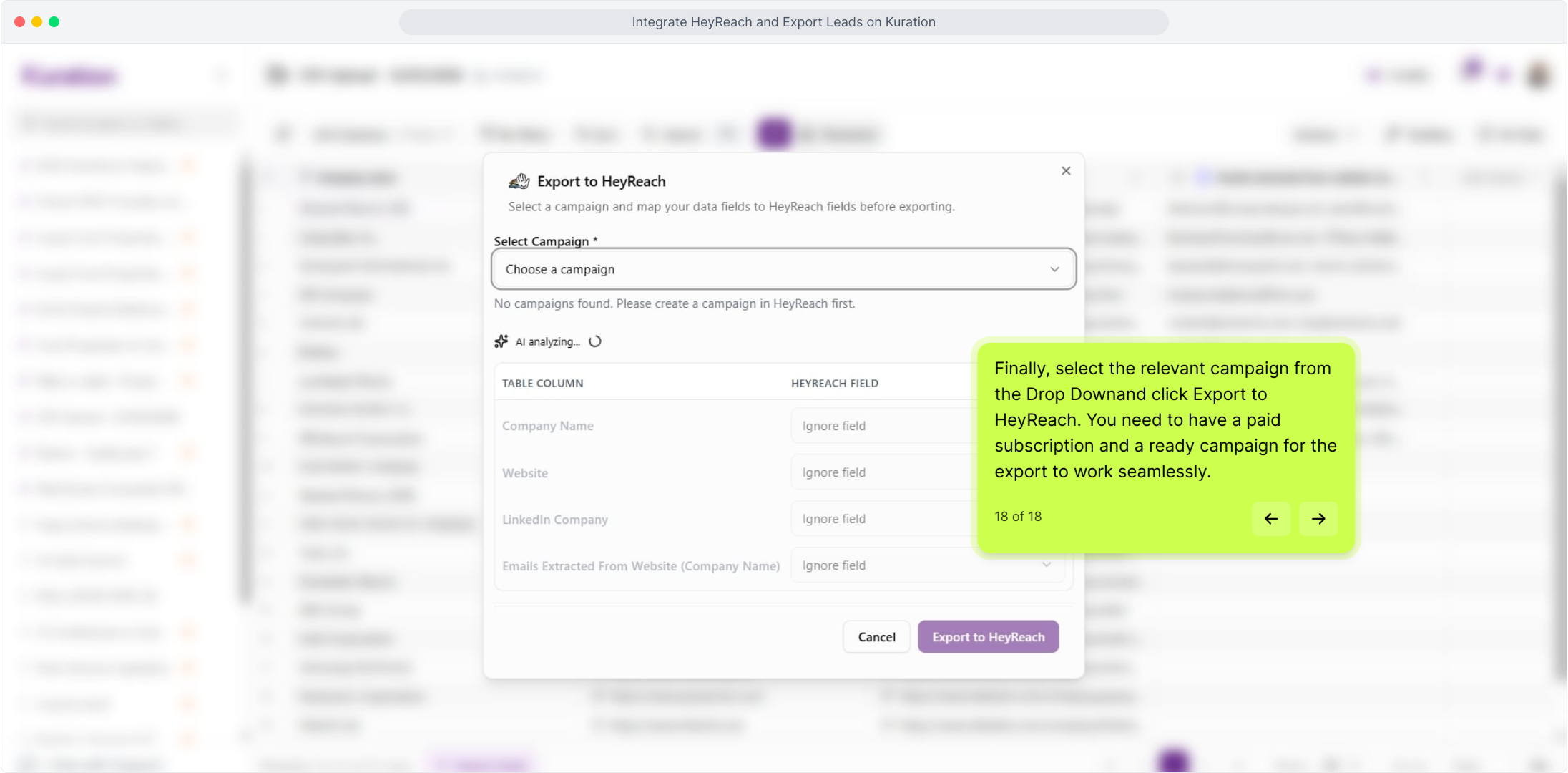
Step 4: Export your first list to a HeyReach campaign

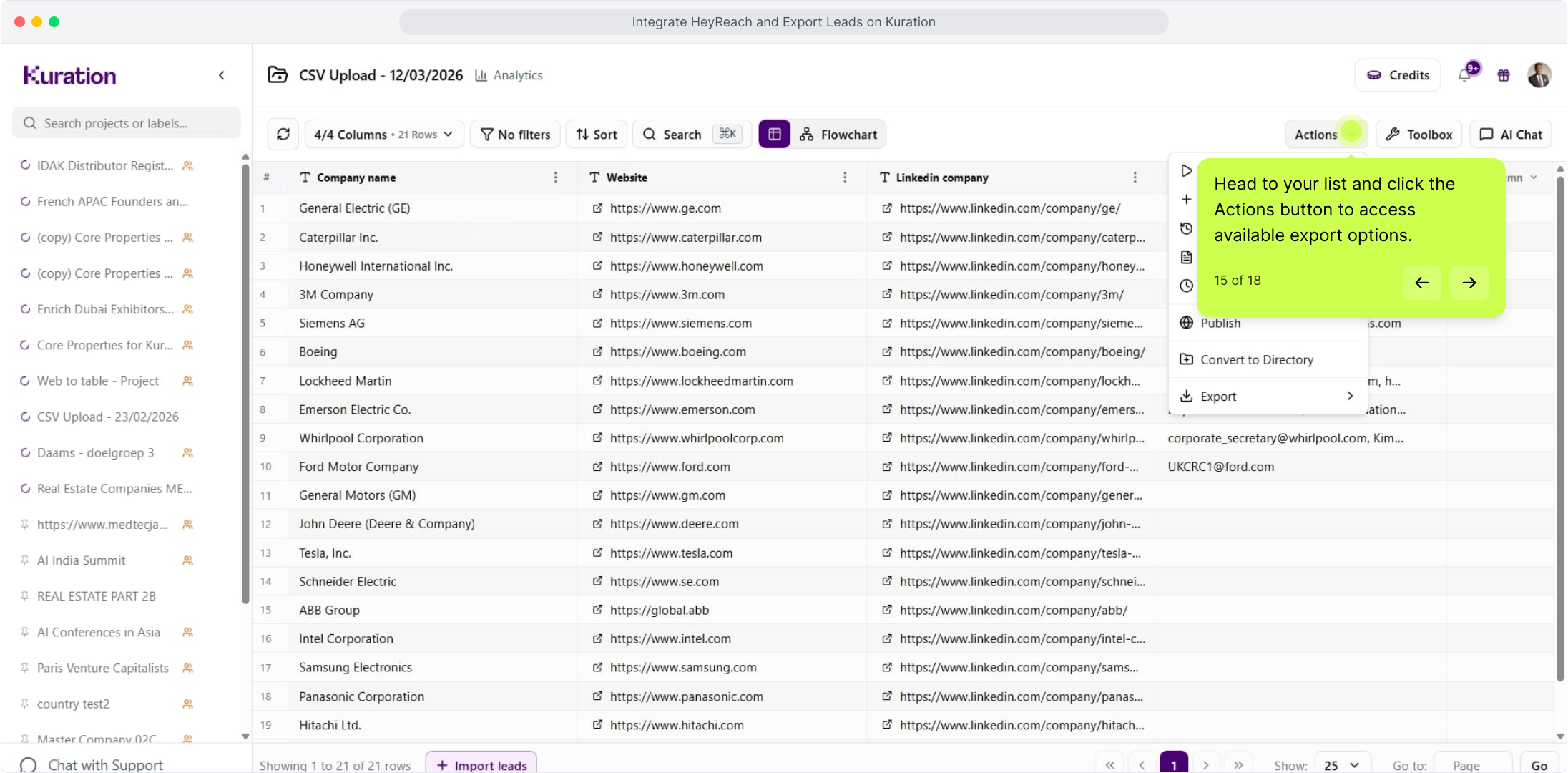
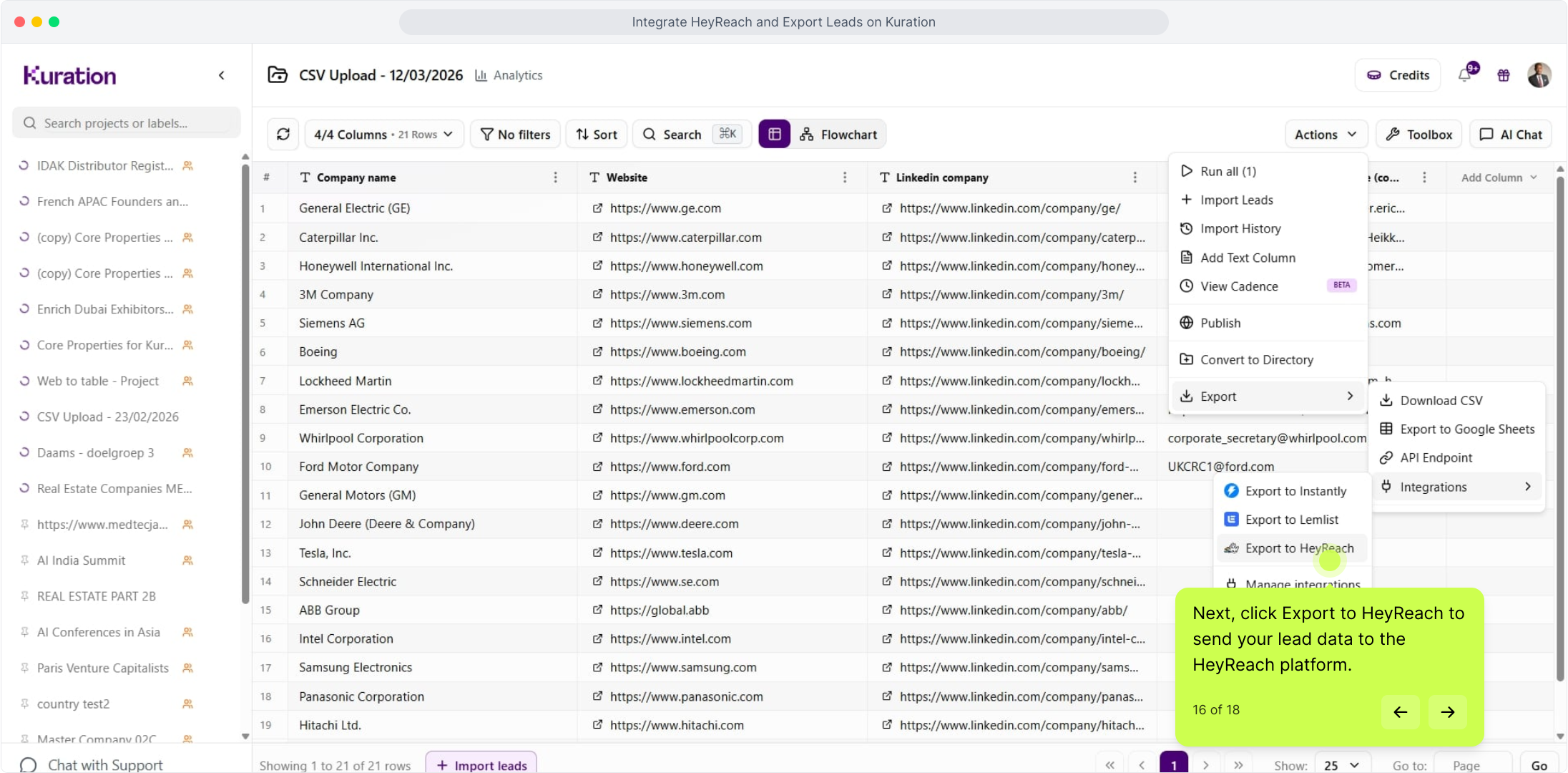
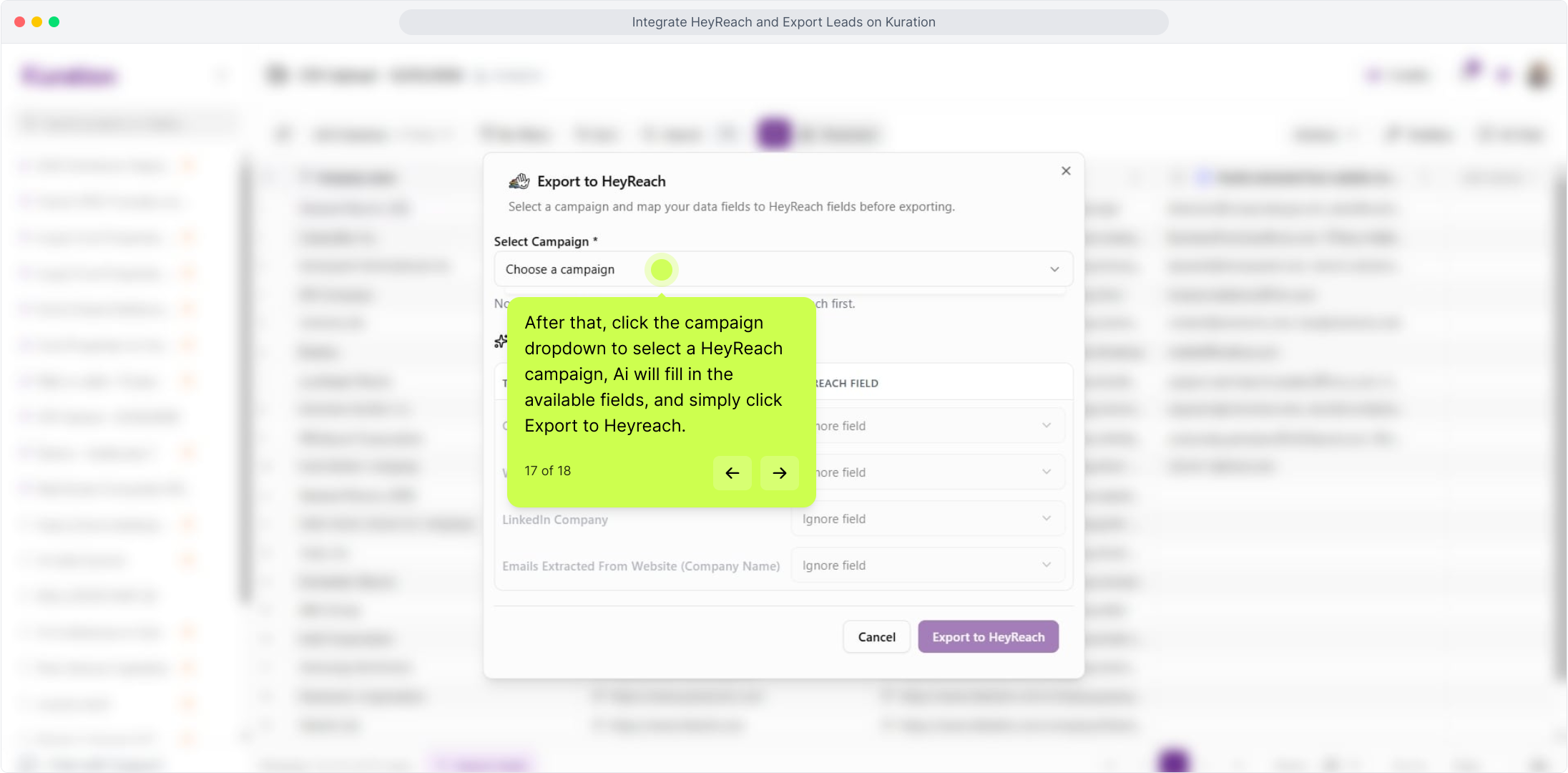
Open any list, click Actions → Export to HeyReach, pick your campaign from the dropdown, and click Export to HeyReach to send. Kuration's AI auto-maps the fields based on your columns — you just confirm and send.

Kuration Export to HeyReach panel with campaign dropdown

Requirements: a paid HeyReach plan plus a campaign in a ready state.

For the full interactive Demo Click Here