


Set up your workspace & invite your team
Create a shared workspace, invite teammates, and control what they can do — allocate credits, share projects, and manage integration access, all from one place in Settings.
Name and create a shared space from Settings.
Send email invites and watch members join.
Allocate credits and share projects with the team.
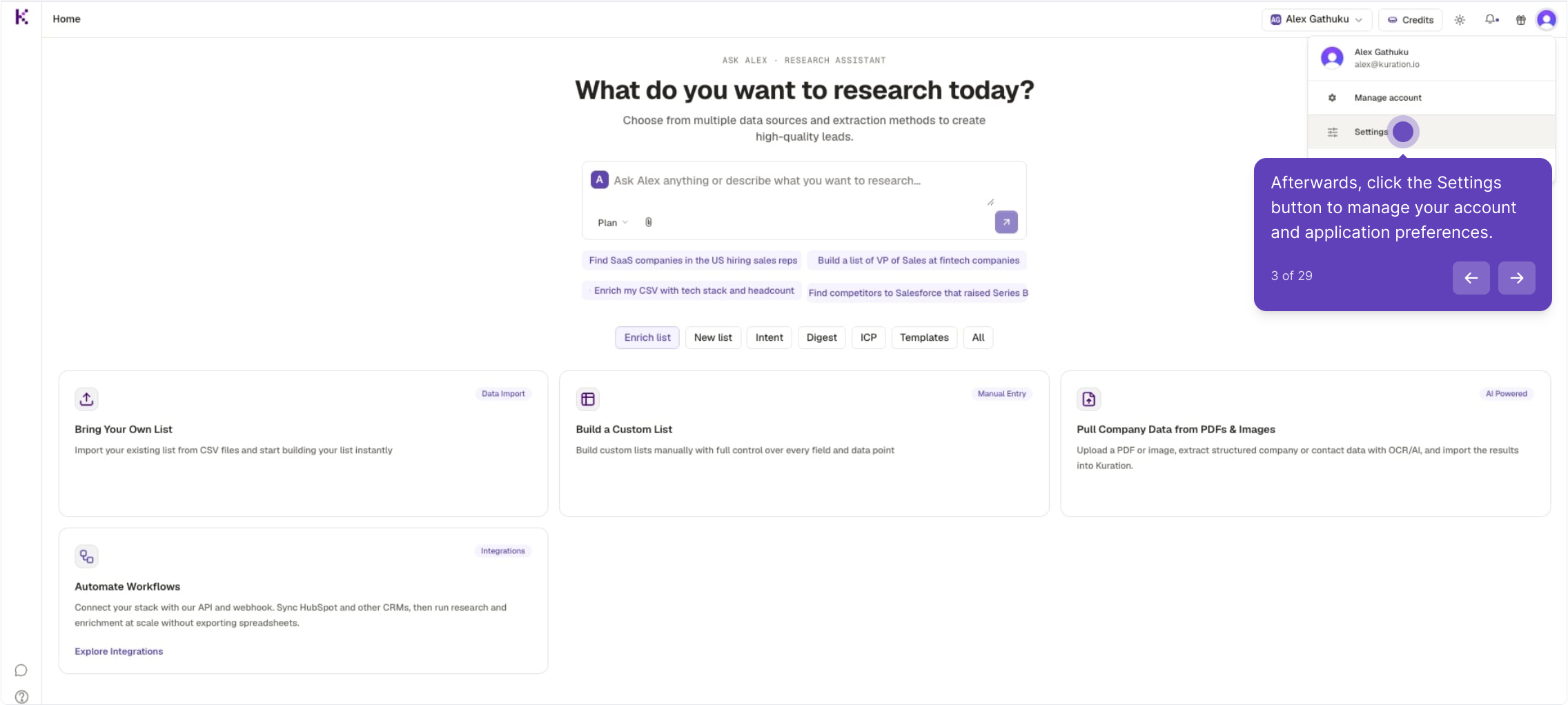
Open your Settings
From the Kuration home, click your profile avatar in the top-right and choose Settings to reach your account and workspace controls.
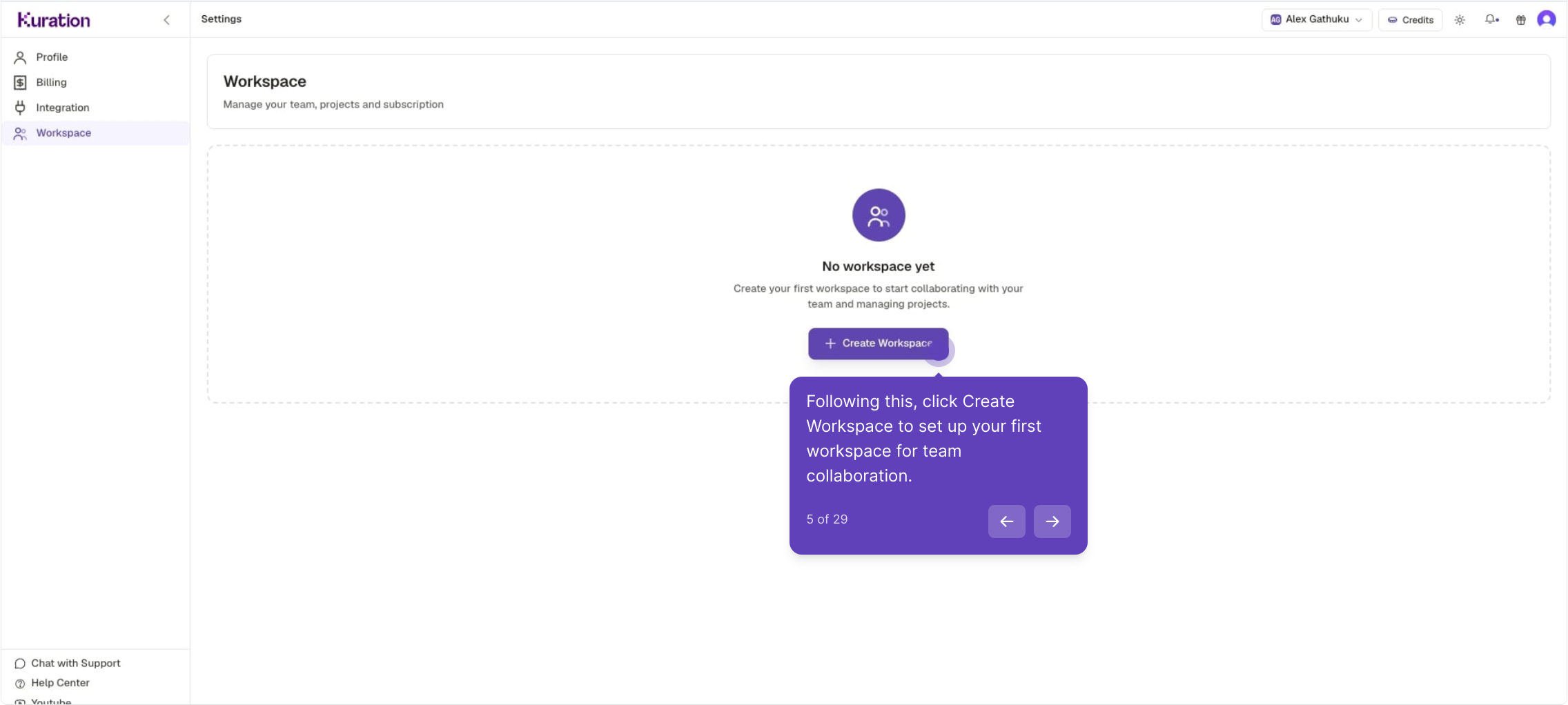
Create your workspace
In Settings, open the Workspace section. If you don't have one yet, click Create Workspace to set up a shared space for team collaboration.
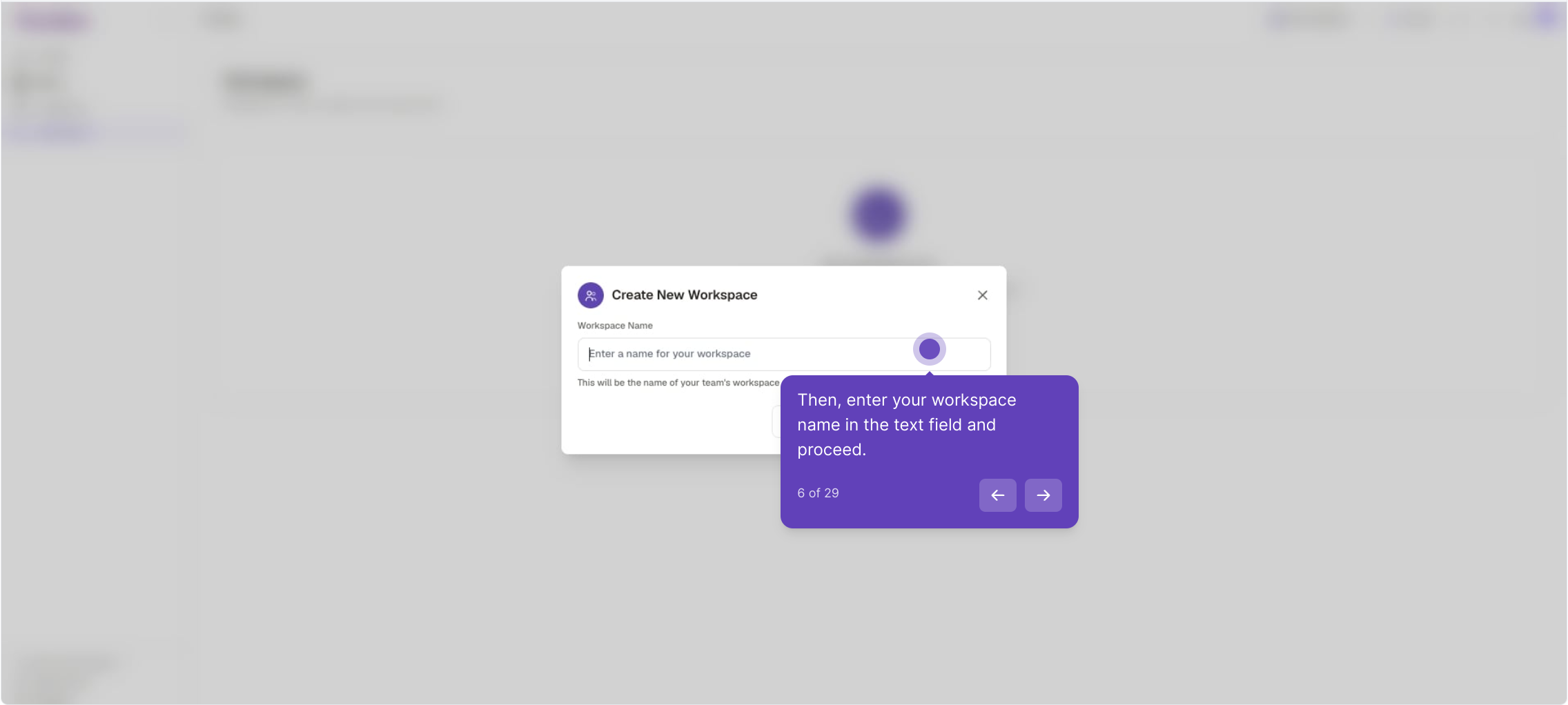
Name it and create
Enter a name for your workspace — this is what your team will see — then click Create Workspace to finalize and establish it.
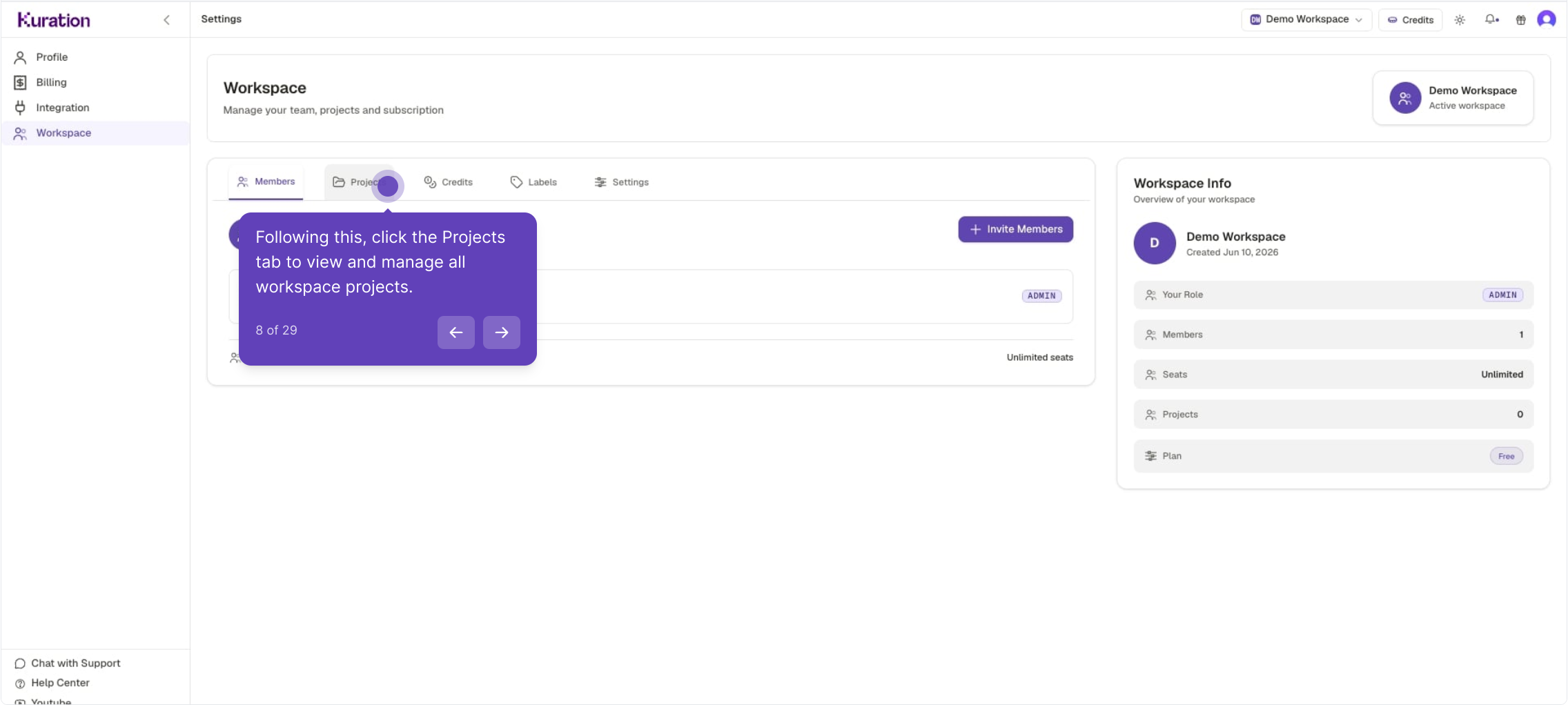
Explore your workspace
Your workspace has five tabs — Members, Projects, Credits, Labels and Settings — plus a Workspace Info panel summarizing your role, seats and plan.
Set your sharing preference
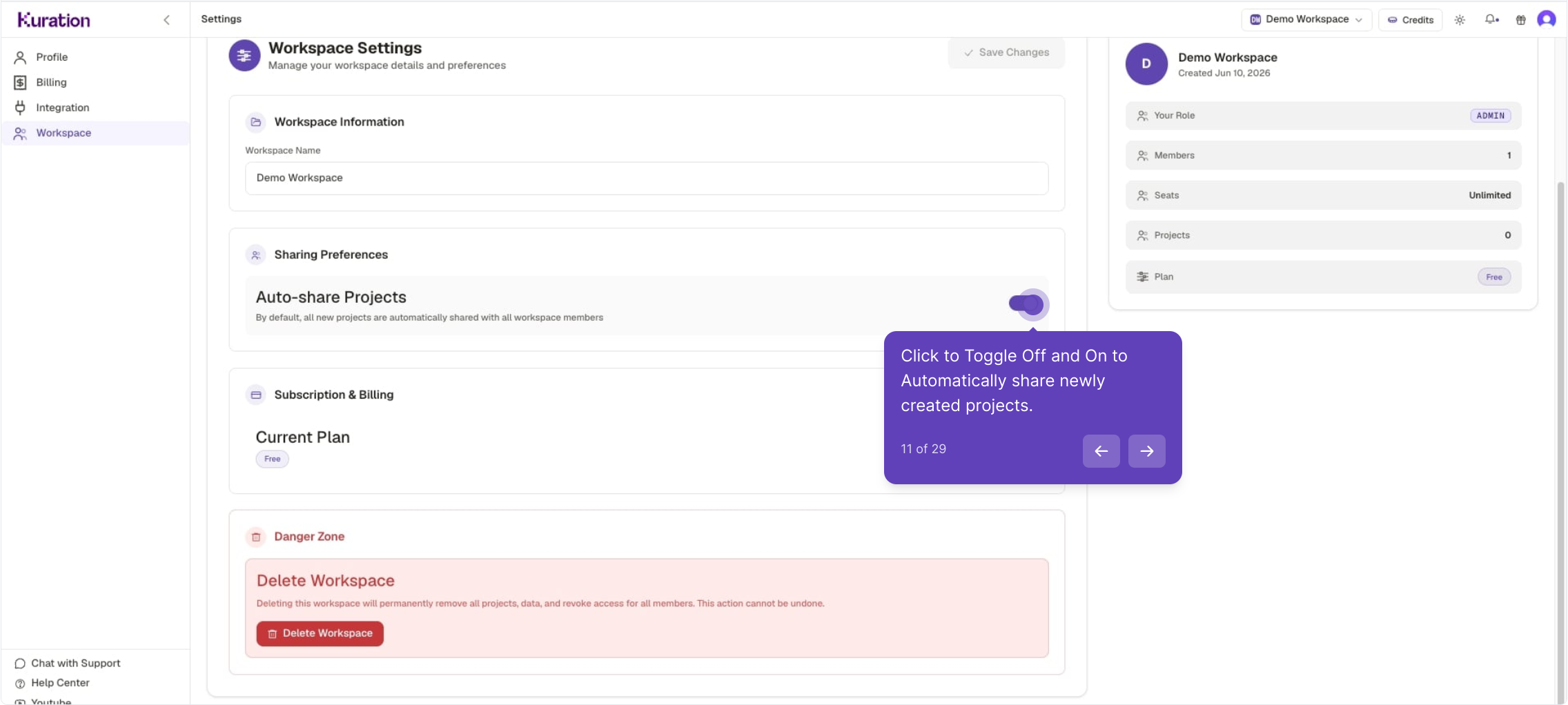
Under Settings ▸ Sharing Preferences, toggle Auto-share Projects to control whether new projects are automatically shared with all workspace members.
Invite team members
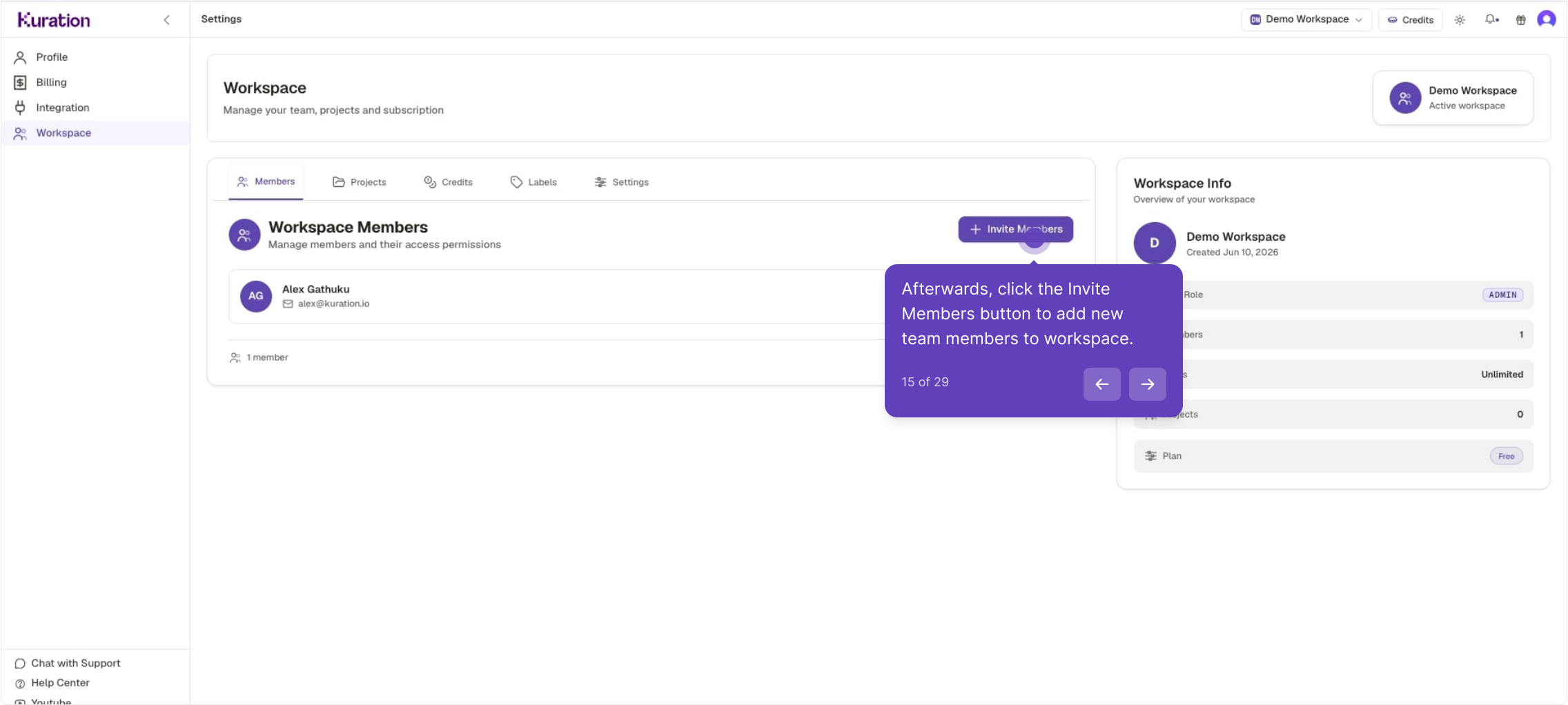
Open the Members tab and click Invite Members. Seats depend on your plan — Starter includes up to 3, while Pro and Scale are unlimited.
Add emails and send
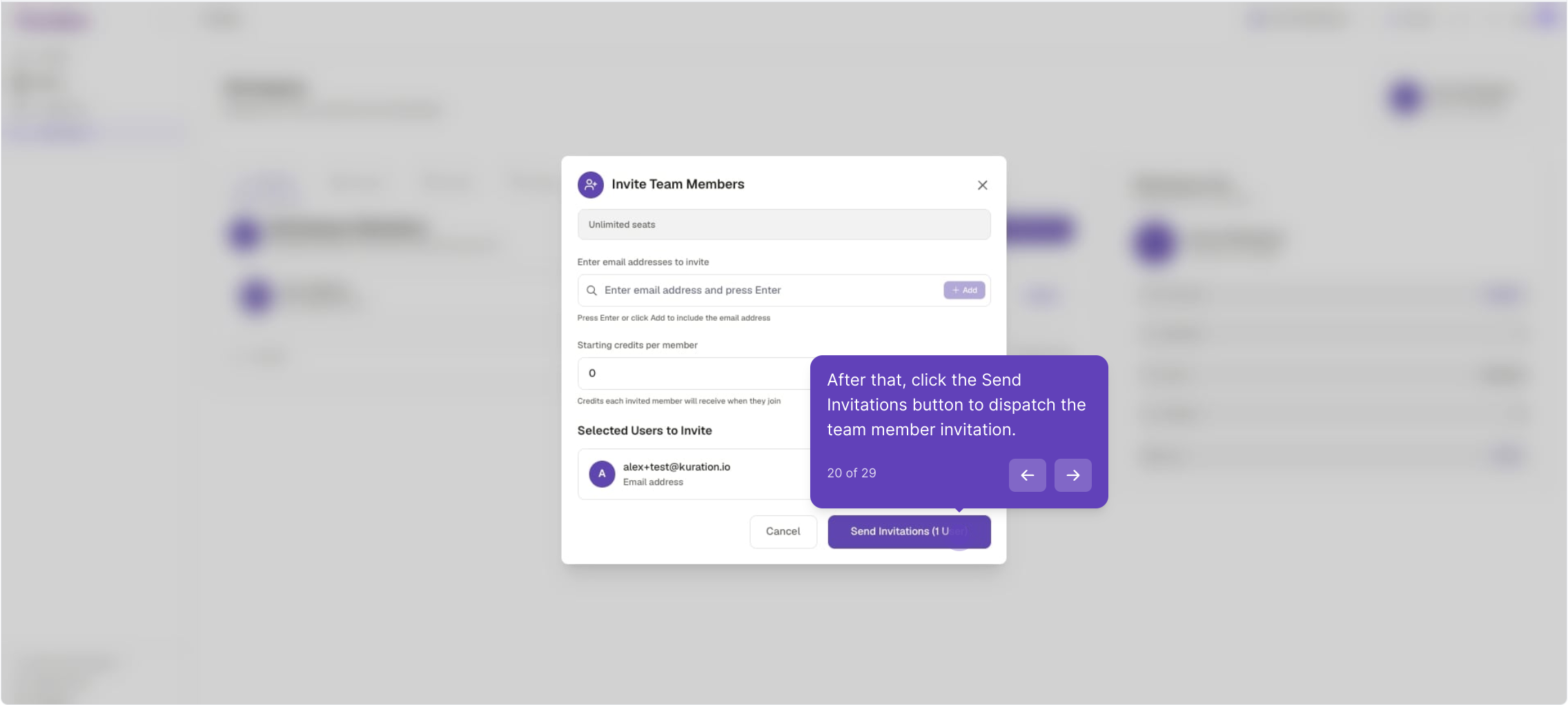
Enter each teammate's email and click Add, optionally set starting credits per member, then click Send Invitations to dispatch the invites.
What your teammates receive
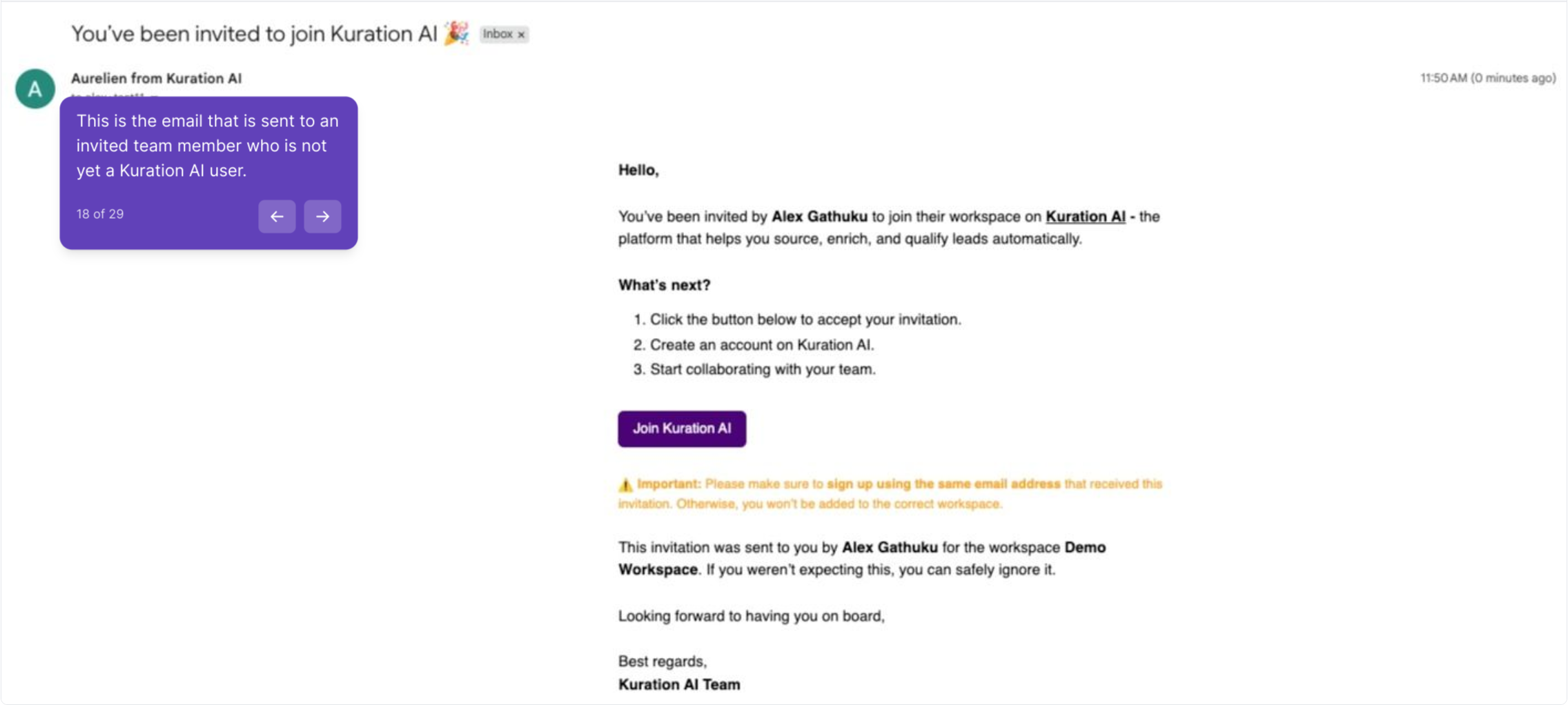
New users get an invite to join Kuration and create an account with the same email; existing users simply get a notification to log in and access the workspace.
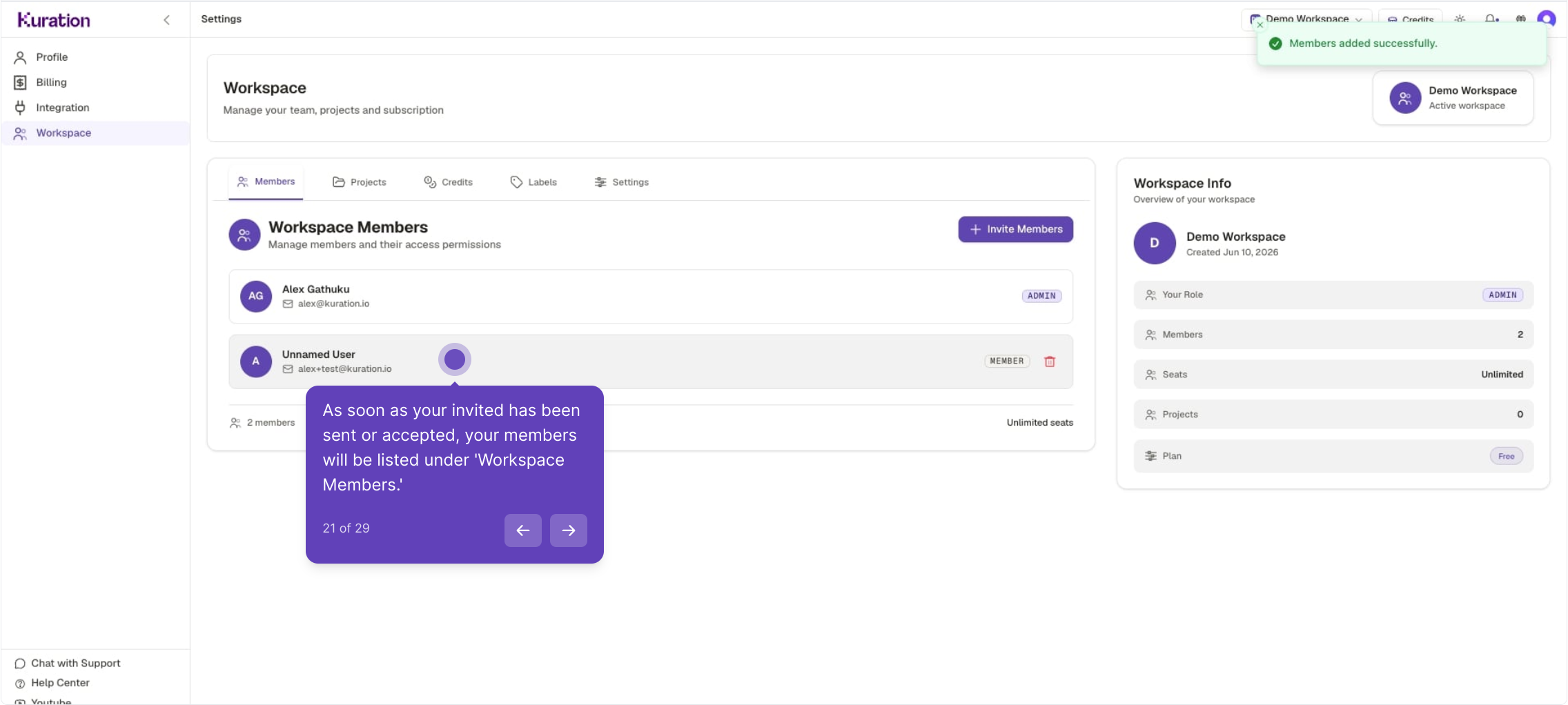
Members appear in your workspace
Once an invite is sent or accepted, teammates are listed under Workspace Members with their role, ready to collaborate.
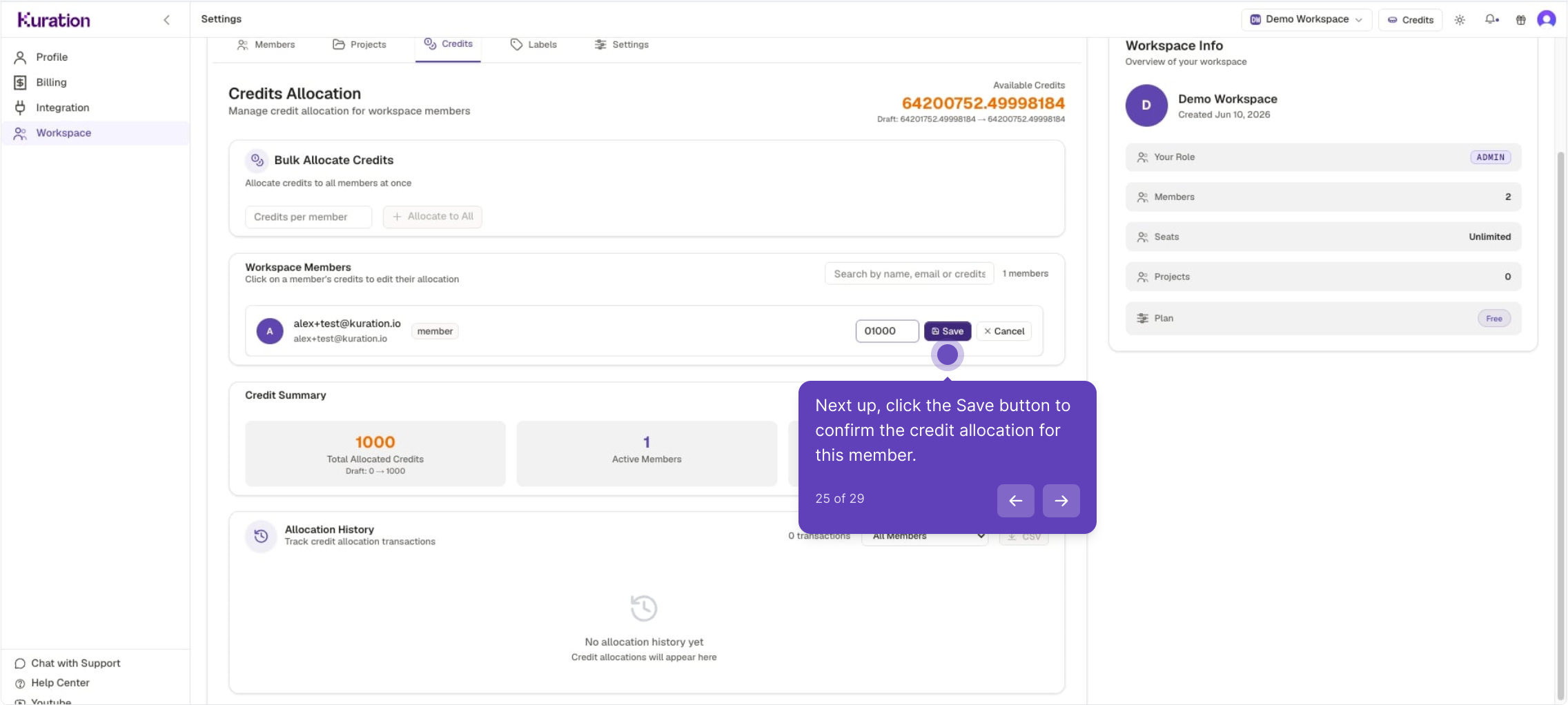
Allocate credits
In the Credits tab, click Edit next to a member (or Bulk Allocate for everyone), enter the amount, and click Save to fund their enrichment work.
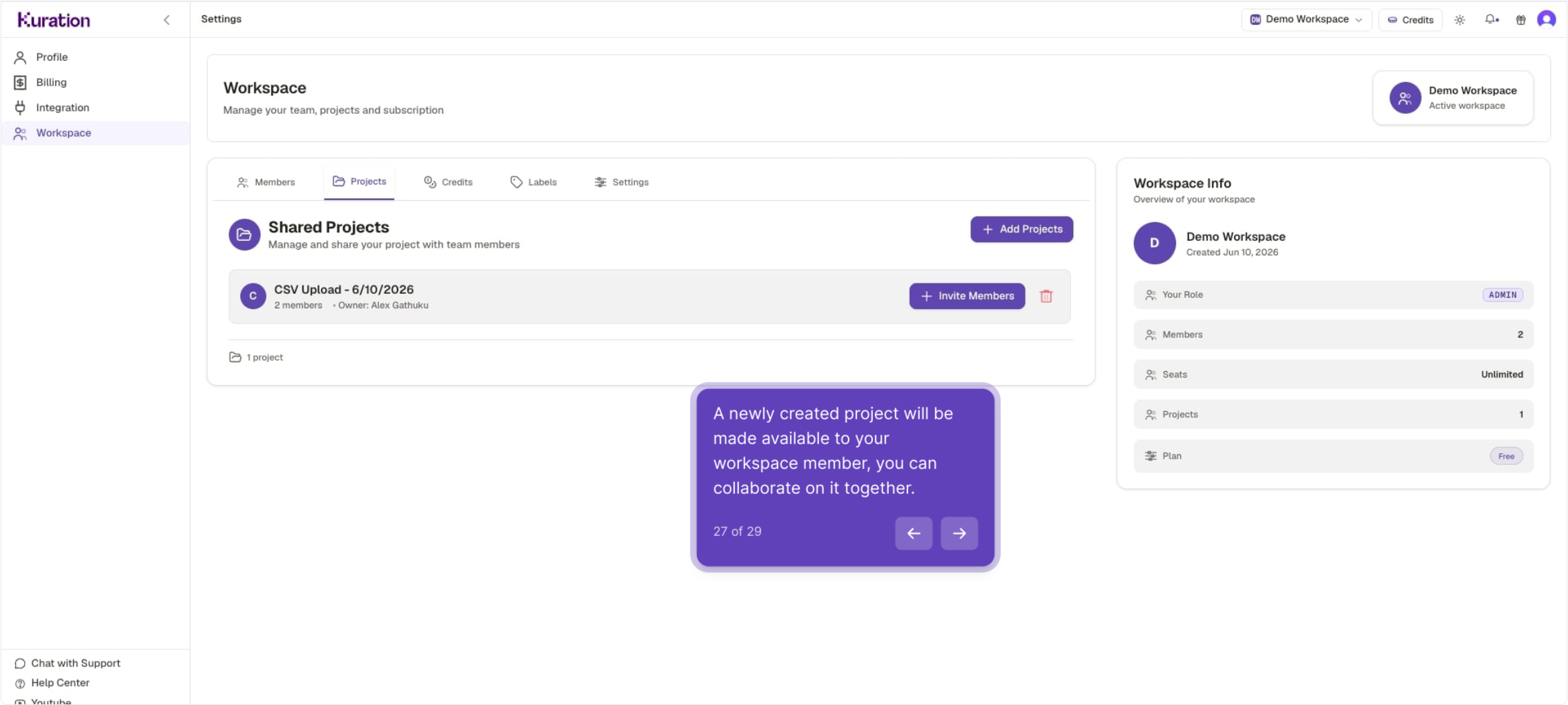
Projects are shared automatically
Newly created projects appear under Shared Projects so your team can collaborate on them together. Use Add Projects to share existing ones.
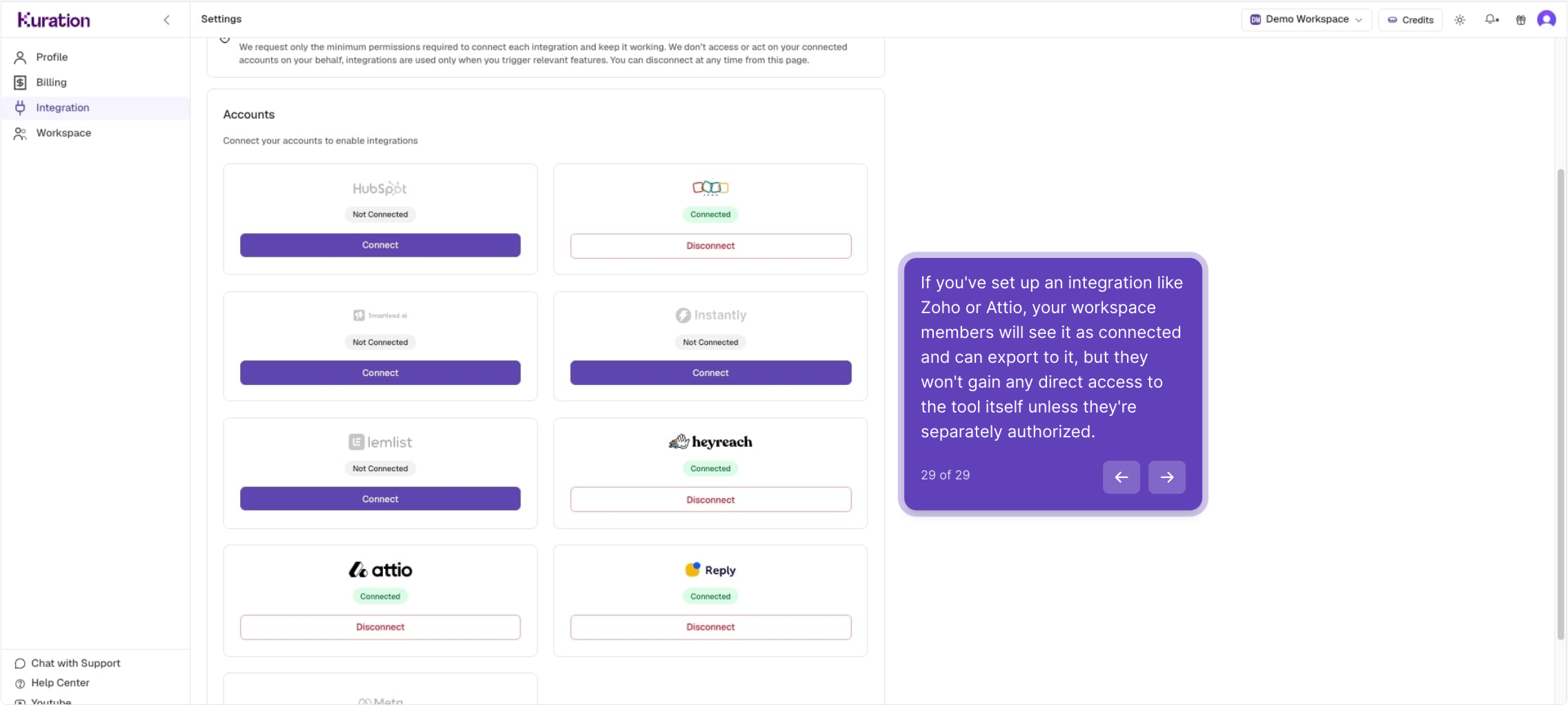
Integration access for members
As the owner you can share partial integration access: members can export to connected tools like Attio, Zoho or Instantly, but they won't gain direct access to those tools unless separately authorized.
Your team is ready to collaborate
Workspace created, teammates invited, credits allocated, and projects shared. Manage everything anytime from Settings ▸ Workspace.
Kept on this device