


Connect & export data to Attio
Set up the Attio integration once: generate an access token in Attio, authenticate Kuration with it, then export your leads with custom field mapping. After the first export, new rows sync to Attio automatically.
Open Integrations and click Connect on the Attio card.
Create an access token with full permissions and copy it.
Map fields, export, and let new leads auto-sync.
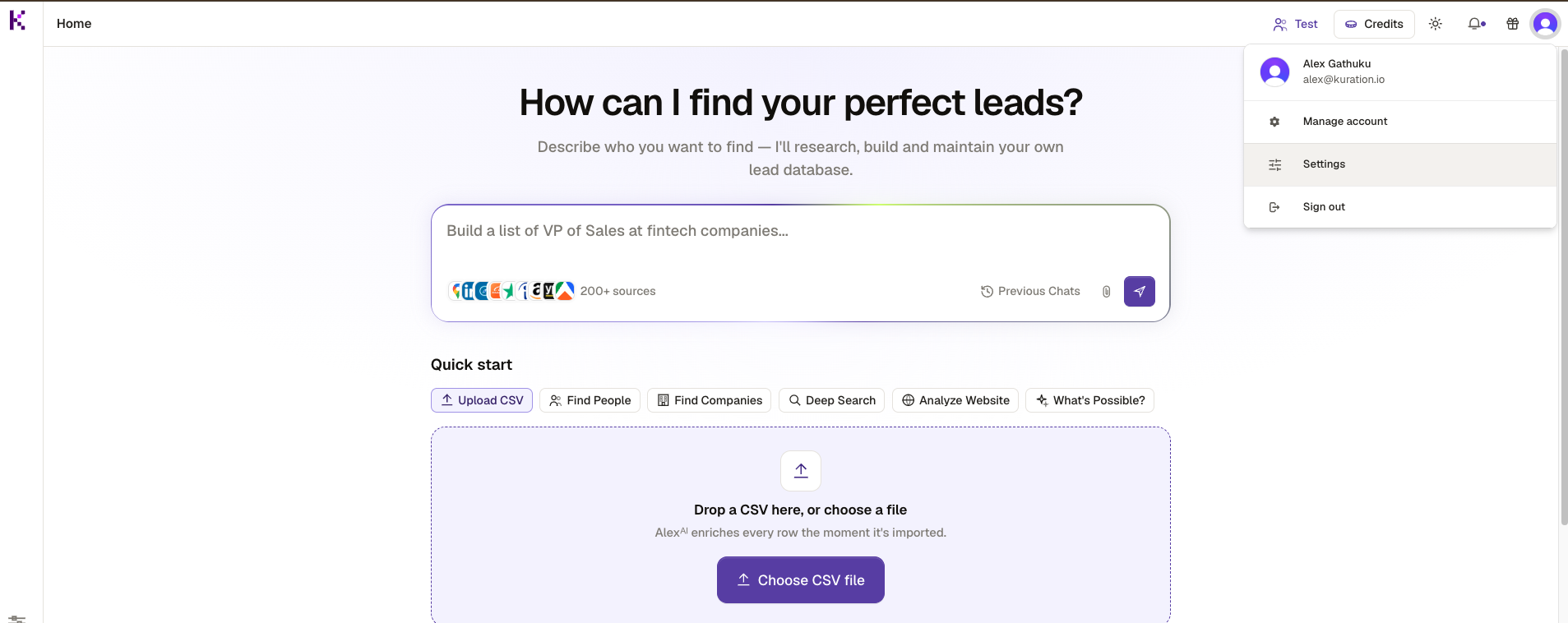
Open your Settings
From the Kuration home, click your profile avatar in the top-right and choose Settings.
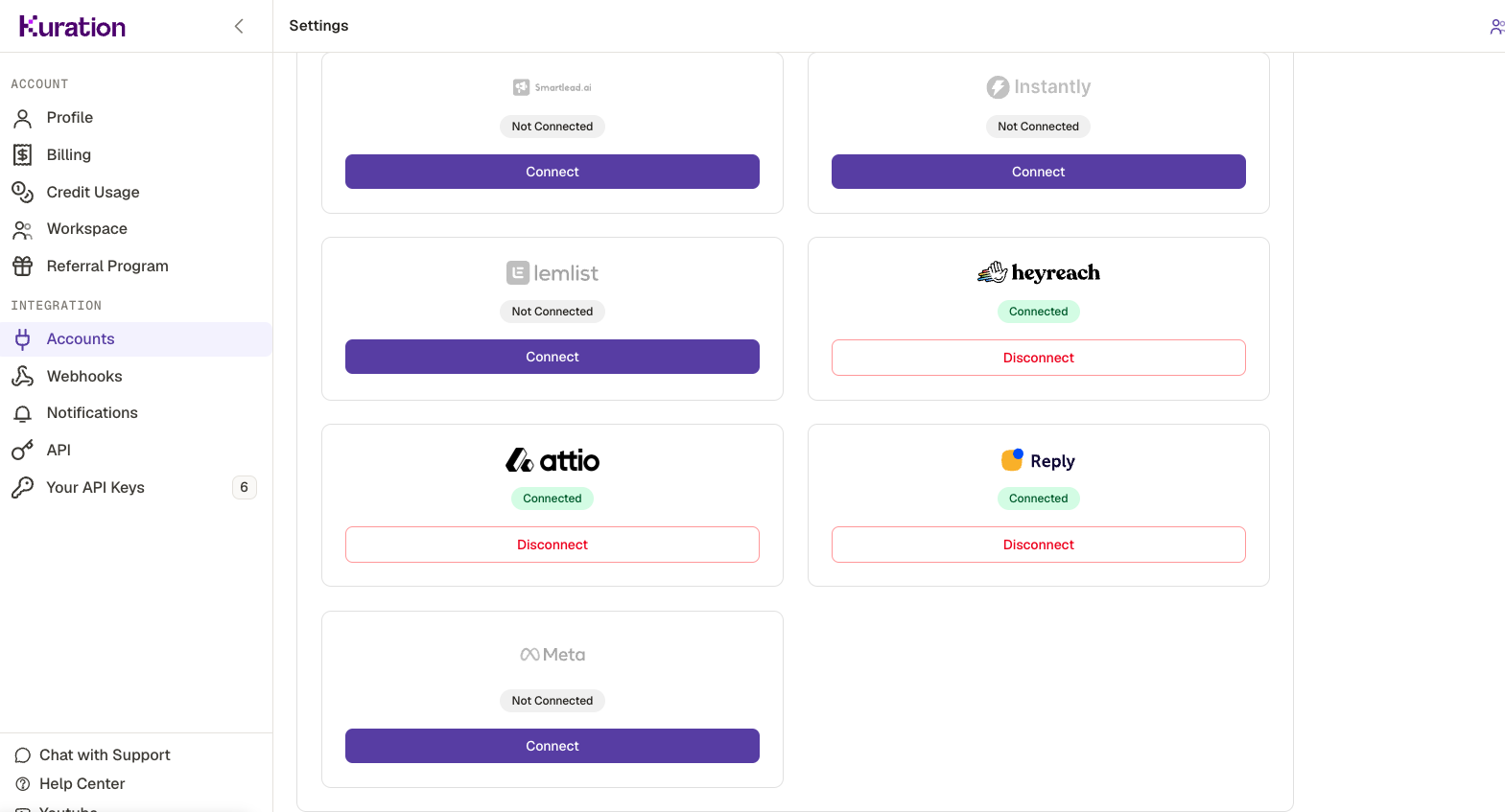
Open Integrations and select Attio
In Settings, go to Integration ▸ Accounts, find the Attio card and click Connect. A Connect to Attio dialog opens asking for an API key — Attio stores it under Workspace Settings ▸ Developers ▸ Access Tokens, which you'll generate next.
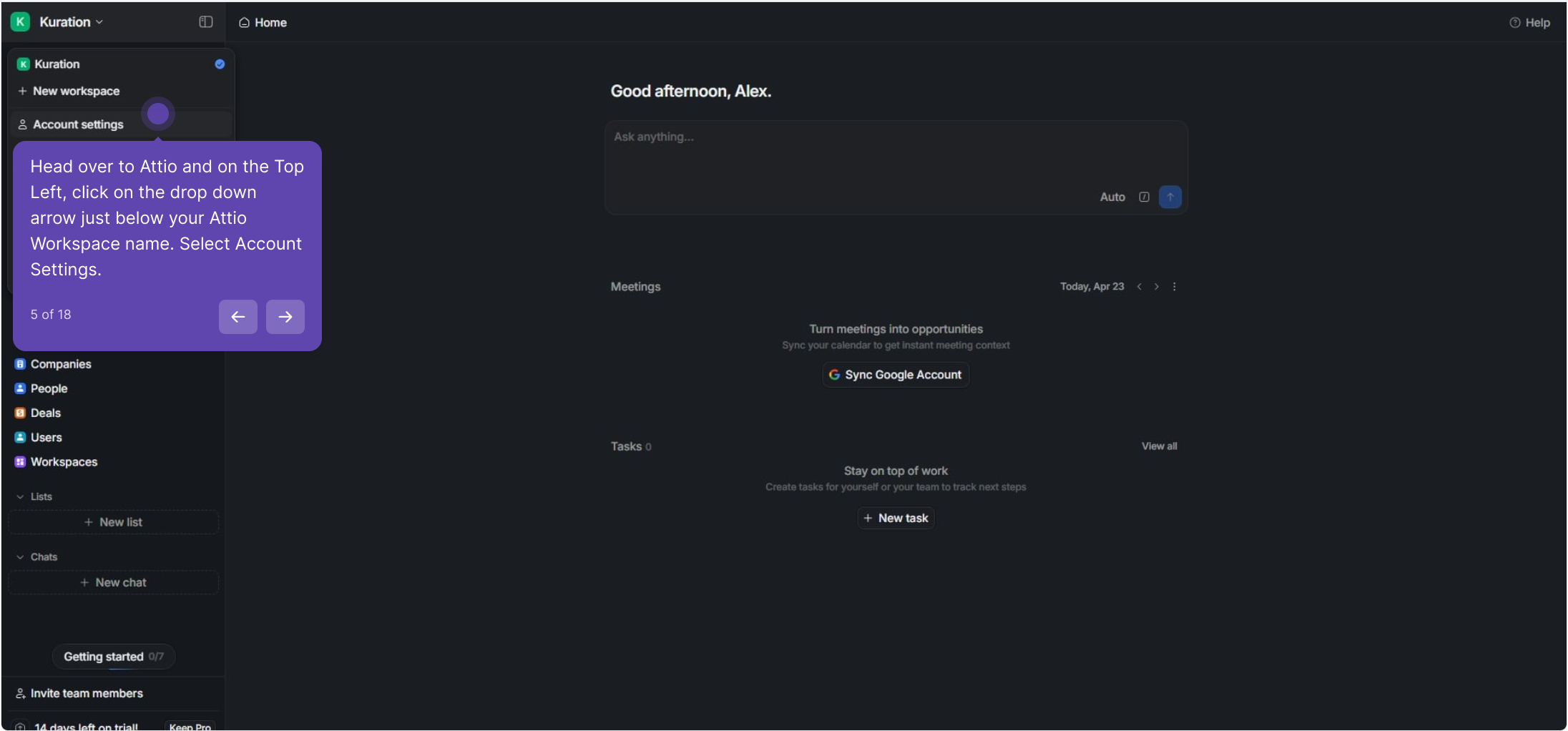
Open your Attio account settings
Head over to Attio. In the top-left, click the dropdown arrow just below your workspace name and choose Account settings.
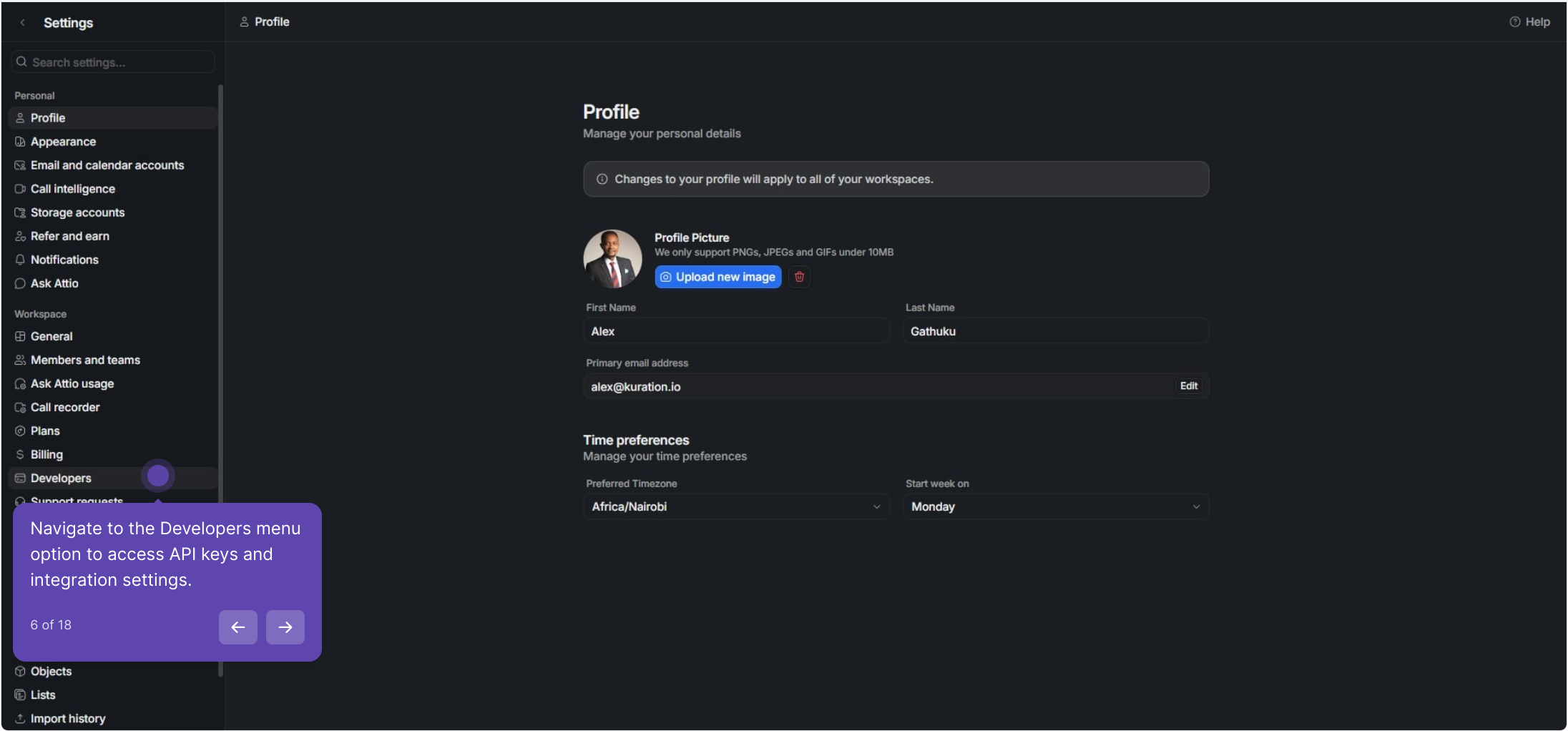
Go to Developers
In settings, open the Developers section to manage API keys and access tokens for your workspace.
Create an access token
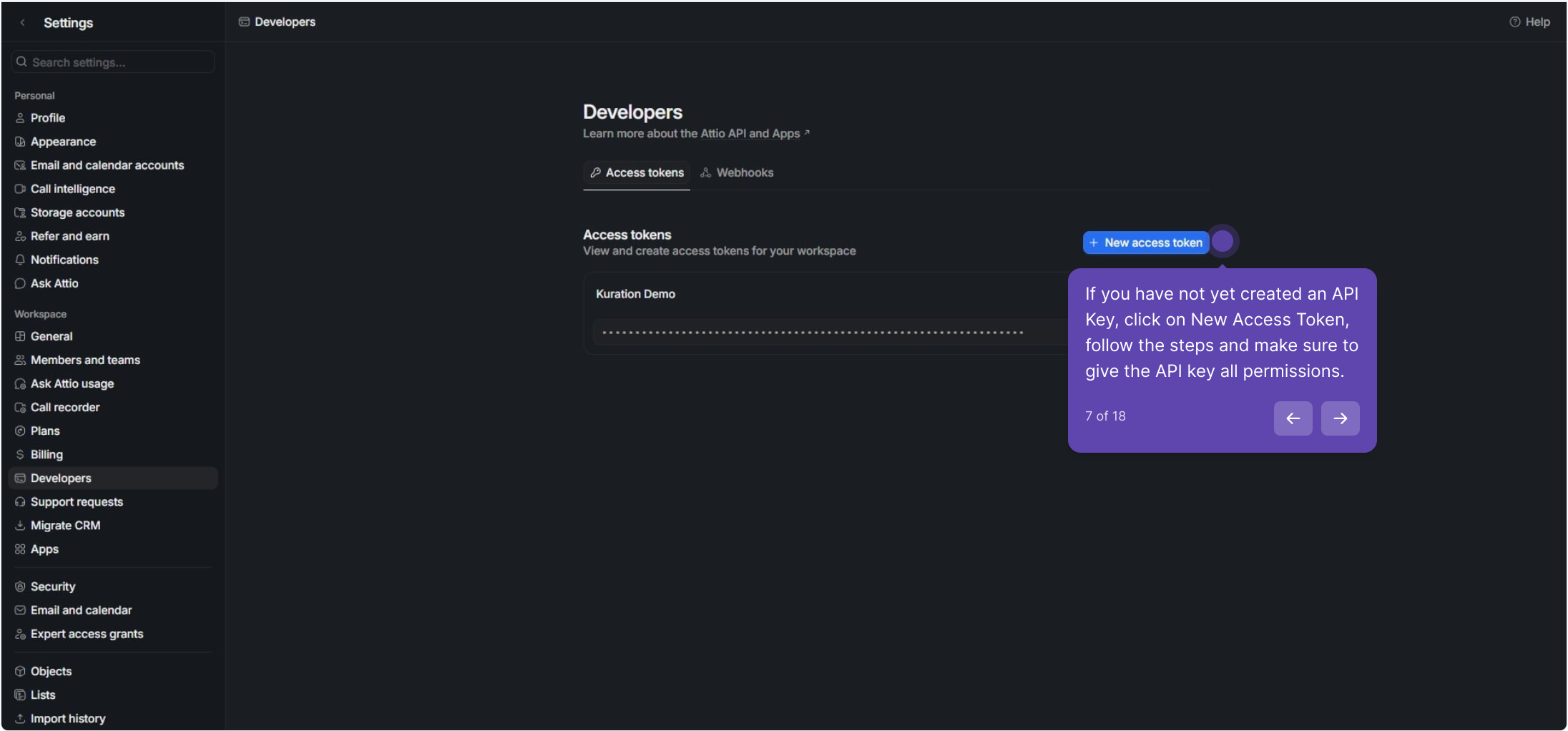
If you don't have one yet, click New access token, follow the prompts, and grant the token all permissions so Kuration can read and write your records.
Copy your token
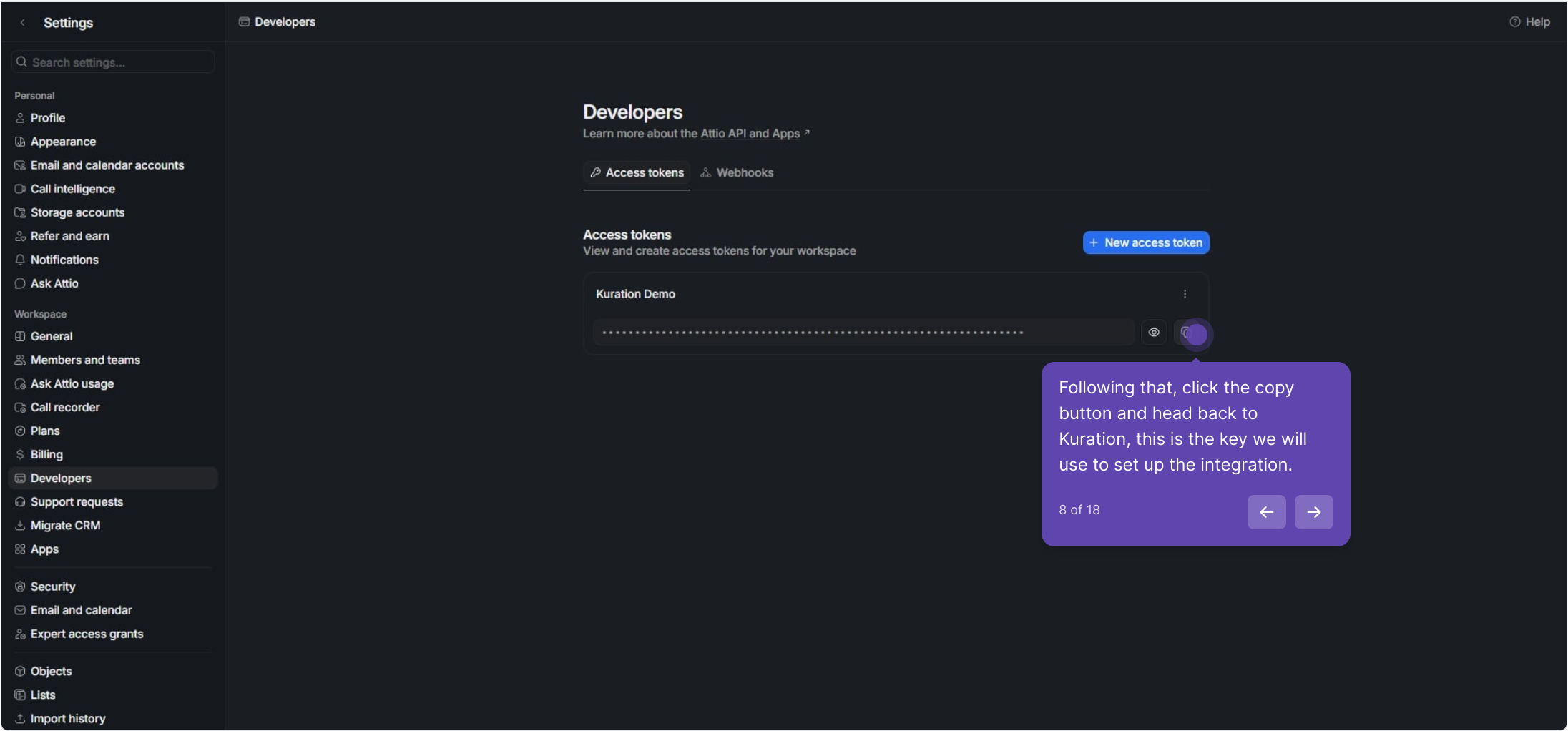
Click the copy button next to your token, then head back to Kuration — this is the key you'll use to set up the integration.
Paste your key and connect
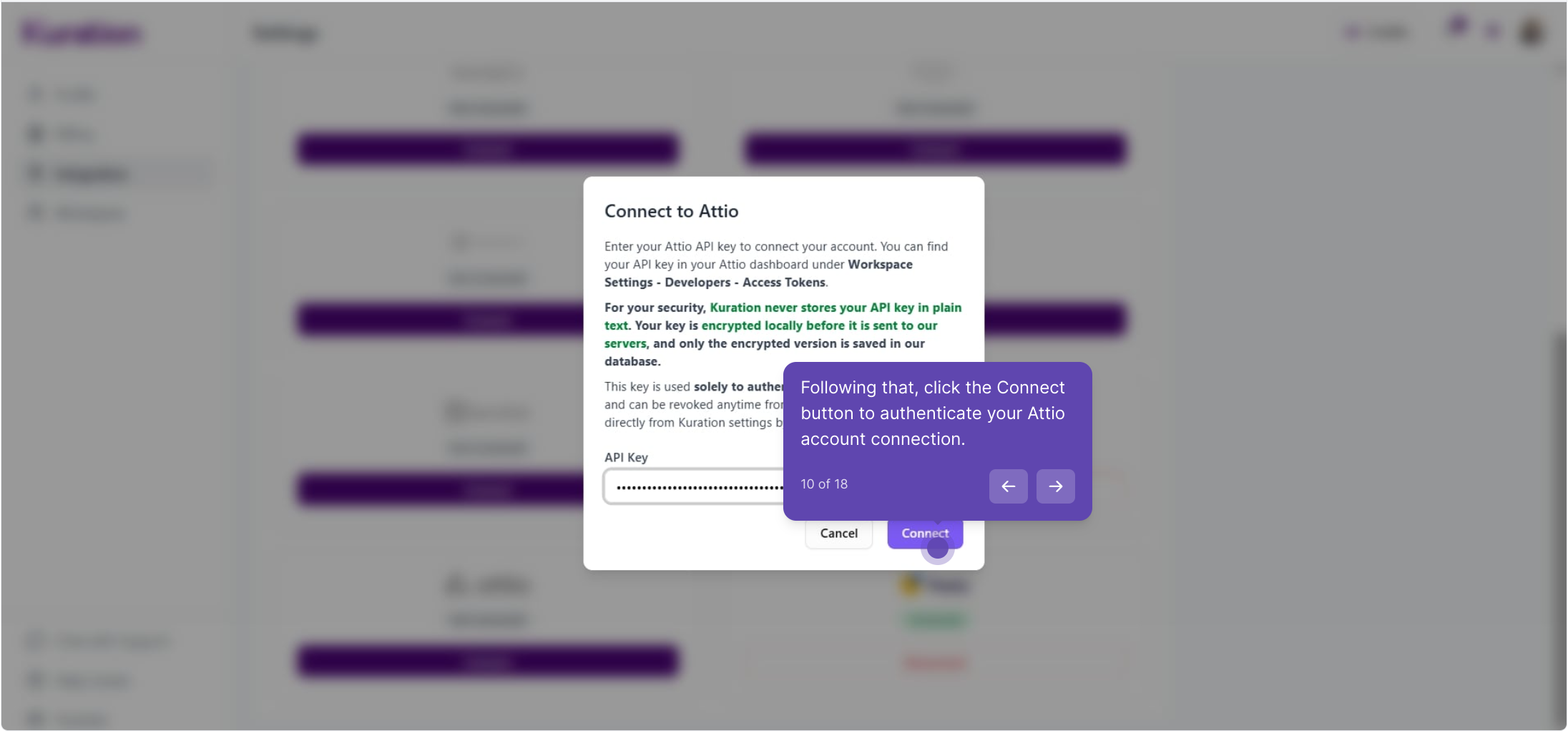
Back in the Connect to Attio dialog, paste your access token into the API Key field and click Connect. Your key is encrypted locally before it's stored — Kuration never keeps it in plain text.
Export your list to Attio
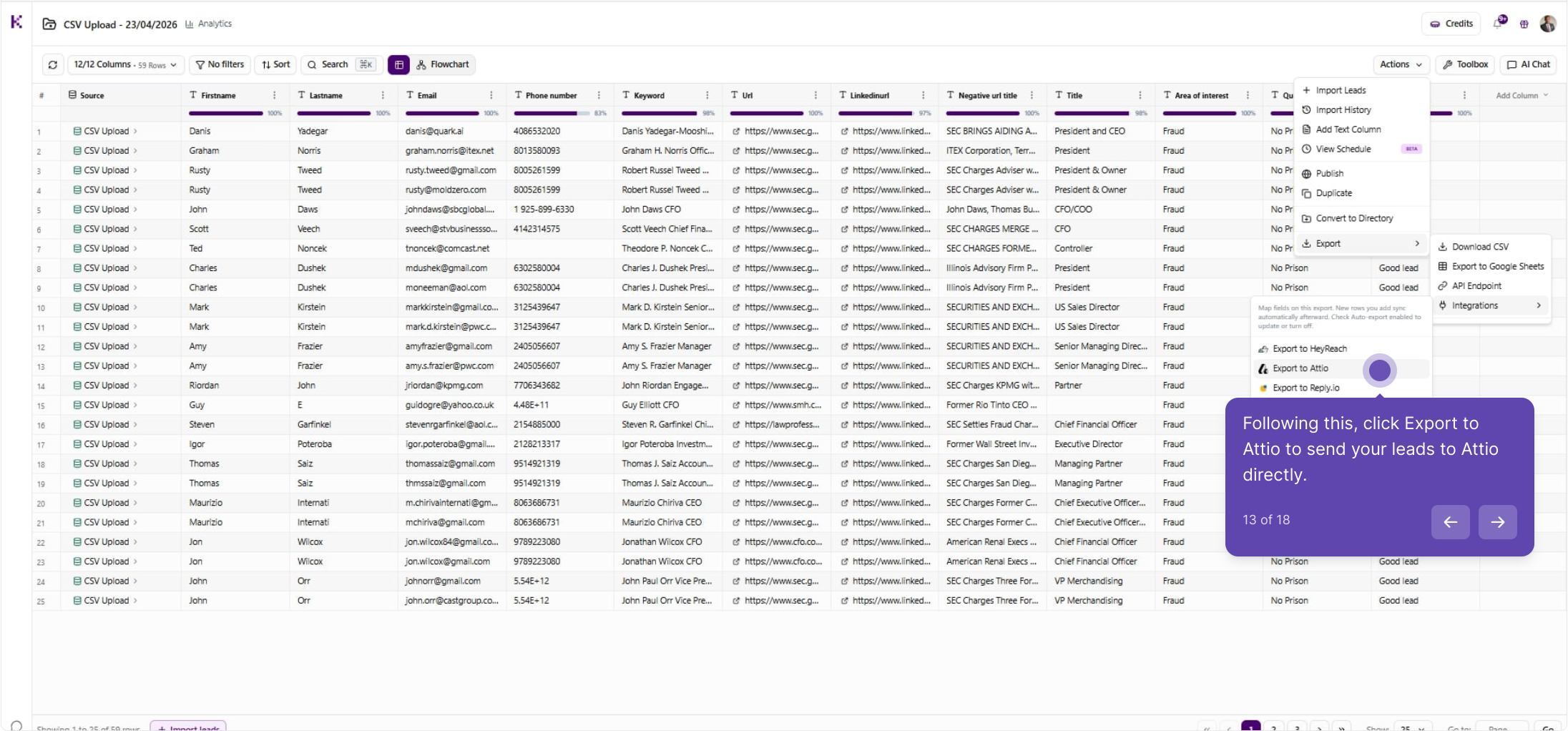
Open the list you want to export. Click Actions ▸ Export ▸ Export to Attio to send your leads directly to Attio.
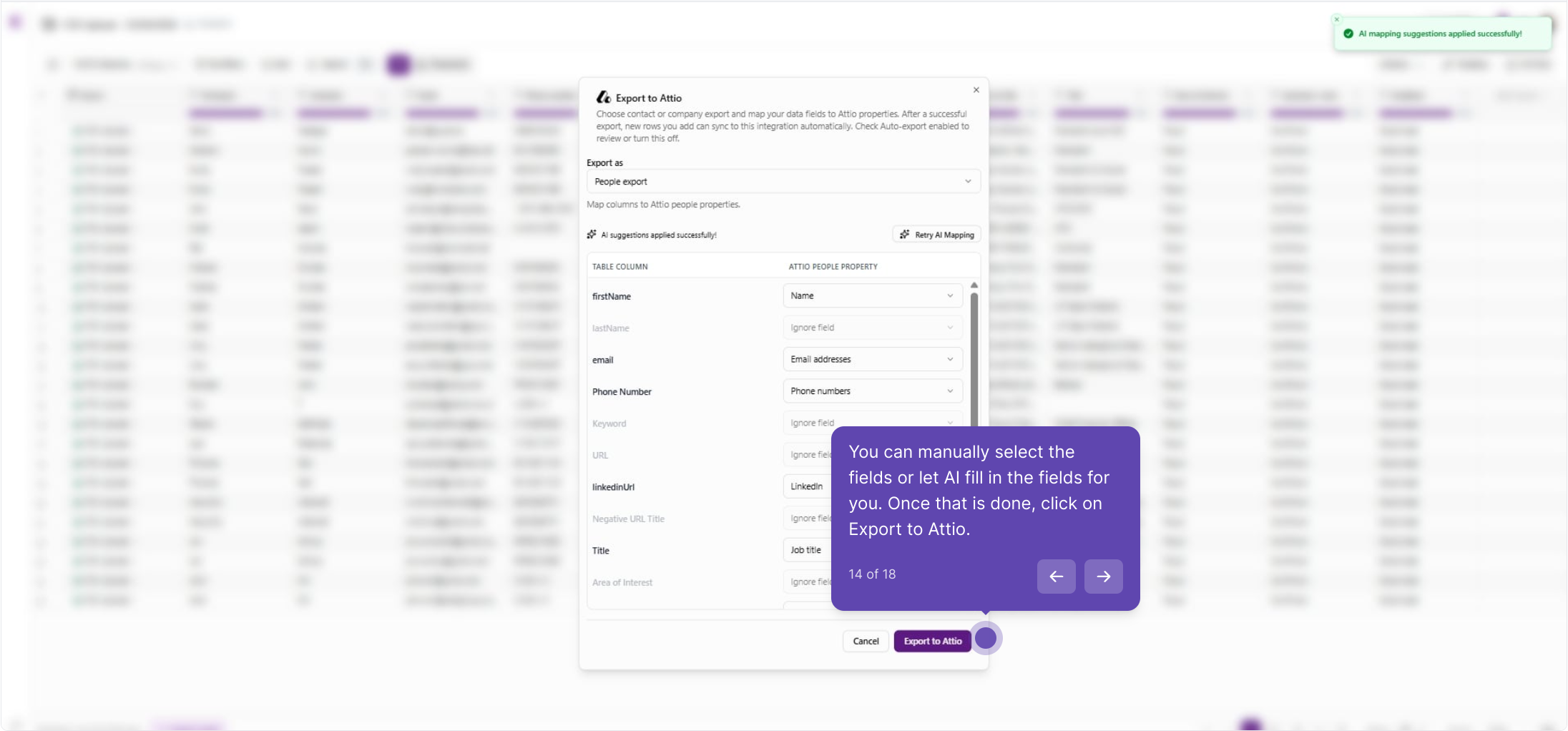
Map your fields
Choose a People or Company export and map each Kuration column to an Attio property — or let AI fill the mapping for you. When it looks right, click Export to Attio.
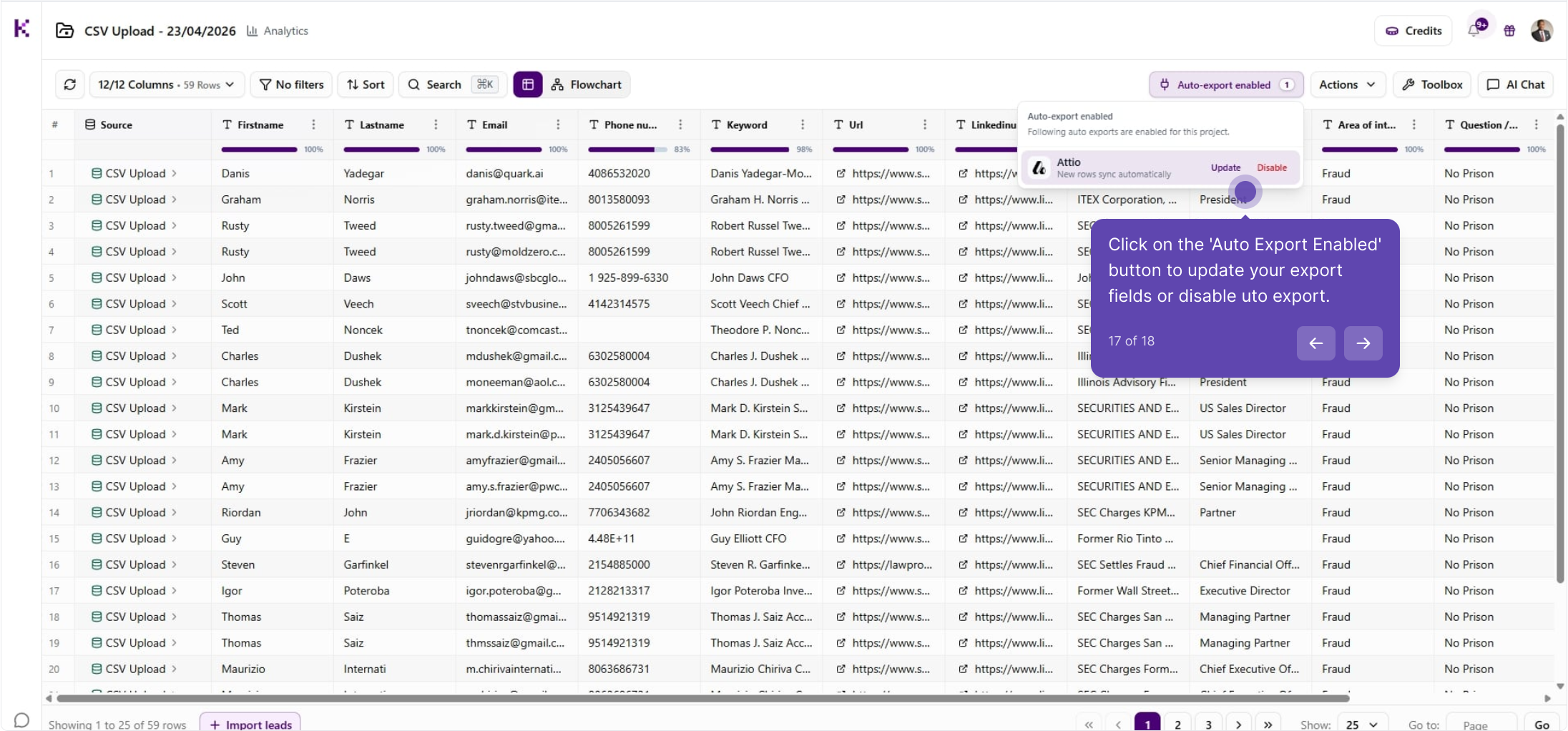
Auto-export is now on
Exporting enables Auto-export for this project: add more leads later and they sync to Attio automatically. Click Auto-export enabled anytime to update your fields or turn it off.
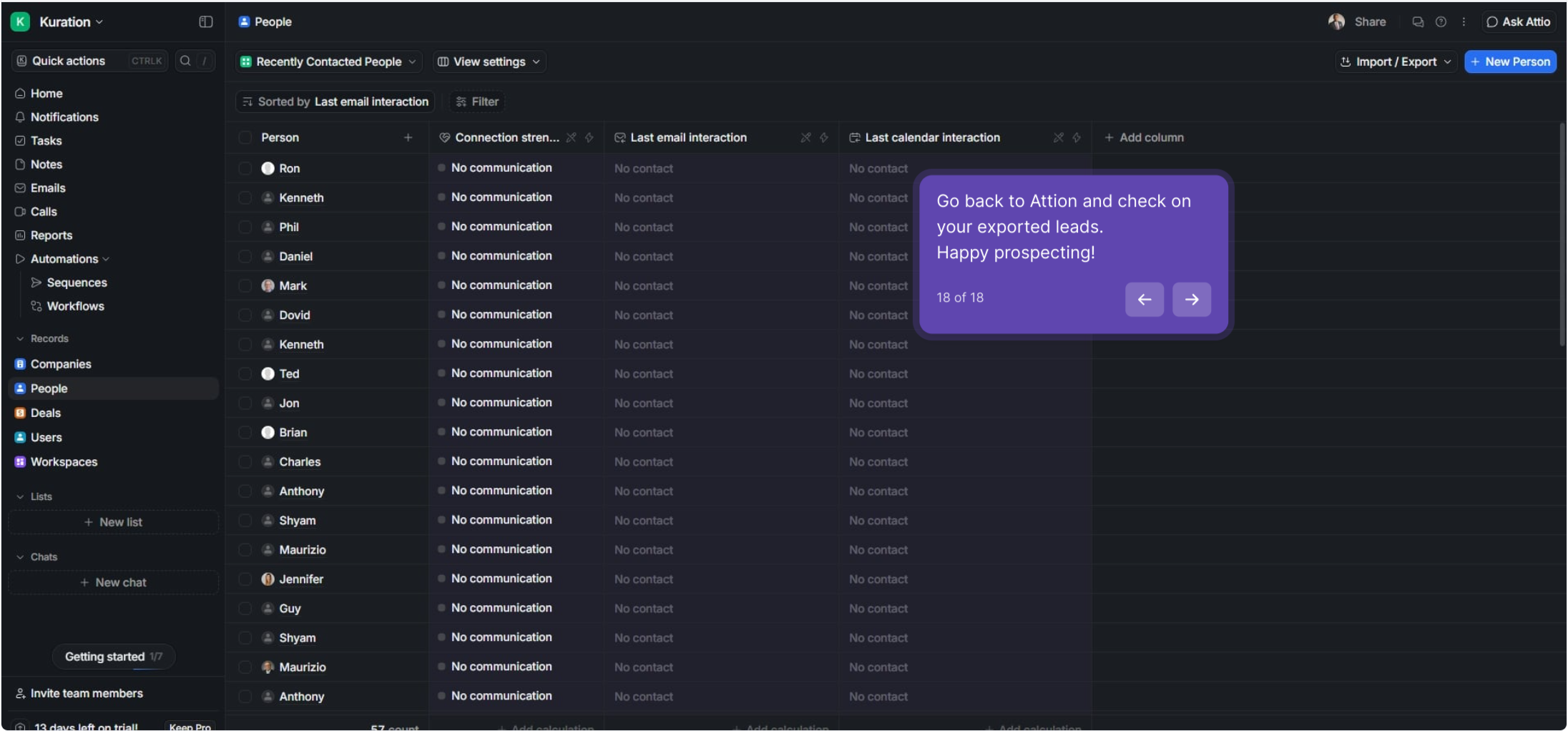
Check your leads in Attio
Head back to Attio and open your People (or Companies) records to see the freshly exported leads. Happy prospecting!
Kept on this device