OVERVIEW
01 / 04
EXPORT TO PROJECT

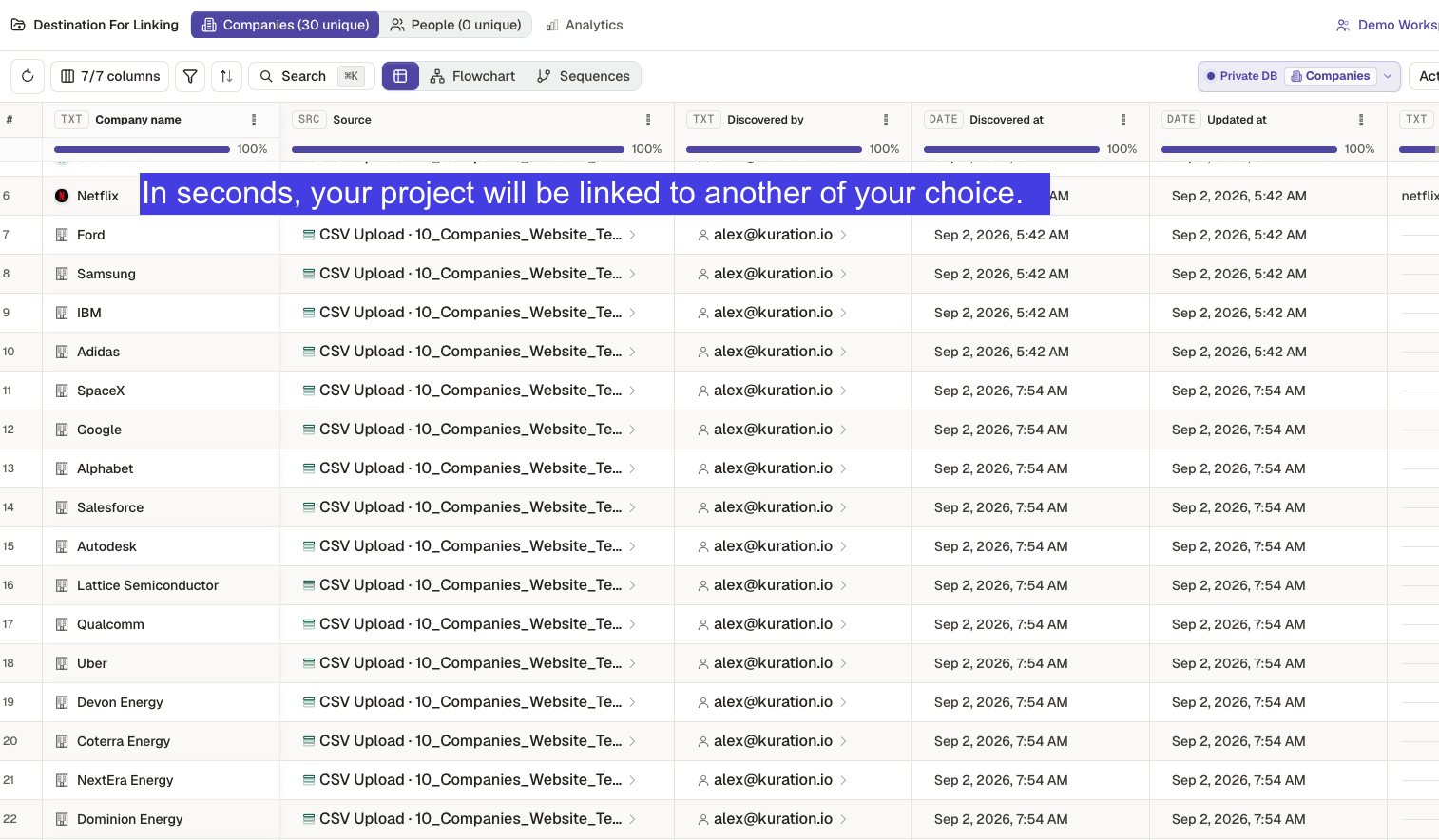
Export your List to another Kuration Project

Send exactly the rows you want from one project into another — filter first, let AI map the columns, and push a clean list across in a couple of clicks.

2 min read · Kuration Team · Updated Jul 1, 2026
Filter
Map columns
Export
WHY IT MATTERS

Send only the rows that matter

Exporting to a project keeps your data inside Kuration — no CSV round-trips. Filter down to the accounts you want, and only those rows land in the target project, columns already aligned.

01

Filter before you export. Push only the accounts that fit — not the whole table.

02

AI maps your columns to the target project automatically — you just confirm.

03

Rows land as new entries in the destination project, ready to enrich or run.

TIP

It all stays inside Kuration — no download, re-upload, or reformatting columns in a spreadsheet.

HOW IT WORKS

Export to a project in a few clicks

01

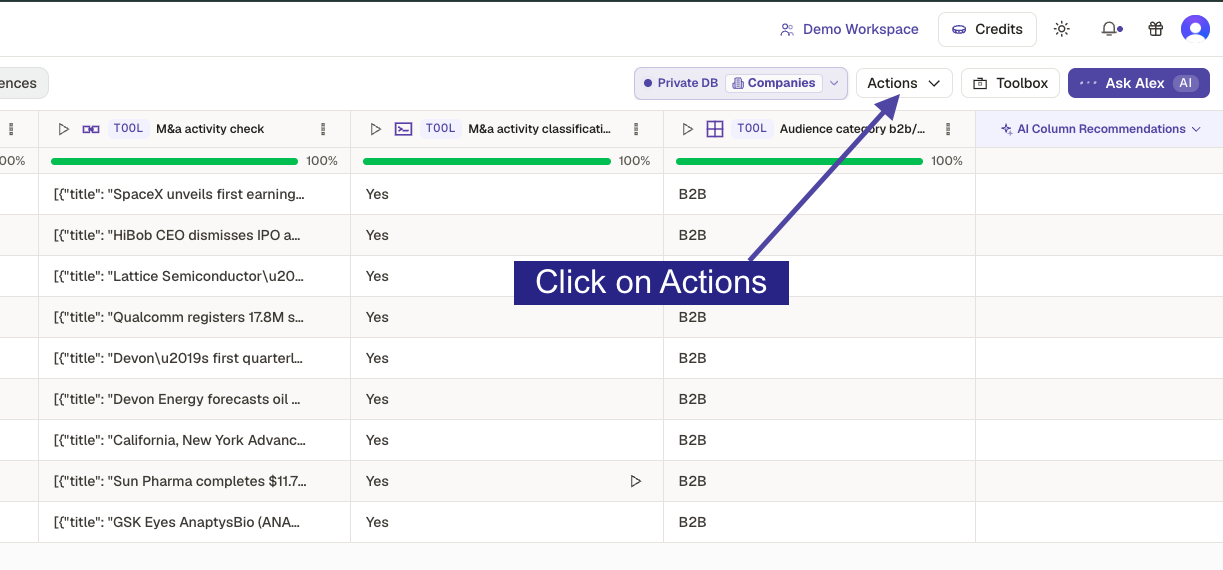
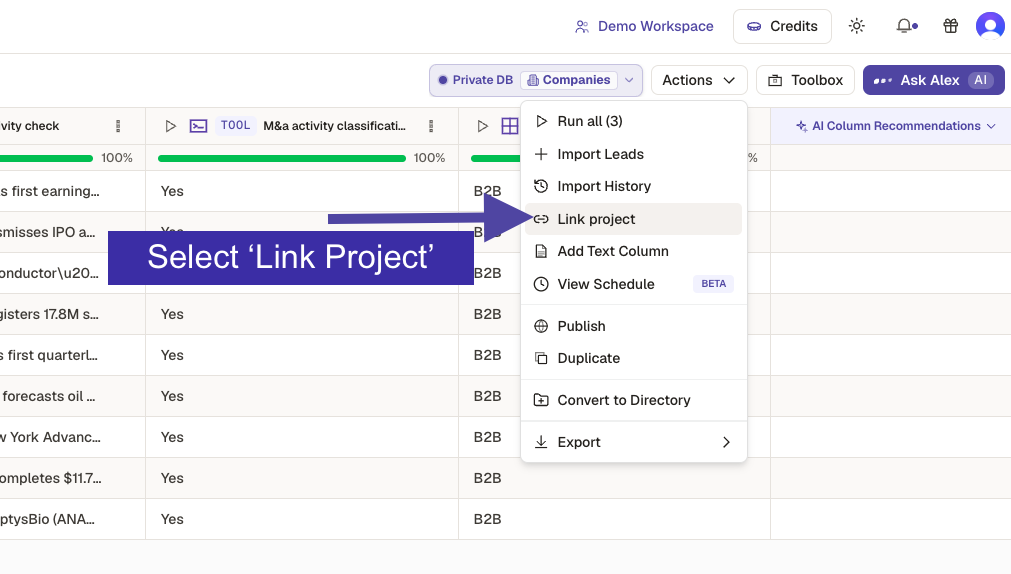
Open Actions and choose Export to Project.

02

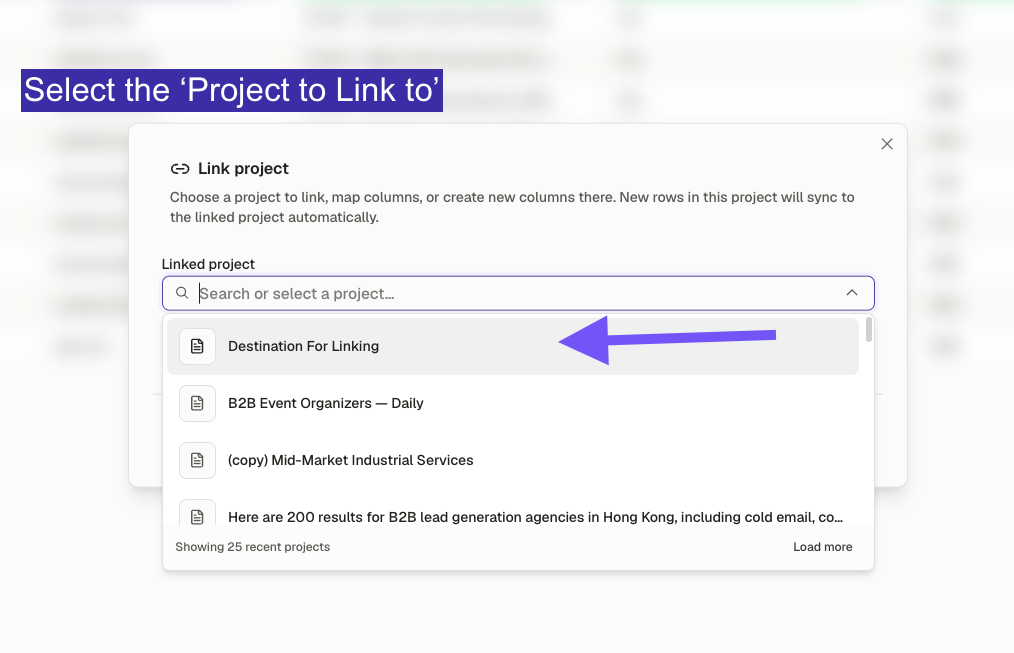
Pick your target project from the dropdown.

03

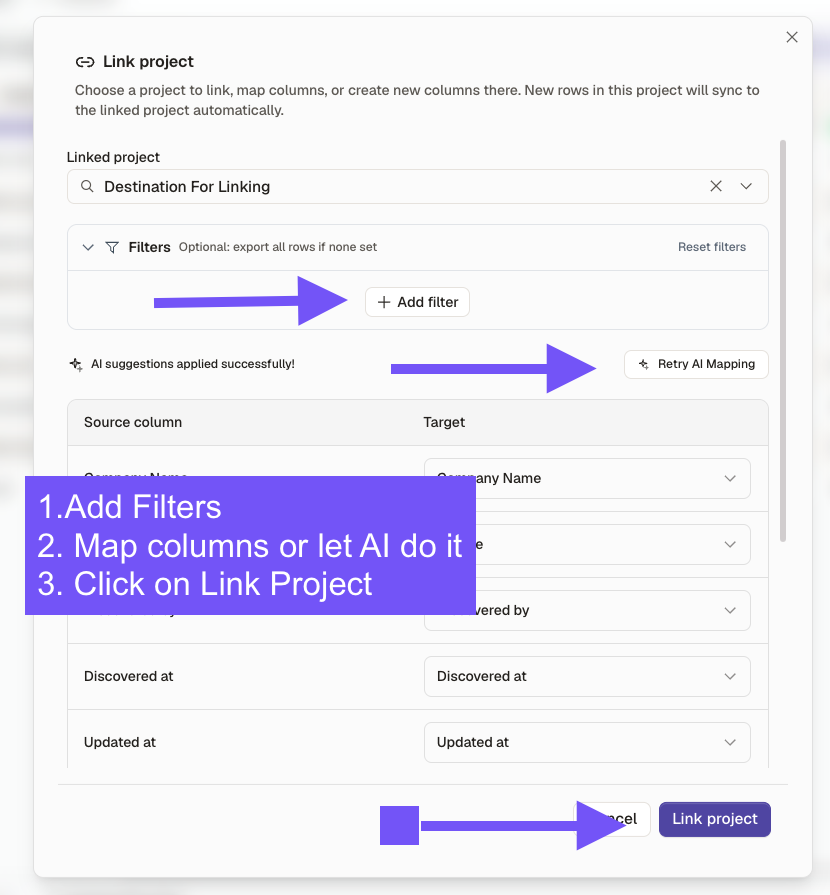
Set filters to decide which rows get sent.

04

Confirm the AI column mapping, then Export to project.

app.kurationai.com/projects/remote-hr
Illustrative · Kuration
Export to Project AI mapping applied
Target project
Kuration Demo List 2
Filters
Live only
Column mapping
CompanyCompany
DomainWebsite
IndustrySector
Export to project
THE FULL GUIDE

See the full walkthrough

Follow the interactive demo step by step — from the Actions menu to your rows landing in the target project. Under two minutes, fully click-through.

Opens in a new tab — come back any time.

Use to navigate