Help
STEP 1
01 / 04
1

Open the Actions menu

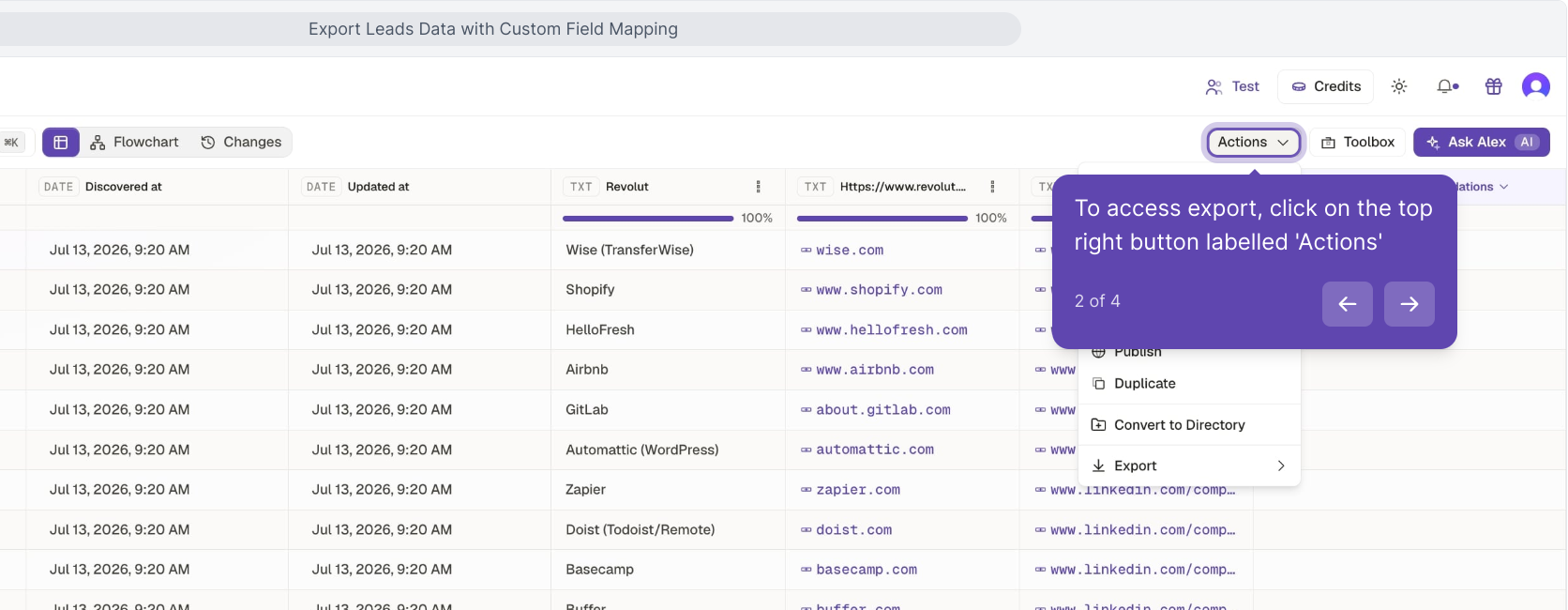
Every list you build in Kuration exports from one place — the Actions menu at the top right. It's the single entry point for downloading a CSV or Sheet and for pushing leads into a connected CRM, email tool, or API endpoint. To begin, click Actions.

Kuration list with the Actions button highlighted at the top right
2

Click Export

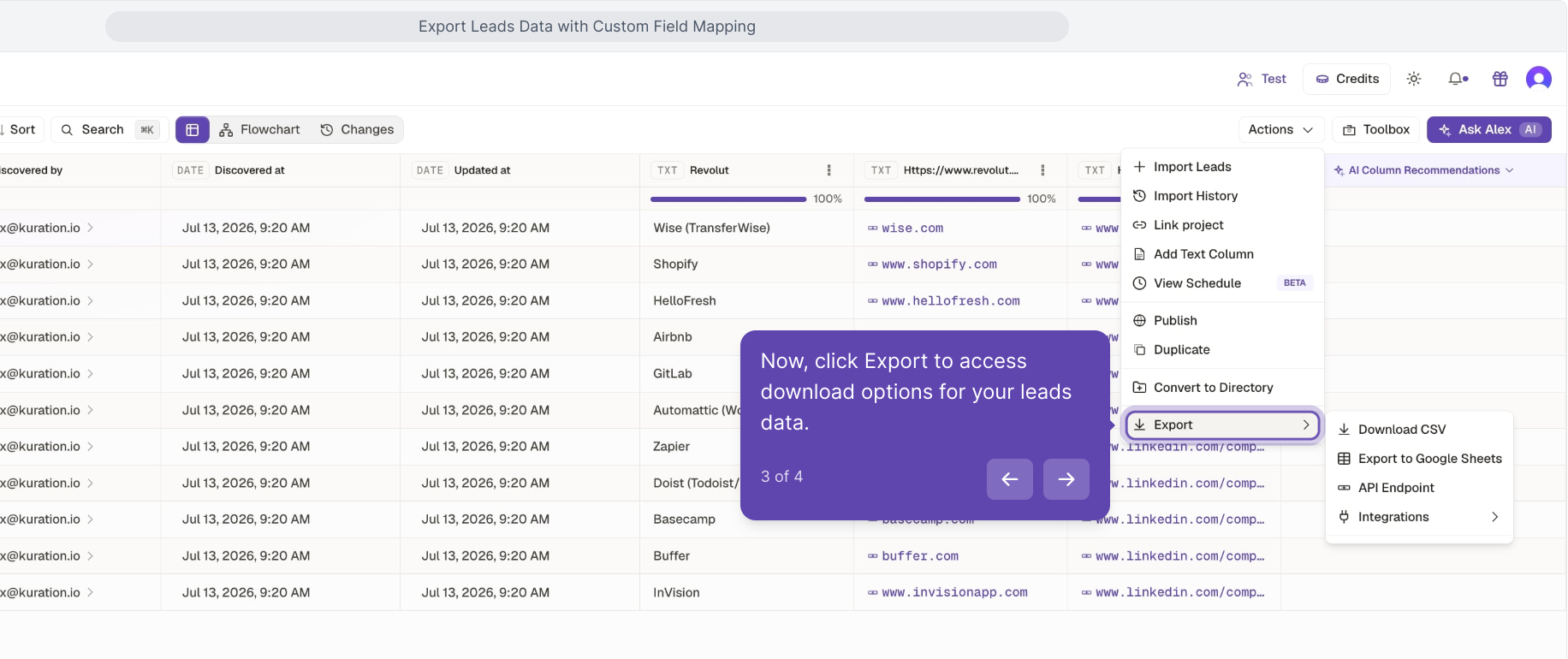
In the Actions menu, hover Export to open the download options for your leads data.

Actions menu open with the Export item highlighted
3

Choose your export destination

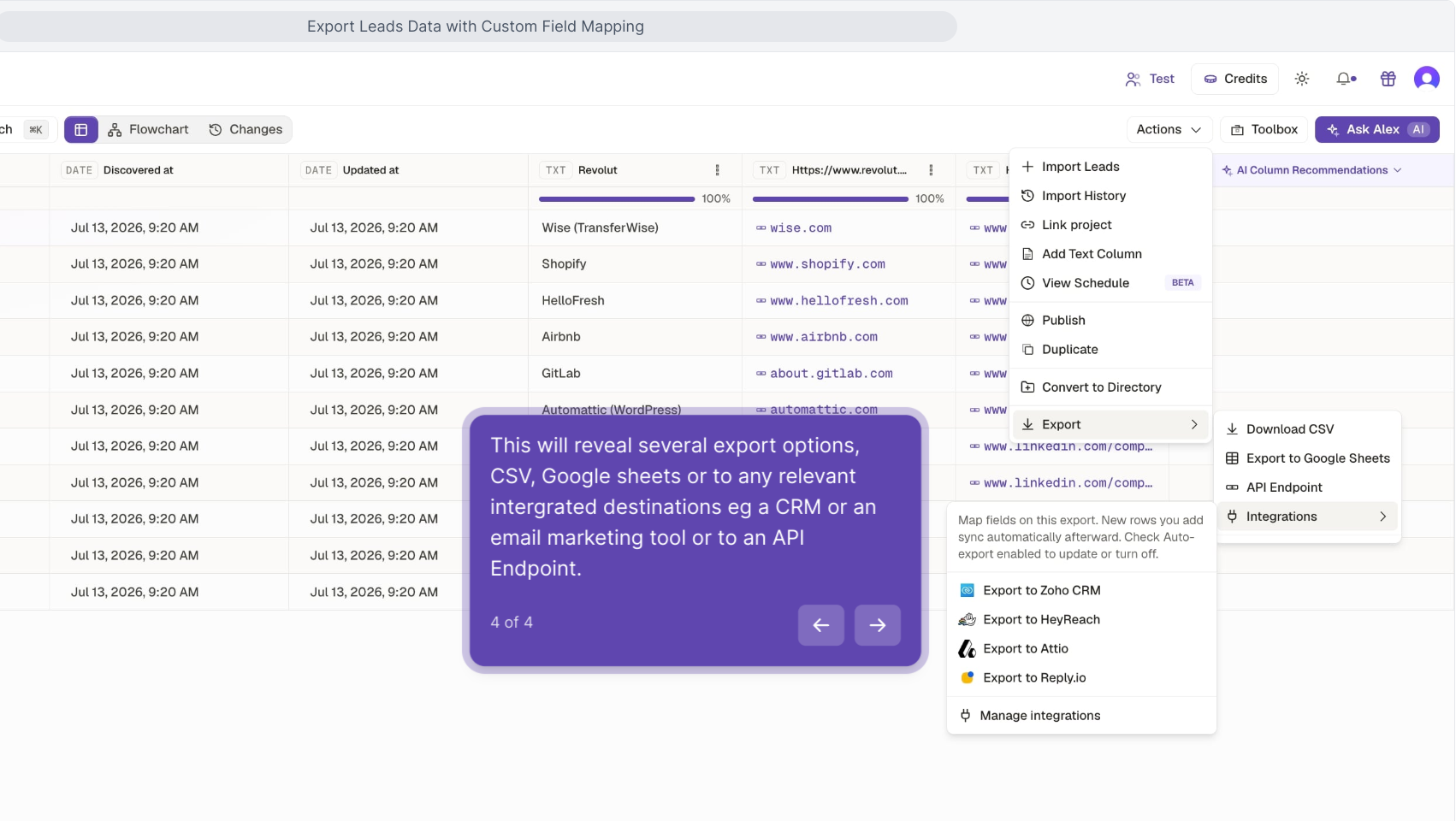
Export reveals several options — CSV, Google Sheets, or any connected destination such as a CRM, an email marketing tool, or an API endpoint. Map fields on export and new rows you add sync automatically.

Export submenu showing CSV, Google Sheets, API Endpoint and integration destinations
THAT'S IT

Your leads are ready to export anywhere

Actions → Export is the one path to every destination. Map fields once and, for connected integrations, auto export keeps new rows flowing without lifting a finger.

Opened Actions
Clicked Export
Picked a destination
Open your list
Use to navigate