OVERVIEW
01 / 04
API & ENRICHMENT

Integrate any API and enrich your rows

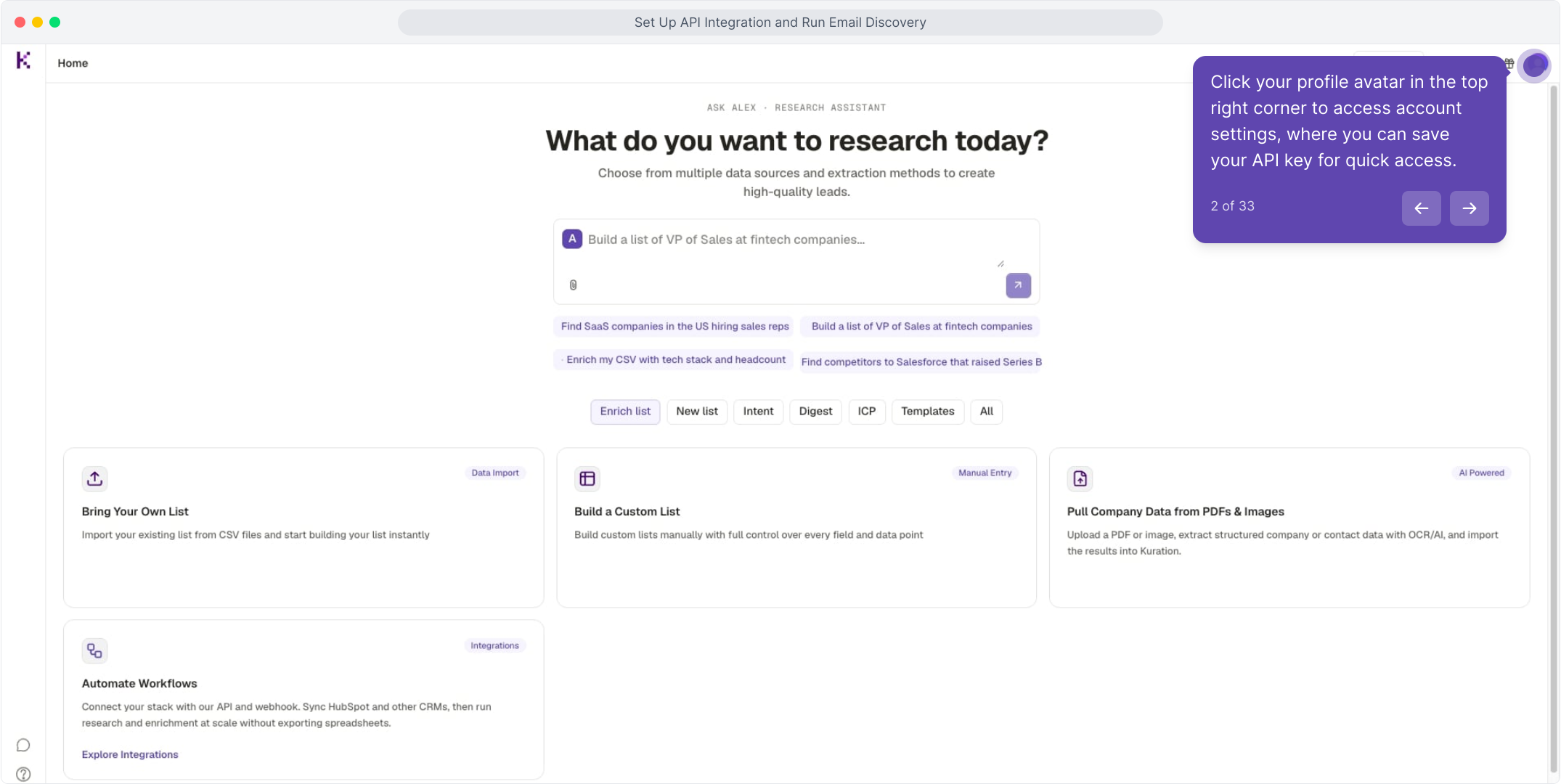
Save an API key from any tool, wire it into the HTTP API column, and let Kuration pull results row by row. Here we use email discovery as the example, but the same setup works for any endpoint you want to call.

3 min read · Kuration Team · Updated Jul 2, 2026
Save key
Configure
Run
WHY IT MATTERS

Bring your own tools into the table

The HTTP API column lets you call any external service straight from your rows. Save a key once, map your columns to the request, and every row becomes a live lookup. Perfect for email finders, enrichment providers, and any endpoint you already pay for.

01

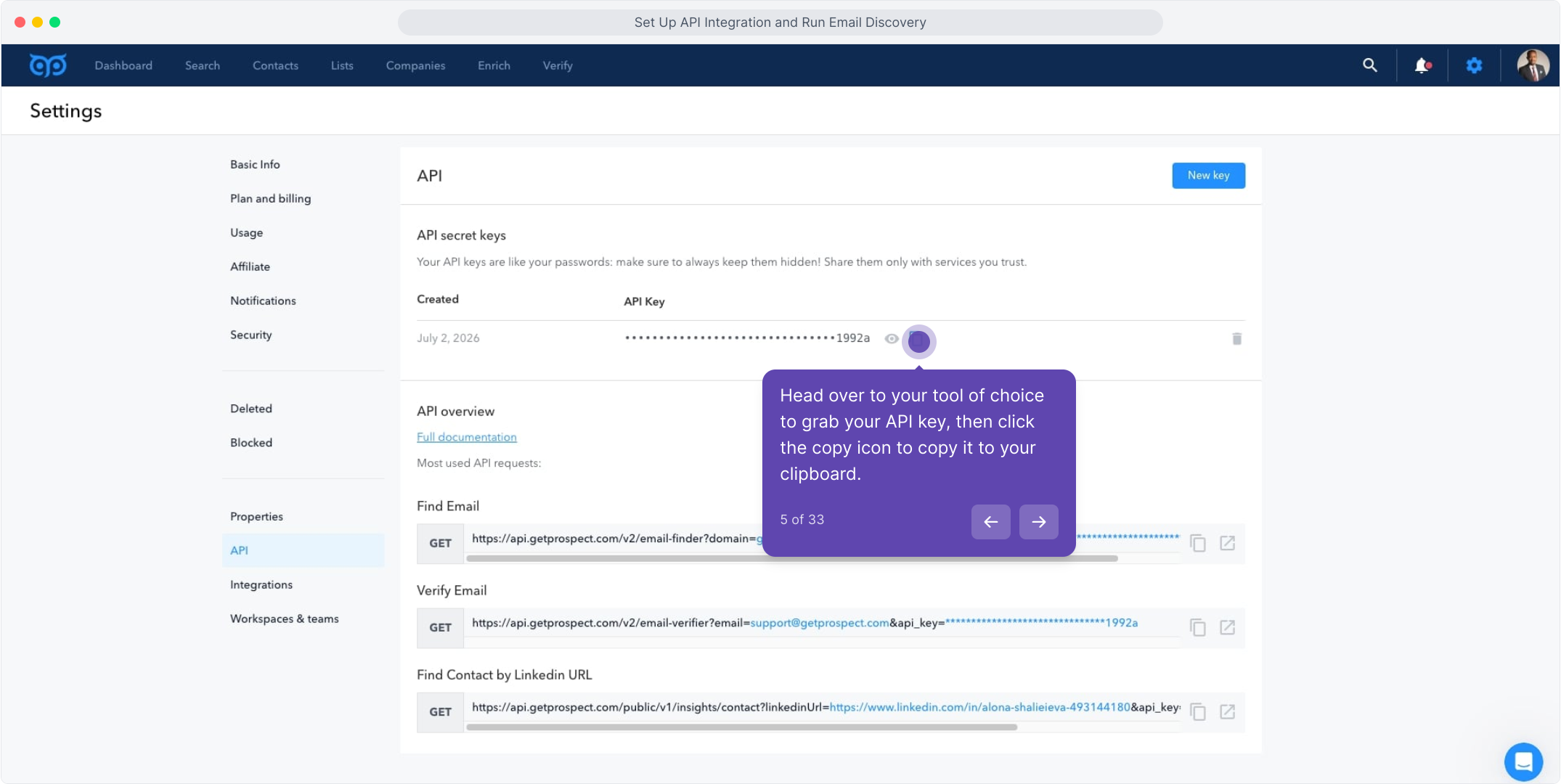
Save your API key in Settings once, then reuse it across any column.

02

Map your columns to parameters so each request uses the row's own data.

03

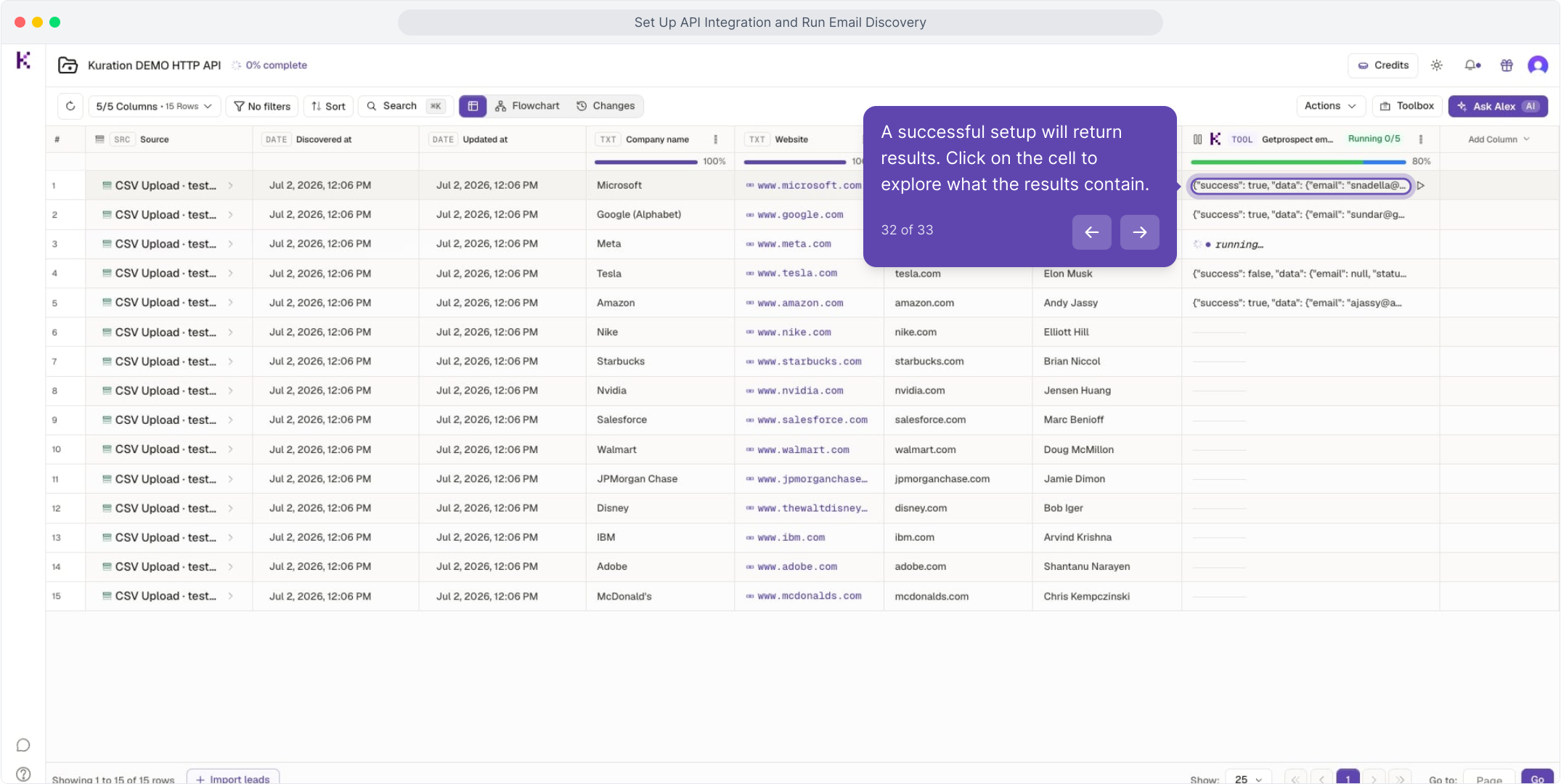
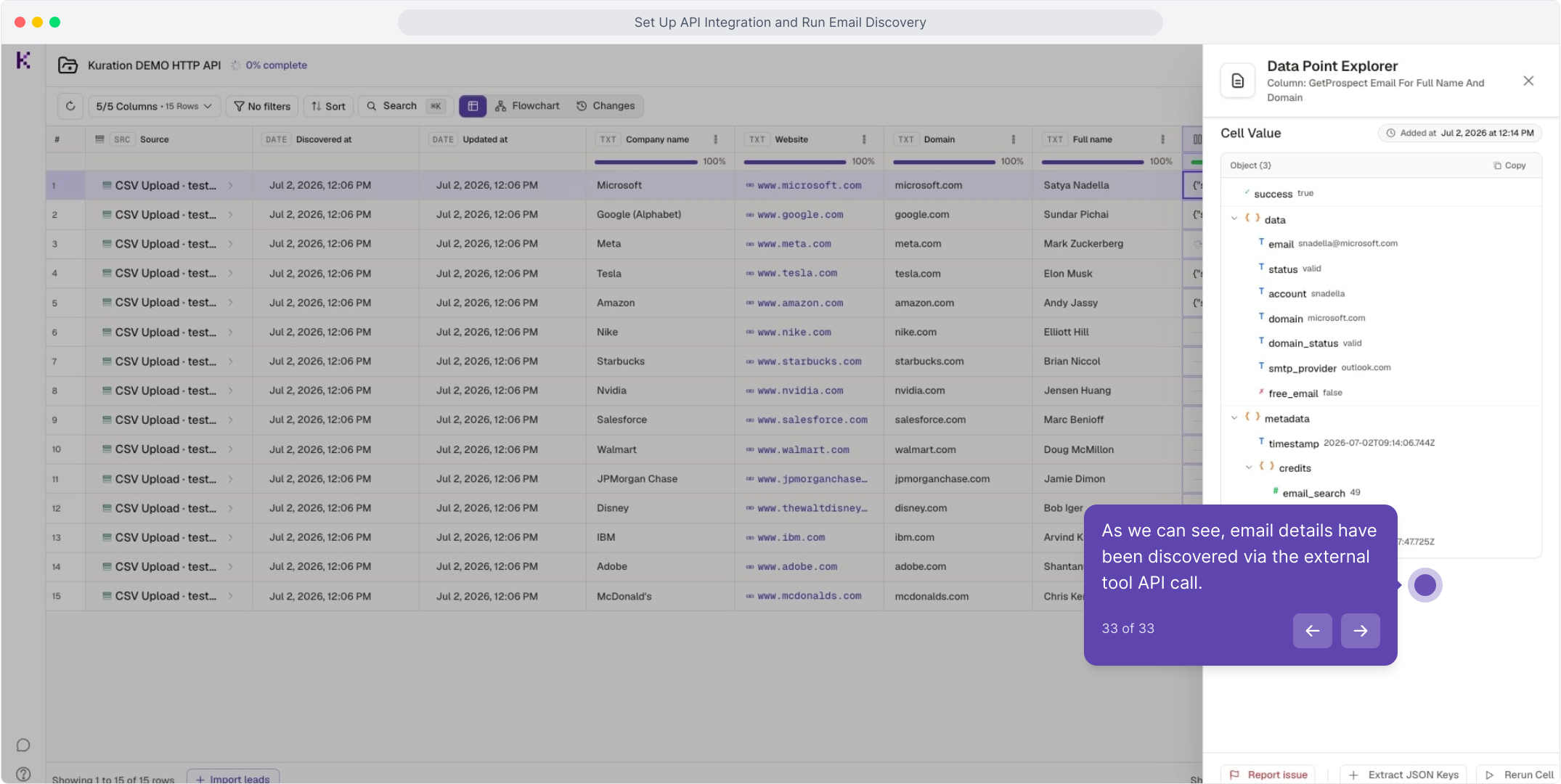
Run on a few rows or all of them and read results right inside the cell.

TIP

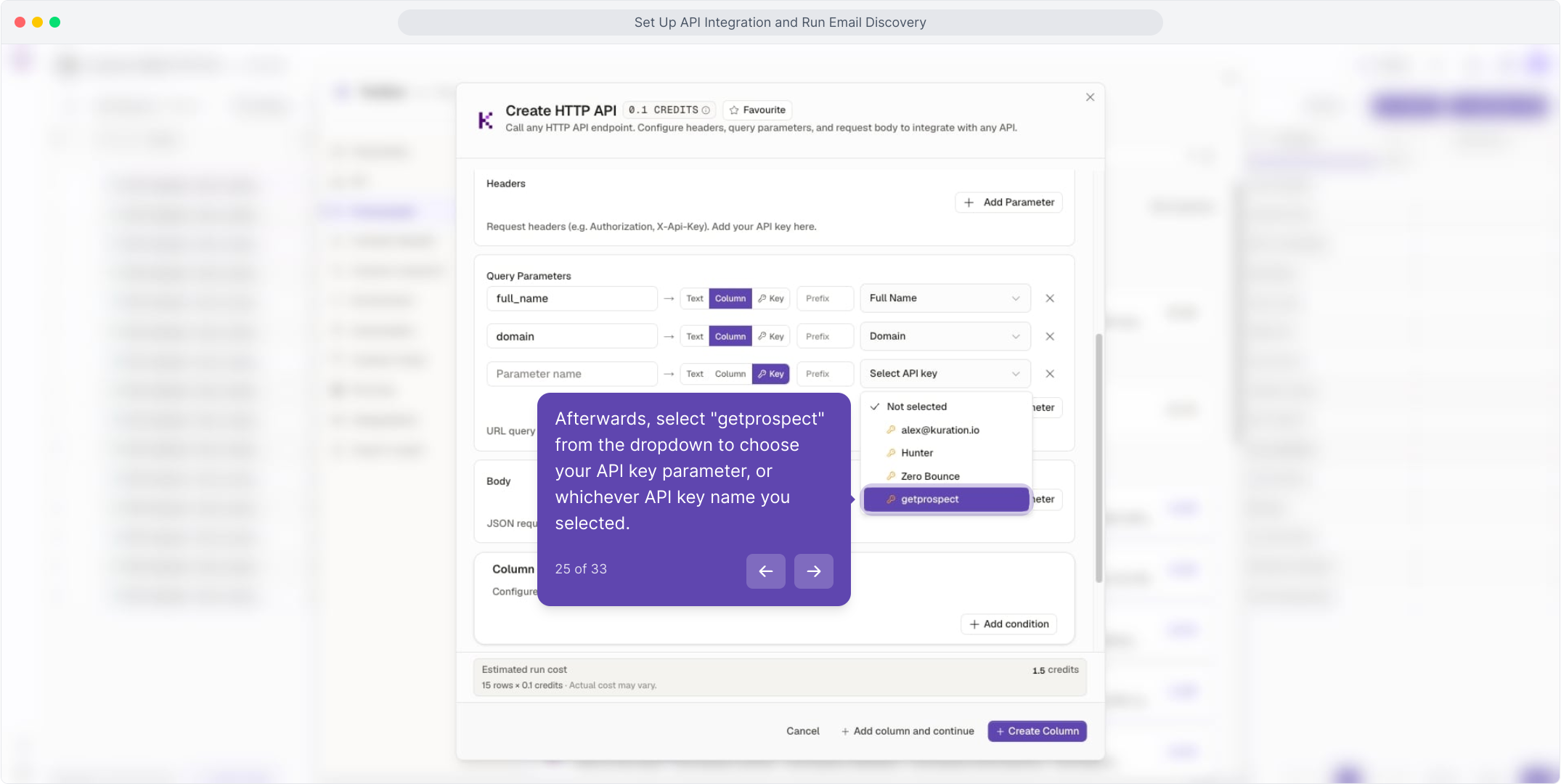
Name each saved key after its tool, like "getprospect", so you can pick the right credentials at a glance later.

HOW IT WORKS

From API key to discovered emails

01

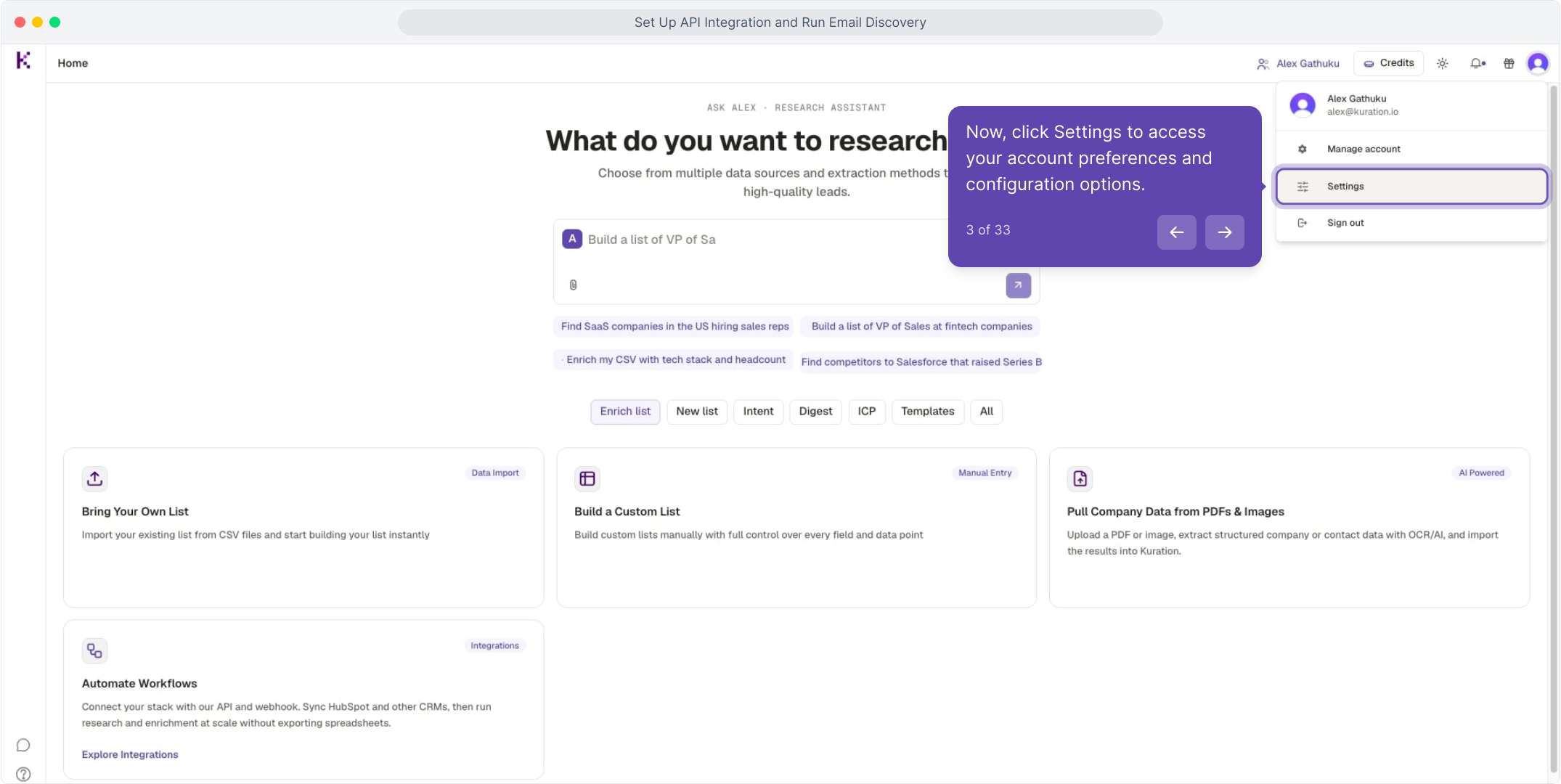
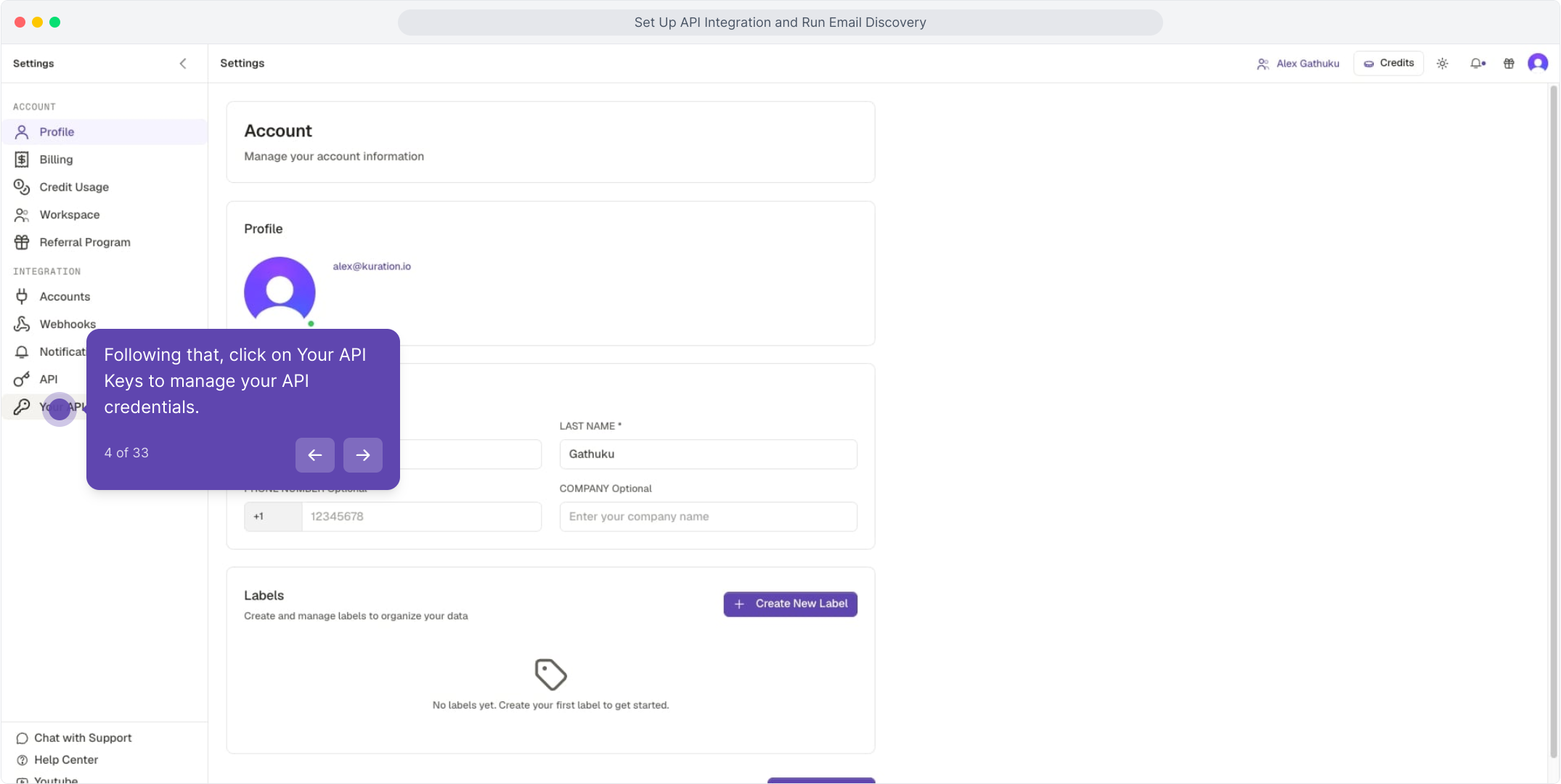
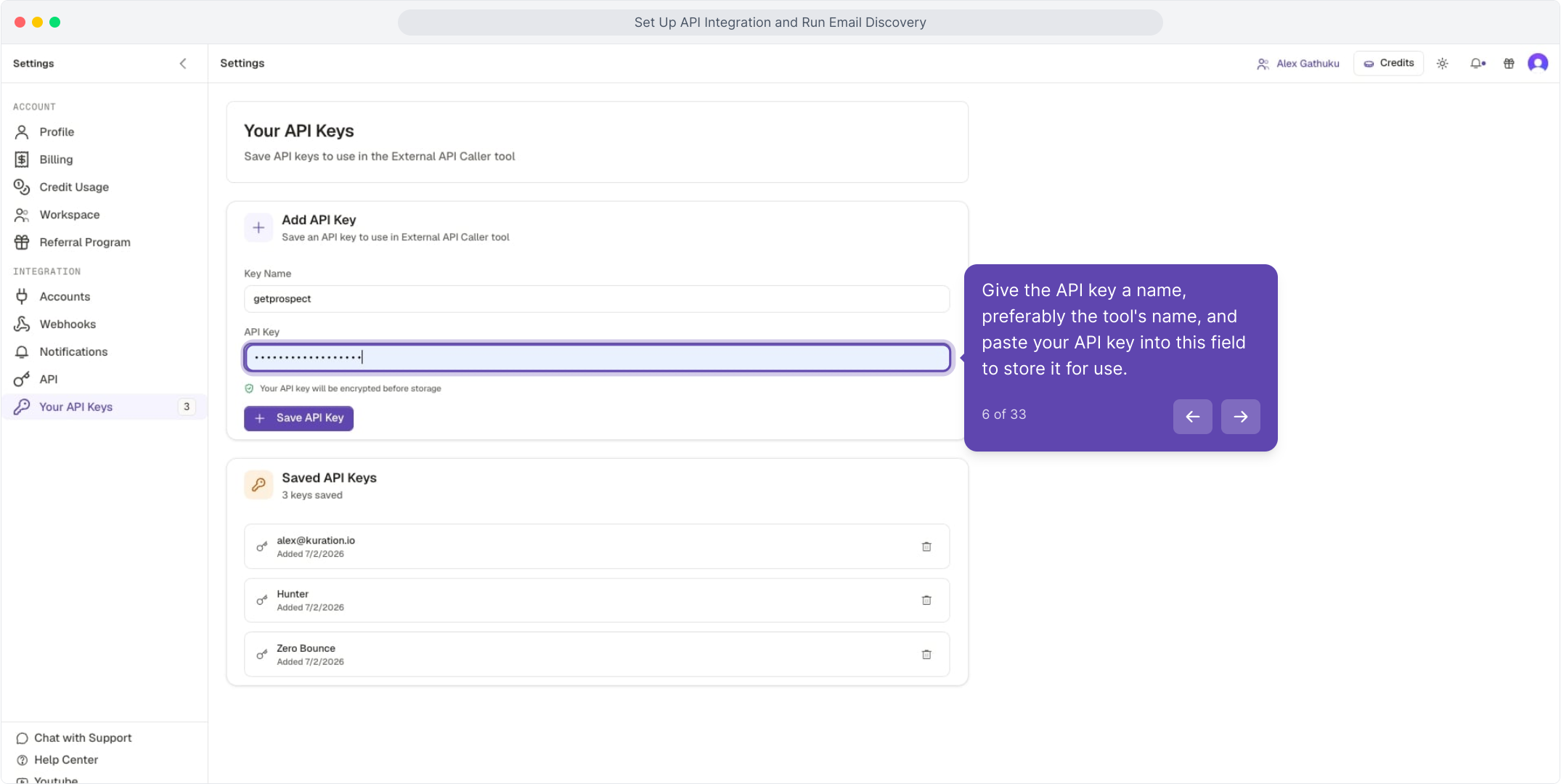
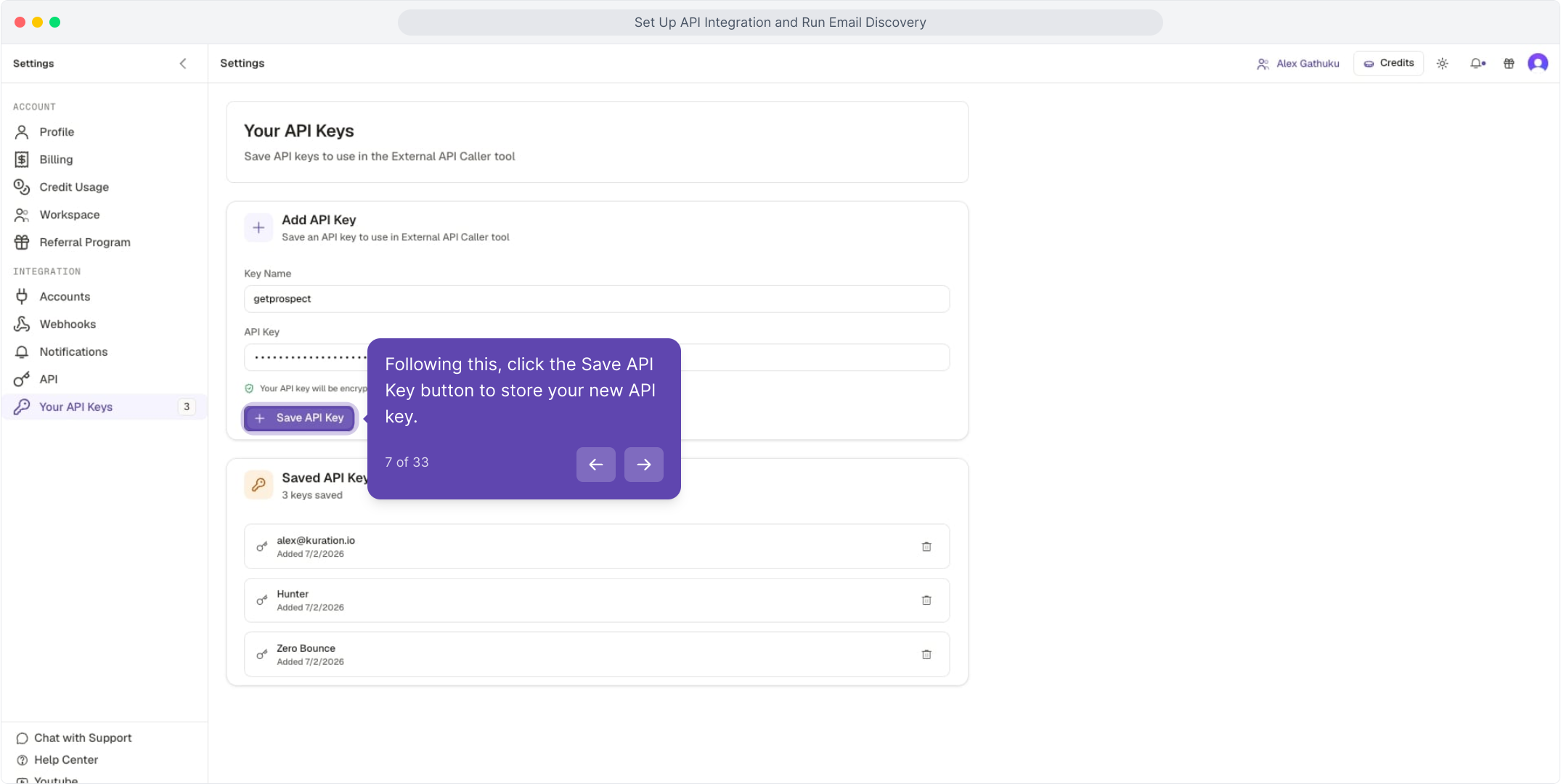
Open Settings ▸ Your API Keys, paste your key, name it, and Save.

02

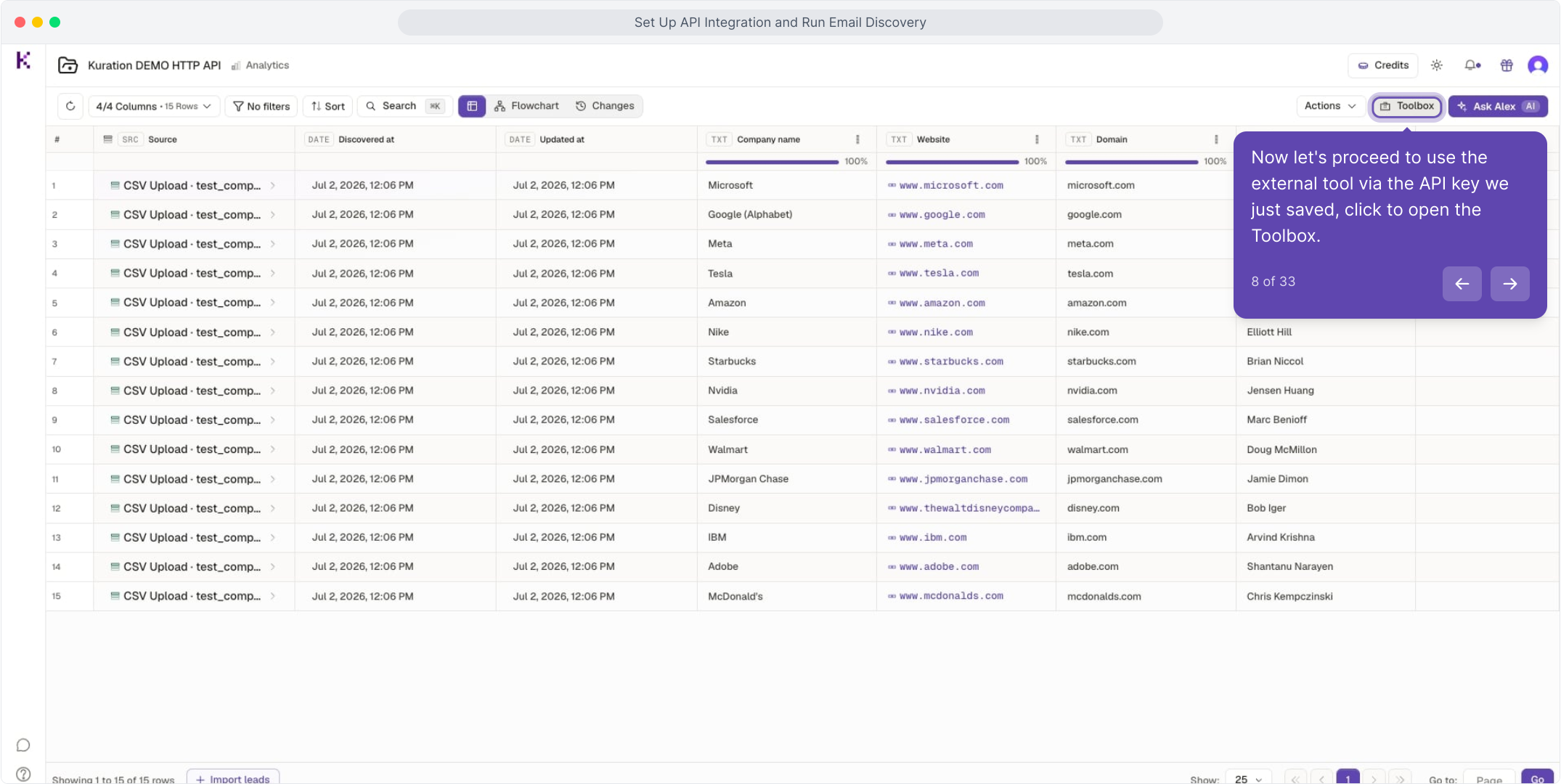
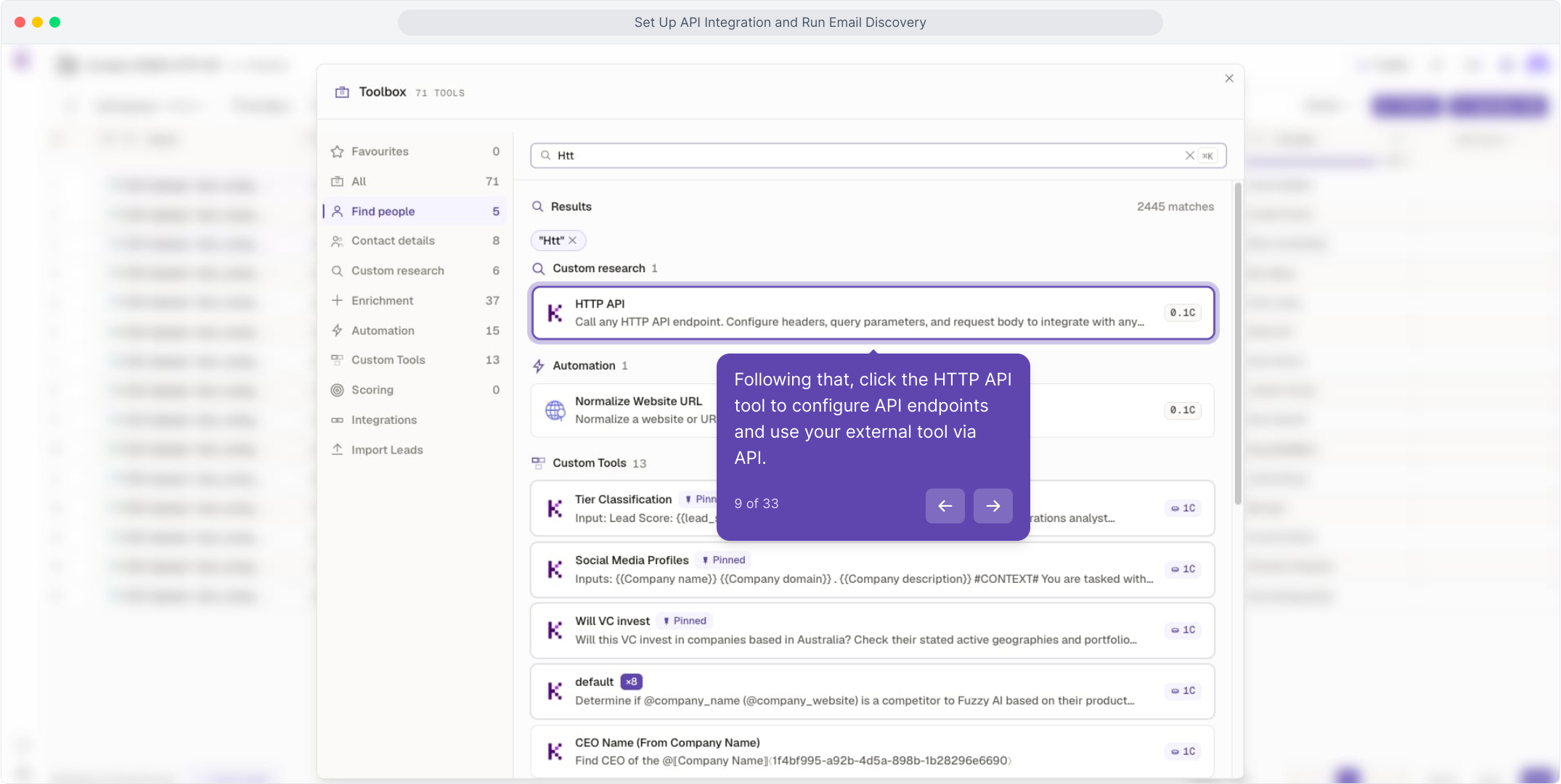
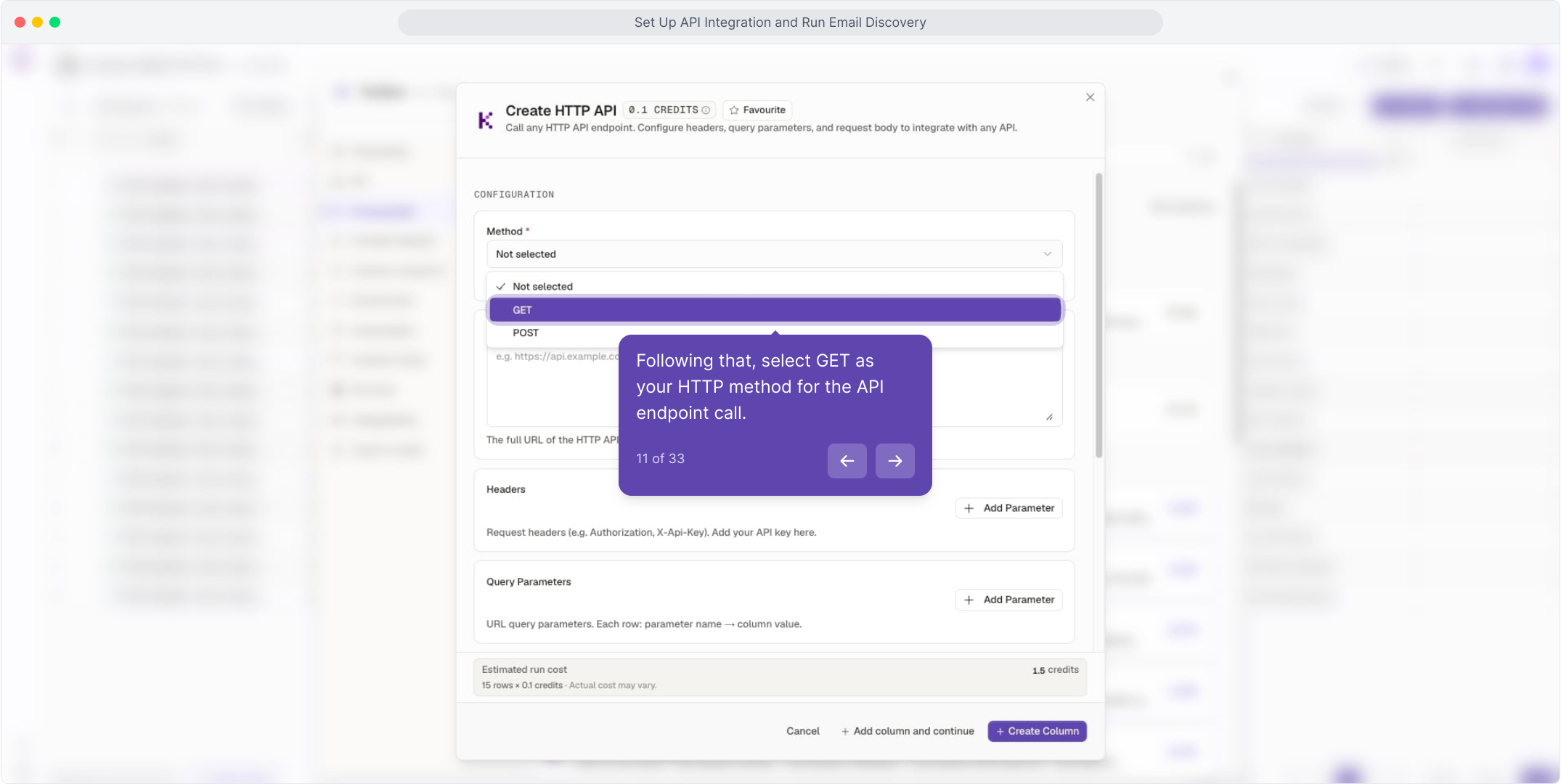
In the Toolbox, add the HTTP API tool and set method to GET.

03

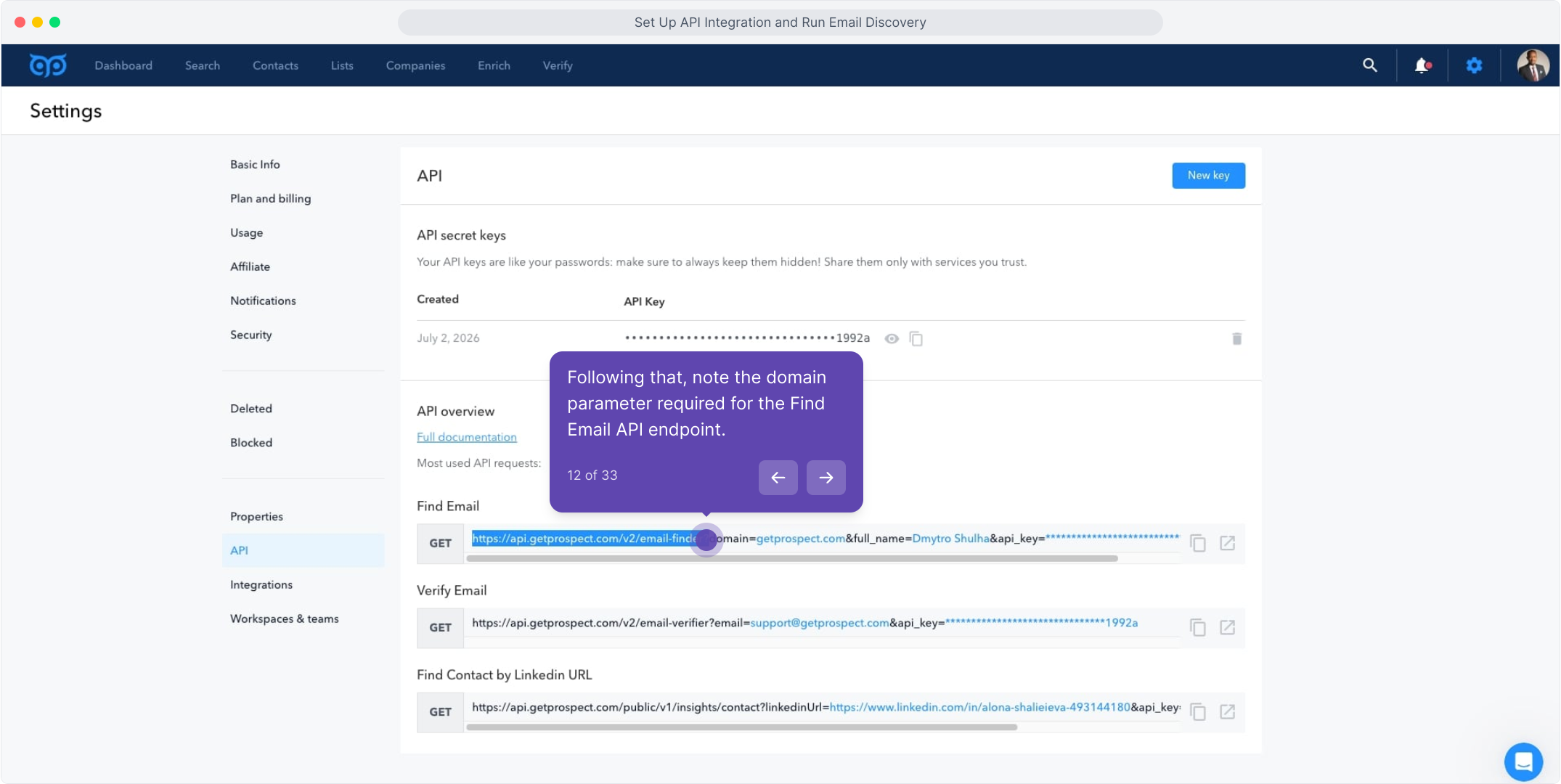
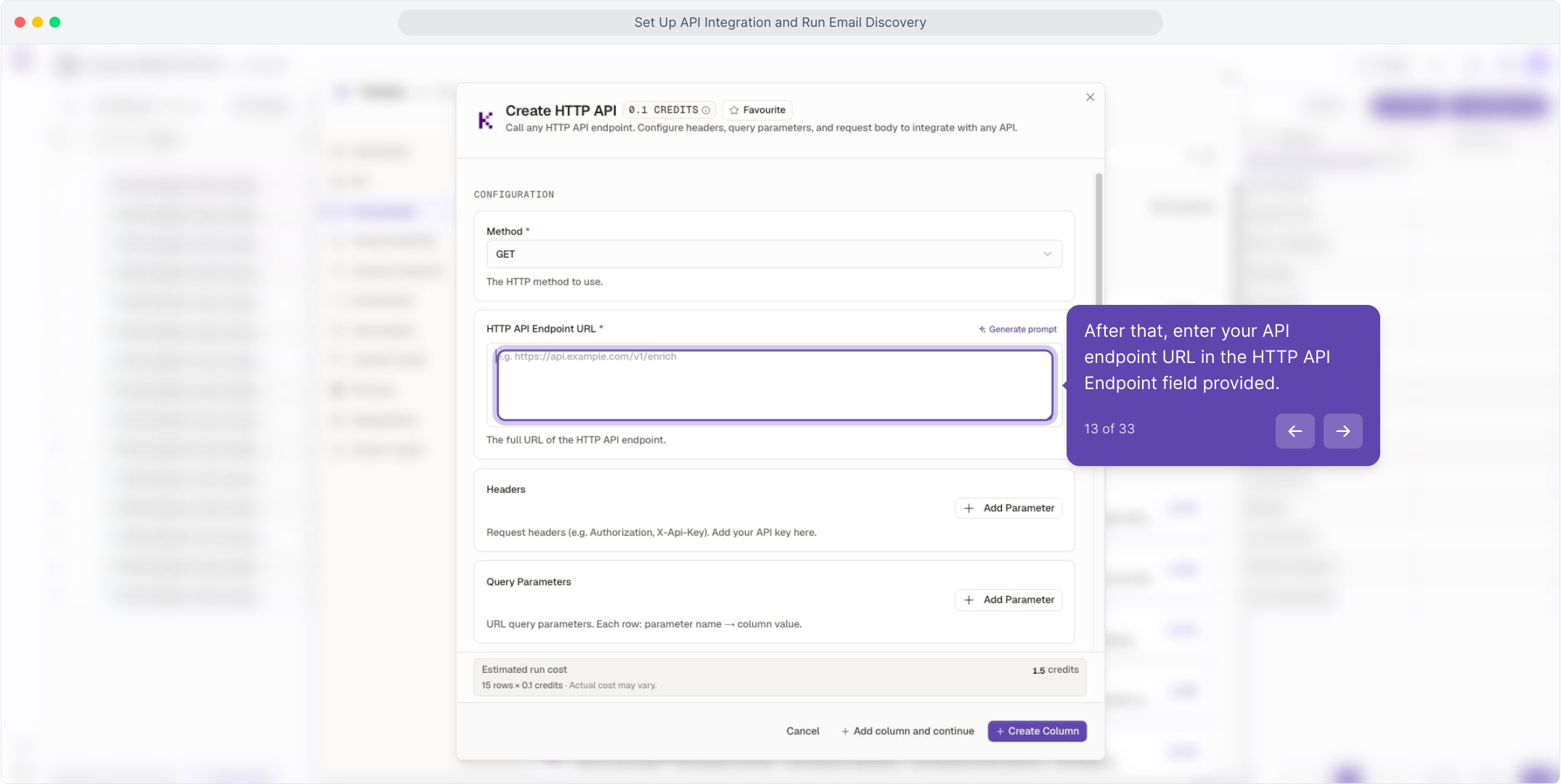
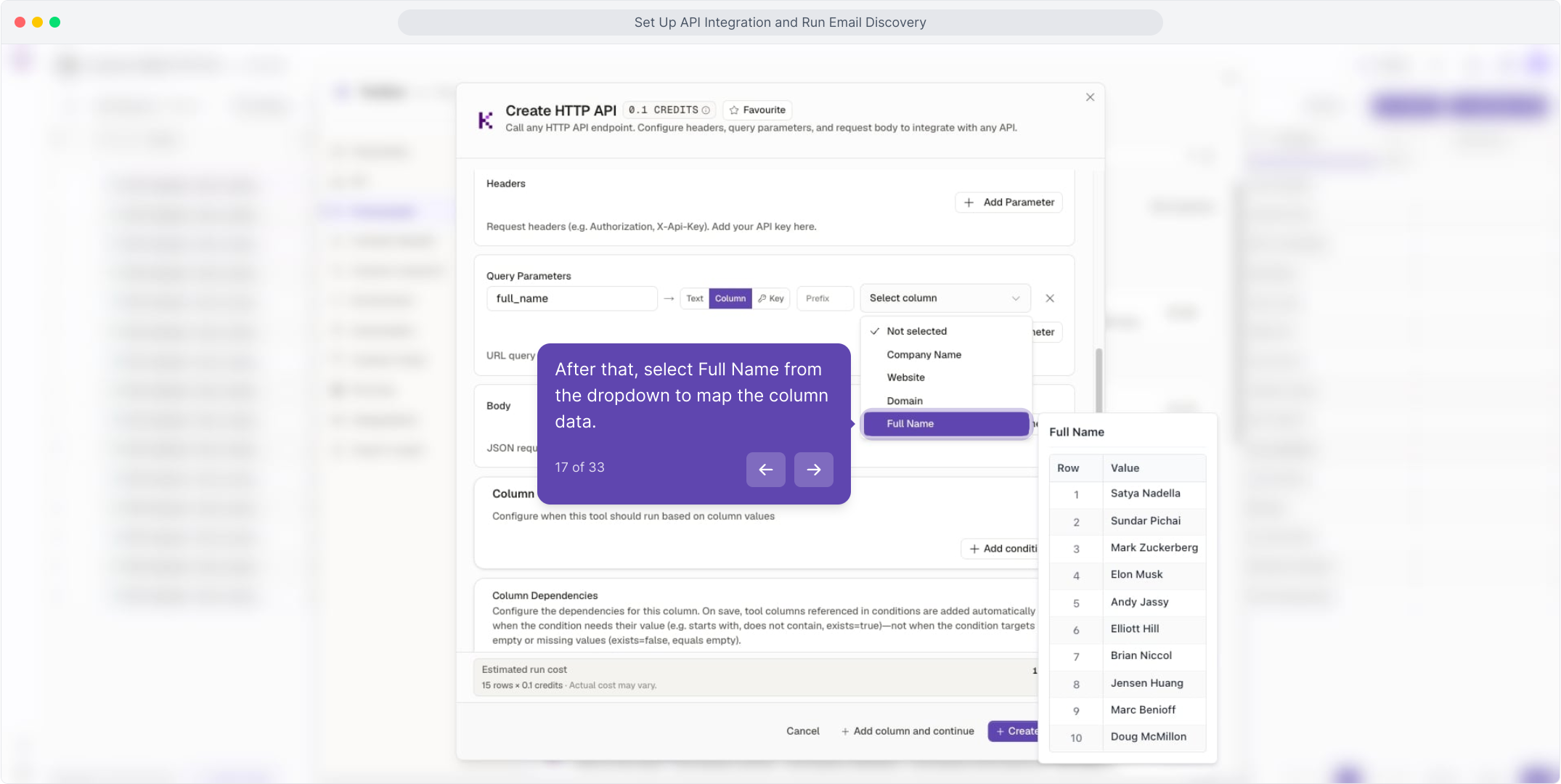
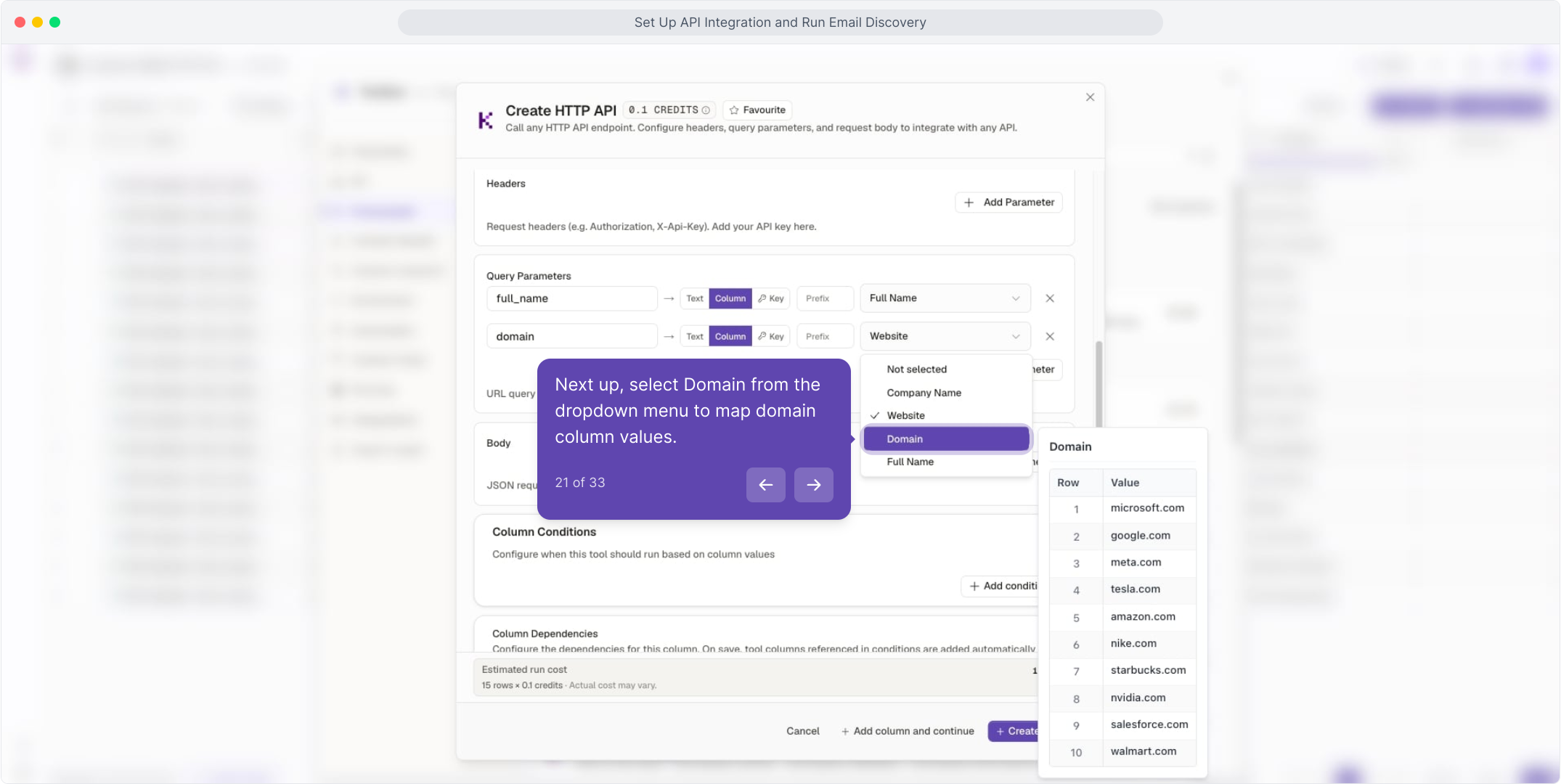
Add the endpoint URL, then map Full Name and Domain parameters to your columns.

04

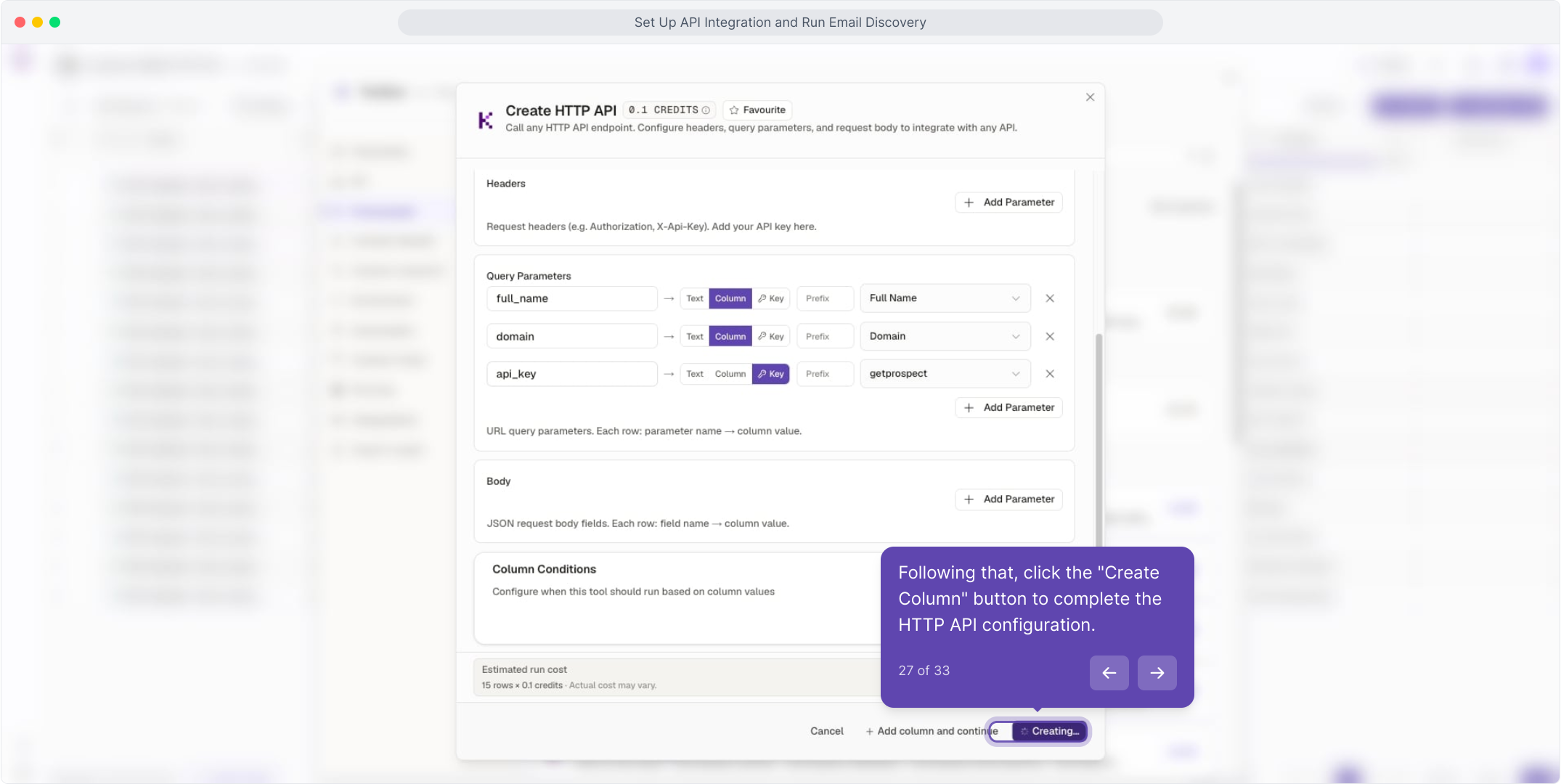
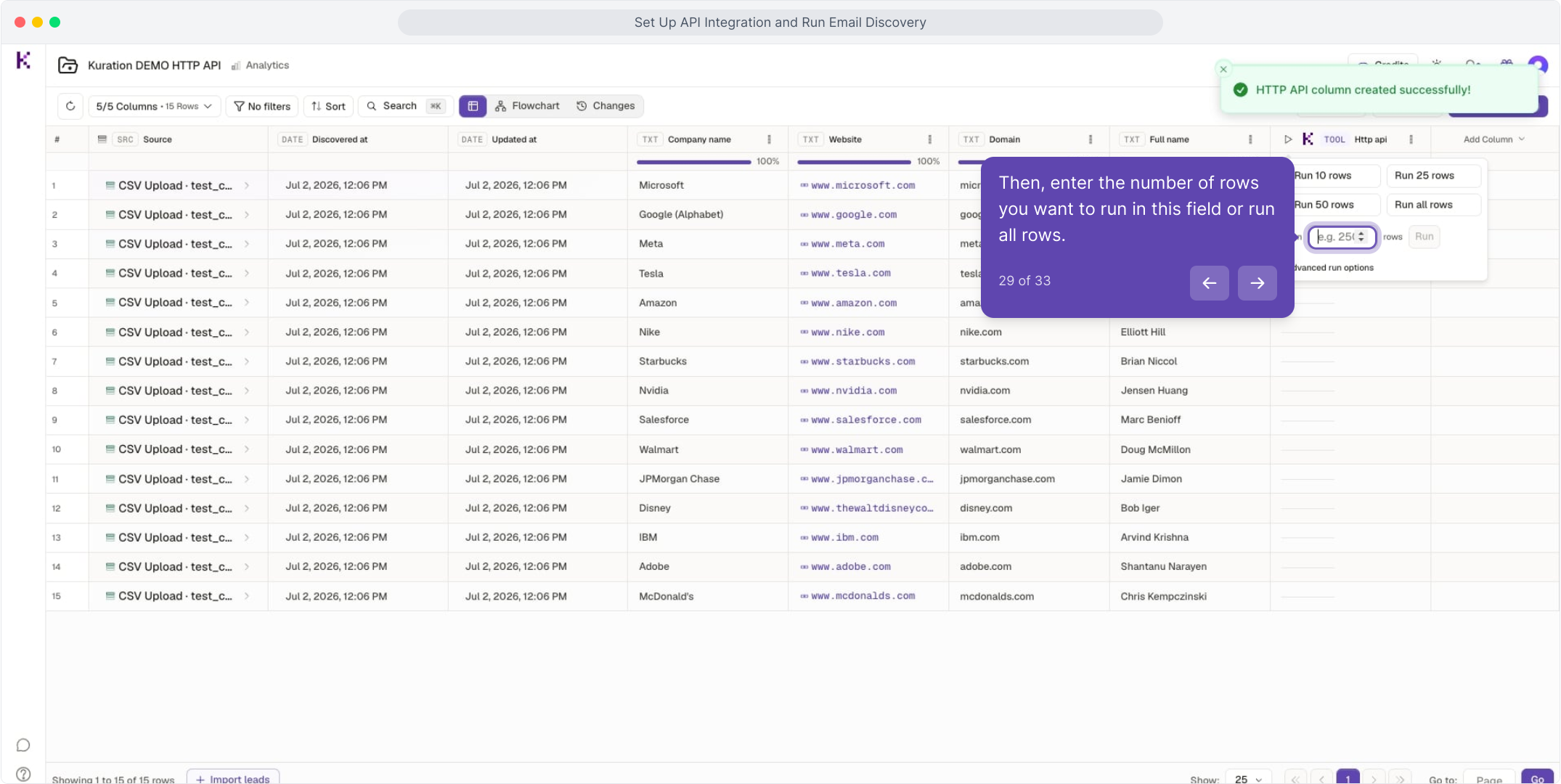
Attach your saved key, Create Column, then Run the rows.

app.kurationai.com · HTTP API tool
Illustrative · Kuration
Method
GET
Endpoint
https://api.getprospect.com/find-email
Query parameters
name Full Name
domain Domain
apiKey getprospect
Run on 5 rows
Create Column Run
THE FULL GUIDE

See the full walkthrough

Follow the interactive demo step by step, from saving your API key to reading discovered emails right in the cell. Every click, in order.

Opens in a new tab. Come back any time.

Use to navigate