Connect Kuration AI to Reply.io
A four-step setup that takes about five minutes. Once connected, push enriched leads straight into a Reply.io sequence — no CSVs, no copy-paste.
How to Connect Kuration AI to Reply.io
Overview
Authorize Reply.io once with an API key, then push enriched leads straight into a sequence — Kuration auto-maps first name, last name, email, company, and any custom fields you've enriched.
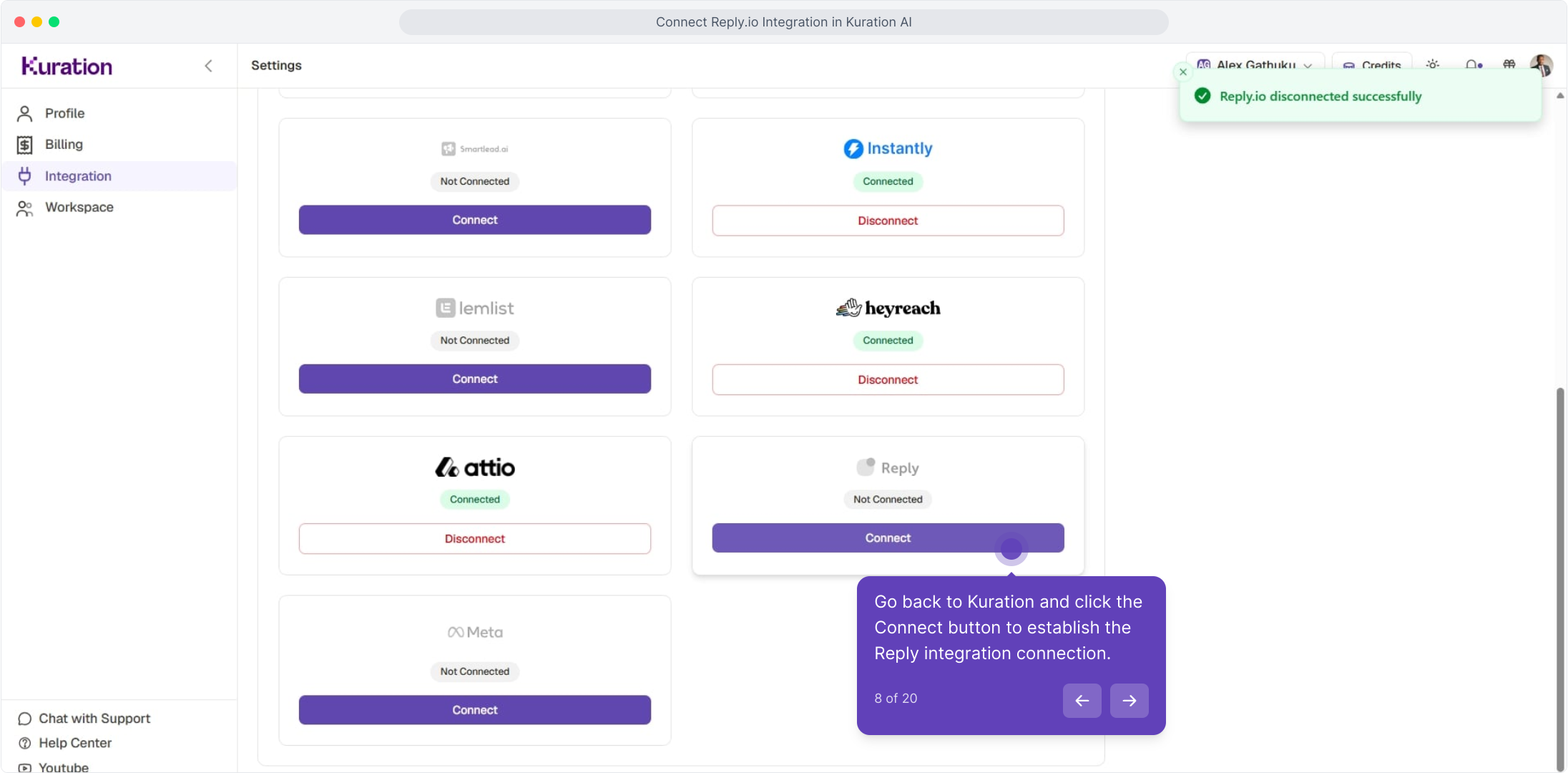
Step 1: Open the Integrations page in Kuration
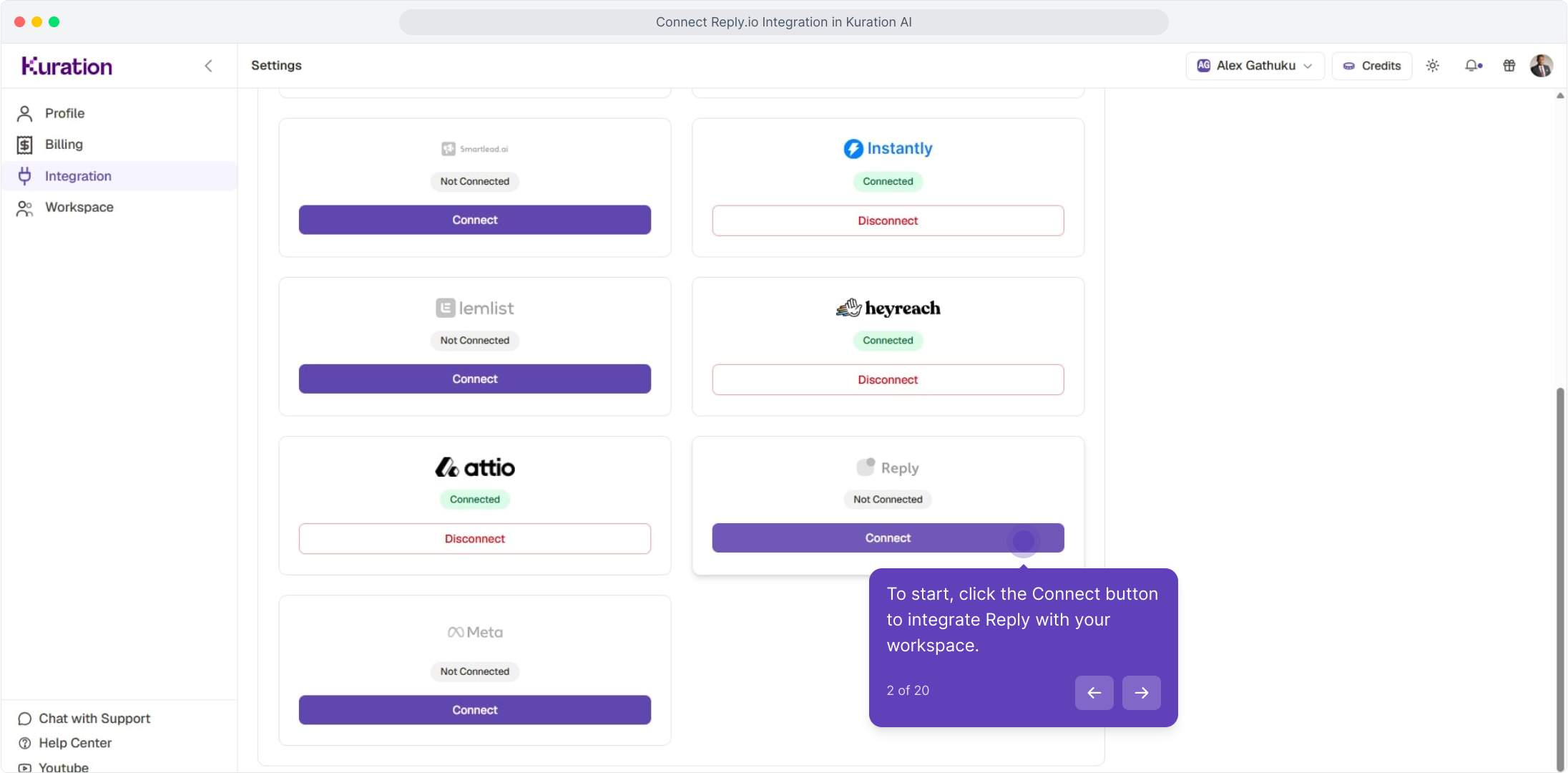
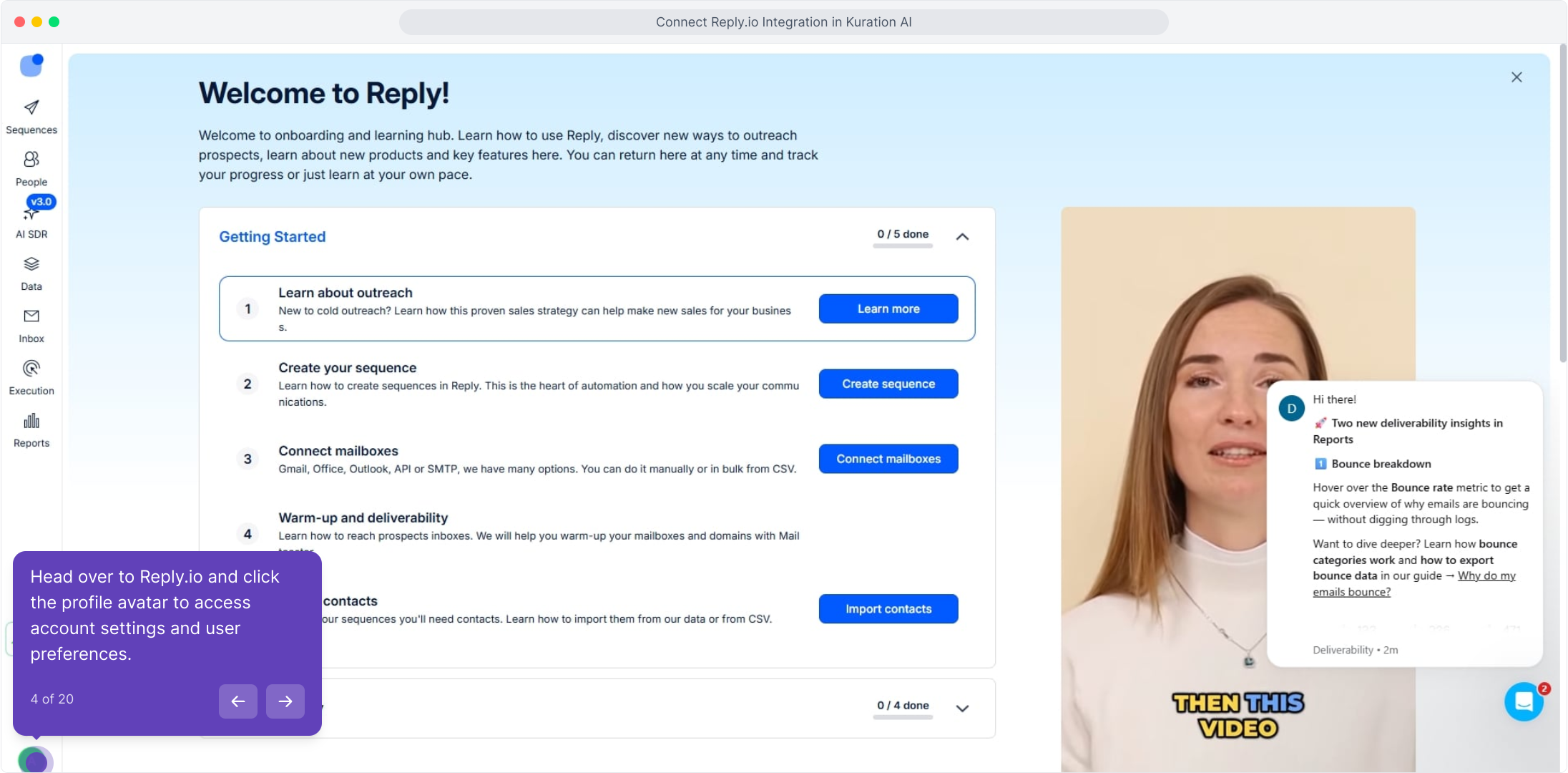
In Kuration AI, head into Settings → Integrations. Click your profile avatar (top-right), open Settings → Integrations, then click Connect on the Reply.io tile.
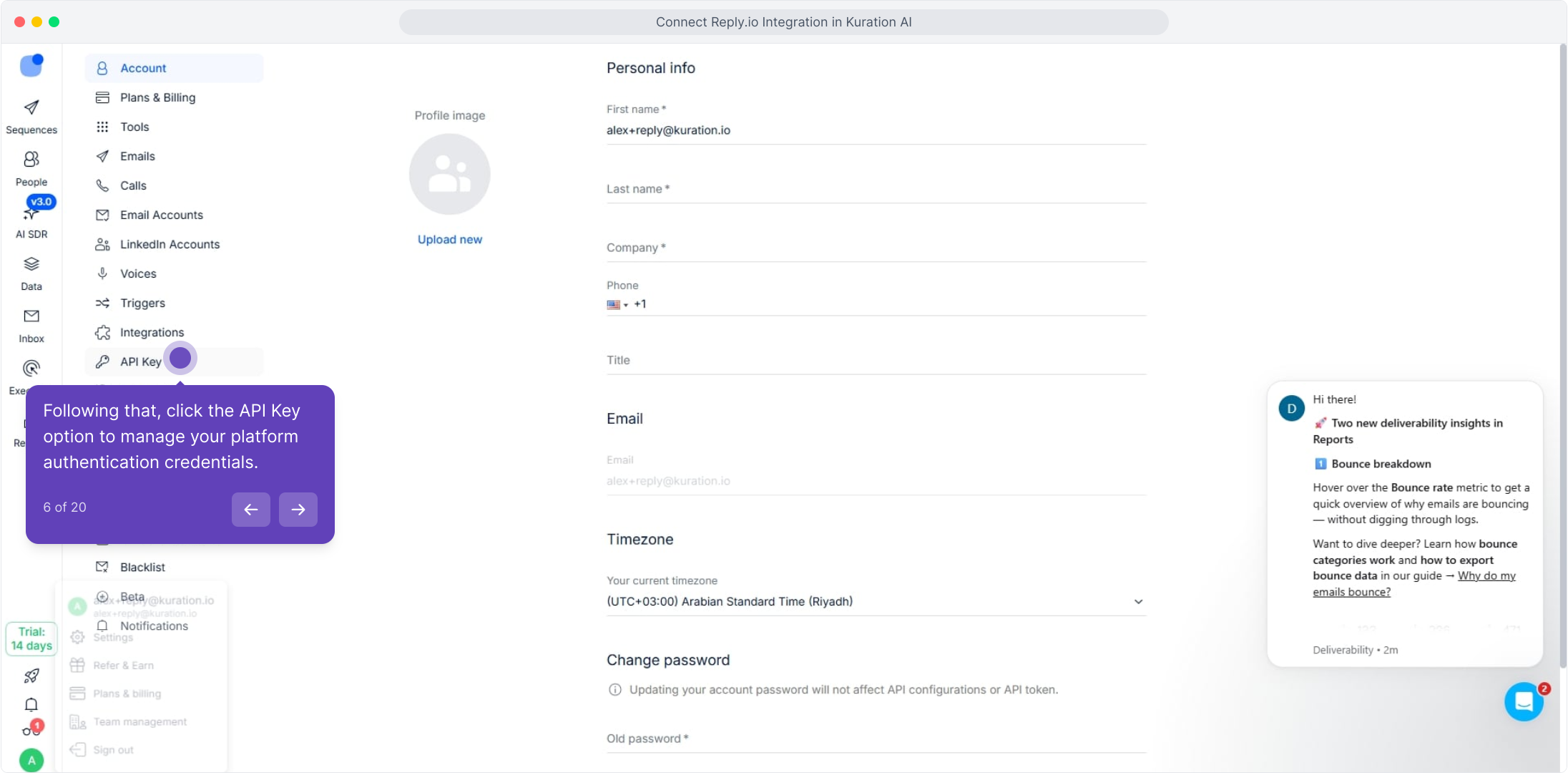
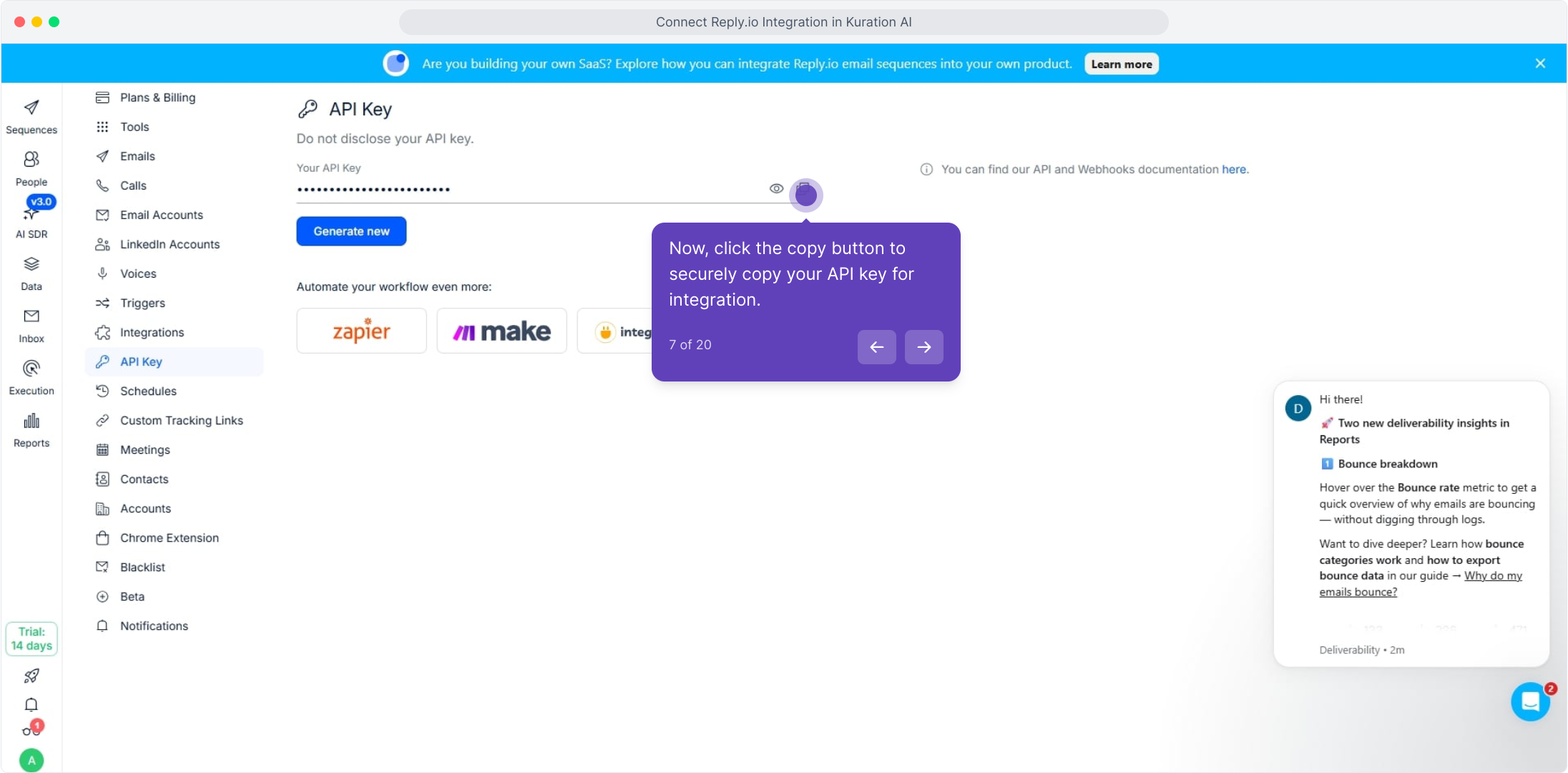
Step 2: Generate a Reply.io API key
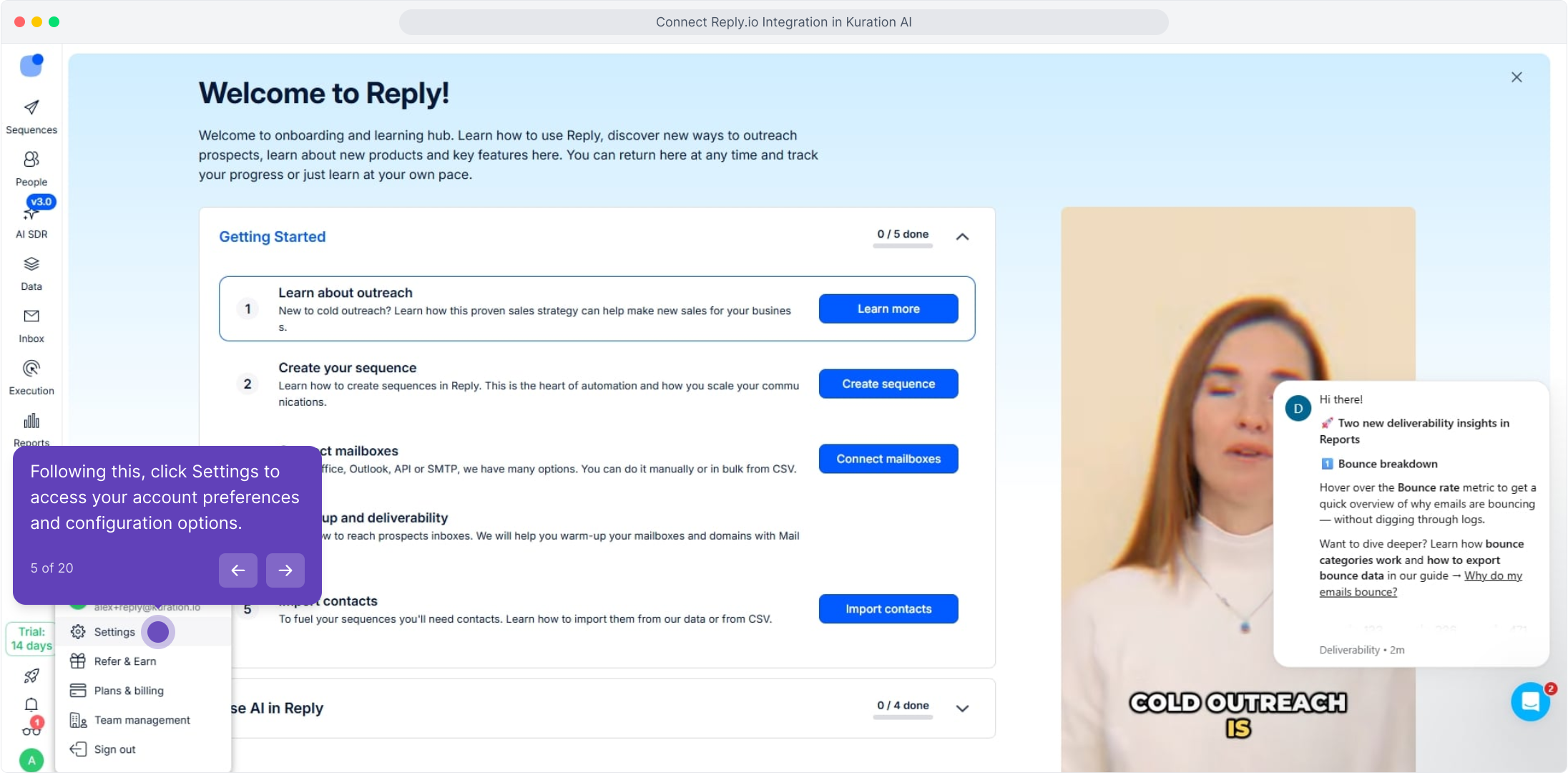
In Reply.io, open Settings and click API. Reply.io already has an API key available — just copy it. This is what you'll paste into Kuration AI in the next step.

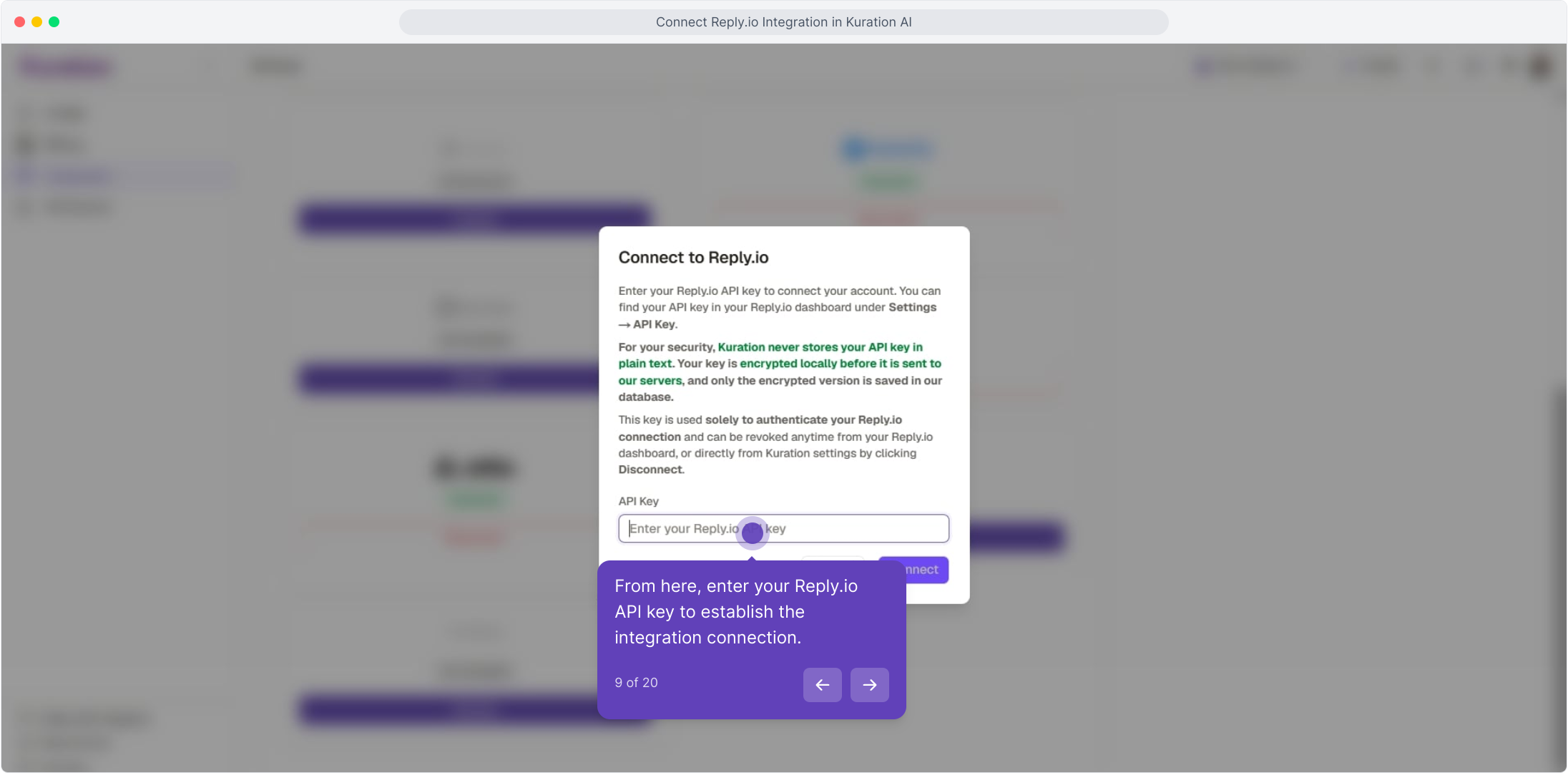
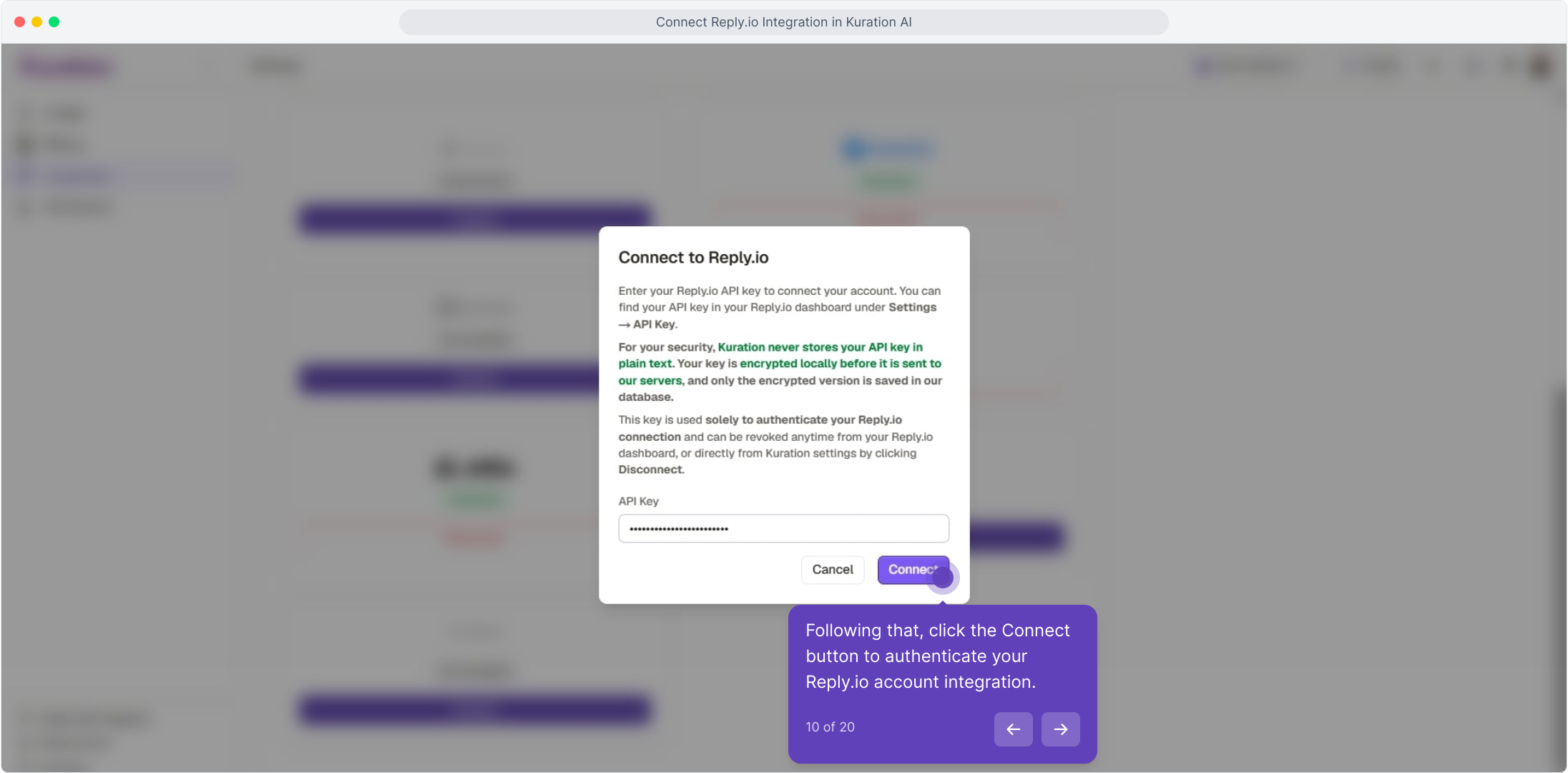
Step 3: Paste the key in Kuration
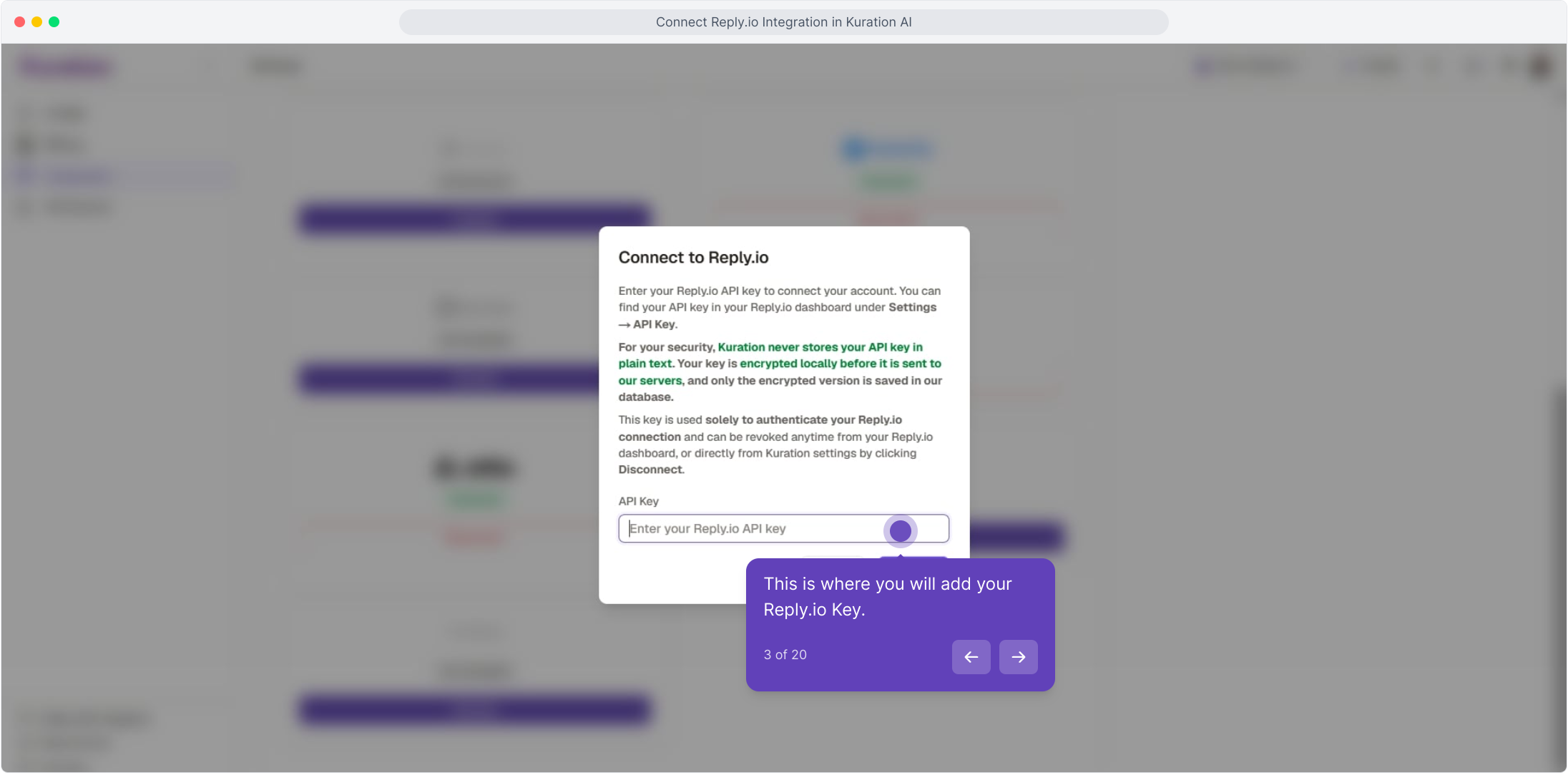
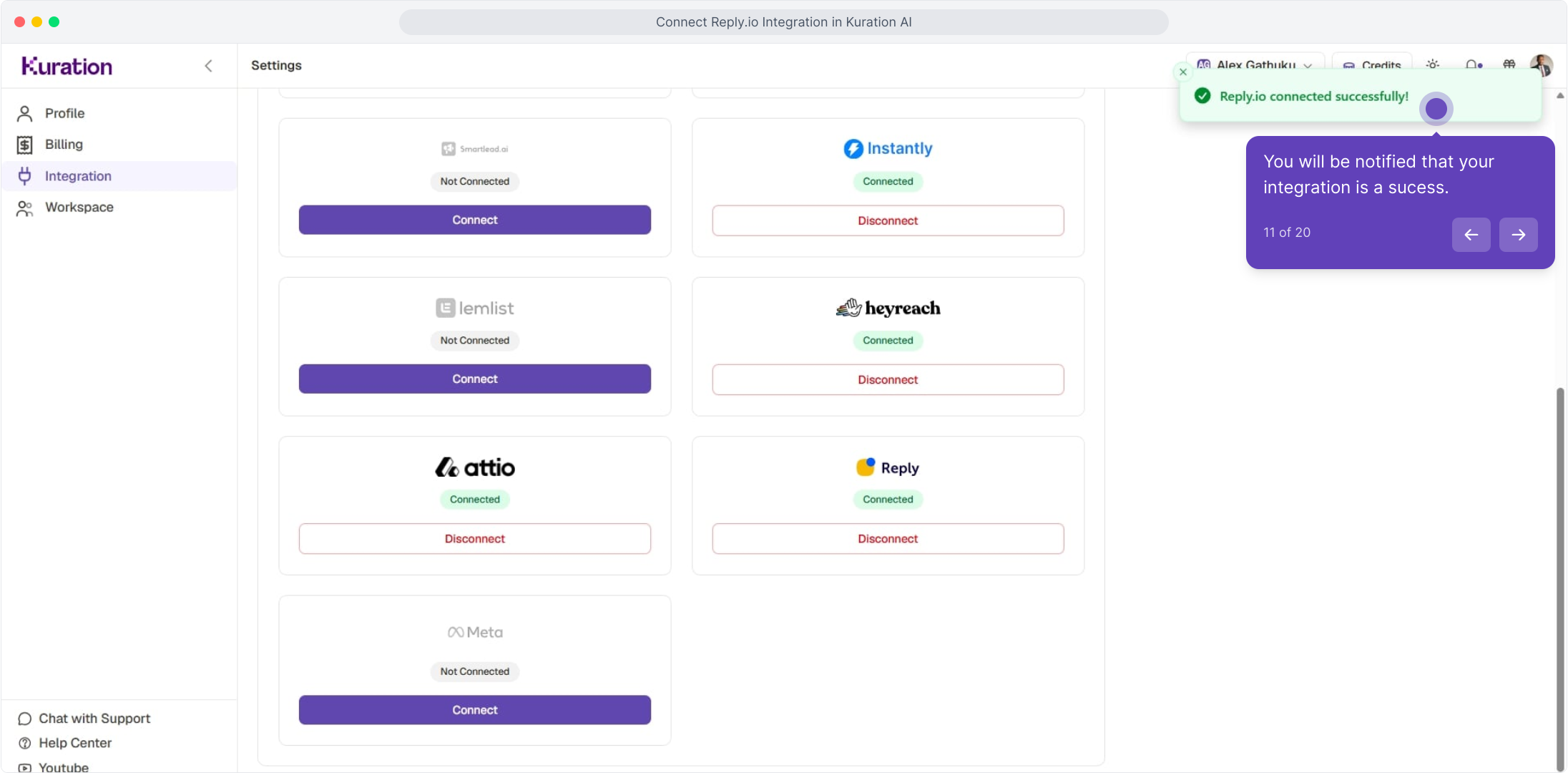
Back on the Kuration Integrations page, paste your Reply.io API key into the dialog and click Connect. Kuration validates it on the spot — once it's green, the integration is live.
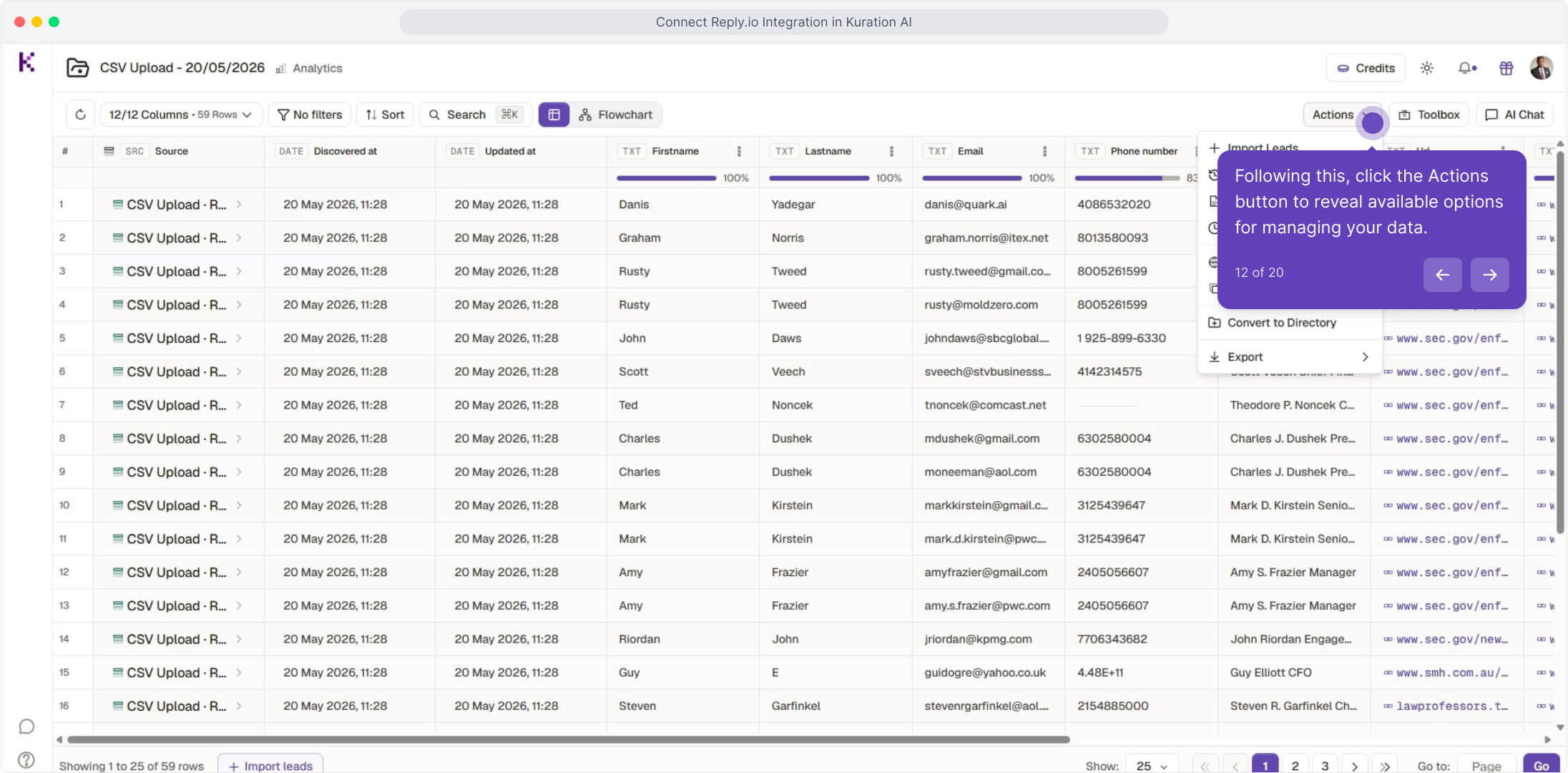
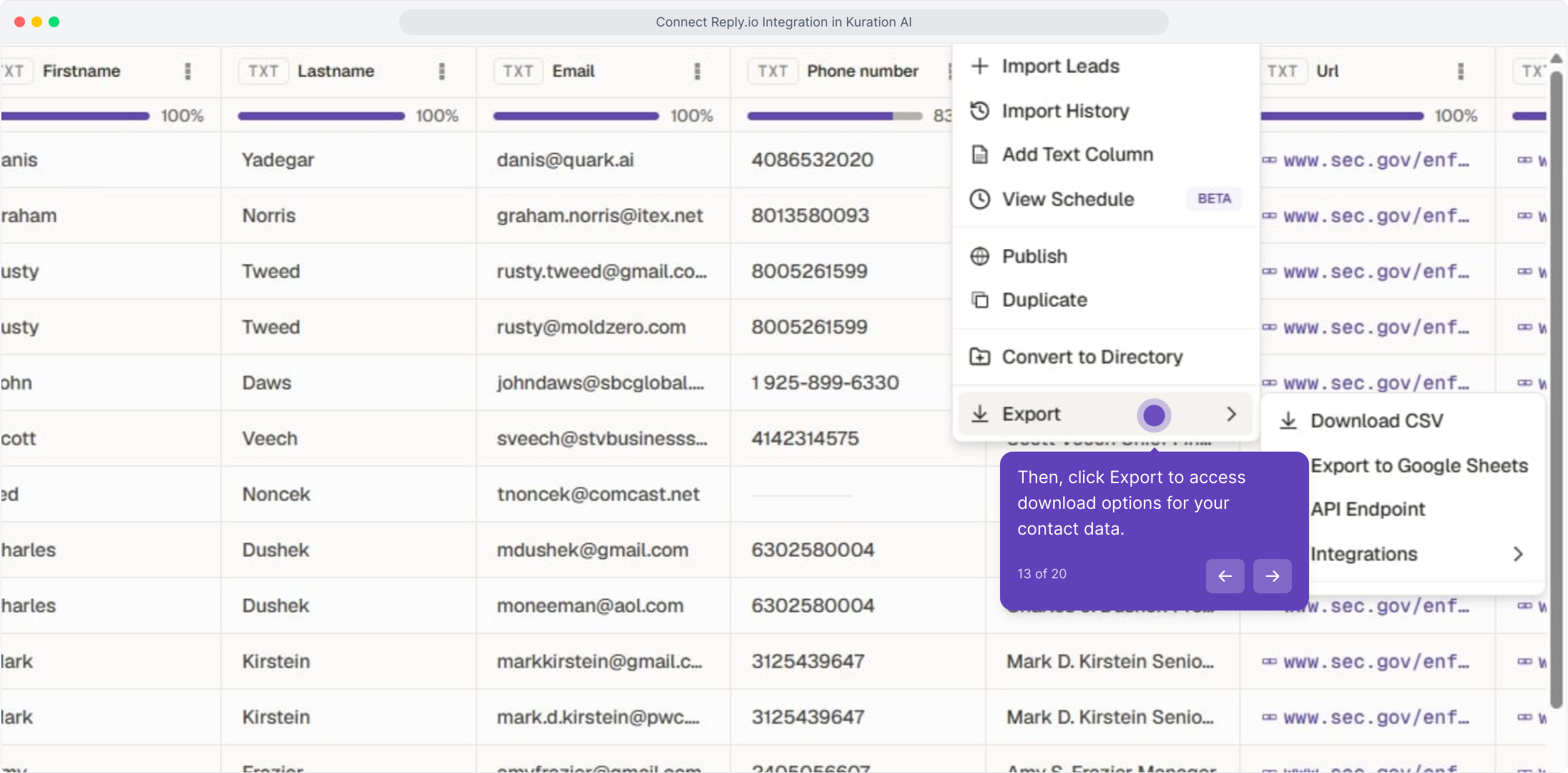
Step 4: Export your first list to Reply.io
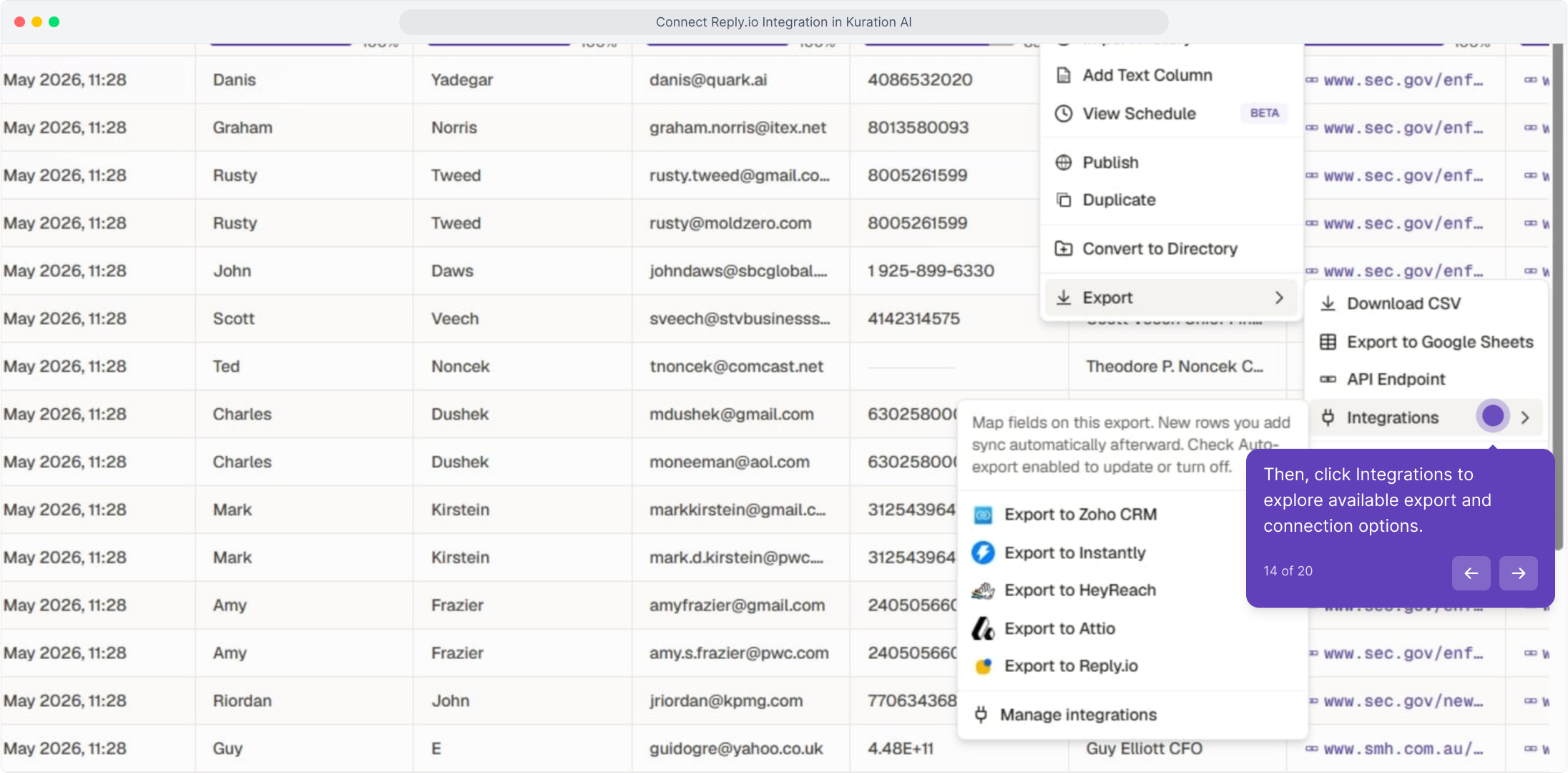
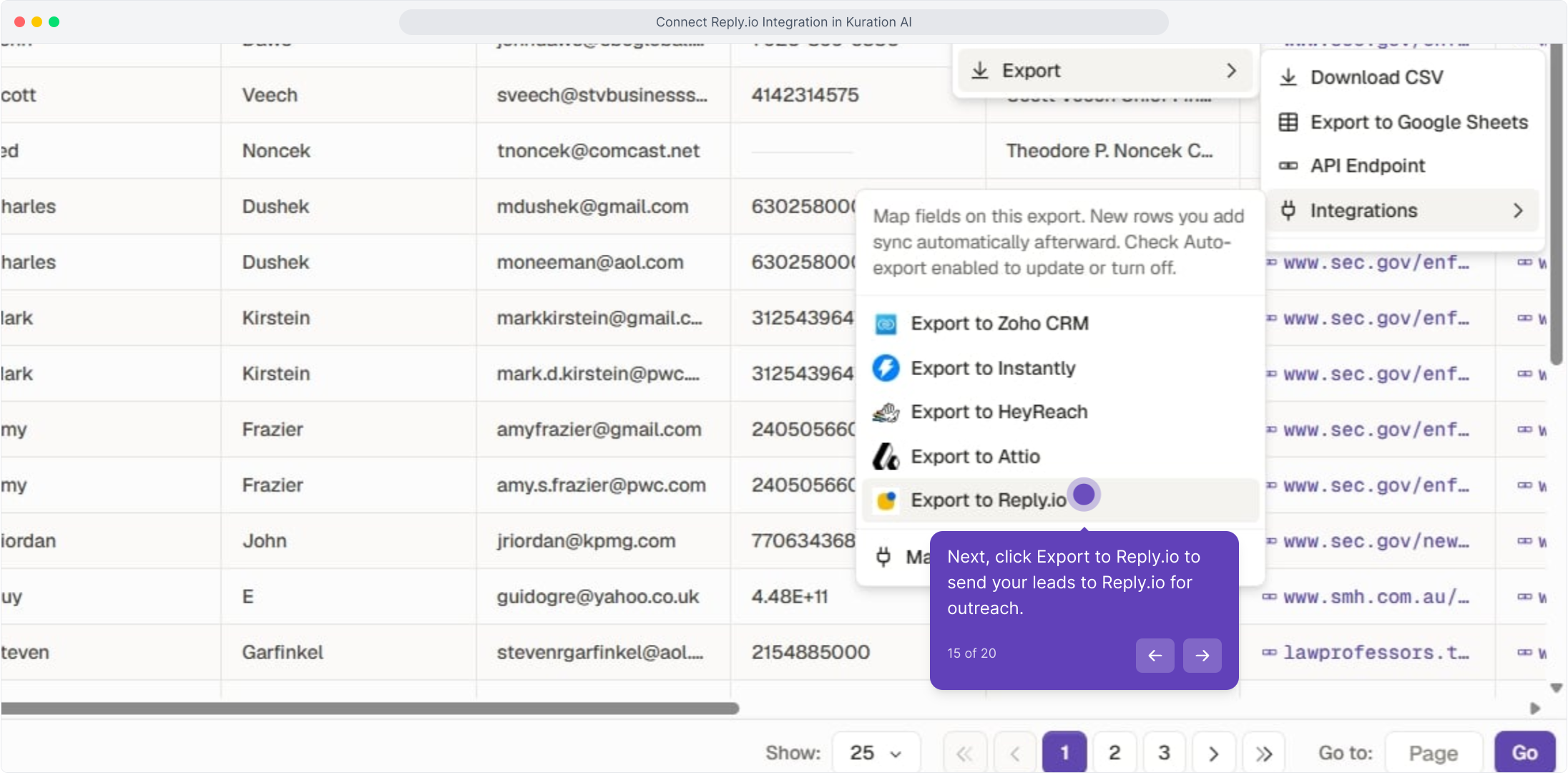
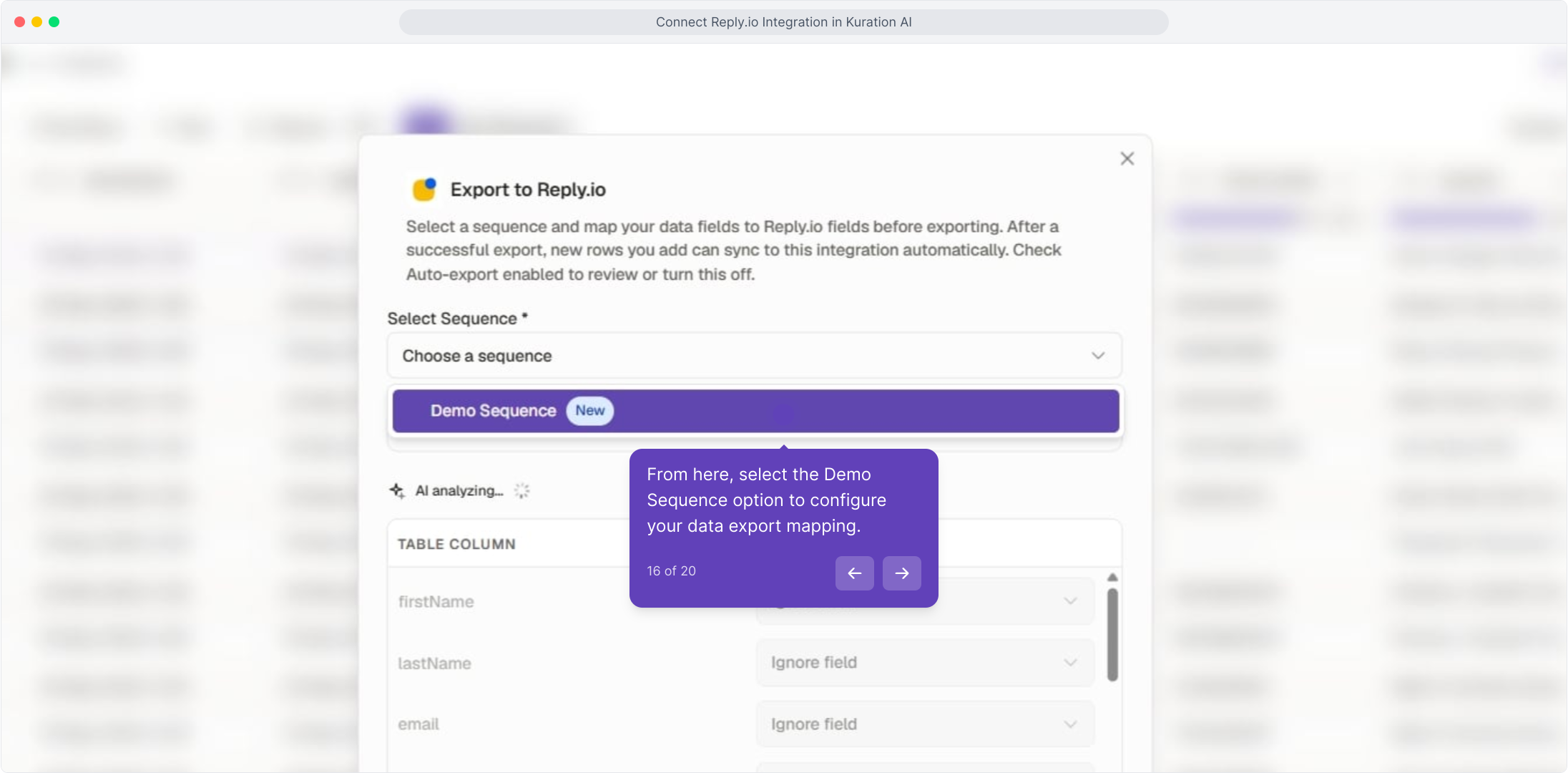
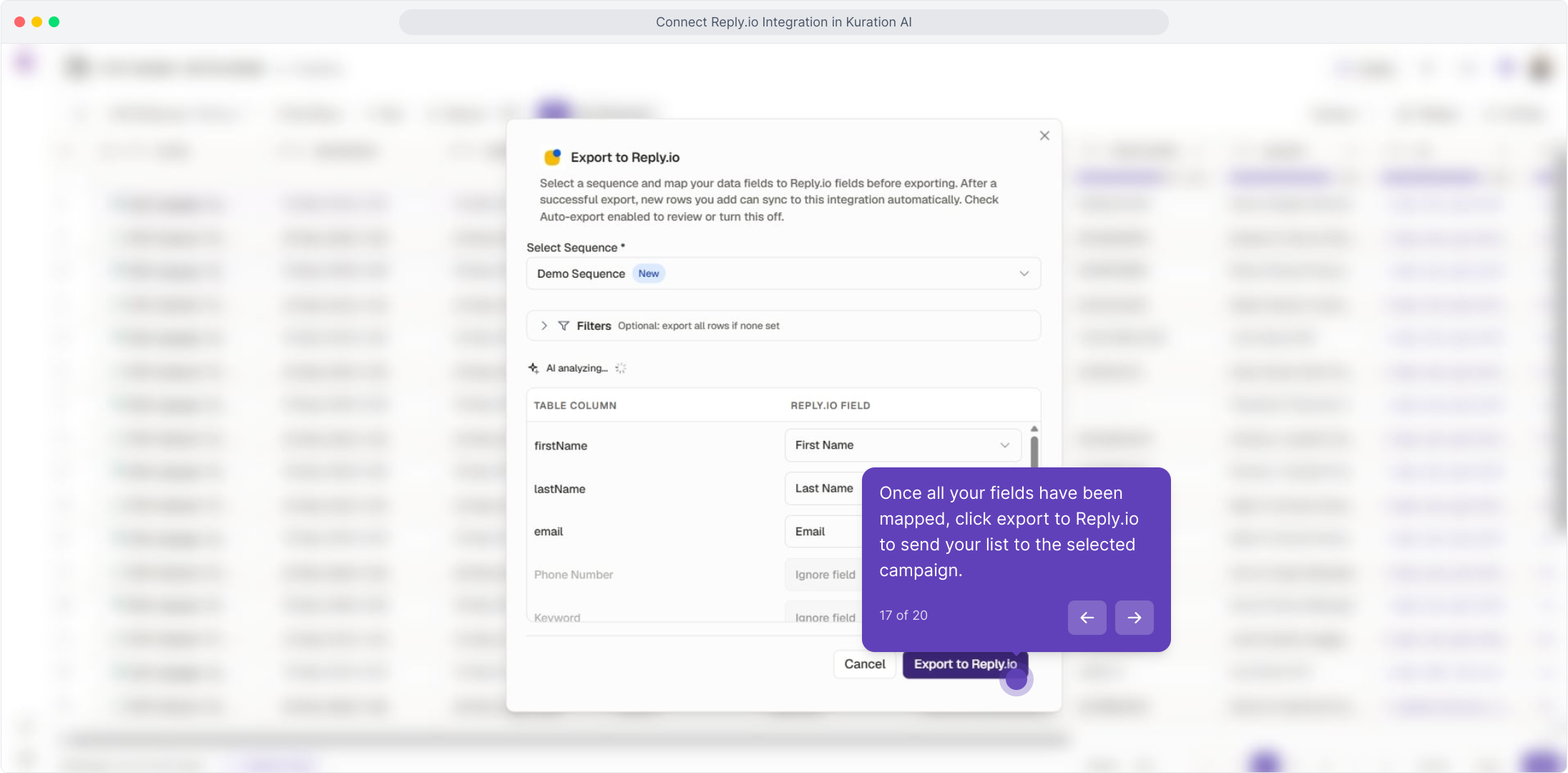
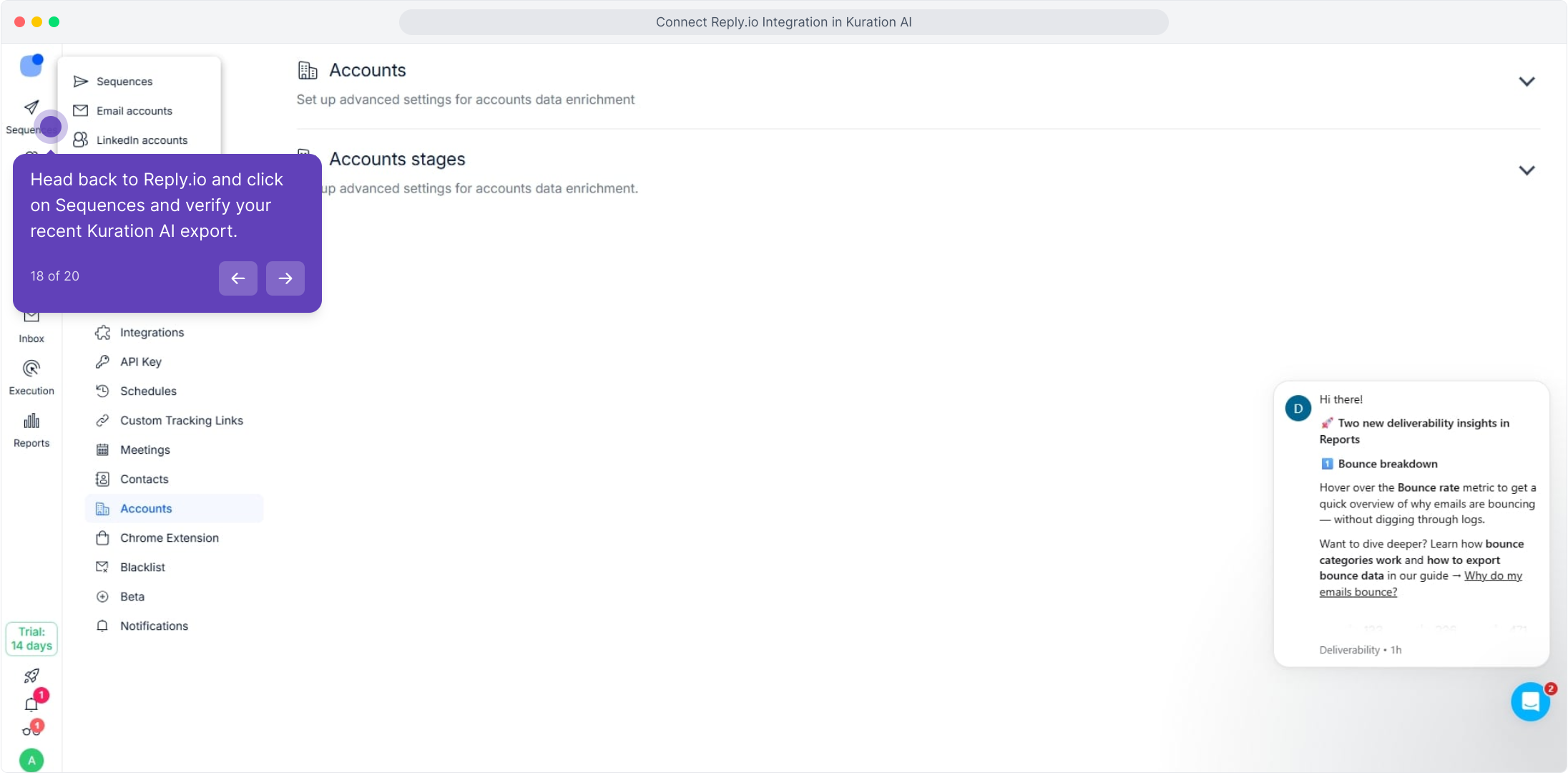
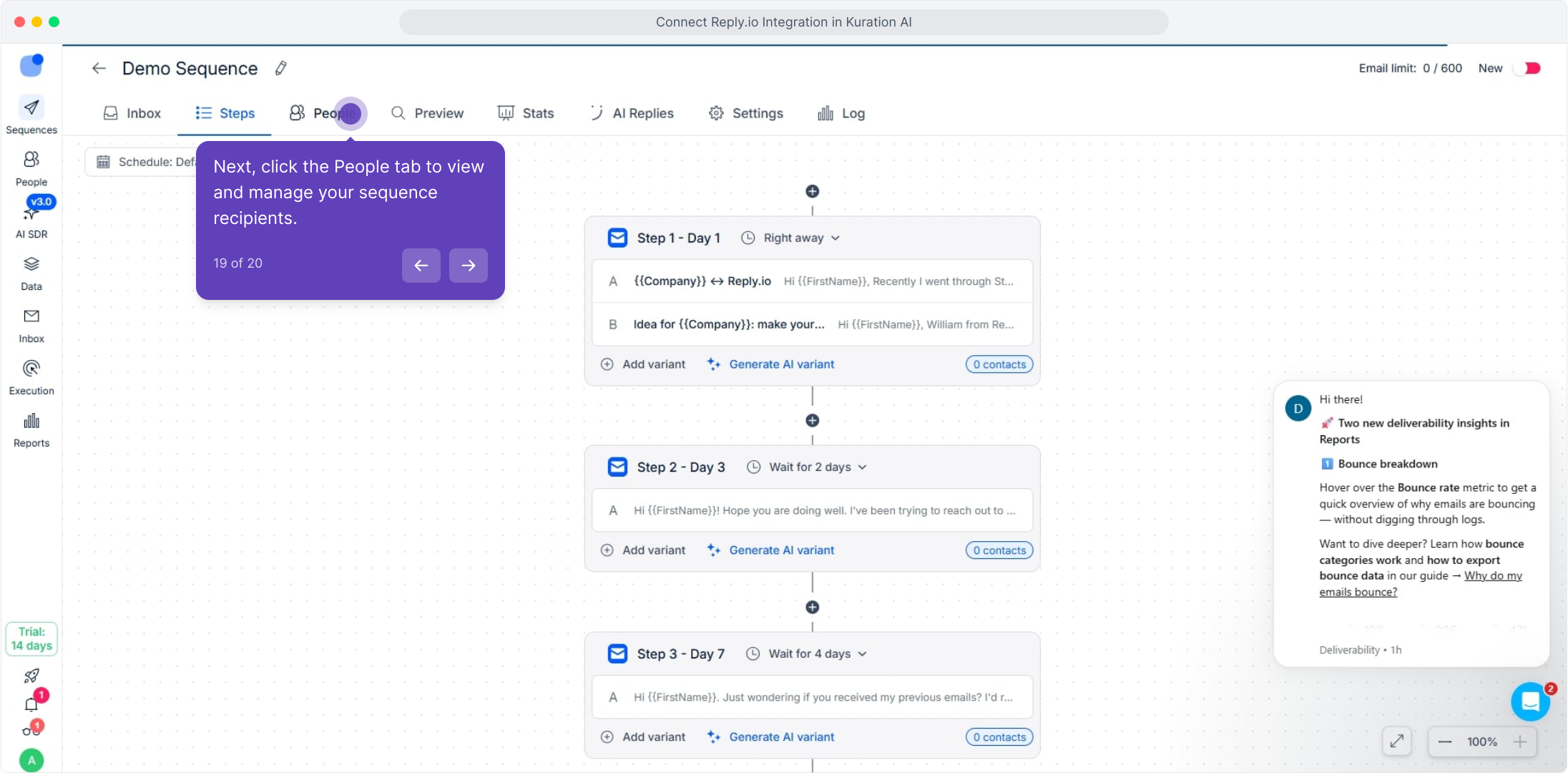
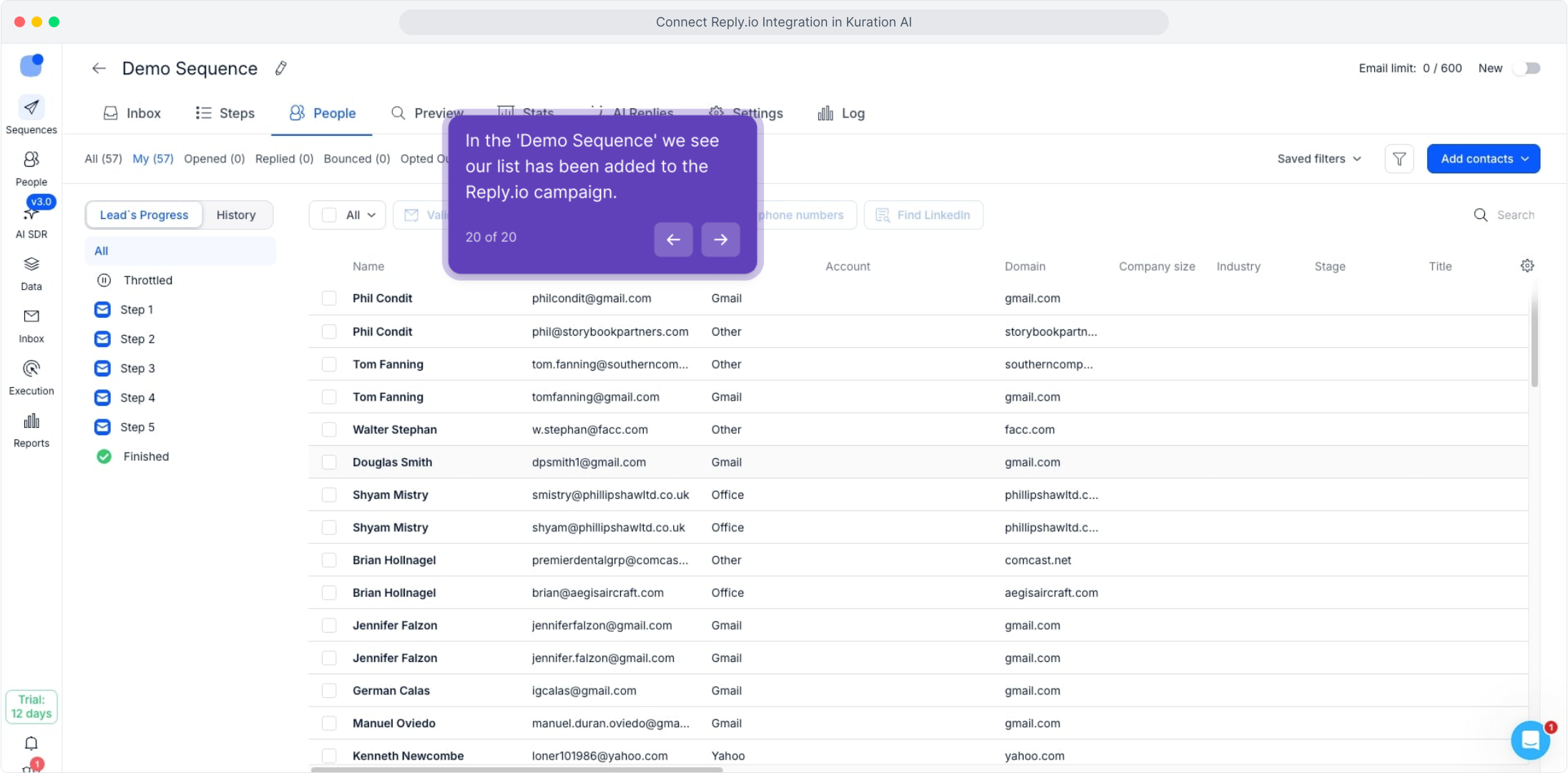
From any project, open Actions → Export to Reply.io. Pick a sequence from the dropdown, confirm the auto-mapped fields, and send.
For the full interactive Demo Click Here
Related articles
Connect Kuration AI to Instantly
A four-step setup that takes about five minutes. Once connected, push any enriched list straight into an Instantly campaign — no CSVs, no copy-paste.
Connect Kuration AI to Lemlist
Export enriched leads to qualified prospects from Kuration AI directly to Lemlist via API in just a few clicks.
Connect Kuration AI to SmartLead
Export enriched prospect lists from Kuration AI directly to SmartLead for automated outreach sequences.