Extract data from PDFs and documents

Upload PDFs, reports, exhibitor manuals, or any document. Kuration AI extracts structured data automatically — tables, lists, and text.

Kuration Team3 min readUpdated Feb 25, 2026

Some of the best B2B data lives in documents — exhibitor manuals, post-show reports, attendee lists, investor decks, government filings. Kuration extracts structured data from PDFs and other documents automatically.

Supported formats

  • PDF files (native and scanned — OCR supported)
  • CSV and Excel spreadsheets
  • Images with text (JPG, PNG)

How to upload and extract

1

Start a new research project

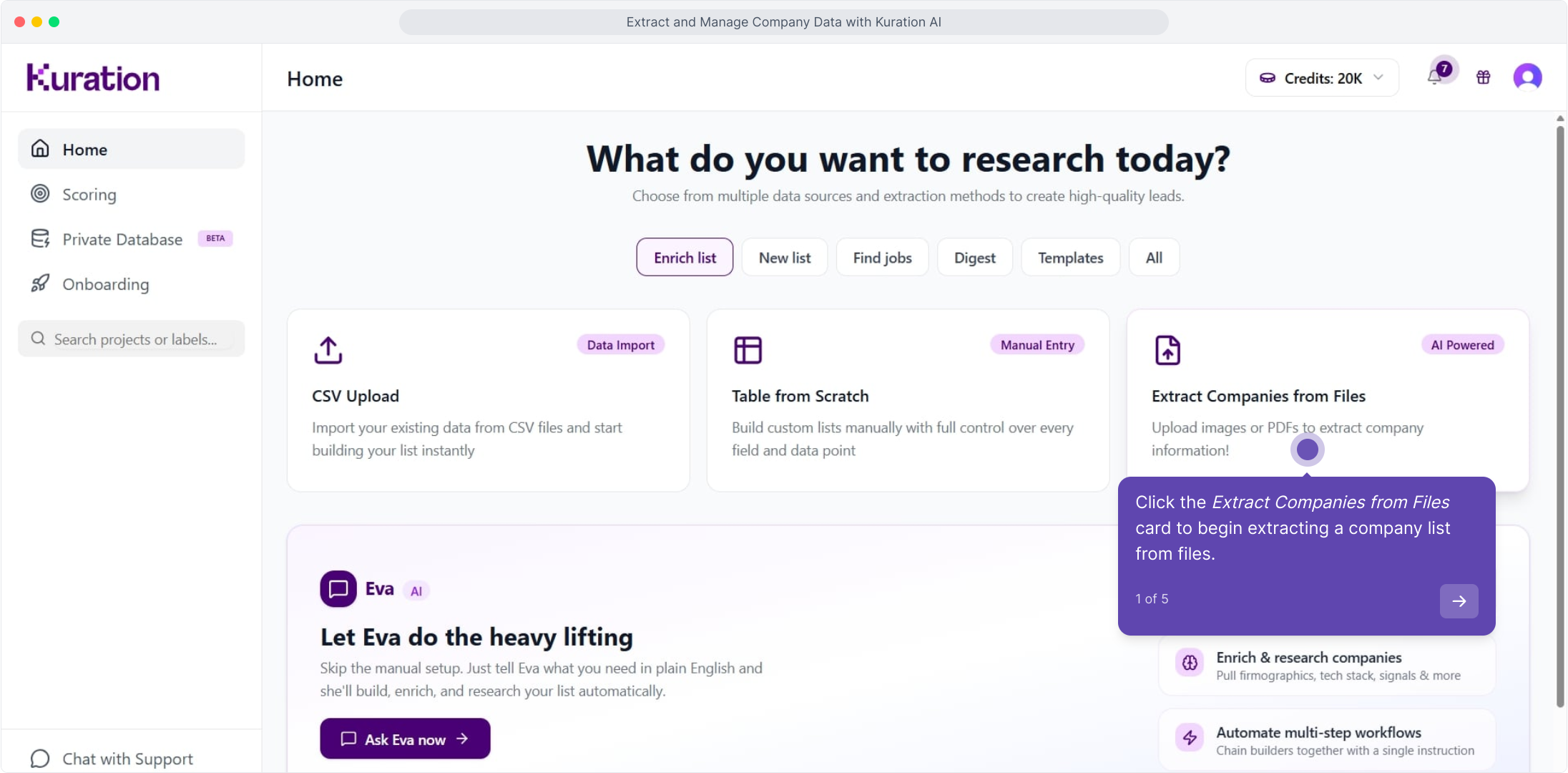
From your dashboard, click New Research.

2

Select Upload

Choose the file upload option.

3

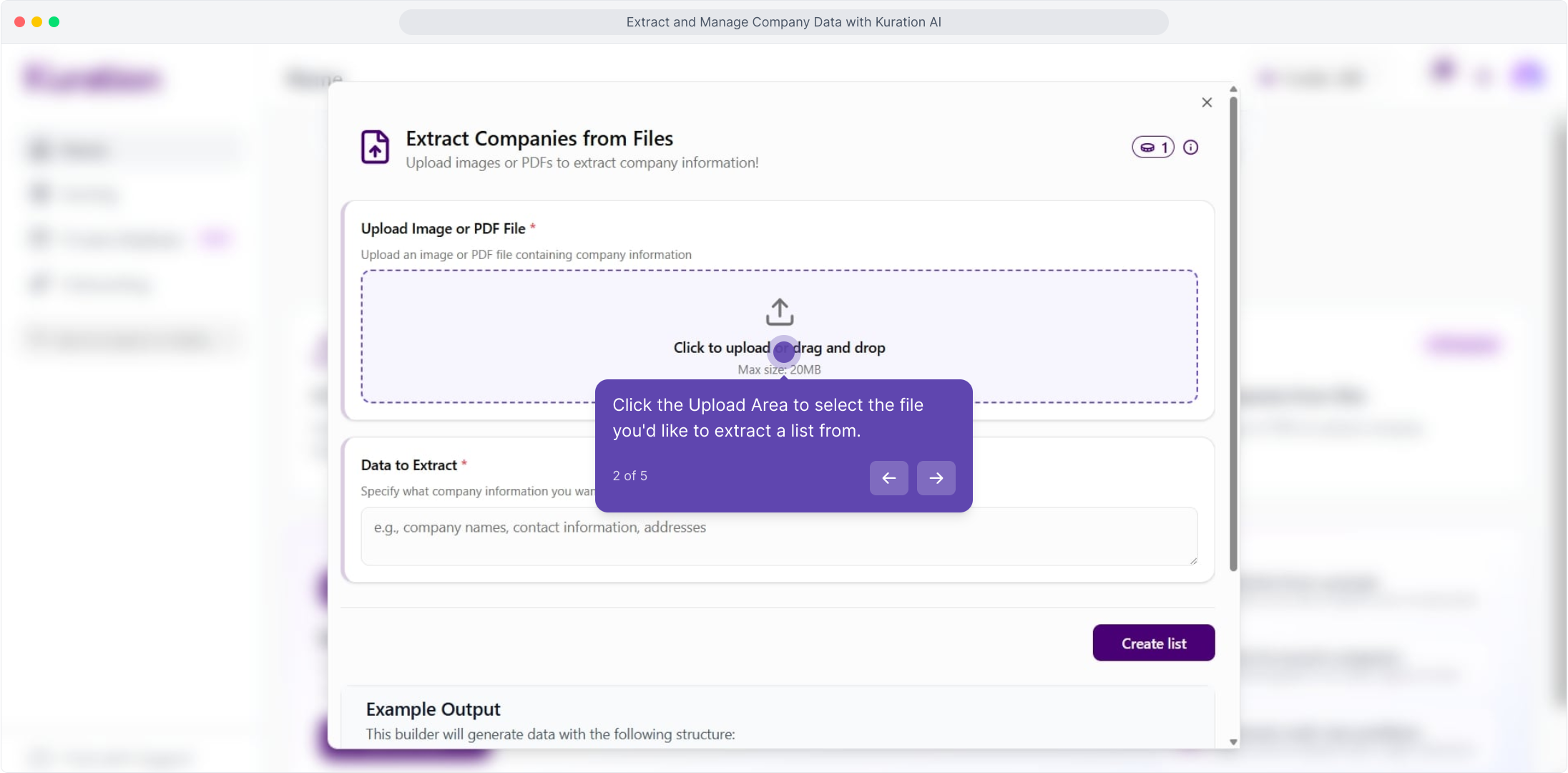
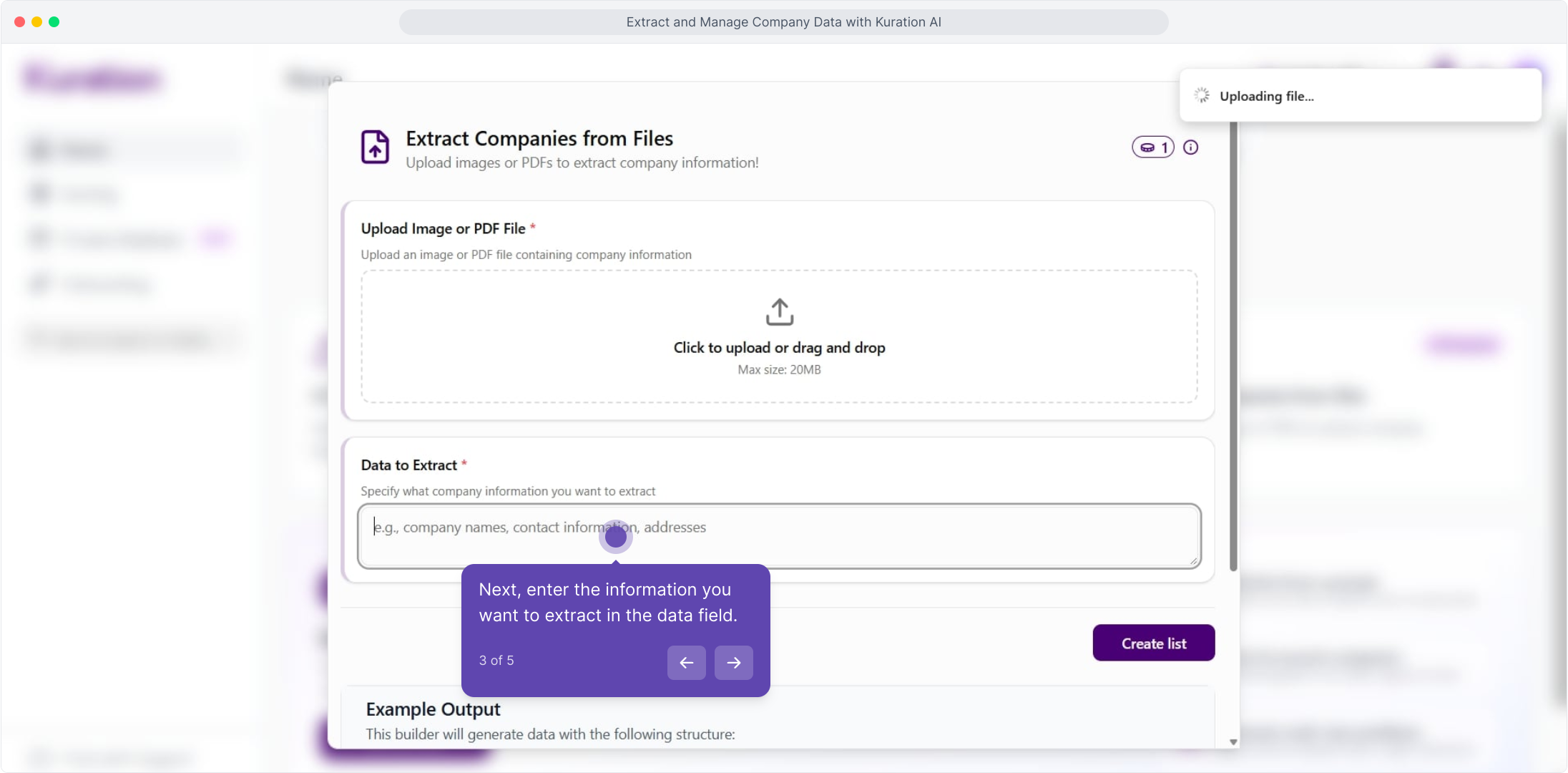
Drag and drop your file

Upload your PDF, CSV, or document.

4

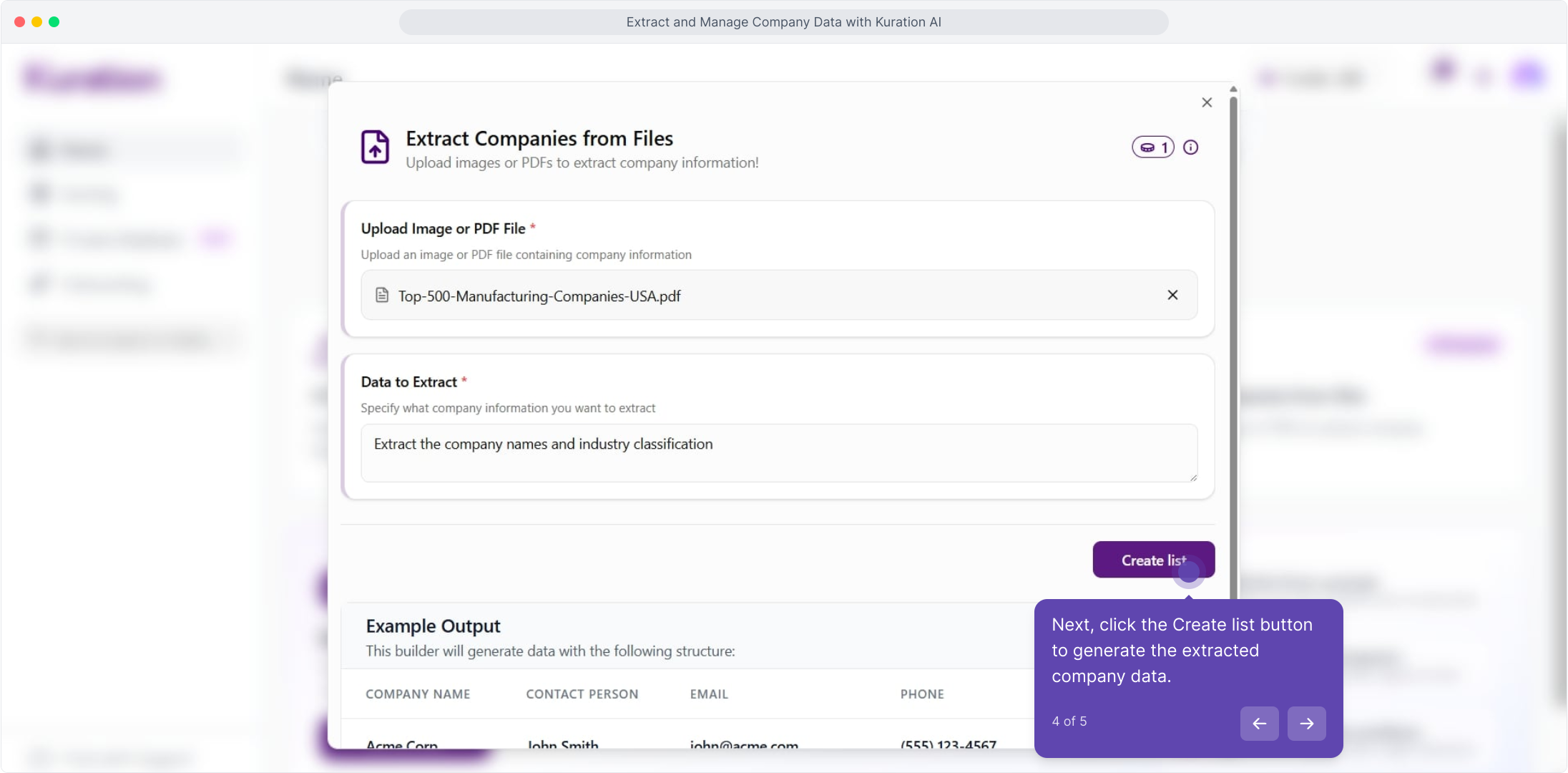
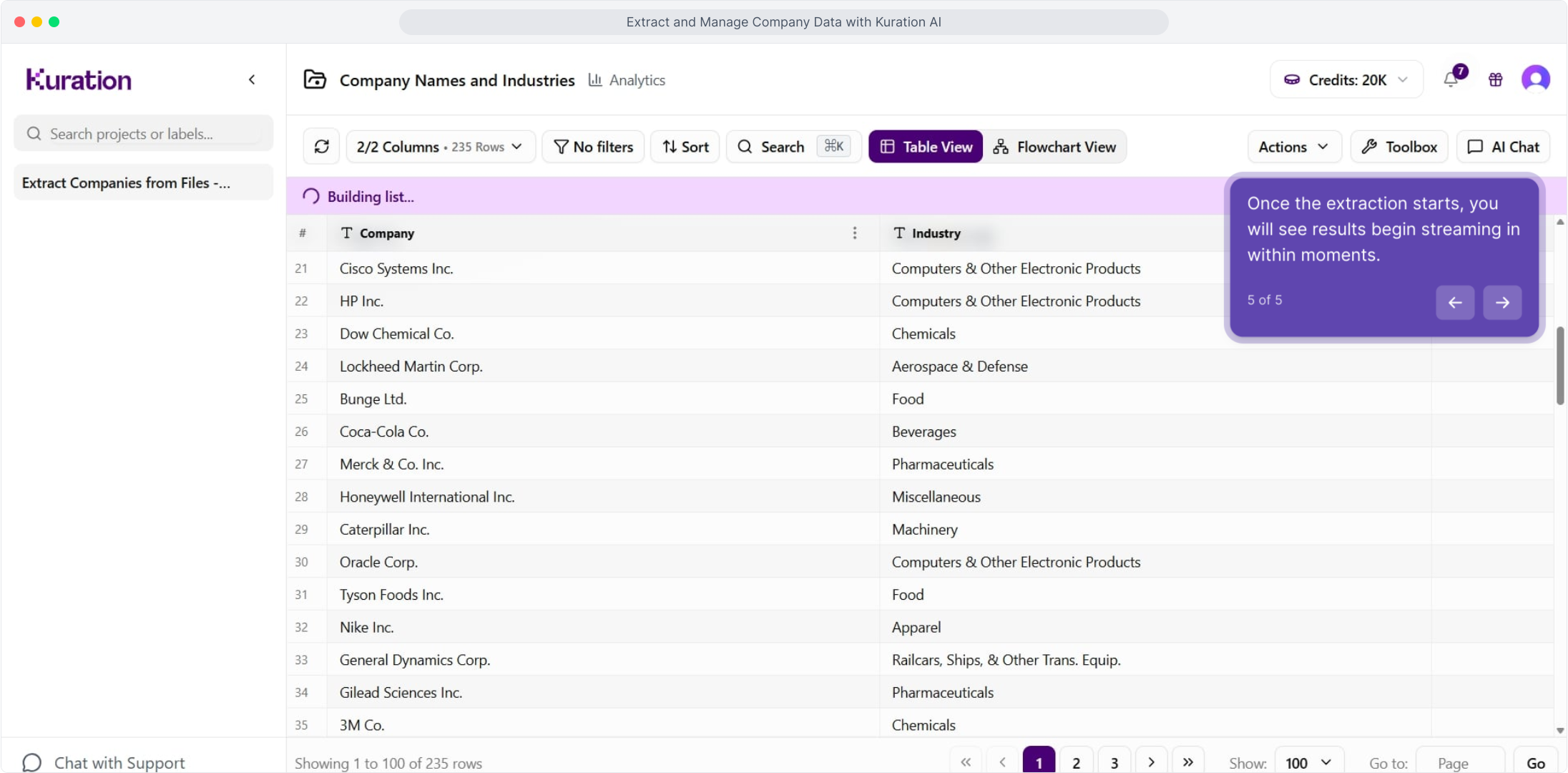
Review the extraction

Kuration identifies tables, lists, and structured text and populates your table. Review and adjust column mappings if needed.

What Kuration extracts

Kuration identifies and structures company names, contact information, addresses, tables, and lists found within your document. For scanned documents, OCR processes the text first. The cleaner the source PDF, the more accurate the extraction.

For best results, use native PDFs (not scanned images) when available. If you have a scanned document, ensure it is high-resolution for better OCR accuracy.