Lesson 1.2.5
Find decision makers at every qualified company
What this costs
Two tools, both charged per person returned, so a company that returns nobody costs nothing. Emails are a separate charge on top. The panel prices the run before you commit.
Before you start
A Website column, filled. Rows without a website are skipped, and a skip is not a miss.
You have companies. You need the person who can actually buy. Kuration gives you two tools for this and they work in opposite ways: one takes a list of job titles, the other takes a description of the role. Picking the right one is most of the lesson.
Two tools, and the difference matters
They sit next to each other in the Toolbox and the names are almost identical, so this catches almost everyone. Find People matches job titles you supply. Find People Agent works out the titles for you from a description of the role.
| Find People | Find People Agent | |
|---|---|---|
| You give it | A list of job titles, most senior first | A sentence describing the role |
| It matches on | The titles you wrote | Titles it discovers at each company |
| Limit | Eight titles per run, and only the first eight are used | None. It expands the role itself |
| Cost | 2 credits per person returned | 3 credits per person returned |
| Reach for it when | You know exactly what the title is called in your market | Titles vary company to company, which is most of the time |
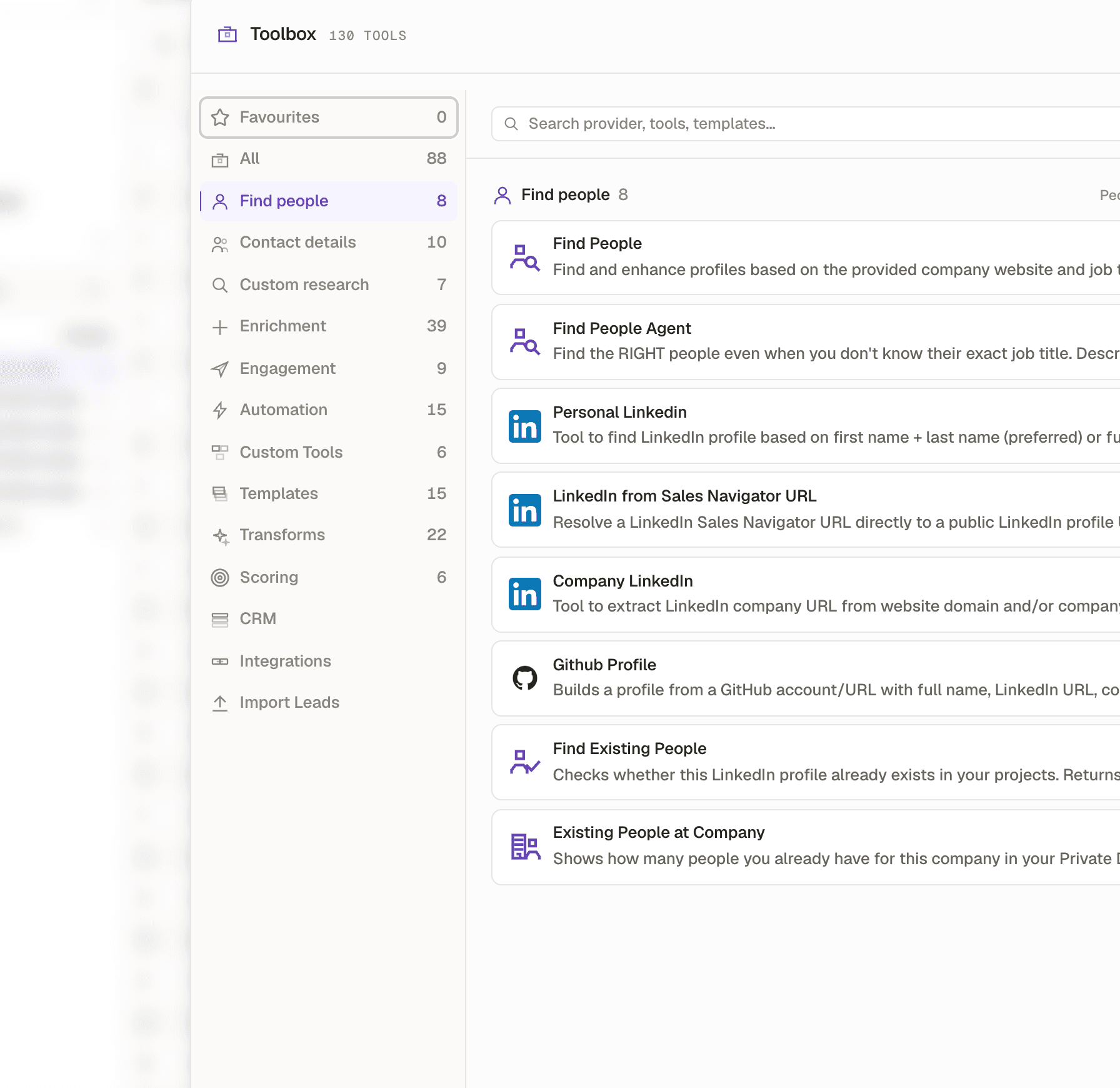
- 1Find People: based on the provided company website and job titles.
- 2Find People Agent: finds the right people even when you do not know the exact job title.
- 3Both are charged per result, so a company that returns nobody costs you nothing.
Describing the role, with the Agent
- 1
Confirm every row has a website
The website is the required input and it is what the agent resolves each company against. Rows without one are skipped. If you have gaps, run Official Website Finder on those rows first.
- 2
Open the Toolbox and pick Find People Agent
Find people is the first category in the sidebar. The Agent is the second card.
- 3
Answer the question the field actually asks
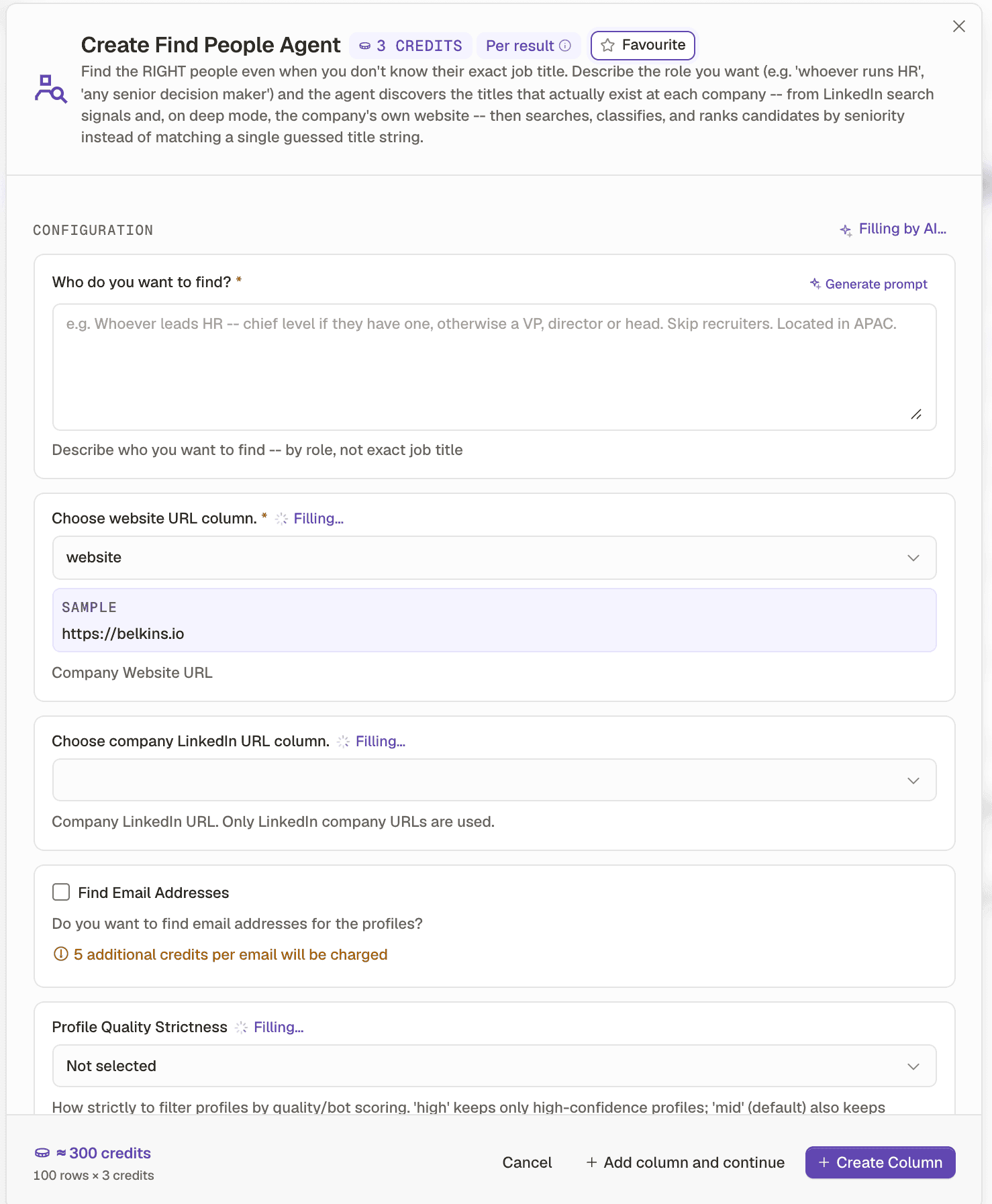
The field is headed "Who do you want to find?" and the helper text underneath says it plainly: describe who you want to find, by role, not exact job title. Name the responsibility, the seniority you want, the fallback you will accept, and anything to skip.
 12345
12345- 13 credits, charged per result. Nothing found on a row means nothing charged for that row.
- 2The role description. The placeholder is a good template: whoever leads HR, chief level if they have one, otherwise a VP, director or head, skip recruiters, located in APAC.
- 3The website column, required, with a live sample from your own table so you can see it picked the right one.
- 4Emails are a separate charge, added per email on top of the per person price.
- 5The estimate, before you press anything: your row count times the unit price.
The whole panel. The description at the top explains how it works: it discovers the titles that exist at each company from LinkedIn search signals, then ranks candidates by seniority rather than matching one guessed title string. - 4
Set Profile Quality Strictness deliberately
How strictly to filter profiles by quality and bot scoring. High keeps only high confidence profiles. Mid is the default and keeps more. Leaving it unset lets the default decide something you should decide.
- 5
Gate it with a condition so it runs only on rows that qualify
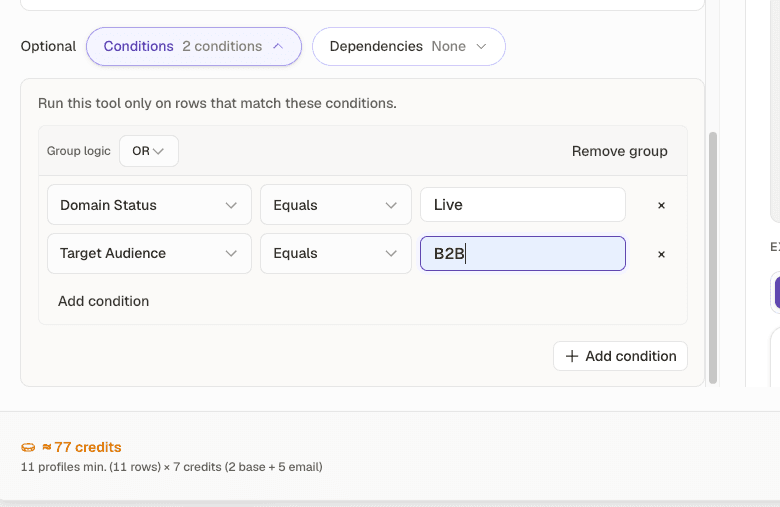
Conditions live under Optional, right beside the estimate. Add a rule and watch the estimate fall. This is where the cost discipline from the Practitioner track gets enforced rather than remembered.
 12
12- 1Conditions, next to Dependencies. Both travel with the column rather than with your view.
- 2Two rules here. The estimate underneath moves as you tighten them.
Run this tool only on rows that match these conditions. - 6
Create the column and read one cell
Open a returned cell in the Data Point Explorer. It shows which profiles were selected, which were rejected, and why each rejection happened. That last part is what tells you whether your strictness is right.
The exact role description to start from
Whoever leads marketing. Chief level if they have one, otherwise a VP, head or director. Skip agency, freelance and consultant profiles. Prefer someone based in the same country as the company.
Four sentences and each one is doing a job. The first names the responsibility. The second sets a seniority ladder with a fallback, so a twelve person company still returns its founder. The third excludes the profiles that pollute this kind of search. The fourth breaks ties.
What comes back, and how to read it

Worked example · One row per company, with the outcome per company
| Company | Target audience | Result | What it means |
|---|---|---|---|
| Wise | B2B | 1 profile | Matched, charged |
| Shopify | B2B | 1 profile | Matched, charged |
| HelloFresh | B2C | Skipped | The condition excluded it. Never ran, never charged |
| Automattic | B2B2C | Skipped | The condition excluded it |
| Zapier | B2B | 1 profile, 1 rejected | One returned, one failed the strictness gate |

- 1Thirty six percent, in green, red and amber. Completion, rejections and skips, in one bar.
- 2Skipped. The tool never ran here, so nothing was charged and nothing was missed.
- 3The reason: this row is B2C, and the condition asked for B2B.
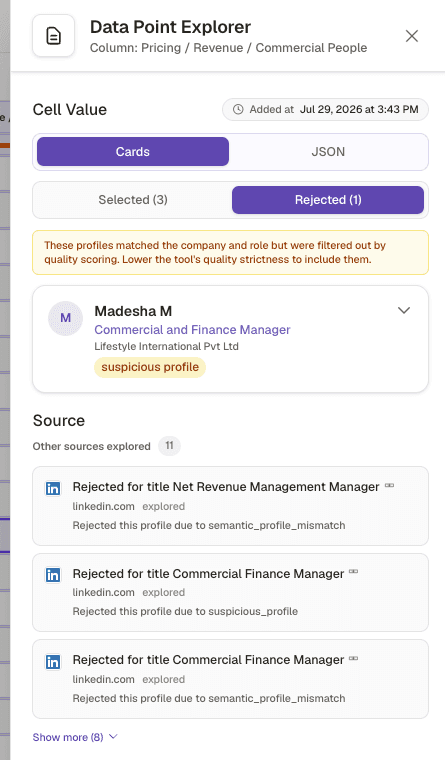
- 1Selected and Rejected, each with a count. A cell showing one profile may have considered a dozen.
- 2The banner names the cause and the fix.
- 3A reason per rejection, so you can tell a bad match from a setting that is simply too tight.
No website on the row
- What you see
- The cell reads Skipped
- The fix
- Run Official Website Finder on those rows first. It is the required input for both people tools.
Used Find People and wrote a role, not titles
- What you see
- Thin coverage across companies you know have that function
- The fix
- Find People matches the titles you supply. Either write the titles, or switch to the Agent, which is built for a description.
Used Find People with more than eight titles
- What you see
- Titles at the bottom of your list never appear
- The fix
- Only the first eight are used. Cut the synonyms and keep the ladder, or move to the Agent.
Strictness left unset
- What you see
- A high rejected count in the Data Point Explorer
- The fix
- Open a rejected cell and read the reasons. If they look like people you would have taken, drop to mid.
Surprised by the bill after ticking emails
- What you see
- The run costs several times what the per person price suggested
- The fix
- Emails carry their own per email charge on top. The estimate at the bottom of the panel shows the total before you run.
Read a low completion percentage as a broken column
- What you see
- The column bar sits at 36 percent
- The fix
- Check the condition first. A gated column is meant to run on a fraction of the table.
Check yourself
0 of 3 answered1.What is the difference between Find People and Find People Agent?
2.Using Find People, you list twelve job titles. What happens?
3.A row reads Skipped in your people column. What should you check first?
Try it yourself
Take 20 qualified rows. Use Find People Agent, describe the role you sell to in four sentences, set strictness to mid, leave emails off, and add one condition. Read the estimate before you run, then open one rejected cell afterwards.
- You have done it when
- The estimate you read beforehand matches what was deducted, and you can explain every Skipped row and every rejected profile.
- Credit budget
- About 60 credits for 20 rows at 3 credits per person, with emails off. Misses cost nothing.