Lesson 1.1.5
Reading a cell: where the value came from, and how sure we are
What this costs
Free. Reading results you already have.
Before you start
Any project with at least one enriched column.
A filled cell is not the whole answer. Behind it sits where the value came from, how confident the tool was, and what it looked at. Knowing how to open that is the difference between trusting a list and hoping about it, and it is also how you diagnose a column that returned less than you expected.
- 1
Open the cell rather than reading the table
Click into a filled cell to open the detail view. The table shows you the value. The detail view shows you the evidence: the source, what the tool matched on, and any secondary fields it returned alongside the main value.
The value in the table is a summary. The detail view is the evidence behind it. - 2
Read the source, not just the value
A company website found from an official listing is a different thing from one inferred from a similar name. When two rows disagree, the source is what tells you which to believe.
- 3
Tell an empty cell apart from a miss
Skipped and Not Found both say so in the cell, so those two tell you what happened. A cell left genuinely empty is the one worth opening, because it usually means the tool hit a problem rather than reached an answer. Telling them apart is the subject of an entire Practitioner lesson, because a filter on is empty cannot read those labels and that is the most expensive filtering mistake in the product.
- 4
Check what the tool matched on
Tools that resolve an entity tell you what they matched. A people search returns the title it actually found and how it relates to the role you asked for. A verification tool returns pass, warn or fail with a confidence score and the sources it read.
What a confidence signal is for
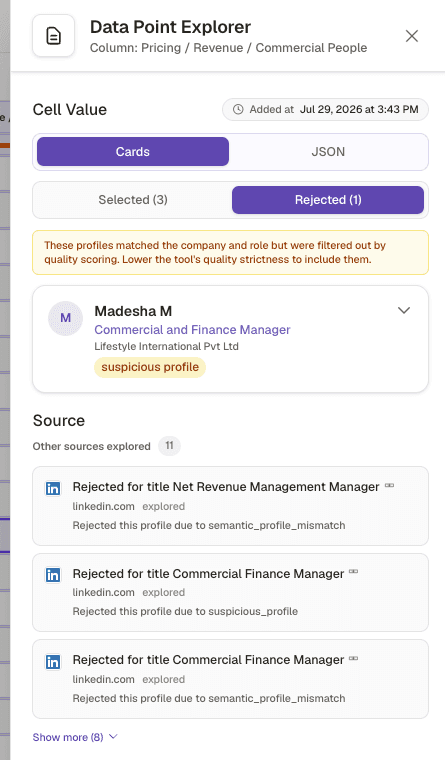
- 1Selected and Rejected are separate counts. A cell showing one profile may have considered a dozen.
- 2The banner names the cause and the fix: quality scoring filtered these out, lower the strictness to include them.
- 3A reason per rejection, so you can tell a bad match from a setting that is simply too tight.
Confidence is not decoration. It is a filter. A verification tool that returns pass, warn and fail lets you send the passes straight to outreach, route the warns to a human, and drop the fails. Treating all three as "the tool answered" throws away the most useful thing it gave you.
Exported on the table view alone
- What you see
- Rows in the CSV that look filled but hold a low confidence guess
- The fix
- Filter on the confidence or status field before exporting, not just on "is not empty".
Assumed a blank means the tool failed
- What you see
- You re run a column that never ran on those rows in the first place
- The fix
- Check whether the row was inside the filter when the column was created. Blank usually means skipped, not missed.
Check yourself
0 of 2 answered1.A cell is truly blank, with no status on it. What does that tell you?
2.What is the Rejected tab in the Data Point Explorer for?
Try it yourself
Take any enriched column and open ten cells: five filled, five empty. For each empty one, say whether it was skipped or missed, and why.
- You have done it when
- You can explain every one of the five empty cells without guessing.
- Credit budget
- Free.